When you need to connect a laptop or tablet to the internet away from home, Android tethering turns your phone into a mobile router. There are three ways to do it — Wi-Fi hotspot, USB, and Bluetooth — each with different trade-offs in speed, battery impact, and number of connected devices. This guide walks through the setup steps for each method, helps you pick the right one for your situation, and covers data usage, battery tips, carrier plan considerations, and security best practices.
Table of Contents
- What Is Android Tethering?
- How to Set Up Wi-Fi Hotspot
- How to Set Up USB Tethering
- How to Set Up Bluetooth Tethering
- Things to Keep in Mind When Tethering
- FAQ
- Summary
What Is Android Tethering?
Tethering shares your Android phone's mobile data connection with other devices. By turning your phone into a portable router, you can get a laptop or tablet online even where there's no Wi-Fi.
Three Tethering Methods Compared
Android supports three tethering methods, each with different characteristics:
| Method | Speed | Battery drain | Devices | Best for |
|---|---|---|---|---|
| Wi-Fi hotspot | Fast | High | Multiple | Laptops, multiple devices at once |
| USB | Fastest | Phone charges | 1 only | Long PC sessions, combined charging |
| Bluetooth | Slow | Low | 1–several | Light tasks, battery-saving priority |
Wi-Fi hotspot is the most versatile and works with multiple devices simultaneously. USB tethering delivers the best speed and stability. Bluetooth tethering uses the least battery.
What to Check Before You Start
Before enabling tethering, confirm:
- Your carrier plan supports tethering (covered below)
- Your remaining mobile data allowance
- Your Android battery level (Wi-Fi and Bluetooth tethering drain it quickly)
- For USB tethering: a data-capable USB cable — charging-only cables won't work
Most carrier plans, including MVNOs, support tethering, but some older or budget plans may require an add-on or extra fee.
How to Set Up Wi-Fi Hotspot
This is the most common method. Your Android acts as a wireless access point, and other devices connect to it over Wi-Fi.
Basic Setup and Changing the Password
- Open the Settings app
- Tap Network & internet or Connections
- Tap Hotspot & tethering or Mobile hotspot
- Select Wi-Fi hotspot or Wi-Fi tethering
- Check the Network name (SSID) and change it if needed
- Tap Password to set a new one (the default is an auto-generated random string)
- Toggle the switch On to start the hotspot
The menu names and navigation depth vary slightly by device (Pixel, Galaxy, Xperia, etc.), but the settings are consistently found under Network & internet or Connections in the Settings app.
The default random password is hard to remember and re-enter every time — replace it with something memorable but hard to guess, using at least 8 characters with a mix of letters, numbers, and symbols.
Connecting a Device to the Hotspot
- Open the Wi-Fi settings on your laptop or tablet
- Find the SSID you just set in the network list
- Click it and enter the password
- Connection complete
Multiple devices can connect at once, but speed is shared across all of them. Most Android phones support up to around 8 simultaneous connections.
How to Set Up USB Tethering
USB tethering connects your Android to a PC via a USB cable. It's the fastest and most stable of the three methods, and your phone charges while tethering — ideal for extended sessions.
- Connect your Android to the PC with a USB cable
- Wait briefly for the PC to install the USB driver automatically (first time only)
- On Android, go to Settings → Network & internet → Hotspot & tethering
- Toggle USB tethering On
- The PC's internet connection activates automatically
USB tethering is a one-to-one connection, but it's immune to Wi-Fi interference, making it the most reliable option for sustained speeds.
One important note: you need a data-capable USB cable. Cheap charging-only cables won't work. The cable that came with your phone should support data transfer.
How to Set Up Bluetooth Tethering
Bluetooth tethering uses the least battery of the three methods. It's slow — 1–3 Mbps typically — but more than enough for email, messaging, and light web browsing.
- Pair your Android with the target device via Settings → Connected devices → Pair new device
- On Android, go to Settings → Network & internet → Hotspot & tethering
- Toggle Bluetooth tethering On
- On the PC or tablet, open Bluetooth settings and select the paired Android device
- Choose Connect via network or Use as access point
Once paired, you can reconnect without entering a password or plugging in a cable every time. Bluetooth tethering is most useful during travel when you want to conserve battery over long periods.
Things to Keep in Mind When Tethering
Tethering is convenient, but there are some practical considerations around data, battery, cost, and security.
Data Usage and Battery Drain
All data used by devices connected through tethering counts toward your mobile data allowance. PC background processes, OS updates, streaming video, and large file downloads can burn through data quickly.
Rough data usage estimates: - Video streaming: 1–7 GB per hour (depending on quality) - Video calls: 0.5–1.5 GB per hour - General web browsing and email: a few dozen MB to 100 MB per hour
Wi-Fi hotspot mode turns your phone into a miniature wireless base station, which significantly increases battery drain. USB tethering charges your phone while sharing data, making it the most practical option for long sessions.
Carrier Plans and Extra Fees
Most major carriers and MVNOs include tethering for free on their main plans, but some older or specialized plans charge an extra fee.
- Main plans from major carriers: tethering is generally free
- Some legacy plans: a monthly add-on fee applies
- International roaming: costs can be very high — always check before enabling
Check your specific plan in your carrier's app or account portal.
Security Tips
Wi-Fi hotspot broadcasts a signal that anyone nearby could try to connect to if the password is weak.
- Choose WPA2 or WPA3 as the security type
- Use a strong password: at least 8 characters, mixing letters, numbers, and symbols
- Turn off the hotspot when you're done
- Don't include personal information in your SSID when in public
USB tethering is physically connected, making it the most secure option by default.
FAQ
Q. Does tethering cost extra?
A. On most major plans, the hotspot feature itself is free. However, data used through tethering counts against your monthly data cap — exceed the cap and your speeds will be throttled.
Q. I got a message saying I need to subscribe to a tethering option.
A. Some older or corporate plans require a separate monthly tethering add-on. If you see this prompt in the Settings app, sign into your carrier's account portal and enable the tethering option.
Q. Does tethered data count separately from regular phone data?
A. No, it all counts together. Data your laptop uses through tethering and data your phone uses directly both draw from the same monthly allowance.
Q. Tethering won't turn on. What should I check?
A. Make sure mobile data is enabled — tethering doesn't work in Airplane Mode or when mobile data is off. If it's still not working, restart your Android or reset network settings. Removing and reinserting the SIM card sometimes resolves the issue.
Q. My 5G plan — does tethering speed also reach 5G?
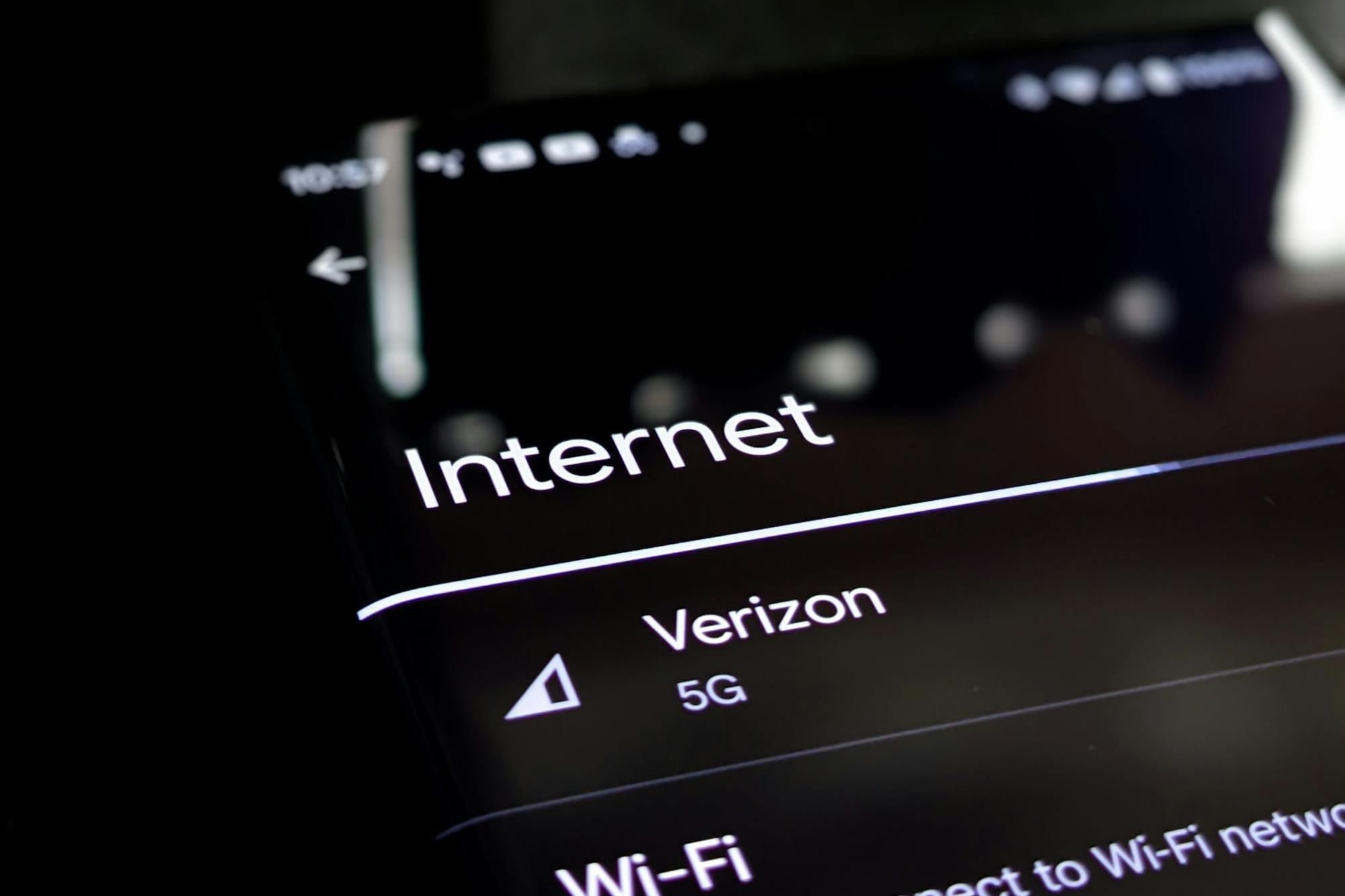
A. Yes, if you're in a 5G coverage area with an active 5G connection, your tethered devices can benefit from 5G speeds. The actual throughput still depends on the Wi-Fi or Bluetooth capability of the connected device, cable quality, and other hardware factors. Note that enabling Airplane Mode will also stop tethering.
Summary
Android tethering gives you three options: Wi-Fi hotspot for connecting multiple devices at once, USB for the fastest and most stable single-device connection, and Bluetooth for minimal battery impact. Find the settings under Settings → Network & internet (or Connections) → Hotspot & tethering. Keep an eye on your data usage, battery level, carrier plan terms, and hotspot password strength, and you'll have a reliable mobile internet connection wherever you go.