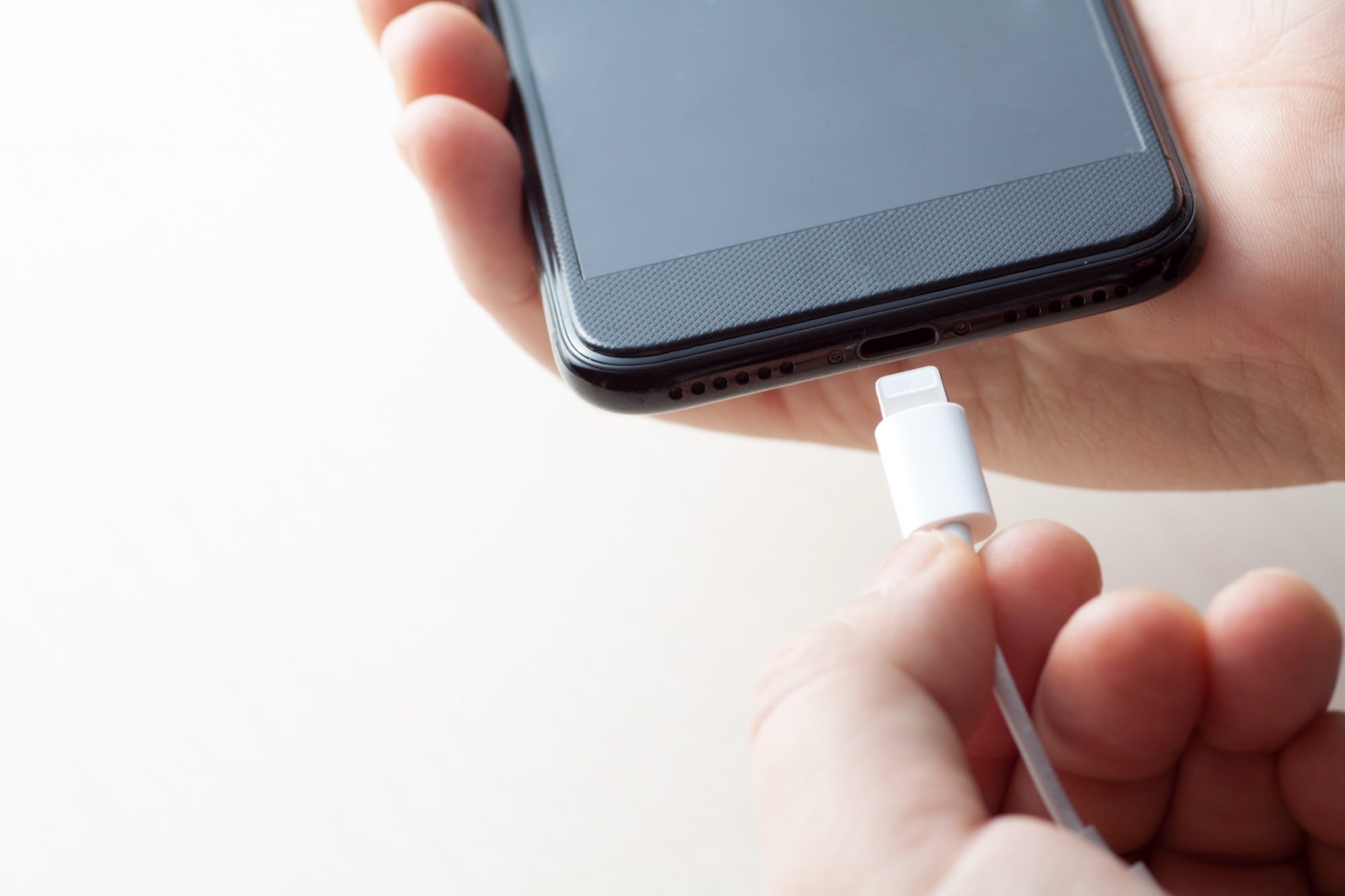
You plug in your iPhone and walk away — only to come back and find the battery barely budged. Slow charging on an iPhone can trace back to five main culprits: insufficient adapter wattage, a degraded cable, a dirty charging port, ambient temperature, and software settings. This guide walks through each cause in a checklist format, covering both iPhone 14 and earlier (Lightning) and iPhone 15 and later (USB-C), so you can pinpoint the problem and fix it quickly. If your iPhone is charging at all but noticeably slowly, work through the steps below from top to bottom.
Table of Contents
- What to know first when your iPhone is charging slowly
- Check your charging adapter
- Check your charging cable
- Clean the Lightning or USB-C port
- Check iPhone temperature and environment
- Software and settings causes
- Wireless charging and MagSafe running slow
- Check battery health
- Frequently asked questions
- Summary: step-by-step checklist
What to know first when your iPhone is charging slowly
What counts as "slow"? Normal charge rates by hour
Without a concrete benchmark, "slow" and "fast" are relative. Here are the standard charge rate targets to compare against.
Wired charging benchmarks:
- 5W (the old compact white adapter): roughly 15–20% per hour. Filling an iPhone 15 Pro from empty takes 4–5 hours.
- 20W USB-C PD (fast charging): available on iPhone 8 and later. Reaches approximately 50% in 30 minutes.
- 30W+ USB-C PD: iPhone 15 Pro and Pro Max support up to 27W input, delivering a noticeable speed bump over 20W.
Wireless charging benchmarks:
- MagSafe (iPhone 12 and later): up to 15W. Expect roughly 30–40% per hour.
- Qi wireless charging (non-MagSafe pads): capped at 7.5W on iPhone. Expect roughly 20–25% per hour.
If your iPhone is charging significantly slower than these numbers, something is off. Use the cause-by-cause checklist below to find it.
The six categories of causes
Slow iPhone charging almost always falls into one of six buckets:
- Underpowered adapter: using a 5W or 10W adapter instead of a 20W+ USB-C PD unit
- Cable limitations or damage: a charge-only cable (no data), or one that's internally frayed
- Dirty or damaged port: lint and debris in the Lightning or USB-C port breaking the electrical connection
- High ambient temperature: iPhone automatically throttles charging when it gets too warm
- Software settings: Optimized Battery Charging, Low Power Mode, or a runaway background process
- Battery degradation: reduced maximum capacity lowering overall charging efficiency
Symptom-to-cause quick reference
| Symptom | Most likely cause | First thing to check |
|---|---|---|
| Suddenly much slower than usual | Cable damage, dirty port, or a settings change | Swap in a different cable |
| Always been slow (since day one) | Underpowered adapter | Check the wattage printed on the adapter |
| Stops or slows above 80% | Optimized Battery Charging is active | Settings → Battery → Battery Health & Charging |
| Only slow on wireless | Incompatible case, pad, or misalignment | Remove the case and center the phone on the pad |
| Slow only when iPhone feels hot | Thermal protection throttling | Move to a cool location and remove the case |
| Slow while using the phone | Screen and app power draw offsetting charge input | Lock the screen while charging |
Check your charging adapter
5W vs. 20W+ USB-C PD: what the difference actually means
An underpowered adapter is the single most common reason iPhones charge slowly. The adapter bundled with older iPhones (pre-2018 models) was a compact 5W cube — enough to charge, but very slowly. Here's how the major adapter tiers compare:
- iPhone 14 and earlier (Lightning): iPhone 8 and later support fast charging with a 20W USB-C PD adapter. An adapter below 20W won't activate fast charging.
- iPhone 15 and later (USB-C): supports USB-C PD natively. iPhone 15 and 15 Plus accept up to 20W; iPhone 15 Pro and Pro Max accept up to 27W.
To hit the "50% in 30 minutes" benchmark, you need a 20W or higher USB-C PD adapter. It doesn't have to be Apple's own — any adapter that explicitly supports USB Power Delivery (look for "USB PD," "PD," or "20W" on the label or box) will work.
iPhone 15 and later use USB-C: verify your adapter's output
iPhone 15 dropped Lightning in favor of USB-C. Many users replaced both the cable and adapter at the same time — but a USB-C cable paired with a low-wattage adapter is still a slow setup. The cable's connector type doesn't change the adapter's output.
How to read the output label on your adapter:
- Look at the small text printed on the side or back of the adapter body
- "OUTPUT: 5V⎓1A" means 5W — the legacy slow-charging spec
- "OUTPUT: 9V⎓2.22A," "20W," or "PD" indicates fast-charge capability
If you're still using an old adapter, switching to a 20W+ USB-C PD unit can cut your total charge time in half.
Why charging via PC, USB hub, or car USB is always slow
USB ports on computers, cars, and cheap hubs are designed for data — not delivering serious charging power.
- PC / Mac USB-A ports: capped at 500 mA (roughly 2.5W). Charging works, but slowly — and if you're using the iPhone at the same time, the battery may drain despite being plugged in.
- PC / Mac USB-C ports: typically 5–15W, and not all support USB PD. Check your computer's specs.
- Car USB ports (data-type): most are 5W or less. For meaningful in-car charging, use a dedicated USB-C PD car charger that plugs into the 12V/cigarette-lighter socket.
- Budget USB hubs: even AC-powered hubs often limit per-port output, especially when multiple devices are connected.
Switching from any of these to a 20W+ adapter plugged directly into a wall outlet is the single highest-impact change you can make.
Check your charging cable
Lightning and USB-C cable specs and fast-charge compatibility
The cable itself has a significant impact on charging speed. Not every Lightning or USB-C cable supports fast charging.
- Lightning cables (iPhone 14 and earlier): Apple's own cables and MFi-certified third-party cables support up to 20W fast charging. Some ultra-cheap cables are charge-only (no data), which can limit the power negotiation between the adapter and the iPhone.
- USB-C cables (iPhone 15 and later): even a basic USB 2.0-spec USB-C cable can carry 20W — but very low-quality cables sometimes lack the E-Marker chip needed for proper power negotiation, capping output unexpectedly.
- USB-C cables with high-speed data (USB 3.2 / Thunderbolt): these unlock video output on iPhone 15 Pro, but they don't charge faster than 20W on any current iPhone model.
If you have a spare cable handy, try swapping it in — cable-related slowdowns are common and the fix is instant.
Why MFi certification matters for Lightning cables
MFi (Made for iPhone/iPad/iPod) is Apple's licensing program for third-party accessories. Non-MFi Lightning cables can stop working properly after an iOS update, because iOS may flag uncertified cables and throttle their output or display an "Accessory Not Supported" warning.
- When iOS detects a non-MFi Lightning cable, it may automatically limit charging speed or refuse to charge at all
- Non-certified cables often lack proper quality control, increasing the risk of overheating and premature failure
- USB-C is an open standard with no MFi certification, but poorly made USB-C cables can still damage the adapter or the phone's charging circuitry
When buying a new cable, look for Apple's own cables or products that clearly display the MFi badge on the packaging.
Signs your cable is failing and when to replace it
Charging cables are consumables. Replace yours if you notice any of the following:
- The insulation near the plug is cracked or split: the internal wires are likely partially broken
- Charging cuts out when you move the cable: an intermittent internal break is causing an unstable connection
- The cable gets unusually hot during charging: increased resistance is generating heat — a potential fire hazard
- Charging is slow to start or the phone takes several attempts to recognize the cable: the connector contacts are oxidized or dirty
Even genuine Apple cables have a lifespan. With daily use, plan on replacing your cable every one to two years. Habitually twisting or bending the cable near the connector will shorten that window considerably.
Clean the Lightning or USB-C port
Signs of a poor connection
Pocket lint and debris pack into the Lightning or USB-C port over time, gradually pushing the cable's contact pins away from the port's contacts. iPhones that spend most of the day in a pocket or bag accumulate lint the fastest.
Signs that the port is causing your slow charging:
- The cable doesn't click firmly into place and feels loose
- Charging takes several insert-and-remove attempts before it starts
- The slightest movement of the cable interrupts charging
- The connector tip comes out with gray or black residue on it
How to clean the port safely
The cardinal rule: never use anything metal — no pins, needles, or paper clips. The Lightning and USB-C ports contain delicate contact pins that are easily bent or scratched.
- Power the iPhone off completely (required before cleaning)
- Use a wooden or bamboo toothpick (or a soft plastic cleaning tool) to gently loosen and scoop out compacted lint — work from the sides and avoid pressing on the center pins
- Follow up with a can of compressed air to blow out remaining debris; hold the can upright so no liquid propellant enters the port
- Wipe away any dislodged lint with a dry tissue
- Power the iPhone back on, plug in the cable, and verify that charging starts normally
Things to avoid entirely: metal tools of any kind (pins, clips, needles — they bend the port's contact array); water or alcohol sprayed directly into the port (they cause internal corrosion).
If cleaning doesn't help
If the port still feels loose or charging doesn't improve after a thorough cleaning, the port itself may be physically damaged. This requires a repair visit to an Apple Store or an Apple Authorized Service Provider (AASP).
If your iPhone has been exposed to saltwater, pool water, or other liquids, internal corrosion is possible. The IP68 rating covers brief submersion in fresh water, but saltwater and pool chemicals corrode internal components even when the iPhone looks fine externally. Have a repair technician inspect it.
Check iPhone temperature and environment
How heat triggers automatic charge throttling
Apple builds thermal protection directly into the iPhone's charging circuitry. When the internal temperature climbs too high, the iPhone automatically slows or pauses charging to protect the battery. Apple's recommended operating temperature is 32–95°F (0–35°C), and exceeding it triggers throttling.
- Charging itself generates heat through the electrochemical reaction inside the battery
- When that internal heat combines with a hot environment, the phone's core temperature spikes quickly, and the protection circuit kicks in
- The message "Charging On Hold" or "Charging Paused" on the lock screen is a direct sign of thermal protection at work
The ideal charging environment is 68–77°F (20–25°C). Charging in a hot room without air conditioning or outdoors in summer will noticeably cut your charging rate.
Remove the case to improve heat dissipation
Thick silicone and leather cases act as insulators, trapping heat against the iPhone's back. If your iPhone runs warm during charging, try removing the case.
- Removing the case can drop the iPhone's surface temperature by 4–9°F (2–5°C)
- MagSafe wireless charging generates additional heat through induction; the case traps that heat too, compounding the problem
- Even MagSafe-compatible cases are better removed during charging when heat is an issue
Keep your iPhone out of direct sunlight and hot cars
A sun-baked dashboard or a car seat with the windows up can reach 140–160°F (60–70°C) on a hot day. Leaving your iPhone in these conditions causes not just a charging pause but permanent battery degradation.
- The "iPhone needs to cool down before you can use it" warning means all functions except Emergency SOS are locked until the device cools
- Once the warning clears, expect a few minutes before charging performance returns to normal
- Repeated high-heat exposure shortens battery lifespan cumulatively, even if no single episode triggers a warning
Software and settings causes
Optimized Battery Charging (the 80% pause)
Introduced in iOS 13, Optimized Battery Charging intentionally slows charging after 80% to reduce the time the battery spends at 100% — one of the primary causes of long-term battery wear. If your iPhone stalls around 80% for an extended period, this feature is doing exactly what it's designed to do.
To check or adjust it:
- Go to Settings → Battery → Battery Health & Charging
- Look at the Optimized Battery Charging toggle
- If you need a full charge right now, tap Charge Now in the notification that appears on the lock screen — or temporarily turn the toggle off
This feature extends battery lifespan meaningfully over the life of the phone. The recommended approach is to leave it on by default and only disable it when you urgently need 100%.
Low Power Mode and charging speed
Low Power Mode reduces background activity, visual effects, and display brightness to conserve energy — but it doesn't directly limit the wattage delivered to the battery. That said, while Low Power Mode is active, iOS continues running certain system tasks, and that background power consumption slightly reduces the net charge rate you'll see in practice.
- Toggle Low Power Mode at any time in Settings → Battery
- It disables automatically when the battery reaches 80%
- To isolate whether Low Power Mode is a factor, turn it off and watch whether the percentage climbs noticeably faster
Temporary slowdowns after an iOS update
After a major iOS update (for example, iOS 17 → iOS 18), background processes — Spotlight index rebuilding, Photos library analysis, and Siri relearning — can run for hours, keeping the CPU and battery under sustained load and making charging feel slow.
- This background work usually completes within one to two days
- Leaving the iPhone locked and plugged in (screen off) lets these processes finish faster
- On Wi-Fi, iCloud backup may also kick in simultaneously, adding to the heat and load
Runaway background apps and how to fix them
An app that's looping or consuming excessive CPU in the background pulls power that would otherwise go to the battery. A simple restart clears the vast majority of runaway app situations.
- On iPhone 8 and later: press and release Volume Up, press and release Volume Down, then press and hold the Side button until the power slider appears → drag to power off
- Wait a few seconds, then press the Side button to power back on
- Plug in the cable and observe whether the charge rate improves
If the slowdown returns after restarting, go to Settings → Battery → Battery Usage to identify which app is consuming the most power, then update or uninstall it.
Wireless charging and MagSafe running slow
MagSafe (up to 15W) vs. Qi wireless charging (up to 7.5W)
The wireless charging pad you use makes an enormous difference in speed. Here's how the major wireless standards compare on iPhone:
| Standard | Compatible models | Max output | Notes |
|---|---|---|---|
| MagSafe | iPhone 12 and later | 15W | Magnetically aligned for peak efficiency; fastest wireless option |
| Qi2 | iPhone 13 and later (iOS 17+) | 15W | Matches MagSafe speed on Qi2-certified pads |
| Qi (iPhone-certified) | iPhone 8 and later | 7.5W | The limit on non-MagSafe Qi pads |
| Qi (generic) | iPhone 8 and later | 5W | Most budget Qi pads deliver only this |
If wireless charging feels dramatically slower than wired, you're most likely on a 5W generic Qi pad. Upgrading to a MagSafe or Qi2 pad can triple the rate.
Checking case compatibility
Wireless charging works through most cases, but case design significantly affects efficiency:
- MagSafe-compatible cases: the internal magnet array meets Apple's spec, preserving the full 15W
- Metal cases or cases with metal plates: block electromagnetic induction, preventing or severely limiting wireless charging
- Thick silicone or leather cases: more than about 3mm of material can reduce efficiency
- Cases with card pockets: cards — especially transit cards with RFID chips — placed between the phone and the charger will stop charging or trigger a warning
Why the adapter matters for MagSafe (20W+)
The MagSafe charger cable connects via USB-C to a wall adapter. If that adapter is below 20W, MagSafe cannot deliver its full 15W — the power negotiation is capped and output typically falls to around 7.5W.
- Always pair the Apple MagSafe Charger with the included USB-C 20W adapter or any adapter rated 20W or higher
- Adapter wattage is especially critical for MagSafe; using a 5W or 10W adapter is one of the most common reasons MagSafe feels no faster than a standard Qi pad
Misalignment and metal interference
Wireless charging depends on precise coil-to-coil alignment. Even a small shift can cut efficiency significantly. MagSafe's magnets handle alignment automatically; generic Qi pads do not.
- On a Qi pad, center the iPhone directly over the pad's charging coil
- Metal particles or shavings inside a case or wallet can heat up near the coil and reduce charging efficiency
- If charging starts but the satisfying magnetic click never comes, the alignment is off
- Even with MagSafe, a hidden metal component inside the case can weaken the magnetic hold and shift the coils out of alignment
Check battery health
How to find your maximum capacity in Settings
Every iPhone battery loses capacity over charge cycles. As maximum capacity drops, overall charging efficiency declines — the battery absorbs power less effectively, and the protection circuitry may further limit input current to preserve what's left.
To check battery health:
- Open the Settings app
- Go to Battery → Battery Health & Charging
- Note the Maximum Capacity percentage (100% when the battery was new)
The same screen shows "Important Battery Messages" with Apple's diagnostic summary of whether the battery is performing normally.
Below 80% maximum capacity: time to replace
Apple recommends battery replacement when maximum capacity falls below 80%. Under that threshold, you may experience:
- Slower apparent charge speeds (charging circuitry limits current to protect the degraded cells)
- Shorter screen-on time — less than 80% of what the iPhone delivered when new
- Unexpected shutdowns, because the weakened battery can't supply sudden current spikes
- Performance throttling — iOS may reduce CPU speed to prevent crashes on a battery that can't keep up
Replacement through Apple or an Authorized Service Provider
Apple strongly recommends having the battery replaced by an Apple Store or Apple Authorized Service Provider (AASP):
- With AppleCare+: battery replacement is free if maximum capacity is below 80%
- Without AppleCare+: out-of-warranty battery service is available for a fee that varies by model
- Third-party or self-service repairs: iOS may flag the battery as non-genuine, showing "Service" on the Battery Health screen and disabling some charging data displays. Charging control behavior may also be affected.
You can book a battery service appointment through the Apple Store app or on apple.com. Mail-in service is available in most regions.
Frequently asked questions
Is charging overnight enough?
In most cases, yes — overnight charging with Optimized Battery Charging enabled is a sensible routine. The feature learns your wake-up time and delays the top-up from 80% to 100% until shortly before your alarm, minimizing the hours spent at full charge and extending long-term battery health.
The one caveat: if you're using an older 5W adapter, it may not fully charge a current iPhone model in 7–8 hours. If you wake up to less than 100%, consider replacing the adapter with a 20W+ unit.
Do I have to use Apple's own charger?
No, but the third-party accessory you choose matters. Guidelines by component:
- Lightning cable: MFi-certified cables from reputable brands perform on par with Apple's own cables
- USB-C cable: look for USB PD compatibility from established brands (Anker, Belkin, and similar)
- Adapter: choose adapters that are UL listed (or carry your country's relevant safety certification) and explicitly state USB Power Delivery support
- No-name budget accessories: the risk of short circuits, overheating, and early failure is meaningfully higher — avoid them
Why is my power bank so slow?
Power bank output is the primary culprit:
- Many portable batteries are limited to 5W output — fine for an emergency top-up, painfully slow otherwise
- A USB PD-capable power bank (18W or 20W+) unlocks iPhone fast charging on the go
- Most power banks throttle output when their own battery drops below 20%
- If the power bank has both USB-A and USB-C ports, the USB-C port almost always delivers more power
Why does charging seem slower when I'm using my phone?
Because the screen, cellular radio, and active apps are consuming power at the same time the charger is trying to add it. The net charge rate is adapter input minus phone consumption. A 20W charger powering a phone that's streaming video (5–10W draw) delivers only 10–15W of actual net charge. Gaming can draw even more, occasionally outpacing the charger entirely.
The most effective way to charge quickly is to lock the screen (sleep the display) and leave the phone alone. Enabling Airplane Mode eliminates the cellular radio's power draw too, squeezing out a bit more speed.
How long should a full charge take?
Approximate full-charge times (20W USB-C PD, 0–100%) for recent models:
- iPhone 15 / 15 Plus: approximately 1 hour 40 minutes to 2 hours
- iPhone 15 Pro / 15 Pro Max: approximately 1 hour 30 minutes to 1 hour 50 minutes (up to 27W input)
- iPhone 14 / 14 Plus: approximately 1 hour 45 minutes to 2 hours 10 minutes
- iPhone 14 Pro / 14 Pro Max: approximately 1 hour 45 minutes to 2 hours
If a full charge is consistently taking 3 hours or more, the adapter or cable is likely underpowered, or the battery is significantly degraded. Also note that charging naturally slows above 80% as the charger switches to a trickle mode to protect the battery — that last 20% always takes longer than the first 80%, and that's by design.
Summary: step-by-step checklist
When your iPhone is charging slowly, work through this list in order — most cases are solved before you reach step 4.
- Upgrade the adapter: switch to a 20W+ USB-C PD adapter. If you're currently charging through a PC, USB hub, or car port, move to a wall outlet.
- Swap the cable: try a different cable and see if the rate improves. Use MFi-certified Lightning cables or USB PD-compatible USB-C cables.
- Clean the port: use a wooden toothpick and compressed air to remove lint from the Lightning or USB-C port.
- Control the temperature: remove the case and charge in a cool location (68–77°F / 20–25°C). Let an overheated iPhone cool before plugging in.
- Review settings: check whether Optimized Battery Charging explains the 80% stall. Restart the iPhone to clear any runaway background processes.
- Check battery health: go to Settings → Battery → Battery Health & Charging. If maximum capacity is below 80%, schedule a battery replacement.
- Visit Apple or an AASP: if nothing above resolves the issue, a damaged port or faulty battery likely requires professional diagnosis.
The adapter is the fix in the majority of cases. If you're still using a 5W adapter or charging through a computer, swap in a 20W+ USB-C PD wall adapter and the difference will be immediate. If that doesn't help, move down the list — port cleaning, temperature control, and battery replacement cover almost everything else.