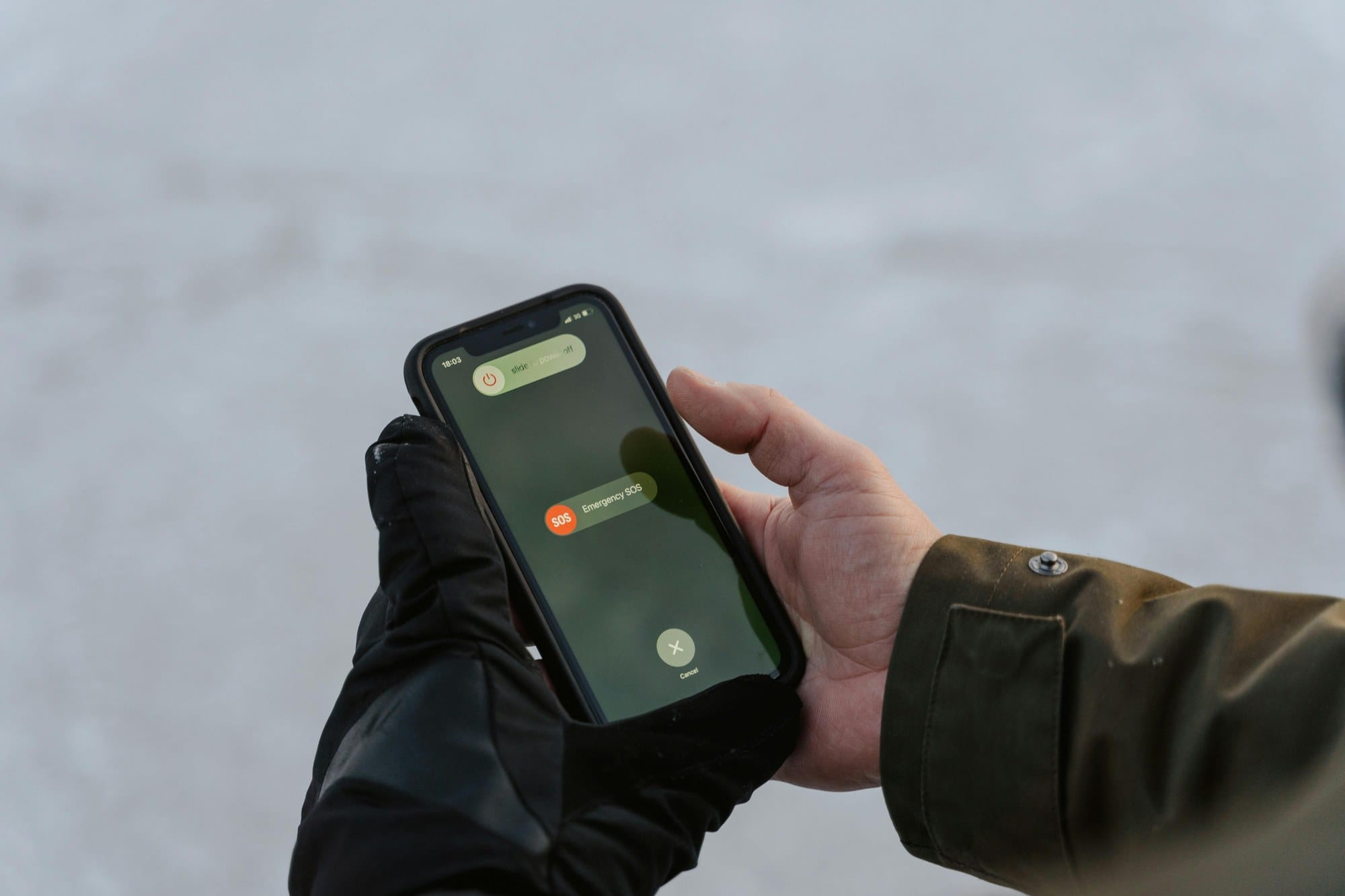
iPhone's "Emergency SOS" is a life-saving feature that auto-dials emergency services like 911 (or 110/119 in Japan) when you long-press the side button and a volume button. The flip side: accidental triggers in pockets and bags dial emergency dispatch when you didn't mean to. This guide explains how Emergency SOS works, what causes false triggers, and how to turn it off safely while keeping the safeguards you need in a real emergency.
Table of Contents
- What is Emergency SOS?
- Why Emergency SOS Triggers Accidentally
- Turning Emergency SOS Completely Off
- Partial Customization (Keep Some, Disable Others)
- What to Do If You Accidentally Triggered SOS
- Turning Off Emergency SOS on Apple Watch
- Preparing After Turning Off SOS
- Frequently Asked Questions
- Summary
What is Emergency SOS?
Emergency SOS lets you call police, fire, or ambulance services directly with button gestures, even from the lock screen.
Behavior by iPhone Model
Trigger gestures differ by model:
| Model | Gesture |
|---|---|
| iPhone 8 and later | Long-press side button + volume button |
| iPhone 7 and earlier | Press side button 5 times rapidly |
Holding the buttons (or completing the 5 presses and swiping the slider) initiates an emergency call.
Which Numbers Get Called
On iOS 16+, the regional emergency numbers (911, 999, 110/119, etc.) are listed in a selection menu. Depending on your region, the UI may not auto-dial — instead you choose the number. iPhones bought overseas, or with overseas SIMs, behave differently, so check Settings → Emergency SOS to confirm your Auto Call behavior.
Why Emergency SOS Triggers Accidentally
Pressed Inside Pockets or Bags
Tight pant pockets, the inside of a shoulder bag — anywhere physical buttons get squeezed can trigger it. The "side + volume long-press" condition is easy to hit when sitting down or carrying a heavy bag with both side buttons pressed simultaneously.
Linked Apple Watch Triggers
If your Apple Watch has Emergency SOS via side button long-press enabled, the Watch's call also routes through your iPhone. You'll need to adjust the Watch's settings separately.
Kids and Sleeping Positions
Handing the iPhone to a child can lead to taps on the lock screen's SOS button. Sleeping on top of the iPhone in bed can squeeze the side buttons through pillows. The safest practice is to leave the iPhone on a table while sleeping.
Turning Emergency SOS Completely Off
Disabling both "side + volume long-press" and "side button 5 presses" essentially eliminates accidental triggers.
Disable Side + Volume Long-Press
- Open Settings
- Tap Emergency SOS
- Turn off the Call with Hold and Release toggle
The side + volume long-press will no longer start a countdown.
Disable Side Button 5 Presses
- Settings → Emergency SOS
- Turn off Call with 5 Presses
This works on iPhone 7 and earlier as well as current models.
Keep or Disable the Countdown Sound
There's also a Countdown Sound toggle on this screen. Leaving it on means a loud alert sounds in public when accidental triggers begin — which can make people miss that the countdown is happening. To prioritize accident prevention, leave it on. To stop SOS silently, turn it off.
Partial Customization (Keep Some, Disable Others)
Turning off SOS completely leaves you with no emergency-call shortcut. Partial customization preserves the safety net.
Disable Auto-Dial, Keep the Manual Button
- Settings → Emergency SOS
- Turn off both Call with Hold and Release and Call with 5 Presses
- Medical ID → Edit Medical ID → Show When Locked ON
The SOS button on the lock screen remains, so you can still dial intentionally by tapping it. Only the auto-countdown trigger is removed.
Disable SOS but Keep Medical ID
Even with Emergency SOS off, your Medical ID (blood type, allergies, regular medications, emergency contacts) can still be shown from the lock screen. As a minimum precaution for the case where you collapse and medical staff need basic info, register your Medical ID.
What to Do If You Accidentally Triggered SOS
Cancel During the Countdown
Once the 3-5 second countdown begins, immediately let go of the red button or tap Stop if it appears. The call won't end until you release both buttons.
If the Call Connected
If you've already connected with emergency dispatch, do not hang up. Hanging up silently is treated as "an interrupted emergency call," potentially triggering a wellness check dispatch.
Correct response:
- Don't end the call. Calmly say: "This was an accidental dial from my iPhone — there's no emergency."
- Provide your name and location when asked
- Follow the operator's guidance to close the call
Apologize on the Follow-Up Call
The operator may call back for safety confirmation. Don't block the number from your call history — answer if you can, or call back if you missed it. Standard courtesy.
Turning Off Emergency SOS on Apple Watch
With an Apple Watch, disabling SOS only on iPhone may still leave the Watch capable of triggering calls.
Watch App Settings
- On iPhone, open the Watch app
- My Watch → Emergency SOS
- Turn off Hold Side Button
- Turn off Auto Call as needed
Relation to Fall and Crash Detection
Fall Detection and Crash Detection (iPhone 14 and later) are separate features:
- Fall Detection: Auto-dials emergency services when a hard fall is detected
- Crash Detection: Auto-dials emergency services after a car crash
Disabling Emergency SOS doesn't affect these — they run independently. Disable them from Settings → Emergency SOS with their own toggles if needed. However, since they save lives in real emergencies, keep them on unless they trigger falsely often.
Preparing After Turning Off SOS
If you turn SOS fully off, prepare alternative safeguards.
Register Medical ID
- Settings → Health → Medical ID
- Edit Medical ID → fill in details
- Turn on Show When Locked
Blood type, allergies, regular medications, and emergency contacts — these let first responders see what they need if you're found unconscious.
Register Emergency Contacts
In Medical ID's Emergency Contacts field, add family or close friends. They receive an automated message with your location when Emergency SOS is triggered (if you keep SOS on).
Use Location Sharing
Continuous location sharing with family via the Find My app is another safety net. In an accident, family can quickly locate you.
Frequently Asked Questions
Q. If I turn off Emergency SOS, can I still call the police? Yes. You can still dial emergency numbers normally from the Phone app. Only the auto-countdown trigger is disabled.
Q. Should I turn it off before sending my iPhone for repair? Repair staff are unlikely to accidentally trigger button gestures, but turn it off as a precaution before handing over the device. Re-enable after repair.
Q. I want to keep SOS on a child's iPhone The recommended setup is disable long-press and 5-presses, but keep the lock-screen SOS button. They can still dial intentionally with a tap.
Q. Does it dial when Airplane Mode is on? Emergency calls still connect via the carrier network even in Airplane Mode. If you want zero outbound activity on a plane, also consider turning off Emergency SOS.
Q. Does it work on an iPhone with no SIM? In Japan, emergency-only connectivity is generally unavailable, so no. If a SIM is installed, emergency calling works regardless of plan status (with some exceptions by carrier and contract type).
Summary
Emergency SOS saves lives, but pocket and bag accidents do happen and waste emergency dispatch time.
- Toggle off Call with Hold and Release and Call with 5 Presses to prevent accidents
- If fully off, prepare with Medical ID and Emergency Contacts registration
- If you accidentally connect, never hang up — explain calmly
- If you have Apple Watch, adjust its Emergency SOS settings too
Settings take just a few taps. If you've had a near-miss accidental trigger, review the configuration today for peace of mind.