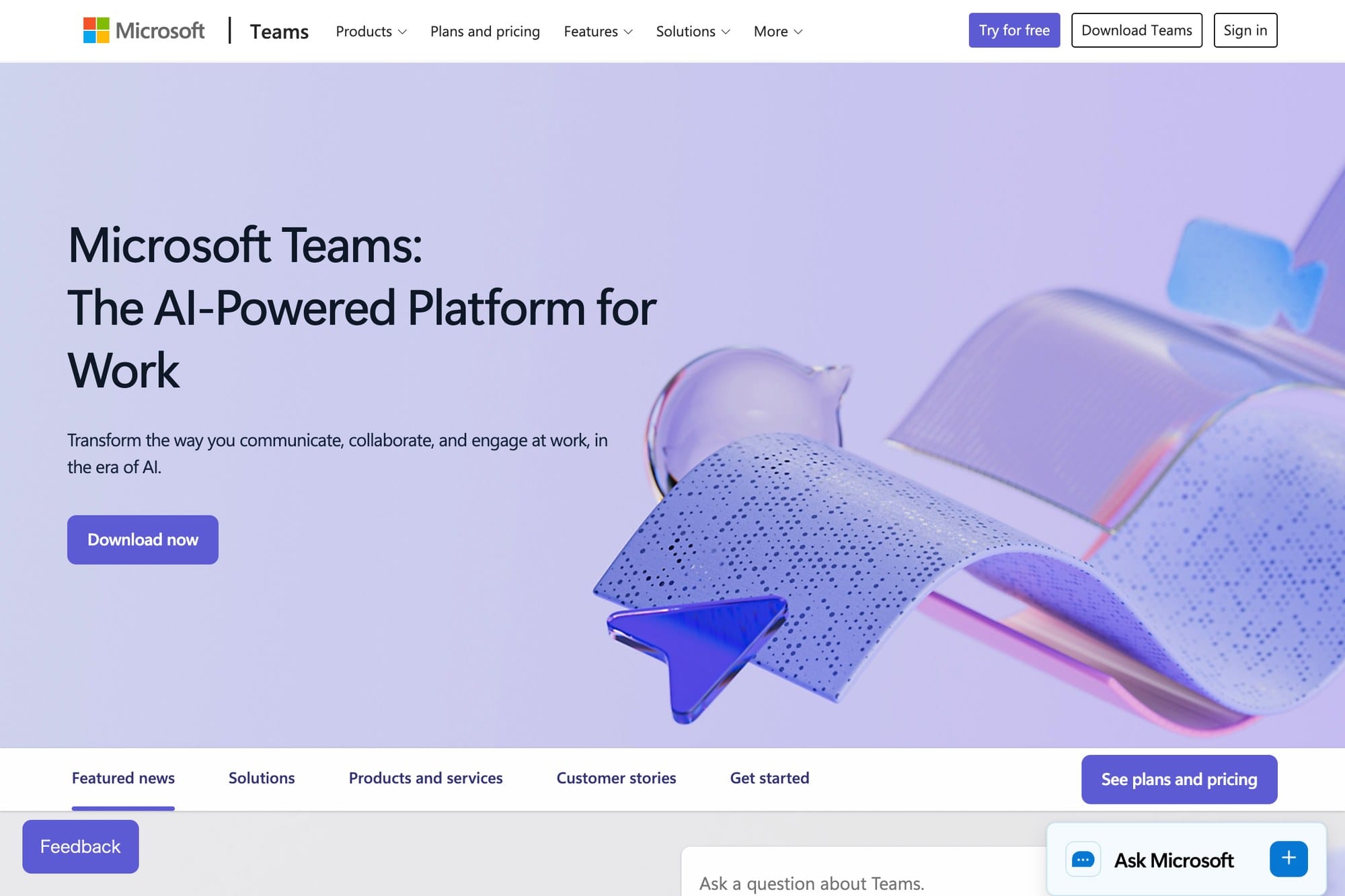
Microsoft Teams bundles workplace chat, online meetings, and file collaboration into a single tool from Microsoft. Because it covers everything from internal chat to web meetings and real-time co-authoring, the sheer number of features can feel overwhelming at first — but the core operations you actually need to know are surprisingly limited. This guide walks new users through Teams in order: installing and signing in, running meetings, chatting, sharing files, and tuning notifications. It also calls out where the Windows, Mac, and mobile apps differ.
Table of Contents
- What Is Microsoft Teams
- Install and Sign In
- Creating Teams and Channels
- Chat Basics
- Joining and Hosting Online Meetings
- File Sharing and OneDrive Integration
- Notification Settings
- Free vs. Paid Plans
- Wrap-Up
What Is Microsoft Teams
Microsoft Teams is a collaboration tool that combines chat, calls, online meetings, file sharing, and task management into a single app. It is included with Microsoft 365 subscriptions and is widely deployed as the default workplace tool inside companies.
Key characteristics:
- Conversations and files are organized per channel
- Word, Excel, and PowerPoint can be co-authored in the browser
- Supports meetings of up to 1,000 participants
- Tight integration with Outlook and SharePoint
- A free plan exists for personal use
Teams is often compared with Zoom and Slack, but its real strength is that it sits seamlessly next to the rest of the Microsoft 365 apps.
Install and Sign In
Teams runs in the browser, but the desktop app tends to be more stable.
- Download the installer from the Microsoft Teams official site
- Run the installer
- Enter your work email or personal Microsoft account on the sign-in screen
- Complete password authentication (multi-factor if required)
On mobile, install "Microsoft Teams" from the App Store or Google Play. Signing in with the same account automatically syncs conversation history and files.
To switch between work and personal accounts, tap the profile icon in the top-right corner of the app and choose "Add account" to register multiple identities.
Creating Teams and Channels
Conversations in Teams are organized in two layers: "teams" and "channels."
- Team: a unit such as a department or project
- Channel: a topic-level group inside a team (for example, "general," "engineering," or "sales")
To create a new team:
- Open "Teams" from the left sidebar
- Click "Join or create a team" at the bottom
- Choose "Create team" → "From scratch"
- Pick Private or Public
- Enter the team name and description
- Invite members by email
After the team is created, right-click it and choose "Add channel" to create new channels. Setting a channel to Private restricts it to specific members within the team.
Chat Basics
Conversations inside a channel use a "post" and "reply" thread structure.
- Start a new topic with "New conversation"
- Use "Reply" on an existing post to continue that thread
- Use @mentions to notify specific people (@team-name reaches everyone, @channel-name reaches all channel members)
- Mark important posts as "Important" to make them stand out
You can also insert emojis, GIFs, and stickers, paste code blocks, and quote messages. For one-on-one chats, search for the person from "Chat" in the left sidebar to start a direct conversation.
Joining and Hosting Online Meetings
There are three ways to start a meeting in Teams.
- Instant meeting: click the "Meet" button in the top-right of a channel → "Meet now"
- Scheduled meeting: create "New meeting" from the calendar and pick the time and attendees
- Video call from a chat: handy for quick one-on-one or small-group calls
Inside a meeting, you can:
- Toggle camera and microphone on/off
- Share your screen (full screen, specific window, or PowerPoint)
- Apply background effects (blur or virtual backgrounds)
- Raise hand, chat, and send emoji reactions
- Record the meeting (organizer or permitted members)
- Use breakout rooms for split discussions
Meeting links sync with the Outlook calendar, so it's easy to share invites with external attendees by email.
File Sharing and OneDrive Integration
Each channel has a "Files" tab. Files uploaded there are stored in the team's SharePoint site. Files sent in a one-on-one chat are stored in the sender's OneDrive instead.
- Upload via drag-and-drop
- Click a filename to preview in the browser
- Choose "Open in Teams" to edit in the desktop app
- Word, Excel, and PowerPoint support simultaneous co-authoring
- Use "Copy link" to issue a permission-aware URL
File access permissions follow the team or channel settings. To restrict sharing, choose "Specific people" when copying the link.
Notification Settings
Out of the box, Teams sends a lot of notifications and can constantly interrupt your work, so it's worth tuning them to your style.
- Settings → Notifications → adjust the global notification level
- Each channel can be set to "All activity," "Mentions & replies only," or "Off"
- Use "Quiet hours" to suppress notifications at night
- The mobile app has its own separate notification settings
- A safe baseline is to allow only "high-priority" notifications as banners so you don't miss critical messages
To temporarily silence notifications during a meeting, toggle the "Mute notifications" icon in the top-right of the meeting window.
Free vs. Paid Plans
Teams offers a free plan for personal use and business plans bundled with Microsoft 365.
- Free plan: unlimited 1-on-1 meetings, group meetings capped at 60 minutes, 5 GB storage
- Microsoft 365 Business Basic: 30-hour meetings, up to 300 participants, 1 TB storage, Outlook and SharePoint integration
- Microsoft 365 Business Standard or higher: everything above plus desktop Office apps, webinars, and recording storage
For workplace use, Business Basic is effectively the entry-level tier. For personal use, the free plan is enough in most cases.
Wrap-Up
Here's the short version of how to use Microsoft Teams:
- Install both the desktop app and the mobile app
- Organize topics with teams and channels
- Use mentions to notify only the people who need to know
- Mix scheduled and instant meetings depending on the situation
- Files are consolidated in SharePoint per channel
- Tuning notifications first dramatically reduces stress
It can feel feature-heavy at first, but once you have chat, meetings, and file sharing covered, you're handling around 80% of day-to-day work. The rest is best learned gradually as you actually use it.