When your iPhone stops vibrating — no buzz on incoming calls, no haptic on notifications, no "click" when you unlock the screen — the cause depends heavily on exactly which scenario stopped working. This guide breaks the problem down into five categories: the physical switch, iOS settings, per-app notification settings, iOS version bugs, and hardware failure. We'll walk through each in the order most likely to fix your issue. Covers iPhone 12 and later, including models with the Action Button (iPhone 15 Pro and later).
Table of Contents
- Narrow down the symptom first
- Check the Ring/Silent switch or Action Button
- Sounds & Haptics settings
- Check Focus modes
- Per-app notification vibration settings
- Haptic Touch and Accessibility settings
- Force restart
- Update iOS
- Suspect a Taptic Engine failure
- Summary checklist: what to try and in what order
Narrow down the symptom first
"No vibration at all" vs. "only certain notifications don't vibrate"
The first question to ask is: exactly when does your iPhone fail to vibrate? Getting this right cuts the list of suspects dramatically.
- Nothing vibrates at all (no haptic on unlock, no feedback while typing): either System Haptics is turned off globally, or the Taptic Engine hardware has failed.
- Calls don't vibrate: the "Vibrate on Ring" or "Vibrate on Silent" toggle is off, depending on which mode your phone is in.
- Only one app's notifications don't vibrate: that app's notification settings have haptics disabled.
- Keyboard typing has no haptic: Settings → Sounds & Haptics → Keyboard Feedback → Haptic is off.
- Vibration stops only during Do Not Disturb or a Focus mode: Focus mode settings are suppressing notifications.
Ringer works but vibration doesn't
If you can hear the ringtone but feel nothing, that's almost certainly a settings issue — not a hardware problem. The most common culprit is "Vibrate on Ring" being turned off independently of the ringer volume. Check the Sounds & Haptics section below and you'll likely have this fixed in under a minute.
Check the Ring/Silent switch or Action Button
iPhone 14 and earlier (Ring/Silent switch)
The small physical switch on the upper-left edge of your iPhone toggles between Ring mode (orange stripe hidden) and Silent mode (orange stripe visible). Each mode has its own independent vibration setting.
- Orange visible = Silent: vibration is controlled by "Vibrate on Silent."
- Orange hidden = Ring: vibration is controlled by "Vibrate on Ring."
If your phone vibrates in Silent mode but not in Ring mode (or vice versa), one of the two toggles is off. They're set independently, so check both.
iPhone 15 Pro and later (Action Button)
Starting with iPhone 15 Pro, the physical Ring/Silent switch was replaced by the Action Button. By default it's configured to toggle Silent mode on and off, but it can be reassigned in Settings → Action Button.
To see whether Silent mode is currently active, check the Dynamic Island or Control Center — the bell icon with a line through it means Silent is on.
Sounds & Haptics settings
All core vibration controls live under Settings → Sounds & Haptics. Open that screen and check each of the following.
Enable vibration when ringer is on
Turn on Vibrate on Ring (iOS 18 labels this "Play Haptics in Ring Mode"). When this is off, your phone will ring audibly but won't vibrate — which is the exact symptom many people report.
Enable vibration when silent
Turn on Vibrate on Silent (iOS 18: "Play Haptics in Silent Mode"). If this is off, you'll miss calls and notifications entirely when the switch is set to Silent. Most users will want this on.
System Haptics
Scroll to the bottom of the Sounds & Haptics screen and make sure System Haptics is turned on. When this toggle is off, you lose haptic feedback everywhere — unlocking, flipping switches, typing on the keyboard — which produces the "my iPhone doesn't vibrate at all" symptom.
If your phone has zero vibration in any situation, check this setting first.
Check Focus modes
Focus modes (Do Not Disturb, Sleep, Driving, Personal, Work, and any custom modes) intentionally suppress notifications and their associated vibrations.
- Open Settings → Focus or swipe into Control Center to see whether a Focus mode is active.
- Focus modes can turn on automatically based on time of day, location, or which app you're using — so you may not have turned it on yourself.
- Even allowed contacts can have their vibration suppressed depending on how the Focus mode is configured.
A crescent moon or similar icon at the top of the Lock Screen means Do Not Disturb is active.
Per-app notification vibration settings
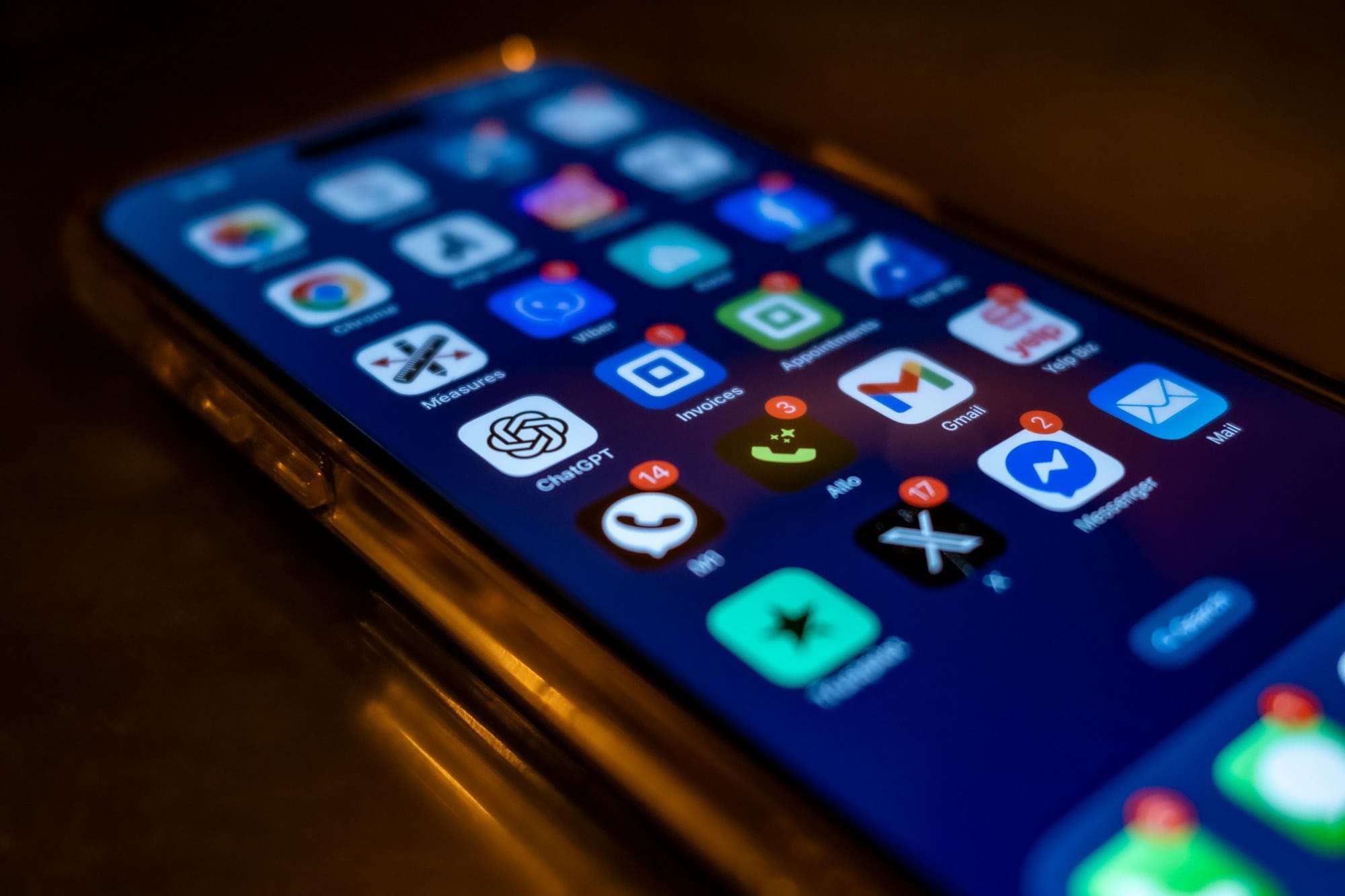
Common apps like Messenger, WhatsApp, and X
iOS lets you control vibration independently for each app.
- Go to Settings → Notifications → [app name].
- Tap Sounds.
- Under Haptics, make sure a pattern is selected — not "None."
Apps like WhatsApp, Slack, and X (Twitter) also have their own in-app notification settings. Both the iOS-level setting and the in-app setting need to allow haptics for vibration to work.
Notification sound and haptics settings
In iOS 18, the notification sound picker includes a Haptics section where you can choose Synchronized, Accent, or Custom patterns. If "None" is selected here, that app's notifications will be silent and haptic-free.
Haptic Touch and Accessibility settings
Go to Settings → Accessibility → Touch → Haptic Touch to adjust how quickly a long press triggers haptic feedback. Toggling between Fast and Slow can restore touch haptics if they feel absent or muted.
Also check Settings → Accessibility → Motion → Reduce Motion. When enabled, this weakens or removes haptic feedback system-wide. You may have turned it on without realizing it affects vibration.
Force restart
A temporary software glitch can disable vibration even when all settings look correct. A force restart clears the OS memory state and often fixes it.
- iPhone 8 or later (including all X, 11, 12, 13, 14, 15 models): press and release Volume Up, press and release Volume Down, then hold the Side button until the Apple logo appears.
- iPhone 7 / 7 Plus: hold Volume Down and the Sleep/Wake button simultaneously until the Apple logo appears.
- iPhone SE (1st generation) / 6s and earlier: hold the Home button and the Sleep/Wake button simultaneously.
Unlike a normal power cycle, a force restart fully flushes the OS's temporary state.
Update iOS
Several minor iOS updates have introduced vibration bugs. There are documented reports after iOS 17.4 and 17.5, for example, where haptics stopped working for some users. Go to Settings → General → Software Update and install the latest version.
If the problem started immediately after an update, you may need to wait for Apple to push a fix. Checking Apple Community or contacting Apple Support can tell you whether others are seeing the same issue.
Suspect a Taptic Engine failure
If you've worked through everything above and your iPhone still won't vibrate, the problem is likely with the Taptic Engine — the linear actuator inside the iPhone that produces all vibration and haptic feedback.
Diagnostic test: how to check vibration
There's a quick built-in test:
- Go to Settings → Sounds & Haptics → Ringtone.
- Tap Vibration at the top of the list.
- Tap Create New Vibration.
- Tap the screen repeatedly with your finger — the phone should vibrate in sync with each tap.
If you feel nothing at all when tapping, Taptic Engine hardware failure is very likely.
Deciding whether to repair and what it costs
If vibration stopped working right after you dropped or got your iPhone wet, hardware damage is the top suspect.
- AppleCare+: Taptic Engine replacement is often covered at little or no cost, typically treated as an accidental damage claim.
- Out of warranty: Get a repair estimate at Apple Support. A genuine Apple Taptic Engine replacement typically runs $150–$250 depending on model.
- Third-party repair shops: Usually $80–$130. However, using non-Apple parts may void any remaining Apple warranty and can trigger iOS warnings about unrecognized components.
Summary checklist: what to try and in what order
Here's the full sequence from this guide in order of likelihood.
- Identify the exact symptom (all vibration gone vs. specific notifications only).
- Check the Ring/Silent switch or Action Button position.
- Settings → Sounds & Haptics → confirm Vibrate on Ring and Vibrate on Silent.
- Turn System Haptics on.
- Check whether a Focus mode is active.
- Settings → Notifications → [app] → confirm haptics aren't set to None.
- Settings → Accessibility → Motion → check Reduce Motion.
- Force restart.
- Update to the latest iOS.
- Run the Create New Vibration test to rule out hardware failure.
- If hardware failure is confirmed, book a repair.
Steps 1–6 resolve the vast majority of cases. It's usually just a setting flipped in the wrong direction. Run through those before assuming the worst — you'll most likely have your vibration back without a trip to the repair shop.