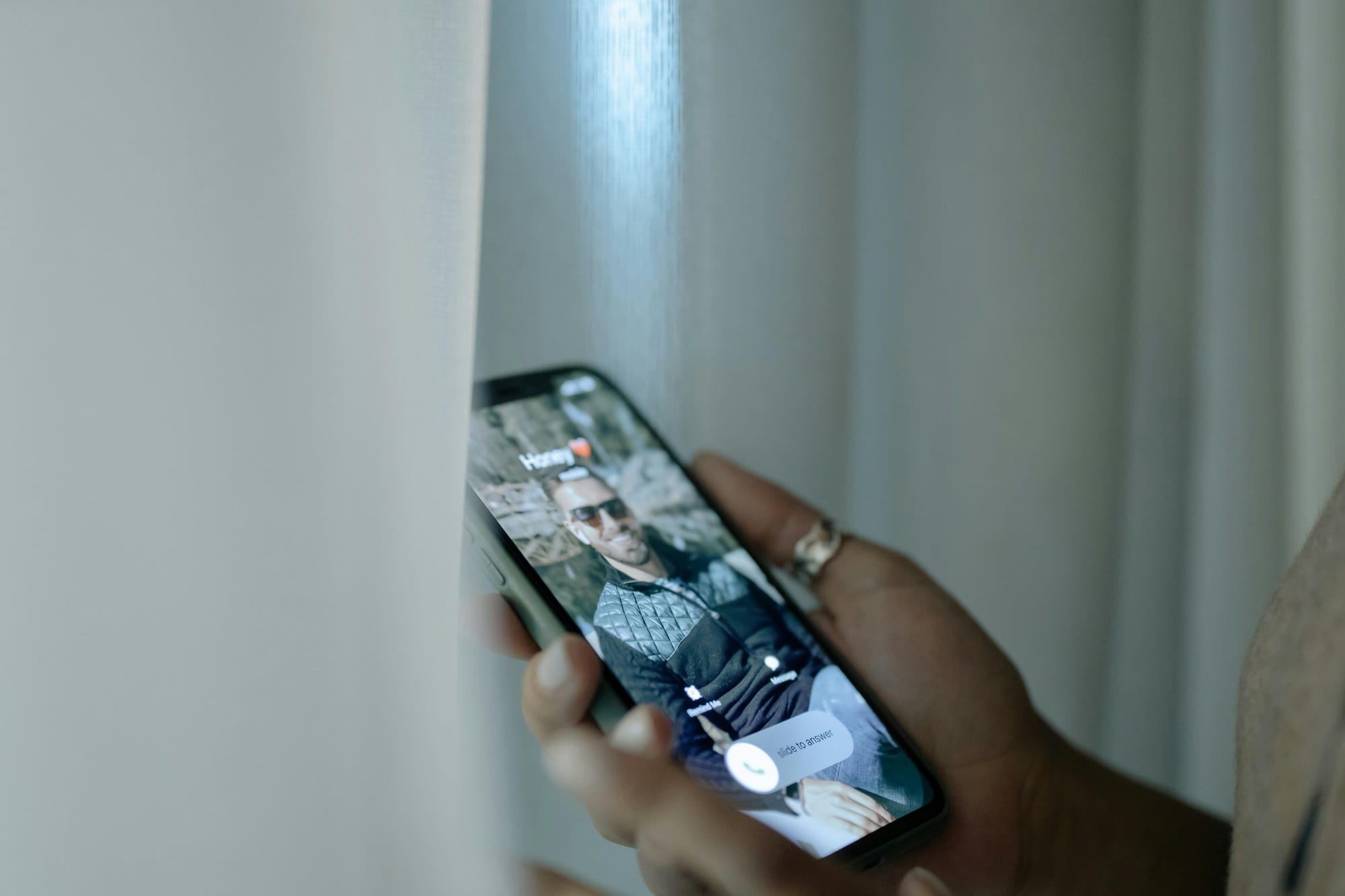
"The phone is ringing but I hear nothing." "It only vibrates." "A specific contact never rings." "The sound was coming from my Bluetooth speaker the whole time." — Sound familiar? This article focuses on phone ringtone issues. If your clock alarm is the problem, the causes are completely different — see How to Fix Android Alarm Not Ringing | Silent Mode, Battery Optimization, and Doze Diagnosis. iPhone users should check How to Fix an iPhone Ringtone Not Ringing | Silent Switch, Volume, and Focus Mode Diagnosis. Android ringtone problems can stem from Silent Mode, ring volume, Do Not Disturb (Focus mode), audio routing, contact-specific settings, SIM configuration, and more. This article walks through each symptom and provides step-by-step fixes for Android 11 through 15 on Pixel, Galaxy, Xperia, Redmi, OPPO, and other major devices.
目次
- Alarms and Ringtones Are Separate Problems
- Diagnose First: Identify Your Symptom Pattern
- Checking the Physical Switch and Silent Mode
- Checking Ring Volume and Notification Volume
- The Do Not Disturb Trap
- Per-Contact Ringtone Settings
- Audio Routing (Bluetooth and Car Audio)
- Automatic Silencing of Unknown Callers
- SIM and Carrier-Specific Issues
- App-Related Causes (LINE, Third-Party Calling Apps)
- System Updates and Known Bugs
- Prevention Checklist to Keep Your Ringtone Working
Alarms and Ringtones Are Separate Problems
How Ringtone Issues Differ from Alarm Issues
Android "no sound" problems fall into two main categories. Identifying which one you have lets you find the fix much faster.
| Type | Sound Affected | Reference |
|---|---|---|
| Ringtone issue (this article) | Phone calls, LINE, WhatsApp, etc. | This page |
| Alarm issue | Clock app alarm | How to Fix Android Alarm Not Ringing | Silent Mode, Battery Optimization, and Doze Diagnosis |
When alarms fail to ring, the most common culprit is battery optimization (Doze mode) killing apps in the background — a fundamentally different root cause. Don't confuse the two.
Silent Mode Behaves Differently for Alarms vs. Ringtones
One important difference from iPhone: Android's Silent Mode (Do Not Disturb) blocks both the ringtone and notification sounds at the same time. On iPhone, flipping the silent switch doesn't affect the Clock app alarm. On Android, the standard Clock alarm is treated as an exception to Do Not Disturb — it rings even in silent mode. Phone ringtones, however, are subject to Do Not Disturb, and can be completely blocked depending on your Focus mode settings. Keep this distinction in mind as you work through the diagnosis steps below.
Diagnose First: Identify Your Symptom Pattern
"My phone isn't ringing" can mean different things. Match your situation to one of the patterns below and jump straight to the relevant fix.
No Sound and No Vibration at All
You can see a missed call, but there was no sound or vibration. The most likely cause is Do Not Disturb being active and blocking incoming calls entirely, or the automatic silencing of Unknown Callers. If you use a dual SIM phone, also check which SIM received the call.
Vibrates Only — No Sound
The most common symptom. The cause is almost always either Silent Mode (Vibrate Mode) being active or the ring volume slider being set to zero. Open the Quick Settings panel and check your current sound mode first.
Only Certain Contacts Don't Ring
Calls from some people ring fine, but not from others. The likely cause is either the ringtone for that contact is set to "None", or Do Not Disturb is set to "Priority contacts only" and that person isn't on the list.
Sound Is Coming from a Bluetooth Speaker
There's no sound from the phone itself, but a Bluetooth speaker or earphones are playing the ringtone. The connected audio device has taken over as the audio output. If the device is across the room, you may miss calls entirely.
No Ringing Only During Focus Mode or Silent Mode
The phone stops ringing only at certain times or in certain situations. A Do Not Disturb schedule may have been turned on unintentionally, or a mode like Driving or Bedtime is activating automatically.
One SIM Doesn't Ring on a Dual SIM Phone
One SIM rings normally, but calls on the other SIM produce no sound. Per-SIM ringtone or notification settings are likely misconfigured.
Stopped Ringing After an Update
The issue started after an OS or app update. Updates can reset settings or introduce software bugs that affect audio behavior.
Quick Reference Table by Symptom
| Symptom | Main Cause | Check First |
|---|---|---|
| No sound, no vibration | Do Not Disturb blocking all calls; Unknown Callers silenced | DND call permission settings; Unknown Callers silence setting |
| Vibrate only, no sound | Silent / Vibrate Mode active; ring volume at zero | Quick Settings sound mode + Settings → Sound → Ring Volume |
| Specific contact only | Contact's ringtone set to "None"; DND exceptions list | Contacts app ringtone setting; DND allow list |
| Sound from Bluetooth device | Audio routing | Switch output to "Phone Speaker" in Quick Settings |
| Specific app only (LINE, etc.) | In-app notification settings; Android notification settings | In-app ringtone setting + Settings → Notifications → [App] |
| One SIM on a dual SIM phone | Per-SIM ringtone / notification settings | Settings → SIM cards & mobile networks |
| Since last update | Software bug; settings reset by update | Restart phone; check for newer update |
Checking the Physical Switch and Silent Mode
Devices with a Physical Silent Switch (OnePlus, etc.)
Some Android phones have a physical switch equivalent to iPhone's silent switch. The most notable example is the OnePlus Alert Slider, a three-position switch on the side of the device (Silent / Vibrate / Normal).
If you use a OnePlus phone, check the position of the Alert Slider first. If it's at the top (Silent) or middle (Vibrate) position, calls won't ring. Move it to the bottom position to restore normal ring mode.
Most other Android phones don't have a physical switch and use software settings to change the sound mode instead.
Check Silent / Vibrate / Normal in the Quick Settings Panel
On phones without a physical switch, the Quick Settings panel shows and controls the current sound mode.
- Swipe down from the top of the screen to open the Quick Settings panel
- Find the bell icon (or volume icon)
- Read the icon state:
- Bell with a line through it (×): Silent Mode — no sound, no vibration
- Vibration icon (wavy lines): Vibrate Mode — no sound, vibration only
- Normal bell icon: Normal Mode — sound on
- If it's in Silent or Vibrate mode, tap the icon to switch to Normal mode
On some devices the icon may not appear in Quick Settings. In that case, press the volume button and check the bell icon next to the slider that appears. On Galaxy devices, tapping the bell icon below the slider cycles through Vibrate, Silent, and Sound modes.
Android Silent Mode Mutes Both Ringtone and Notification Sounds
Android's Silent Mode mutes the ringtone and notification sounds simultaneously. This differs from iPhone, where the Ring/Silent switch only affects the ringtone. In Silent Mode on Android, phone calls, SMS, and all app notification sounds go quiet at once.
Note that alarms set in the standard Android Clock app will still ring in Silent Mode (subject to Do Not Disturb exception settings). "Why does my alarm still go off in Silent Mode?" is normal, expected behavior.
Checking Ring Volume and Notification Volume
Media, Notification, Ring, and Alarm Volumes Are Independent
Android manages volume separately for each use case, which is a common source of confusion.
- Media volume: Music, video, game audio
- Ring volume: Phone ringtone (this article's focus)
- Notification volume: App notification sounds (on some manufacturers this is linked to ring volume)
- Alarm volume: Clock app alarm (fully independent)
If media volume is at maximum but calls are silent, ring volume may be set to zero separately. Always check ring volume on its own.
Settings → Sound → Ring Volume
To check and adjust ring volume (steps for stock Android / Pixel):
- Open Settings
- Tap Sound & vibration (or "Sound")
- Find the Ring volume slider
- If it's at the far left (zero), drag it to the right to raise the volume
Manufacturer-specific paths:
- Galaxy (Samsung / One UI): Settings → Sound & vibration → Volume → Ringtone
- Xperia (Sony): Settings → Sound & vibration → Volume → Ringtone & alarms
- Xiaomi / Redmi (MIUI / HyperOS): Settings → Sound & vibration → Ringtone volume
- OPPO / realme (ColorOS): Settings → Sound & vibration → Ringtone
Moving the slider plays a preview of the ringtone so you can confirm the volume is loud enough. If the preview doesn't play either, Silent Mode or Do Not Disturb is likely still active.
Impact of the "Adjust Ring Volume with Buttons" Setting
The physical volume buttons adjust different audio streams depending on context. While music is playing, they control media volume; when nothing is playing, they may control ring volume (behavior varies by device).
Buttons pressed accidentally in a pocket or bag can quietly reduce ring volume to zero. To prevent this, look for a setting under Settings → Sound → Advanced (location varies by manufacturer) such as "Don't disturb with volume buttons" or similar, which locks ring volume so the buttons can't accidentally change it.
The Do Not Disturb Trap
Android's Do Not Disturb (DnD) mode is a powerful feature for managing interruptions — but a misconfigured DnD setting is one of the most common reasons calls go silent unexpectedly.
Calls Are Also Blocked in Do Not Disturb
When Do Not Disturb is active, phone calls are blocked by default. Unlike iPhone's silent switch, which only mutes the ringtone, Android's Do Not Disturb suppresses calls, notification sounds, and vibration all at once.
To check whether Do Not Disturb is on:
- Swipe down from the top of the screen to open the Quick Settings panel
- Look for a Do Not Disturb, Bedtime, or Focus mode icon highlighted in blue
- If it is highlighted, tap it to turn it off
Allowing Calls from Priority Contacts
You can configure Do Not Disturb to allow calls from specific contacts while blocking everyone else. If this is set to "No one" or "Contacts only," calls from people not on the list will be silently blocked.
To review the setting (stock Android / Pixel):
- Go to Settings → Notifications → Do Not Disturb (or "Silent Mode")
- Tap Exceptions or Allow
- Check the Calls setting: choose from "Everyone," "Contacts," "Starred contacts," or "None"
- Select "Everyone" or "Contacts" to allow calls to ring
On Galaxy: Settings → Notifications → Do Not Disturb → Exceptions → Allow calls from. On Xperia: Settings → Sound & vibration → Do Not Disturb → Exceptions.
Allow Repeat Callers (Emergency Override)
Do Not Disturb includes an Allow Repeat Callers option. When enabled, if the same number calls twice within 15 minutes, the ringtone sounds (timing varies by Android version and manufacturer). This is useful as an emergency override so urgent calls can still get through during meetings or sleep.
Find the setting at Settings → Notifications → Do Not Disturb → Exceptions → Allow repeat callers (exact wording varies by device).
Checking Schedules (Bedtime, Driving)
Do Not Disturb can be set to activate automatically on a schedule. If a schedule is configured unintentionally, calls will go silent during those time windows.
- Go to Settings → Notifications → Do Not Disturb → Schedules
- Review any listed schedules (Bedtime, Event, Driving, etc.)
- Disable or delete any schedules you didn't intentionally set
On Galaxy, also check Digital Wellbeing for a "Bedtime mode schedule." On Xiaomi / Redmi, check Settings → Digital Wellbeing & parental controls → Screen time for scheduled DnD.
Per-Contact Ringtone Settings
Is "None" Set as the Ringtone for That Contact?
If only a specific contact's calls are silent, that contact may have "None" set as their individual ringtone. Android lets you assign a per-contact ringtone, and choosing "None" silences that person's calls completely.
This setting can be changed accidentally. There are also reports of contact app updates resetting individual ringtone assignments.
How to Check in the Google Contacts App
- Open the Contacts app
- Open the contact whose calls aren't ringing
- Tap the Edit (pencil) icon in the top right
- Tap More fields or Advanced to expand additional options
- Find the Ringtone field
- If it says "None," change it to "Default" or a ringtone of your choice, then save
Differences in Manufacturer Contact Apps (Galaxy Contacts, etc.)
- Galaxy (Samsung Contacts): Open the contact → tap the three-dot menu → Edit → Ringtone / vibration pattern. Galaxy also supports per-contact vibration patterns.
- Xperia (AOSP Contacts): Open the contact → Edit → scroll down to Set ringtone
- Xiaomi / Redmi (MIUI Contacts): Open the contact → Edit → scroll to Ringtone
If the same contact exists in both the manufacturer contacts app and Google Contacts, which setting takes priority depends on the device. Check both to be safe.
Audio Routing (Bluetooth and Car Audio)
Behavior When a Bluetooth Speaker or Earphones Are Connected
When a Bluetooth speaker or Bluetooth earphones are connected to your phone, the ringtone output switches to that device. The phone's built-in speaker goes silent. If the Bluetooth device is across the room or in a bag, you won't hear the call.
"My ringtone was playing from the Bluetooth speaker on my desk and I missed the call" is a classic example of this issue. The phone itself will stay silent as long as the Bluetooth connection is active.
Switch Audio Output in the Quick Settings Panel
To redirect audio output back to the phone's speaker:
- Swipe down from the top to open the Quick Settings panel
- Check whether the Bluetooth icon is active (highlighted in blue)
- Long-press the Bluetooth icon to see connected devices
- Tap Disconnect or the ✕ next to the active speaker or earphones
Alternatively:
- Go to Settings → Connected devices → Bluetooth, tap the connected device, and select Disconnect
- Put Bluetooth earphones back in their case and close the lid (most earphones disconnect automatically)
To temporarily disable Bluetooth entirely, tap the Bluetooth icon in the Quick Settings panel to turn it off.
Android Auto and Car Stereo Interference
While Android Auto or a car Bluetooth connection is active, your phone's audio output is routed to the car's speakers. If the Bluetooth connection stays active after you leave the car, your ringtone will play through the car stereo — which you won't hear.
Turn Bluetooth off temporarily, or disconnect the Android Auto connection under Settings → Connected devices → Android Auto (or inside the Android Auto app settings).
Automatic Silencing of Unknown Callers
Android 12+ Feature: Auto-Silence Calls from Unsaved Numbers
On some Android 12 and later devices, there is a feature that automatically silences incoming calls from numbers not saved in your contacts. On Pixel, this is implemented as "Call screening." While effective against spam calls, it also means important calls from numbers you haven't saved — like a new colleague, a delivery driver, or a business — may ring silently without you noticing.
If this feature is enabled unintentionally, it can cause symptoms like "calls from some people never ring" or "I missed a call from someone I just met."
Settings → Phone → Unknown Callers: How to Change
Pixel (Google Phone app):
- Open the Phone app
- Tap the three-dot menu → Settings
- Go to Spam & Call Screen → Call Screen
- If "Silence unknown callers" is on, turn it off
Galaxy (Samsung Phone app):
- Open the Phone app
- Tap the three-dot menu → Settings → Block numbers
- Check the status of Block anonymous calls and Block spam calls
If saved contacts are also not ringing, this feature is not the cause — continue checking other items.
SIM and Carrier-Specific Issues
SIM Tray Problems and Airplane Mode Reset
If the SIM card isn't seated correctly in the tray, or the tray isn't fully closed, the phone may fail to connect to the network and incoming calls won't be delivered. Temporary network errors can also prevent the ringtone from sounding.
Try resetting the network connection:
- Enable Airplane Mode: go to Settings → Network, or tap the Airplane Mode icon in Quick Settings
- Wait about 30 seconds
- Disable Airplane Mode
- Wait a few seconds for the carrier network connection to re-establish
If that doesn't help, open the SIM tray, remove the SIM card, gently wipe the contacts, and reinsert it.
One SIM Not Ringing in a Dual SIM Setup
Dual SIM phones require individual configuration for each SIM. If one SIM's settings are wrong, calls on that SIM will arrive silently.
- Go to Settings → SIM cards & mobile networks (or "Dual SIM settings")
- Review the ringtone and notification settings for each SIM
- Confirm that notifications are enabled for the SIM that isn't ringing
On Galaxy: Settings → Connections → SIM card manager. On Xiaomi: Settings → SIM cards & mobile networks. Also check the preferred SIM for calls setting to make sure both SIMs are set up to receive calls.
Temporary Carrier Outages
If your carrier is experiencing a temporary outage in your area, incoming calls may not reach your phone at all.
Check the following:
- Look at the signal strength indicator in the status bar
- Ask a friend or family member to call you and see if the ringtone sounds
- Visit your carrier's official outage status page
App-Related Causes (LINE, Third-Party Calling Apps)
LINE Ringtones Are Controlled by LINE's Own Notification Settings
LINE voice and video call ringtones are controlled by LINE's own notification settings, separate from the system phone ringtone. This is why your phone's ringtone works fine but LINE calls are silent — or vice versa.
To check LINE's ringtone settings (steps may vary slightly by version):
- Open LINE
- Tap Settings (gear icon) at the bottom right → Notifications
- Confirm Notifications is toggled on
- Confirm Ringtone is toggled on (for call ringtones)
- Confirm Sound is selected
Also check Android's notification settings for LINE:
- Go to Settings → Notifications → App notifications
- Tap LINE
- Make sure Allow notifications is on
- Make sure Sound is on
Individual Settings for WhatsApp, Skype, Zoom, and Others
VoIP apps like WhatsApp, Skype, Zoom, and Google Meet all require both their in-app notification settings and Android's system notification settings to be correctly configured.
- WhatsApp: Inside WhatsApp, go to Settings → Notifications → Call ringtone and confirm it isn't set to "None"
- Skype: Inside Skype, go to Settings → Notifications → Incoming call and confirm it's turned on
- Zoom: Inside Zoom, go to Settings → Notifications and confirm call notifications are enabled
Remember that Do Not Disturb overrides in-app sound settings. If DnD is active, also check that the app is listed under DnD → Exceptions → Apps.
These apps must also be running in the background. If battery optimization is killing them, you'll miss calls. Go to Settings → Apps → [App name] → Battery → Unrestricted to prevent the system from suspending these apps.
System Updates and Known Bugs
Behavior Changes After One UI, MIUI, or ColorOS Updates
If the ringtone stopped working right after a system update, the update may contain a software bug. Major updates to One UI (Samsung Galaxy), MIUI / HyperOS (Xiaomi / Redmi), and ColorOS (OPPO / realme) have historically caused changes to volume behavior and Do Not Disturb settings on multiple occasions.
A subsequent update typically includes fixes, so check for the latest update:
- Go to Settings → System → System update (or "Software update")
- Download and install any available update
- Test the ringtone after the update
On Galaxy: Settings → About phone → Software update. On Xiaomi: Settings → About phone → System update.
Restart and Force Restart Your Phone
Temporary software glitches can silence the ringtone, and a simple restart often fixes the problem before you need to dig into settings.
- Normal restart: Long-press the power button → tap Restart
- Force restart (Pixel): Hold the power button for 7–10 seconds
- Force restart (Galaxy): Hold the volume-down button and power button simultaneously for 7 seconds
- Force restart (Xperia): Hold the power button and volume-up button together until the phone vibrates twice, then release
- Force restart (Xiaomi): Hold the power button for 10–15 seconds
After restarting, test whether the ringtone sounds.
Reset Settings
If nothing else works, your phone's settings data may be corrupted. A settings reset (for network, apps, and sound) restores Wi-Fi, Bluetooth, notifications, Do Not Disturb, and sound settings to factory defaults without deleting your photos, contacts, apps, or messages.
- Go to Settings → General management (or System) → Reset
- Select Reset settings or Reset all settings — do NOT choose "Factory data reset"
- Confirm and execute the reset
On Galaxy: Settings → General management → Reset → Reset settings. On Pixel: Settings → System → Reset options → Reset Wi-Fi, mobile & Bluetooth and Reset app preferences.
After resetting you'll need to reconnect to Wi-Fi and reconfigure some preferences. If the issue persists, a hardware (speaker) failure may be the cause — contact your manufacturer's support center. For a broader look at Android troubleshooting, see the Android Troubleshooting Guide | Solutions by Symptom.
Prevention Checklist to Keep Your Ringtone Working
To avoid missing calls in the future, run through these checks periodically — or use this list to systematically find the cause when calls go silent.
- Check the sound mode in Quick Settings: Verify the bell icon shows Normal mode, not Silent or Vibrate. On OnePlus and similar devices, also check the physical Alert Slider position.
- Check ring volume: Go to Settings → Sound → Ring volume and confirm the slider isn't at zero. Remember that ring volume is independent of media volume.
- Check Do Not Disturb: Confirm DnD is off, or that "Allow calls from" is not set to "None." Also verify that no schedules are activating DnD unexpectedly.
- Check Bluetooth audio output: Verify no Bluetooth speaker or earphones are connected and redirecting your ringtone away from the phone's speaker. Check the Quick Settings panel for active connections.
- Check per-contact ringtone settings: If a specific person never rings, open their contact and confirm the ringtone isn't set to "None."
- Check Unknown Callers silencing: On Pixel and similar devices, open the Phone app settings and confirm "Silence unknown callers" or Call Screen filtering isn't blocking unexpected numbers.
- Check dual SIM settings: On dual SIM phones, confirm both SIMs have notifications enabled and the preferred SIM for calls is configured correctly.
- Check per-app notification settings: If only LINE, WhatsApp, or another app is silent, verify both the in-app notification settings and Settings → Notifications → [App] → Sound.
- Try restarting: A restart clears temporary software glitches. Try a force restart using the manufacturer-specific button combination if a normal restart doesn't help.
- Check for the latest update: Even if the issue started after an update, a newer update may already contain a fix.