"Stuck on No Service even though Wi-Fi works fine." "The signal bars are there but the internet won't load." "Can't get a 5G connection." — iPhone mobile data problems are a completely different beast from Wi-Fi issues. If Wi-Fi is your problem, see the dedicated guide → How to Fix an iPhone That Won't Connect to Wi-Fi | Troubleshooting by Symptom. This article covers step-by-step diagnosis for physical SIM, eSIM, and dual-SIM setups, with fixes organized by carrier type — whether you're on a major carrier or a budget SIM (MVNO). Compatible with iOS 16, 17, and 18.
Table of Contents
- First: Understand Your Setup
- Diagnose: Identify Your Symptom
- Basic iPhone Fixes (Under 30 Seconds)
- Physical SIM Card Checks
- eSIM Checks and Re-Download
- 4G / 5G Mode Selection
- APN Settings (Budget SIM / MVNO)
- Reset Network Settings
- International Travel and Data Roaming
- Data Cap and Speed Throttling
- Carrier-Side Issues
- iOS Update and Repair Decisions
- Summary: Troubleshooting Checklist in Order
First: Understand Your Setup
The cause of a mobile data problem — and the right fix — depends heavily on what kind of SIM you're using and which carrier you're on. Take a moment to identify your setup before diving into fixes.
Physical SIM, eSIM, or Dual SIM?
Open Settings → Cellular to see which lines are currently active.
- Physical SIM (nano-SIM) only: You're running on a single plastic SIM card inserted into the tray.
- eSIM only: Your carrier profile was downloaded electronically — no physical card is needed. The SIM tray is empty (or absent entirely).
- Dual SIM (physical SIM + eSIM): You're using both simultaneously. Two line names will appear in Settings.
Starting with iPhone 15, some models (the US versions, for example) ship without a physical SIM slot and are eSIM-only. Models sold in Japan still include a physical SIM slot. iPhone 14 and later can be operated on eSIM alone if you prefer.
Major Carrier vs. Budget SIM (MVNO)
| Category | Examples | APN Setup |
|---|---|---|
| Major carriers (MNO) in Japan | Docomo / au / SoftBank / Rakuten Mobile | Automatic — no action needed |
| Sub-brands | ahamo / povo / LINEMO / UQ mobile / Y!mobile | Automatic — no action needed |
| Budget SIM (MVNO) | IIJmio / mineo / OCN / NifMo / Japan Communications, etc. | Manual — configuration profile required |
How to identify your carrier: Check your SIM card packaging or the carrier name shown under Settings → Cellular → [line name]. If you're on a budget SIM (MVNO), you must separately install an APN configuration profile — without it, data will not work no matter what else you try (see the APN Settings section for details).
Check Current Status in Settings → Cellular
Open Settings → Cellular and verify the following:
- "Cellular Data" toggle → confirm it is On
- If you have dual SIM: check which of the two lines is set as the "Cellular Data" line
- "Data Roaming" → recommended Off when you're not traveling internationally (more on this later)
In a dual-SIM setup, only one line can be used for cellular data at a time. It's surprisingly common to have the wrong line selected as the data line.
Auto-APN Carriers vs. Manual-APN Carriers
APN (Access Point Name) is the setting that tells your iPhone which gateway to use for mobile data. Major carriers like Docomo and au configure the APN automatically — you never need to think about it. However, most budget SIM (MVNO) carriers require you to manually install a file called a configuration profile. If that profile is missing, you simply cannot use cellular data. This is the single most common reason a budget SIM "won't connect" on a new iPhone.
Diagnose: Identify Your Symptom
"Can't get online" covers a wide range of situations. Find the pattern that best matches your experience, then jump to the appropriate fix.
No Service Display (No Signal at All)
The antenna icon in the top-left corner has disappeared entirely, or the phone displays "No Service." In this state, neither calls nor data are possible. The most likely causes are: you're in a physically weak-signal area (underground, rural areas, inside a building with poor reception), a SIM recognition problem, or a carrier outage.
Signal Bars Show but No Data
Antenna bars are visible, but browsers won't load and apps can't communicate. If you see no "4G," "5G," or "LTE" indicator — or if you see "E" (EDGE/2G) or "1x" instead — cellular data is likely disabled or your APN settings are incorrect.
Can't Connect to 4G/5G
You're in a 5G coverage area but only seeing "4G" or "LTE," or you're experiencing poor battery life and unstable connectivity as your phone hunts for a 5G signal. This is usually a device setting or cell tower issue. Setting your phone to "5G Auto" prevents unnecessary power consumption outside 5G coverage zones.
Wi-Fi Works but Mobile Data Doesn't
Everything works fine on your home or office Wi-Fi, but the moment you step outside and disable Wi-Fi, you're offline. Common causes: incorrect APN settings, the Cellular Data toggle being off, or having hit your monthly data cap (speed throttling).
Only Certain Apps Can't Connect
LINE works fine but YouTube won't load; your browser is fine but one specific app keeps erroring. This is almost always caused by per-app cellular data permissions. Scroll down in Settings → Cellular to find the app-by-app toggle list and make sure the affected app's switch is turned on.
After International Travel, MNP Transfer, or SIM Swap
If you can't connect after returning from abroad, Data Roaming may still be active, or your iPhone may not have properly re-recognized your domestic SIM after a foreign one was used. After an MNP (number portability) transfer, there's typically a 2–4 hour lag between your old carrier cutting service and your new carrier's line going live.
Quick Reference Table by Symptom
| Symptom | Likely Cause | First Thing to Try |
|---|---|---|
| No Service | Out of range / SIM not recognized / carrier outage | Toggle Airplane Mode on then off; reseat SIM |
| Signal shows but no data | APN not configured / Cellular Data off | Check Settings; MVNO users verify configuration profile |
| 5G won't connect / unstable | Device setting / outside coverage area | Switch to "5G Auto" in Voice and Data settings |
| Wi-Fi only | Cellular Data off / APN / data cap hit | Check the Cellular Data toggle in Settings → Cellular |
| One app won't connect | Per-app cellular data toggle off | Settings → Cellular → scroll down to check app permission |
| No data after returning from abroad | Roaming setting stuck / SIM recognition error | Toggle Airplane Mode; restart iPhone |
| Right after MNP or SIM swap | Line activation lag / APN not configured | Wait a few hours, then check APN |
Basic iPhone Fixes (Under 30 Seconds)
Regardless of your specific symptom, try these first — in order. More than half of all mobile data issues get resolved at this stage.
Toggle Airplane Mode On → Wait 5 Seconds → Off
This is the fastest way to reset all of your iPhone's radios (cellular, Wi-Fi, and Bluetooth) at once.
- Open Control Center (swipe down from the top-right corner of the screen)
- Tap the airplane icon to turn Airplane Mode on
- Wait 5–10 seconds
- Tap the airplane icon again to turn Airplane Mode off
After turning Airplane Mode off, your iPhone will search for a cell tower and reconnect. If "4G," "5G," or "LTE" still doesn't appear after waiting 1–2 minutes, move on to the next step.
Restart Your iPhone
If the cellular stack has gotten into a bad state, a restart clears it in the vast majority of cases.
- iPhone X / 11 / 12 / 13 / 14 / 15 / 16 series (Face ID models): Hold the side button and either volume button simultaneously → slide to power off → wait a few seconds, then hold the side button to restart.
- iPhone SE (2nd and 3rd generation): Hold the side button → slide to power off → hold the side button to restart.
Allow up to two minutes after restart for the cellular connection to fully establish.
Toggle the Mobile Data Switch Off Then On
This is distinct from Airplane Mode — it specifically resets the cellular data connection.
- Open Settings → Cellular
- Turn the "Cellular Data" switch off
- Wait about 10 seconds, then turn it back on
If you have dual SIM, also verify that the correct line is selected as the "Cellular Data" line — make sure it's the one you actually want to use for data.
Force Restart (by Model)
If your screen is frozen and normal operation isn't possible, use a force restart.
- iPhone 8 and later (including iPhone SE 2nd generation and newer): Quickly press and release Volume Up → quickly press and release Volume Down → hold the side button until the Apple logo appears.
- iPhone 7 / 7 Plus: Hold Volume Down and the side button simultaneously until the Apple logo appears.
- iPhone 6s and earlier: Hold the Home button and the power button simultaneously.
Physical SIM Card Checks
If you're using a physical SIM (nano-SIM), problems with the card itself or its contacts can prevent connectivity entirely.
Remove and Reseat the SIM
A SIM card that is slightly raised or misaligned in the tray will not be recognized.
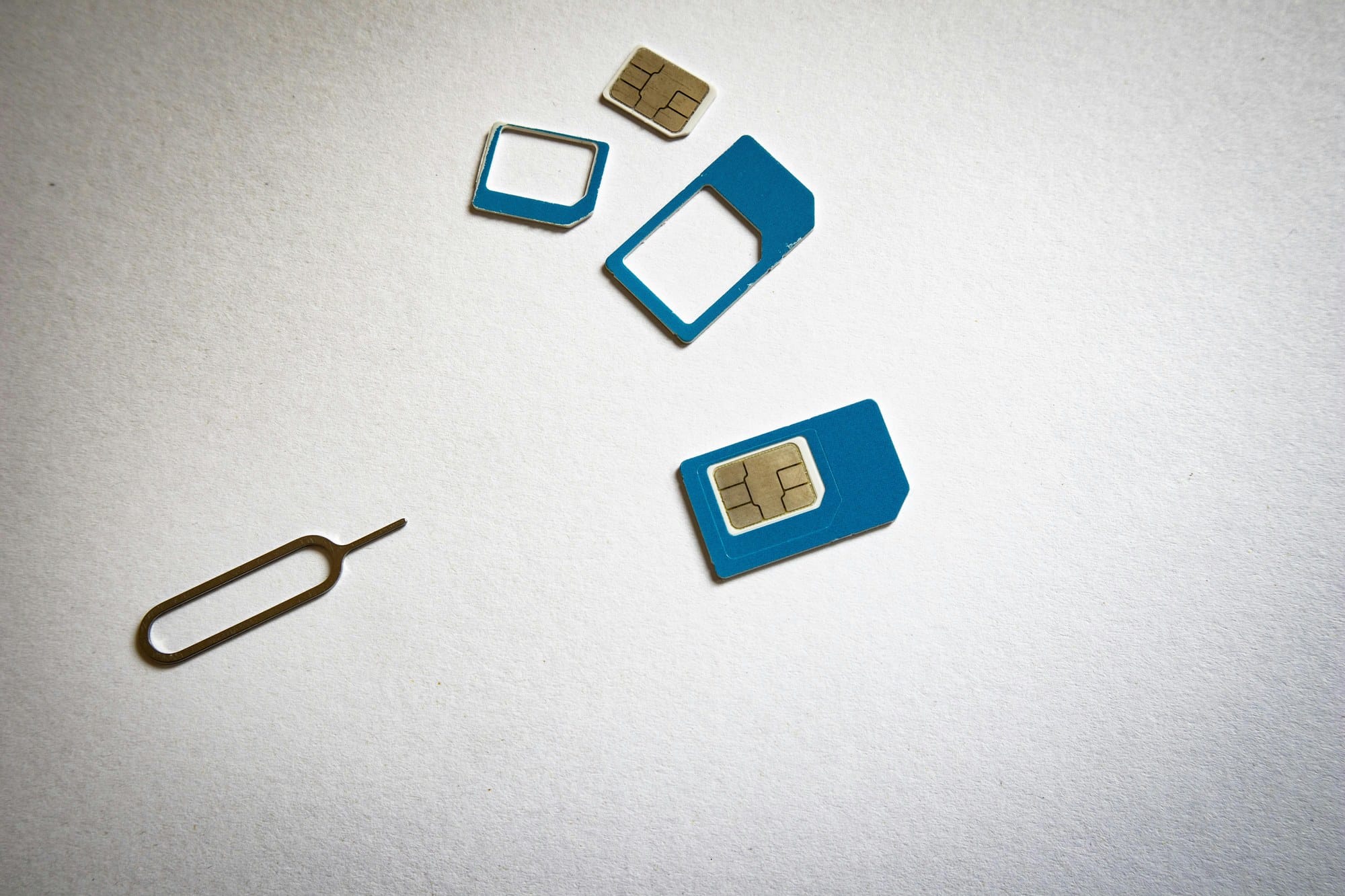
- Insert the SIM ejector tool (or a straightened paperclip) into the small hole on the SIM tray and push until the tray pops out.
- Remove the SIM card from the tray.
- Gently wipe both the card and the tray with a clean, dry, lint-free cloth.
- Place the SIM back in the tray in the correct orientation and push the tray fully back into the phone.
The tray has a small amount of intentional give in the design — make sure it's pushed all the way in and hasn't stopped partway.
Clean the SIM's Metal Contacts
Dirt or oxidation on the gold contact pads on the back of the SIM card can cause connection problems. Use a clean, dry cloth or dry cotton swab to gently wipe the metal contacts. Do not use alcohol or any liquid — this can cause corrosion.
What Causes "No SIM Card Installed"
If your phone shows "No SIM Card Installed" even though a card is inserted, consider the following:
- The SIM is inserted in the wrong orientation (check that the notched corner is aligned correctly)
- The tray isn't fully pushed in
- The SIM card itself is damaged or corroded (see below)
- The iPhone's SIM slot is physically damaged (common after water damage or a drop)
- A temporary iOS software glitch (a restart usually clears this)
How to Tell If Your SIM Card Is Damaged
If the gold chip area has visible cracks, chips, or discoloration (green, black, or white spots), the card has physical damage. You'll need to get a replacement SIM from your carrier. Most carriers — including those in Japan (au, Docomo, SoftBank, Rakuten Mobile) — can issue a replacement in-store or by mail, typically for free to a small fee depending on the carrier and your plan.
eSIM Checks and Re-Download
eSIMs are carrier profiles written electronically to your iPhone. There's no physical card to inspect, but you can check their status directly in Settings.
Check Line Status in Settings
- Open Settings → Cellular
- Tap the name of your eSIM line
- Confirm that "Turn On This Line" is enabled
- Confirm that "Cellular Data" is set to use this line
If the eSIM line's toggle is simply off, turning it back on may be all you need to do.
Re-Issue and Re-Download Your eSIM
If the eSIM profile is corrupted, you'll need to request a re-issue from your carrier.
- Major carriers and sub-brands: Re-issue and re-download are available through the official carrier apps (My Docomo / My au / My SoftBank / Rakuten Mobile app / ahamo / povo / LINEMO).
- Rakuten Mobile: Open the "my Rakuten Mobile" app → Re-issue eSIM → scan the QR code with your iPhone's camera.
- MVNO (budget SIM): Request a re-issue through your carrier's support page or customer portal.
Re-issuing an eSIM is free of charge at many carriers, but some still charge a small fee. Check your carrier's policy before requesting.
Removing an Old eSIM After Switching Carriers
After an MNP transfer (number portability), your old carrier's eSIM profile may linger on your iPhone. If that old profile is still set as the "Cellular Data" line, your new carrier's line won't work for data.
Steps to delete the old eSIM:
- Open Settings → Cellular
- Tap the old carrier's line name
- Tap "Delete eSIM" and confirm
Important: a deleted eSIM cannot be restored. Make absolutely sure you no longer need it before proceeding.
Dual SIM Primary and Secondary Line Settings
In a physical SIM + eSIM dual-SIM configuration, you can assign each line to a specific role. Review and configure the following in Settings → Cellular:
| Setting | Description |
|---|---|
| Cellular Data | The line used for internet access. Choose the line with the better data plan. |
| Default Voice Line | The line used for outgoing calls. Set to "Automatic" to let the iPhone choose based on signal strength. |
| iMessage and FaceTime | Select which line(s) to use — both can be active simultaneously. |
4G / 5G Mode Selection
Incorrect 4G/5G mode settings can cause unstable connectivity or prevent your phone from locking onto 5G.
Where to Find Voice and Data Settings
Go to Settings → Cellular → Cellular Data Options → Voice and Data. This is where you choose which radio technology your phone uses. If you have dual SIM, each line has its own setting — make sure you're adjusting the line designated for Cellular Data.
"5G On" vs. "5G Auto" vs. "LTE/4G"
| Setting | Behavior | Best for |
|---|---|---|
| 5G On | Always prioritizes 5G; falls back to 4G outside 5G zones | Urban areas with strong 5G coverage |
| 5G Auto | Uses 5G only when it meaningfully benefits performance; conserves battery otherwise | Recommended default — best balance of speed and battery |
| LTE/4G | Never connects to 5G; 4G/LTE only | Unstable 5G, battery conservation, or working around 5G-related bugs |
"5G On" causes your phone to constantly search for a 5G signal, which drains the battery faster. For everyday use, "5G Auto" is the most sensible choice.
Lock to LTE/4G to Work Around 5G Issues
Certain combinations of iOS versions, iPhone models, and carriers have been known to produce bugs where connecting to 5G results in slow or unusable data. If you're seeing a 5G indicator but the connection is sluggish or broken, temporarily switching to LTE/4G can stabilize things. This type of issue is typically fixed in subsequent iOS updates, so after updating you can switch back to "5G Auto."
APN Settings (Budget SIM / MVNO)
If you're on a budget SIM (MVNO), having the correct APN configuration profile installed is a hard requirement for cellular data. Without it, no amount of toggling or restarting will get you connected.
Check for a Configuration Profile
To verify whether an APN profile is installed:
- Open Settings → General → VPN and Device Management
- Look under "Configuration Profile" for your carrier's name (e.g., "IIJmio," "mineo")
- If no profile appears, proceed to install one as described below
Even if a profile is listed, it may be expired or corrupted. Deleting it and reinstalling fresh is the safest fix.
How to Install APN Settings for Major MVNOs
Download the configuration profile from your MVNO's official website. Use Safari on your iPhone — other browsers such as Chrome may not be able to trigger the installation prompt.
| MVNO | How to Get the Profile |
|---|---|
| IIJmio | Download from the "IIJmio for iPhone" page on the official website |
| mineo | Visit the official APN setup page in Safari and install from there |
| NifMo | Download from the APN settings page on the official website |
| Japan Communications SIM | Download from the initial setup guide on the official website |
| OCN Mobile ONE | Follow the iPhone setup guide on the official website |
After downloading, the profile will appear under Settings → General → VPN and Device Management → Downloaded Profile. Tap it, tap "Install," enter your passcode, and tap "Install" again to confirm. Restart your iPhone after installing.
The iOS Update Trap That Erases Your APN Profile
A major iOS update (16 → 17 → 18, etc.) can silently delete previously installed configuration profiles. Budget SIM users who suddenly lose connectivity after an update have almost certainly hit this issue.
After any major iOS update, always check Settings → General → VPN and Device Management to confirm your profile is still there. If it's gone, re-download and reinstall it from your MVNO's website.
Reset Network Settings
If nothing above has helped, "Reset Network Settings" is the classic next step. It clears accumulated configuration conflicts and corrupted settings in one shot.
How to Reset
- Open Settings → General → Transfer or Reset iPhone
- Tap "Reset"
- Tap "Reset Network Settings"
- Enter your passcode and confirm
- Your iPhone will restart automatically
After the reset, budget SIM users will need to reinstall their APN configuration profile since it will have been deleted (see the APN Settings section).
Warning: Your Wi-Fi Passwords Will Be Erased
Resetting Network Settings removes the following:
- All saved Wi-Fi passwords and connection history (everything is gone)
- VPN configurations
- Custom cellular settings
- MVNO APN configuration profiles
- Some Bluetooth pairing data
Photos, videos, apps, contacts, and messages are completely unaffected. Before proceeding, write down the Wi-Fi passwords for your home, office, and any other networks you need to reconnect to.
International Travel and Data Roaming
Data connectivity problems during or right after international travel are almost always roaming-related.
Turning Data Roaming On and Off
Use the toggle at Settings → Cellular → Data Roaming.
- If you want to use mobile data abroad: turn it On (roaming charges apply)
- For normal domestic use: keep it Off (prevents accidental charges)
Leaving Data Roaming on after you return home won't normally cause problems domestically, but in border areas or on a ship, there's a small risk of accidentally connecting to a foreign network. Making a habit of turning it off when you get home is a good practice.
Avoid Unexpected Roaming Charges
Leaving Data Roaming on in a foreign country can result in charges of hundreds of dollars in a single day depending on your carrier and destination. Plan ahead by using your carrier's international data add-on, swapping to a local SIM, or purchasing a travel eSIM before you leave.
If you're in Japan and using a Japanese carrier, the major carriers offer the following international data plans:
- Docomo: "Packet Pack International Option" (unlimited for up to approx. $20/day)
- au: "World Data Flat Rate" (similar pricing)
- SoftBank: "Overseas Unlimited Data" (similar pricing)
- Rakuten Mobile: First 2 GB/month free abroad (Rakuten UN-LIMIT subscribers); additional data billed per 500 MB
Most budget SIM (MVNO) providers do not offer international roaming. If you're traveling abroad and using an MVNO, consider purchasing a local SIM at your destination or using a travel eSIM service such as Airalo.
Still Roaming After Returning Home
If your phone won't connect — or is unusually slow — after you return home, your iPhone may still be trying to connect to a foreign cell tower instead of switching back to your domestic carrier. Toggling Airplane Mode on then off, or doing a full restart, forces the phone to scan for and connect to a local tower.
Data Cap and Speed Throttling
If you have a connection but it's noticeably slow, or if it suddenly became slow, you may have hit your monthly data cap.
Check Remaining Data in Your Carrier App
Use your carrier's official app to see your current usage and whether you've been throttled.
- Docomo: "My Docomo" app → Data Usage
- au: "My au" app → Data Usage
- SoftBank: "My SoftBank" app → Data Balance
- Rakuten Mobile: "my Rakuten Mobile" app → Data Usage
- ahamo: "ahamo" app → Data Remaining
- povo: "povo2.0" app → Data Usage
If you've used up your monthly allowance, your options are to wait until the next billing cycle resets or purchase additional data from your carrier. Most plans reset at the beginning of each calendar month.
Budget SIM Low-Speed Mode Toggle
Some MVNOs like IIJmio and mineo offer a "Low-Speed Mode" (also called "Eco Mode" or "Saver Mode") that you can toggle manually. If this mode is accidentally enabled, you'll have a working connection but speeds will be very slow — typically 200 kbps to 1 Mbps.
Check your carrier's app to see what mode is currently active and switch it back to high-speed if needed.
- IIJmio: Use the "IIJmio Coupon Switch" widget to check high-speed / low-speed status
- mineo: Check "Packet Saver" settings in the mineo app
Carrier-Side Issues
Even if your settings are perfect, you may lose connectivity due to a problem on your carrier's end.
How to Check for a Network Outage
Major outages do happen — even to large carriers. In Japan, notable examples include a nationwide au outage in July 2022 (affecting roughly 39 million lines) and multiple Rakuten Mobile disruptions in 2024. No carrier is immune.
How to check for an outage:
- Visit your carrier's official website over Wi-Fi → look for "Important Notices" or "Network Status"
- Search X (formerly Twitter) for your carrier name + "outage" or "not working" — user reports often surface faster than official announcements
- Check Downdetector (downdetector.com) for real-time crowd-sourced outage reports
If there is an outage, there's nothing you can do on your end — just wait for the carrier to restore service.
Instability in the 24–48 Hours After an MNP Transfer
When you transfer your phone number to a new carrier (MNP), there's a processing window between your old carrier cutting your line and your new carrier activating it. This typically takes 2–4 hours, though during busy periods (end/start of month) it can stretch to 24–48 hours.
If you can't connect right after an MNP transfer, wait a few hours before troubleshooting further. If it's been more than a few hours without improvement, contact your new carrier's customer support.
iOS Update and Repair Decisions
Update to the Latest iOS
Some iOS versions contain bugs related to specific carriers or 5G connectivity. Apple frequently releases minor updates with cellular-related fixes, so simply updating to the latest version sometimes resolves issues that nothing else could.
- Open Settings → General → Software Update
- If a new iOS version is listed, tap "Download and Install"
- Check your cellular connection after the update completes
A Wi-Fi connection is required to download updates. Make sure your battery is above 50% before starting, or keep the phone plugged in throughout the process.
Diagnosing a Failed Physical SIM Slot
If several of the following are true, the physical SIM slot itself may be faulty:
- "No SIM Card Installed" persists no matter how many times you reseat the card
- The same error occurs with multiple known-good SIM cards
- The tray feels different when you push it in compared to before
- The problem started after water exposure, a drop, or significant impact
If your model supports eSIM, switching to an eSIM-only setup is a viable workaround. Otherwise, the phone will need to go in for repair.
Carrier Store vs. Apple Support: Which to Contact
| Problem | Who to Contact |
|---|---|
| SIM card damaged or needs replacement | Your carrier's retail store (if you're in Japan: Docomo / au / SoftBank / Rakuten Mobile) |
| MVNO SIM setup or APN configuration | Your MVNO's support center (phone or chat) |
| MNP transfer issues or line activation problems | Your new carrier's customer support |
| iPhone SIM slot failure or iOS software issue | Apple Support app, Apple Store (Genius Bar), or an Apple Authorized Service Provider |
You can book a Genius Bar appointment through the Apple Support app. When you arrive, having a written note of what you've already tried and the results will speed up the diagnosis considerably.
Summary: Troubleshooting Checklist in Order
iPhone mobile data problems can have many causes, but working through the steps below in order resolves the vast majority of cases.
- Toggle Airplane Mode on → wait 5 seconds → off
- Restart your iPhone
- Settings → Cellular: toggle Cellular Data off then on (dual SIM users: also verify the correct line is set as Cellular Data)
- Physical SIM: remove and reseat the card (clean the contacts)
- eSIM: confirm the line is enabled in Settings; re-issue if necessary
- Change 4G/5G setting to "5G Auto" or "LTE/4G"
- Budget SIM users: verify the configuration profile is installed; reinstall if missing
- If only one app fails: Settings → Cellular → scroll down and check that app's toggle is on
- Check your remaining data in your carrier's app (watch for speed throttling and low-speed mode)
- Check your carrier's outage status (X / official website)
- Reset Network Settings (note your Wi-Fi passwords first — they will be erased)
- Update iOS to the latest version
- Contact your carrier store or book an Apple Genius Bar appointment
If you're also experiencing Wi-Fi issues alongside mobile data problems, see How to Fix an iPhone That Won't Connect to Wi-Fi | Troubleshooting by Symptom. If your messages aren't going through, see How to Fix iPhone Messages Not Sending | iMessage, SMS, MMS, and LINE Diagnosis. For a broader overview of iPhone issues organized by symptom, visit iPhone Troubleshooting Guide | Fixes Organized by Symptom.