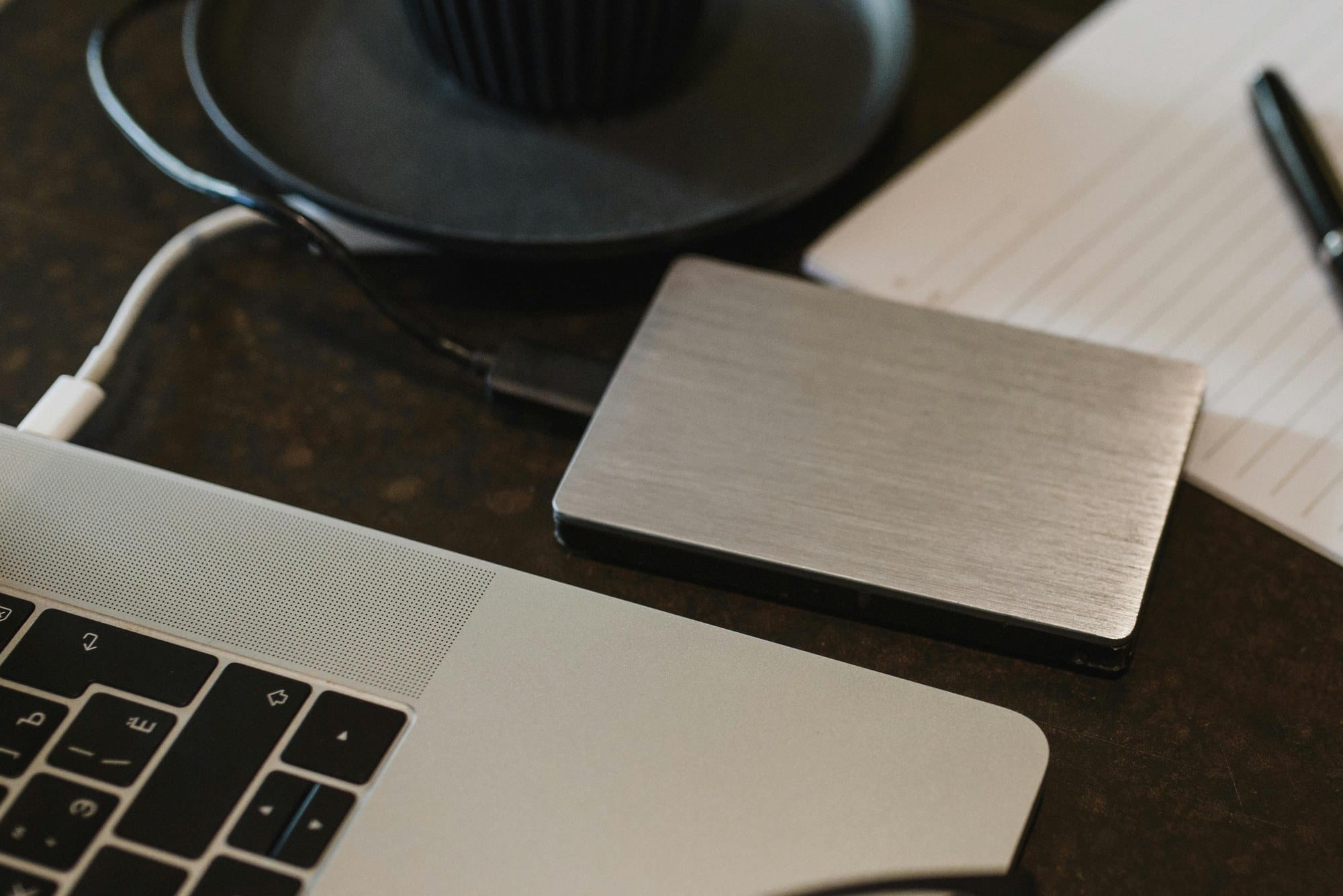
"I plugged in my external HDD but it won't show up in Finder." "It doesn't even appear in Disk Utility." "It shows up briefly, then disconnects." — External HDD recognition issues on Mac can stem from a wide range of causes: cables, ports, insufficient power, format mismatches, macOS settings, or hardware failure. This article covers macOS Sonoma / Sequoia, both Apple Silicon (M1/M2/M3/M4) and Intel Mac, and all connection types — portable HDD/SSD (USB / USB-C / Thunderbolt) and desktop HDD (bus-powered / self-powered) — walking you through how to diagnose the symptom and fix it step by step. See also the Mac Troubleshooting Guide | Fixes Organized by Symptom for a broader reference.
Table of Contents
- Diagnose First: Symptom Patterns and Causes
- Not recognized at all (nothing in Finder or Disk Utility)
- Appears in Disk Utility but won't mount in Finder
- Intermittently recognized then drops (loose connection / insufficient power)
- Works on another Mac (macOS / settings issue)
- Only Windows-formatted HDDs not recognized
- Quick-reference table by symptom
- Hardware Basics (Cable, Port, Power)
- Basic macOS Fixes
- Mount the Drive Manually
- Format Issues (NTFS from Windows)
- Privacy & Security (Apple Silicon gotcha)
- SMC / NVRAM Reset and Restart
- Boot into Safe Mode to Isolate the Problem
- Suspect Hardware Failure — Data Recovery
- Prevention: Avoiding Recurrence
- Summary: Troubleshooting Checklist in Order
Diagnose First: Symptom Patterns and Causes
"My external HDD isn't recognized" can mean very different things. The right fix depends entirely on where the recognition is failing. Start by identifying which symptom matches your situation.
Not recognized at all (nothing in Finder or Disk Utility)
Nothing shows up in Finder, and the drive doesn't appear in Disk Utility's device list at all. The most likely causes are a broken or disconnected cable, poor contact, insufficient bus power, a failed port, or a power-supply fault in the HDD itself. For desktop HDDs with a power cable, check that the power LED is lit.
Appears in Disk Utility but won't mount in Finder
The drive shows up in Disk Utility as something like /dev/disk2, but never appears in Finder's sidebar or on the desktop. File system corruption, an unsupported format (such as NTFS), or a mount-point error are the most common culprits. Manual mounting or First Aid may resolve this.
Intermittently recognized then drops (loose connection / insufficient power)
The drive shows up in Finder right after you plug it in, then disappears — or it only appears when you wiggle the cable. Typical causes include a worn connector on the cable, poor USB port contact, or a voltage drop from insufficient bus power. Portable HDDs connected through a USB hub are especially prone to this.
Works on another Mac (macOS / settings issue)
The same HDD mounts fine on a different Mac or Windows PC, but not on one specific Mac. Possible causes include macOS settings (Finder display options or access permissions), a macOS bug, or a conflict with an installed third-party driver. Updating macOS or booting into Safe Mode can help narrow this down.
Only Windows-formatted HDDs not recognized
An HDD previously used with Windows doesn't show up on Mac at all, or appears in Disk Utility but won't mount. macOS may not mount an NTFS volume by default, and Windows' "Fast Startup" feature can leave a lock flag on the NTFS volume, causing Mac to refuse to mount it.
Quick-reference table by symptom
| Symptom | Most likely cause | First thing to try |
|---|---|---|
| Nothing in Finder or Disk Utility | Broken cable, power problem, HDD failure | Swap cable, try another port, check power |
| In Disk Utility but won't mount | File system corruption, NTFS | First Aid, manual mount |
| Intermittent — appears then drops | Loose connection, insufficient bus power | Plug directly into Mac, try a different cable, use a self-powered hub |
| Works on another Mac | macOS settings, driver conflict | Check Finder settings, boot into Safe Mode |
| Only Windows-formatted HDD fails | NTFS, Windows lock | Shut down Windows normally (Fast Startup off), then reconnect |
| Spin-up sound heard but won't mount | File system corruption, bad partition | Disk Utility First Aid, mount via Terminal |
Hardware Basics (Cable, Port, Power)
The vast majority of recognition failures have a physical cause — cable, port, or power. Always start here before moving on to software fixes.
Try a different USB-A / USB-C / Thunderbolt port
If your Mac has multiple USB ports, simply plugging into a different port can be enough to get the drive recognized. USB-C / Thunderbolt ports vary in capability, and a single port can develop poor contact. On a MacBook Pro, the left and right sides differ (the right side has no USB-A on some models), so if you're using a hub, try the other side.
For USB-A ports, visually inspect the contact pins inside the port to see if any are bent. USB-C / Thunderbolt ports accumulate dust easily — blow the port out with compressed air, then reinsert the cable.
Swap the cable (watch out for charge-only cables)
USB-C cables look identical on the outside, but there are two types: charge-only and data-transfer capable. A charge-only cable omits the data lines, so the HDD simply won't be recognized as a storage device. This often happens when the original cable is lost and a spare USB-C cable is used instead.
Switch to a different cable, or use the one that came with the drive. For Thunderbolt drives, you need a Thunderbolt-certified cable (look for the lightning-bolt symbol on the connector).
Switch from USB hub to direct connection
If the HDD is connected through a USB hub — especially a bus-powered one — plug it directly into a Mac port. A bus-powered hub shares power across all connected devices, and there may not be enough to spin up the HDD.
Even a Thunderbolt dock or self-powered (AC adapter) hub can cause intermittent issues due to firmware bugs or compatibility problems. Always confirm with a direct connection first.
Bus-powered HDDs may have insufficient power
Most portable HDDs rely entirely on bus power from the USB port. USB 2.0 is rated at 500 mA and USB 3.0 at 900 mA, but actual output varies by Mac model — older Macs or hub-connected ports may fall short of what the HDD needs to spin up.
If you hear the drive spinning but it doesn't mount, or it appears briefly then drops, suspect a power shortage. Try a Y-cable (two USB-A connectors → one micro-USB / USB-B) to draw power from two ports, or consider replacing the enclosure with a self-powered (AC adapter) version.
Test on another Mac or PC
If you have access to another Mac or Windows PC, plug the same HDD into it and see if it mounts. If it works on another machine, the HDD itself is fine — the problem is with the original Mac's settings, port, or driver. If it fails on other machines too, suspect the HDD hardware.
Basic macOS Fixes
Show external disks on the desktop in Finder settings
By default, macOS Sonoma / Sequoia may not automatically show external drives on the desktop. The drive might be recognized by the system but simply "invisible." Check this first.
- In the Finder menu bar, choose Finder → Settings… (or press Cmd + ,)
- Open the General tab and check "External disks" under "Show these items on the desktop"
- Open the Sidebar tab and check "External disks" under the Locations section
After changing these settings, reconnect the HDD — it should now appear on the desktop and in the Finder sidebar.
Check Disk Utility — show all devices
Even when nothing shows in Finder, Disk Utility (Applications → Utilities → Disk Utility) lists all connected devices.
Once Disk Utility is open, click View → Show All Devices in the menu bar. By default it shows "Volumes only," which hides unmounted devices. Switching to "Show All Devices" reveals physical disks that haven't been mounted.
Run First Aid in Disk Utility
If the HDD appears in Disk Utility, use First Aid to check and repair the file system.
- In Disk Utility's left sidebar, select the target HDD or the partition (volume) under it
- Click the First Aid button in the toolbar, then click Run
- Wait for it to complete (this can take a few minutes to over ten minutes for large drives)
- When you see "The operation was successful," you're done
If errors are found and repaired, run First Aid again until no errors remain. If you see "Disk Utility can't repair this disk," that indicates severe file system corruption or a hardware failure.
Mount the Drive Manually
If the device appears in Disk Utility but not in Finder, you can try mounting it manually.
Use the Mount button in Disk Utility
- Enable "Show All Devices" in Disk Utility
- In the left sidebar, select the partition (volume) under the physical disk — not the disk itself, but the item indented beneath it
- Click the Mount button in the toolbar
- Check whether the drive now appears in the Finder sidebar and on the desktop
Use the diskutil command in Terminal
If the GUI mount fails, you can use Terminal commands instead.
First, list all connected devices:
diskutil listLook for your external drive listed as /dev/disk2, /dev/disk3, or similar. Once you've identified the right diskN, try mounting it:
diskutil mount /dev/disk2s1This mounts a specific partition (slice). Replace disk2s1 with whatever appears in your output. To mount all partitions on a disk at once, use:
diskutil mountDisk /dev/disk2If the command returns "Volume(s) mounted successfully," you're done. An error response usually points to file system corruption.
Format Issues (NTFS from Windows)
APFS / HFS+ / exFAT / FAT32 / NTFS differences
The formats that macOS can natively mount and read/write are as follows:
| Format | Mac read | Mac write | Primary use |
|---|---|---|---|
| APFS | Yes | Yes | Mac-only (macOS High Sierra and later) |
| Mac OS Extended (HFS+) | Yes | Yes | Mac-only (legacy format) |
| exFAT | Yes | Yes | Best for Mac/Windows sharing |
| FAT32 | Yes | Yes | Mac/Windows/Linux (4 GB file size limit) |
| NTFS | Yes (native) | No (native) | Windows-only |
Mac can read NTFS but not write to it (by default)
macOS mounts NTFS drives read-only by default. However, if Windows was shut down with Fast Startup enabled, the NTFS volume retains a "dirty bit" — macOS will then refuse to mount it for safety. In that case, go back to Windows and shut down normally (either disable Fast Startup, or hold Shift while clicking Shut Down), then reconnect to your Mac.
Fix: reformat to exFAT or use a third-party driver
If you need to read and write on both Windows and Mac, the simplest solution is to reformat to exFAT. Note that reformatting permanently erases all data on the disk — always back up before proceeding.
- Select the target disk in Disk Utility
- Click Erase in the toolbar
- Set the format to ExFAT and the scheme to GUID Partition Map
- Click Erase to proceed
If you need to keep your data and still read/write NTFS on Mac, a third-party NTFS driver is required. Popular options include Paragon NTFS for Mac (paid) and Tuxera NTFS for Mac (paid). These operate as kernel extensions, so they require a System Extensions approval on Apple Silicon — see the next section.
Privacy & Security (Apple Silicon gotcha)
On Apple Silicon Macs (M1 and later), macOS's enhanced security requires per-app permission to access external volumes. This can cause specific apps to not see the HDD, or even prevent Finder from displaying an external drive.
Check access permissions for external volumes
- Open System Settings → Privacy & Security
- Click "Files and Folders" in the left menu
- Find the affected app (Finder, Terminal, a backup app, etc.) in the list
- Confirm that "Removable Volumes" or "External Volumes" is turned on, and enable it if not
Also check System Settings → Privacy & Security → Full Disk Access — Time Machine and third-party backup apps may appear here and need to be toggled on.
Allow System Extensions / kernel extensions
Third-party NTFS drivers like Paragon NTFS for Mac and Tuxera NTFS for Mac run as kernel extensions (kext) or System Extensions. On Apple Silicon Macs, these require explicit approval via a security policy after installation.
- After the driver finishes installing, open System Settings → Privacy & Security
- If a notice appears saying "System software from developer X was blocked," click Allow
- Authenticate with Touch ID or your administrator password
- Restart if prompted
Without this approval the driver won't load, and the NTFS drive will remain read-only or fail to mount entirely.
SMC / NVRAM Reset and Restart
Try a normal restart first
It's easy to overlook, but fully shutting down and restarting your Mac can get the HDD recognized again. If macOS's USB stack or kernel driver has fallen into a temporary error state, a restart clears it. Rather than restarting with the HDD still plugged in, disconnect the HDD first → restart the Mac → wait until startup completes → then reconnect the HDD.
SMC and NVRAM reset on Intel Mac
The SMC (System Management Controller) manages power delivery to USB ports, and an SMC fault can cause USB devices to stop being recognized. Apple Silicon Macs have no SMC, so the following steps apply to Intel Macs only.
SMC reset for Intel Mac without T2 chip (MacBook 2017 and earlier):
- Shut down the Mac
- With the AC adapter connected, hold Left Shift + Left Ctrl + Left Option + Power button simultaneously for 10 seconds
- Release all keys, then press the power button to start up
SMC reset for Intel Mac with T2 chip (MacBook 2018–2020):
- Shut down the Mac
- Hold Right Shift + Left Ctrl + Left Option, then add the power button and hold all four keys for 7 seconds
- Release all keys, wait a few seconds, then press the power button to start up
NVRAM reset (Intel Mac only):
- Shut down the Mac
- Press the power button and immediately hold Cmd + Option + P + R
- Keep holding until you hear the startup chime twice (or the Apple logo appears twice)
Apple Silicon has no SMC / NVRAM concept
On M1 and later Apple Silicon Macs, power management equivalent to the SMC is integrated into the chip — there is no user-accessible reset procedure. For USB recognition issues, a normal restart or shutdown-then-power-on is the effective equivalent. Ignore older articles that describe an "Apple Silicon SMC reset" — those instructions are for Intel Macs.
Boot into Safe Mode to Isolate the Problem
Safe Mode starts macOS without loading third-party drivers, kernel extensions, or login items. It lets you confirm whether a third-party tool like an NTFS driver is interfering with HDD recognition. The procedure differs between Apple Silicon and Intel Mac.
Safe Mode on Apple Silicon
- Fully shut down the Mac
- Press and hold the power button until "Loading startup options…" appears
- When the startup disk (Macintosh HD) appears, hold Shift and click Continue
- If "Safe Boot" appears in the upper-right corner of the screen, you're in Safe Mode
Safe Mode on Intel Mac
- Shut down or restart the Mac
- Immediately after pressing the power button, hold Shift
- Release when the login screen appears (it should say "Safe Boot")
If the HDD is recognized in Safe Mode, the culprit is a third-party driver (such as an NTFS driver) or a login item. Go to System Settings → General → Login Items & Extensions and disable storage-related drivers and apps, then restart normally.
If the HDD is still not recognized in Safe Mode, the problem is likely hardware or severe file system corruption rather than software.
Suspect Hardware Failure — Data Recovery
If none of the steps above help, or if the drive is making unusual noises, hardware failure is the likely cause. The right course of action depends on how valuable the data is, so think carefully.
Clicking sounds signal head failure
If the HDD is making a repeated clicking or clunking noise, this is the classic sign of a "head crash" — the read/write heads can't find their home position and keep repeating a calibration attempt. Continuing to power the drive in this state causes additional damage to the platters (recording surface), making data recovery harder and far more expensive.
If you hear clicking, cut the power immediately and do not apply power again. Contact a professional data recovery service with clean-room facilities. SSDs don't make clicking sounds, but a controller chip failure or accumulated bad NAND blocks can cause sudden, complete inaccessibility.
Overview of software data recovery tools
If the HDD isn't making unusual noises, appears in Disk Utility, but First Aid can't repair it (a logical failure), software-based data recovery may work.
- Disk Drill (Mac): Intuitive UI, supports APFS / HFS+ / exFAT / NTFS. Scan and preview are free; recovery requires the paid version.
- EaseUS Data Recovery Wizard for Mac: Handles deleted, formatted, and crashed disks. Up to 500 MB recovery is free.
- DiskWarrior: Specialized in HFS+ / APFS directory repair — a long-established tool with a strong track record for directory structure corruption.
Whatever tool you use, save recovered data to a different drive. Writing back to the damaged drive risks overwriting and losing data. Also see How to Free Up Mac Storage | Tips for Recovering Disk Space to plan where to store recovered files and manage disk space going forward.
When to send it to a professional recovery service
If any of the following apply, software tools won't be enough — consider contacting a professional data recovery service with clean-room facilities.
- The HDD makes a repeated clicking or clunking noise
- The HDD doesn't spin up at all (possible motor failure)
- The HDD stopped being recognized after a drop or water exposure
- Disk Utility reports "Disk Utility can't repair this disk"
- Multiple drives in a RAID or NAS array have failed simultaneously
Professional data recovery can cost hundreds to thousands of dollars, so weigh that against the value of the data. Many services offer free diagnostics and no-data-no-fee pricing, so it's worth at least getting an assessment before writing off the drive.
Do not attempt to disassemble an SSD yourself. SSD controller repair requires chip-level work and a clean room. The same goes for RAID arrays — self-intervention dramatically increases the risk of permanent data loss.
Prevention: Avoiding Recurrence
Good daily habits go a long way toward preventing external HDD failures.
Time Machine + cloud backup (3-2-1 rule)
To ensure you don't lose data even if the external HDD itself fails, aim for the 3-2-1 backup rule: 3 copies of your data, on 2 different media types, with 1 copy offsite. In practice, combining Time Machine (a separate external HDD) + iCloud Drive / Google Drive / Dropbox covers both hardware failure and account issues. Keep the Time Machine HDD disconnected except during backups to extend its lifespan.
Always eject before unplugging
Get into the habit of clicking the ▲ eject icon next to the HDD name in Finder's sidebar before physically unplugging the drive. macOS may cache write operations and flush them later — yanking the cable without ejecting can leave the file system in a corrupt state. For the same reason, don't unplug the HDD while the Mac is asleep, starting up, or shutting down.
Monitor S.M.A.R.T. health with DriveDx
Regularly checking the S.M.A.R.T. (Self-Monitoring, Analysis and Reporting Technology) data for your HDD or SSD lets you catch warning signs before a failure. DriveDx (paid, sold outside the App Store) is a well-regarded Mac tool for this. Keep an eye on Reallocated Sectors Count and Current Pending Sector Count — if either value is increasing, start planning a replacement and data migration soon.
Summary: Troubleshooting Checklist in Order
Work through this list from top to bottom when an external HDD isn't recognized on your Mac.
- Identify the symptom (nothing in Finder or Disk Utility / in Disk Utility but won't mount / intermittent / works on another Mac / NTFS only)
- If you hear clicking sounds, cut the power immediately and contact a data recovery service
- Swap the cable — confirm it's a data-transfer cable, not a charge-only cable
- Plug directly into a different USB / USB-C port on the Mac (no hub)
- Check the power supply for desktop HDDs and bus-powered portable HDDs
- Connect the HDD to another Mac or PC to confirm whether the drive itself works
- In Finder settings, enable "External disks" display
- In Disk Utility, switch to "Show All Devices" and check the list
- Run First Aid in Disk Utility
- In Terminal, run diskutil list → try diskutil mount / diskutil mountDisk
- For NTFS drives: shut down Windows normally (Fast Startup off) then reconnect, or reformat to exFAT (backup required)
- Check System Settings → Privacy & Security for external volume access permissions and System Extensions approval
- Intel Mac only: try an SMC reset
- Intel Mac only: try an NVRAM reset (Cmd + Option + P + R)
- Boot into Safe Mode and check whether the HDD is recognized (if yes, a driver or login item is the culprit)
- Attempt data recovery with software tools (Disk Drill / EaseUS / DiskWarrior)
- If nothing works, contact a professional data recovery service
Most cases are resolved by swapping the cable, trying a different port, or using Disk Utility. Clicking sounds are the one exception that demands immediate action — quick decisions there directly affect recovery success and cost. For a broader reference on Mac problems, see the Mac Troubleshooting Guide | Fixes Organized by Symptom.