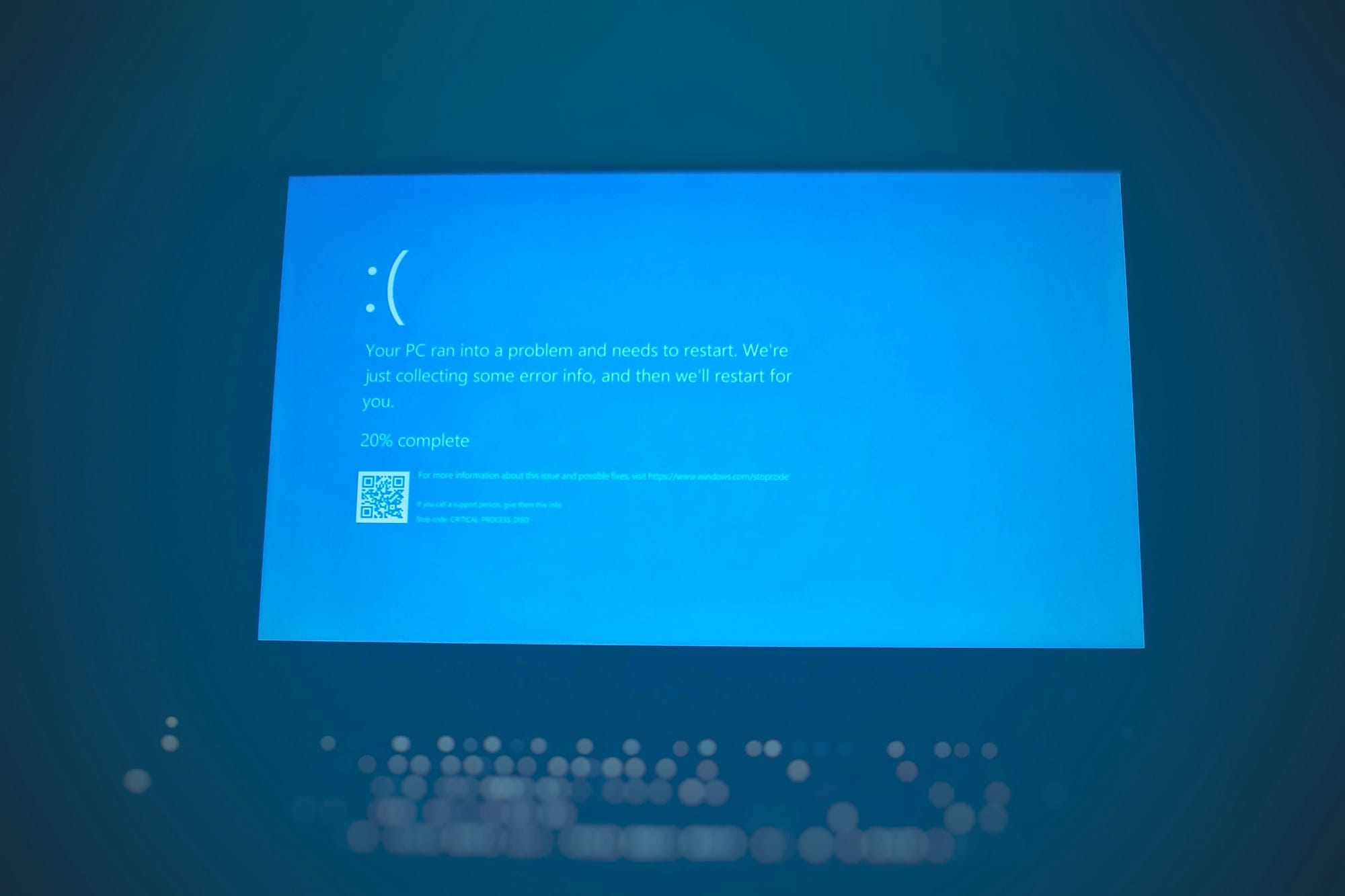
"My mouse cursor suddenly froze and won't move." "Clicks work but the cursor won't move at all." "After sleep, my Bluetooth mouse stays disconnected." "The touchpad on my laptop stopped responding." "My USB mouse isn't being recognized." — Mouse and touchpad problems on Windows can stem from many causes, and diagnosing them depends on the connection type and specific symptom. This article covers Windows 11 (up to 24H2) and Windows 10, breaking down causes for USB wired, Bluetooth/wireless, and laptop touchpad mice separately — including steps you can follow using only the keyboard. See also the Windows Troubleshooting Guide | Solutions by Symptom.
Table of Contents
- Diagnose First: Common Patterns for a Non-Working Mouse
- How to Operate with Just the Keyboard (So You Can Proceed Without a Mouse)
- Basic Hardware Checks (USB, Wireless, Bluetooth)
- Restart Windows / Full Shutdown
- Reinstall Mouse/Touchpad Driver
- Touchpad-Specific Fixes (Laptop)
- Review Mouse Behavior in Settings
- Disable Fast Startup and USB Selective Suspend
- Suspect System Files or Windows Update
- If Nothing Works (Safe Mode and Last Resorts)
- Summary: Checklist in Recommended Order
Diagnose First: Common Patterns for a Non-Working Mouse
When your mouse "isn't working," when, under what conditions, and which specific action stops responding can vary widely — and the cause changes accordingly. Start by identifying your symptom from the patterns below, then jump to the appropriate section.
Cursor Is Frozen and Won't Move
The mouse moves but the cursor doesn't react at all, or it's stuck at one spot on the screen. The main causes are a connection problem, a driver crash, or a system freeze. First, use the keyboard (described below) to check whether the system is still responsive, then try to restart.
Cursor Moves but Clicks Don't Register
The cursor moves fine, but left-click or right-click doesn't respond. Likely culprits are a physical button failure, a driver mismatch, or ClickLock being accidentally enabled. Testing with another mouse quickly tells you whether it's a hardware or software issue.
Stops Working After Sleep or After a While
The mouse works initially but stops after the computer wakes from sleep or after sitting idle for a while. The usual suspects are USB selective suspend (a power-saving feature that puts USB ports to sleep), Fast Startup, or Bluetooth auto-sleep.
Only Stops Working Inside a Specific App (e.g., Game)
The mouse works fine on the desktop but stops responding inside a fullscreen game or Remote Desktop session. Common causes are the game's input mode (RawInput/DirectInput), cursor capture by the application, or conflicts with a game overlay. Changing the in-game input settings or disabling the overlay often resolves this.
Bluetooth/Wireless Keeps Disconnecting
The wireless mouse suddenly loses tracking, pauses for a few seconds, or the pairing drops entirely. Main causes are dead batteries, radio interference, a Bluetooth driver issue, or Bluetooth being turned off automatically by power-saving settings.
Only the Touchpad Stops Working (Laptop)
An external mouse works fine but the touchpad doesn't respond. In most cases, the cause is accidentally disabling it with Fn+F-key, an auto-disable setting that triggers when an external mouse is connected, or a driver issue. Try unplugging the external mouse first, then re-check the touchpad.
Quick Reference by Symptom
| Symptom | Main Cause | First Thing to Try |
|---|---|---|
| Cursor frozen (USB) | USB port / driver | Switch to a different port → restart |
| Cursor frozen (Bluetooth) | Dead battery / pairing | Replace battery → re-pair |
| Clicks don't work | Button failure / driver | Test with another mouse |
| Stops working after sleep | USB selective suspend | Disable suspend in power settings |
| Only fails during a game | Input capture / overlay | Check in-game input settings |
| Touchpad not responding | Fn mis-press / auto-disable | Fn+touchpad key → check Settings |
How to Operate with Just the Keyboard (So You Can Proceed Without a Mouse)
Even without a mouse, Windows allows you to perform most operations using only the keyboard. Learning the shortcuts below lets you follow the steps in this article without any mouse input. See also Windows Keyboard Shortcuts for a full reference.
Restart or Open Task Manager with Ctrl+Alt+Delete
Pressing Ctrl + Alt + Delete brings up the security screen (a blue full-screen menu). Press Tab to move between items and Enter to select.
- Tab to the power icon in the lower-right corner → Enter → arrow keys to select Restart
- Select "Task Manager" to force-quit processes or unresponsive apps
If the system is still running, it will always respond to this shortcut, making it a useful way to confirm whether the OS itself is alive.
Open the Quick Link Menu with Win+X
Pressing Win + X opens the "Quick Link" menu in the lower-left corner of the screen. Use arrow keys to navigate and Enter to run. Device Manager, Power Options, Settings, Terminal, and almost everything you need in this guide can be opened from here.
Open Run Dialog with Win+R
Press Win + R to open the Run dialog and type commands directly.
- devmgmt.msc → Device Manager
- main.cpl → Mouse Properties
- powercfg.cpl → Power Options
- msconfig → System Configuration (for Clean Boot)
Press Enter to run, Esc to cancel.
Navigate the UI with Tab / Arrow Keys / Enter / Space
Inside any window: press Tab to move focus, arrow keys to select list items, Enter to press a button, and Space to toggle checkboxes. Use Alt + F4 to close a window and Alt + Tab to switch between apps. If the keyboard itself isn't responding, see How to Fix a Keyboard Not Working on Windows | USB, Bluetooth, and Laptop Diagnosis.
Use Mouse Keys to Control the Cursor with the Numpad
Windows has a feature called Mouse Keys that lets you move the cursor using the numpad — handy as a temporary workaround when the mouse is completely unusable.
- Press Alt + Left Shift + NumLock simultaneously
- When a confirmation dialog appears, press Enter (or Y) to enable
- With NumLock ON, use numpad 2/4/6/8 to move the cursor and 5 to left-click
On laptops without a NumLock key or a dedicated numpad, go to Settings → Accessibility → Mouse → turn on "Mouse Keys" to get the same functionality.
Basic Hardware Checks (USB, Wireless, Bluetooth)
Try a Different USB Port
When a USB wired mouse doesn't respond, first plug it into a different USB port. On desktop PCs, front-panel USB ports are less reliable than the rear-panel ports that connect directly to the motherboard, so always test the back as well.
Try USB 2.0 (black), USB 3.0 (blue), and USB-C ports in turn to rule out a compatibility issue with a specific standard. If you're going through a USB hub or docking station, plug directly into the PC — insufficient power from the hub is a common cause of recognition failures.
Test with Another Mouse or Another PC
If you have a spare mouse, connect it to the same PC. If the spare works, the original mouse is faulty. Conversely, if the original mouse works on a different PC, the problem is with the PC's settings or driver. These two tests almost always tell you whether it's the mouse or the PC.
Unplug and Replug the Wireless Dongle
For 2.4 GHz wireless mice (Logitech Unifying/Bolt, etc.), simply unplugging and replugging the USB receiver often restores the connection. Unplug it, wait five seconds, then plug it back into a different USB port. If the receiver has companion software (e.g., Logi Options+), you may need to re-pair through that app.
Check Battery and Power Switch
For wireless or Bluetooth mice, always check the battery level first. Even batteries you think have remaining charge can suddenly drain after long periods of storage. Replace with fresh batteries or, for rechargeable models, charge for at least 30 minutes before testing again. Also make sure the power switch on the bottom of the mouse is not off — it's surprisingly common for it to get flipped accidentally during transport or storage.
Re-pair Bluetooth
If a Bluetooth mouse isn't moving the cursor or stays disconnected, the pairing information may be corrupted.
- Win + R → ms-settings:bluetooth → Enter (opens the Bluetooth settings page)
- Use Tab/arrow keys to select the mouse → Enter to expand the menu
- Select "Remove device" to delete the existing pairing
- Put the mouse into pairing mode (usually hold the power button or press a dedicated button, depending on the model)
- "Add device" → "Bluetooth" → select your mouse → re-pair
Bluetooth can also suffer radio interference from 2.4 GHz Wi-Fi, microwaves, or USB 3.0 devices. Moving the USB receiver to the front of the PC or using an extension cable to bring it up to desk level can stabilize the signal.
Restart Windows / Full Shutdown
Restart via Ctrl+Alt+Delete
Even without a mouse, you can restart by pressing Ctrl + Alt + Delete → Tab to the power icon in the lower right → "Restart." Restarting forces the mouse driver to reload, which resolves most temporary glitches and minor freezes.
"Shutdown and start up again" and "Restart" can behave differently internally (see the Fast Startup section below). If the symptom persists, move on to the next section.
Full Shutdown with Fast Startup Disabled
When Windows Fast Startup is enabled, a normal "Shutdown" still saves part of the driver state for the next boot. This can prevent the mouse from being properly initialized, leaving it non-functional from the moment the PC starts. To perform a full shutdown, hold Shift while clicking "Shut down" on the power menu (this works even when using keyboard-only power options). For steps to permanently disable Fast Startup, see the section below.
Reinstall Mouse/Touchpad Driver
How to Open Device Manager
Even without a working mouse, you can open Device Manager in either of these ways:
- Win + X → arrow keys to "Device Manager" → Enter
- Win + R → devmgmt.msc → Enter
Once it's open, use Tab/arrow keys to navigate the tree, and Enter or the right arrow key to expand categories.
Uninstall the Driver and Let Windows Reinstall It
To reinstall the driver:
- In Device Manager, expand "Mice and other pointing devices" (arrow keys + Enter)
- Select the relevant device — such as "HID-compliant mouse" or "USB Input Device"
- Press Delete or use the right-click menu to select "Uninstall device"
- Tab to the confirmation dialog → Enter to proceed
- Restart the PC — Windows will automatically reinstall the standard driver
For a touchpad, look under "Human Interface Devices" or "Mice and other pointing devices" for entries like "ELAN Touchpad," "Synaptics HID," or "Microsoft Precision Touchpad."
Install the Latest Driver from the Manufacturer's Website
For branded mice from Logitech, Razer, Corsair, Microsoft, and others, installing the latest version of their companion software (Logi Options+, Razer Synapse, iCUE, etc.) often fixes issues. Also check Windows Update's "Optional updates" for driver updates (Settings → Windows Update → Advanced options → Optional updates).
Touchpad-Specific Fixes (Laptop)
Enable the Touchpad with Fn+F-Key
Most laptops have a keyboard shortcut to toggle the touchpad on and off using Fn + a function key. If the touchpad was accidentally disabled this way, it can feel as though something is broken even when nothing is wrong.
Common key combinations by manufacturer are listed below. Look for the function key that has a touchpad icon printed on it.
| Manufacturer (varies by model) | Common Key Combination |
|---|---|
| Dell | Fn + F3 or F5 |
| HP | Fn + F7 or F8 |
| Lenovo | Fn + F6 or F8 |
| ASUS | Fn + F9 |
| Acer | Fn + F7 |
| Fujitsu / NEC / Toshiba/DYNABOOK | Fn + F4 through F9 range (model-dependent) |
If FnLock is active, some models let you toggle the touchpad with the function key alone, without holding Fn.
Enable the Touchpad from Settings
If the Fn shortcut doesn't change anything, enable it directly from Settings.
- Press Win + I to open Settings
- Select "Bluetooth & devices" (Windows 11) or "Devices" (Windows 10)
- Select "Touchpad"
- If the "Touchpad" toggle is off, turn it on (use Tab + Space to operate without a mouse)
Check Synaptics / ELAN / Precision Touchpad Driver
In Device Manager, if you see a yellow exclamation mark ("!") next to an entry under "Human Interface Devices" or "Mice and other pointing devices," the driver isn't working correctly. Run the driver reinstall steps described earlier.
For models that support Precision Touchpad (Microsoft-certified driver), the driver often arrives via Windows Update and tends to be more stable than the manufacturer's proprietary driver. Check Settings → Windows Update → Optional updates.
Auto-Disable Setting When an External Mouse Is Connected
There is a setting that automatically disables the touchpad when an external mouse is connected. If your touchpad isn't responding even after unplugging the external mouse, this setting may still be active.
- Settings → Bluetooth & devices → Touchpad
- Check "Leave touchpad on when a mouse is connected"
- If it's unchecked, enable it
Review Mouse Behavior in Settings
Pointer Speed Setting
If the mouse is moving but feels abnormally slow or fast, the pointer speed setting may have changed.
- Settings → Bluetooth & devices → Mouse
- Adjust the "Mouse pointer speed" slider
You can also go to Win + R → main.cpl → Enter → "Pointer Options" tab → "Speed" slider. Also check the "Enhance pointer precision" (acceleration) checkbox. Many users turn this off for gaming or precise work when the movement feels off.
Advanced Settings via Mouse Properties (main.cpl)
main.cpl lets you review all button, scroll, and pointer settings in one place.
- "Buttons" tab: If ClickLock is enabled, clicks can get stuck in a "held" state. Uncheck "Turn on ClickLock" to resolve this.
- "Wheel" tab: Scroll line count and page settings. Check here if only the scroll wheel isn't working.
- "Hardware" tab: Lists connected mouse devices. If your mouse doesn't appear here, Windows isn't even detecting it.
Disable Fast Startup and USB Selective Suspend
How to Disable Fast Startup
If the mouse consistently fails to work every time after a shutdown and restart, Fast Startup is often the cause.
- Win + X → "Power Options" → Enter
- In the left panel, select "Choose what the power buttons do" (Tab → Enter)
- Click "Change settings that are currently unavailable" (requires admin rights)
- Uncheck "Turn on fast startup (recommended)"
- "Save changes" → restart
How to Disable USB Selective Suspend
If the mouse only stops working after sleep, the cause is often USB selective suspend — a power-saving setting that puts USB ports to sleep.
- Win + R → powercfg.cpl → Enter (Power Options)
- "Change plan settings" for the current plan → "Change advanced power settings"
- In the tree, expand "USB settings" → "USB selective suspend setting"
- Set both "On battery" and "Plugged in" to "Disabled"
- "OK" → restart
On a laptop, make sure to disable both the battery and plugged-in settings. Disabling this setting alone resolves post-sleep mouse issues in a large number of cases.
Suspect System Files or Windows Update
sfc /scannow and DISM
If the mouse stopped working after a Windows Update or an abnormal shutdown, corrupted system files may be the underlying cause. Run the following commands in order from an elevated command prompt or terminal (with administrator rights):
DISM /Online /Cleanup-Image /RestoreHealth
sfc /scannow
Run DISM first to repair the Windows image, then SFC to repair protected system files — that's the recommended order. The whole process takes about 20–40 minutes. To open an elevated terminal, press Win + X → "Terminal (Admin)" or "Command Prompt (Admin)." See also How to Fix Failed Windows Update for more detail.
Uninstall a Recent Windows Update
If the mouse stopped working right after a specific update, that update is likely the culprit.
- Settings → Windows Update → "Update history"
- Scroll down and click "Uninstall updates"
- Select the recently installed update (especially anything in the "Driver" category) → Uninstall
- Restart and check whether the problem is resolved
After uninstalling, the same update may be automatically re-downloaded. To prevent a recurrence until a fix is released, use "Pause updates" in Settings.
If Nothing Works (Safe Mode and Last Resorts)
Safe Mode to Isolate Driver or Software Conflicts
If the mouse doesn't work in normal mode but works in Safe Mode, a third-party driver or background app is interfering. Safe Mode starts Windows without third-party drivers and startup apps, making it the primary method for narrowing down the problem.
For how to enter Safe Mode, see How to Boot Windows in Safe Mode | Shift+Restart, msconfig, and Command Methods. If you can't boot at all, force-shutting down by holding the power button three times will bring up the "Automatic Repair" screen on the fourth attempt, where you can access Advanced Options. If the mouse works in Safe Mode, use the Clean Boot method below to identify the culprit by enabling startup items one by one.
Clean Boot
If Safe Mode works but the problem recurs in normal mode, use a Clean Boot to isolate the offending software.
- Win + R → msconfig → Enter
- "Services" tab → check "Hide all Microsoft services" → disable all remaining services
- "Startup" tab → "Open Task Manager" → disable all startup apps
- Restart and check whether the mouse works
If the mouse works, re-enable half of the services and startup items, restart, and repeat until you find the culprit. Screen recording or streaming software (like OBS) with overlays, security software, and PC manufacturer utilities are common offenders.
Reset This PC
If nothing has worked, resetting the PC is the last resort. Choosing "Keep my files" preserves your documents and personal data while returning apps, settings, and drivers to a clean state.
Go to Settings → System → Recovery → "Reset this PC" (fully operable with keyboard only). Before proceeding, back up your data to external storage and note the license keys and installers for any software you'll need to reinstall.
Summary: Checklist in Recommended Order
Here is the recommended order for fixing a mouse that won't work on Windows:
- Identify the symptom (frozen cursor / clicks not working / fails after sleep / fails in a game / touchpad only)
- Confirm keyboard controls: Ctrl+Alt+Delete, Win+X, Win+R, Mouse Keys
- USB wired: plug directly into a different port, remove the hub, test with another mouse
- Wireless/Bluetooth: replace the battery, check the power switch, re-seat the dongle, re-pair
- Touchpad: Fn+F-key, enable from Settings, check the auto-disable-with-external-mouse setting
- Restart (Shift+Shut down to bypass Fast Startup)
- In Device Manager, reinstall the mouse driver
- Settings → Mouse → pointer speed, main.cpl → check ClickLock and other settings
- Disable Fast Startup and USB selective suspend
- DISM + sfc /scannow to repair system files; uninstall any problematic Windows updates
- Safe Mode to isolate → Clean Boot → Reset This PC
Most cases are resolved by steps 3–6. If the mouse consistently fails after sleep, disabling USB selective suspend is especially effective. For broader Windows troubleshooting, see the Windows Troubleshooting Guide | Solutions by Symptom.