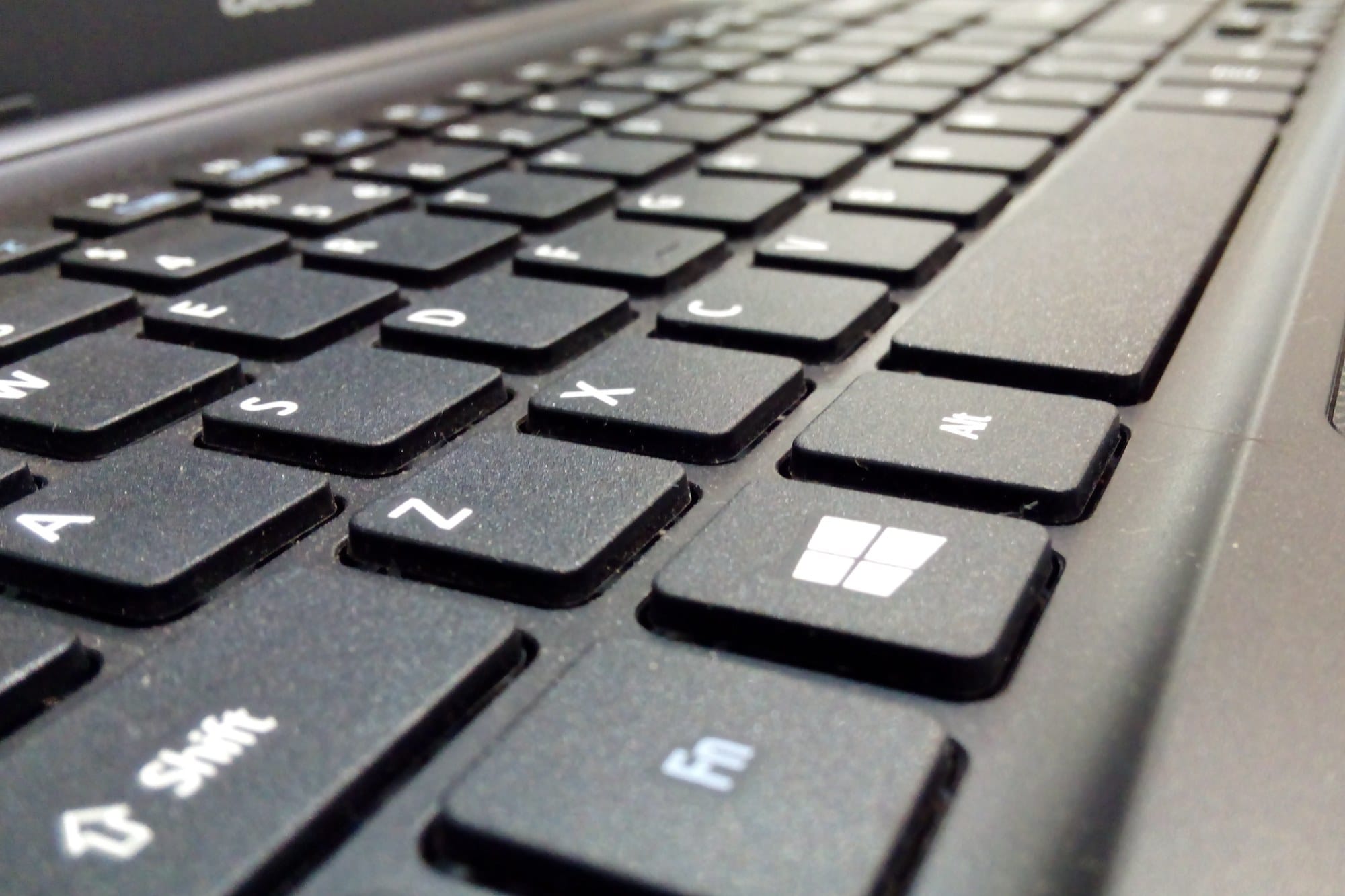
Mastering keyboard shortcuts is one of the fastest ways to get more done on Windows. From copying and pasting to managing virtual desktops and capturing screenshots, there are dozens of operations you can complete without ever touching the mouse. This guide covers all the essential shortcuts for Windows 11 (up to 24H2) and Windows 10, including a comparison table for users switching from Mac, how to customize key bindings with PowerToys, and a curated Top 20 list to get you started. Learn the high-frequency ones first, then gradually expand from there.
Table of Contents
- Modifier keys: Ctrl / Shift / Alt / Windows key / Fn
- Copy, cut, and paste
- Window management
- File Explorer
- Screenshots
- Windows 11 / 10 system shortcuts
- Virtual desktops
- Text editing
- Browser shortcuts
- System and troubleshooting
- Accessibility
- Input language switching (IME)
- Customizing key bindings with PowerToys
- FAQ
- Top 20 to memorize
Modifier keys: Ctrl / Shift / Alt / Windows key / Fn
Keyboard shortcuts work by combining a modifier key with a regular key to trigger a specific action. Understanding what each modifier does makes it much easier to guess what an unfamiliar shortcut will do before you even try it.
What each modifier key does
Windows uses four main modifier keys. Once you know their roles, you can often predict a shortcut's function at a glance.
| Modifier key | Primary role | Common example |
|---|---|---|
| Ctrl (Control) | Universal app operations | Ctrl + C (copy) |
| Shift | Extend selections; reverse actions | Ctrl + Shift + T (reopen closed tab) |
| Alt (Alternate) | Window switching; menu access | Alt + Tab (switch apps) |
| Windows key (Win) | OS and system features | Win + E (open File Explorer) |
| Fn (Function) | Laptop-specific hardware functions | Fn + F5 (brightness — varies by model) |
The Windows key is the key with the Windows logo, typically found at the bottom-left of the keyboard (and sometimes on both sides). It is the starting point for most OS-level shortcuts.
For Mac users moving to Windows
Switching from macOS to Windows can feel disorienting at first because the modifier keys have different names and positions. Use this table as a quick reference.
| Mac key | Windows equivalent | Notes |
|---|---|---|
| ⌘ Command | Ctrl | Copy, save, and most common actions map directly |
| ⌥ Option | Alt | Special character input behaves differently |
| ⌃ Control | Rarely used | Some apps still use it |
| ⇧ Shift | Shift | Same position and purpose on both platforms |
| ⌘ + Space (Spotlight) | Win key alone | Opens Start menu, which doubles as a search box |
| ⌘ + Q (quit app) | Alt + F4 | Closes the active window / application |
| ⌘ + Tab (app switcher) | Alt + Tab | Same thumbnail-style app switcher |
Copy, cut, and paste
These are the first shortcuts to get into muscle memory. They work in virtually every application, and using them consistently will noticeably speed up everyday tasks.
The five shortcuts to learn first
| Shortcut | Action | Notes |
|---|---|---|
| Ctrl + C | Copy | Saves the selection to the clipboard |
| Ctrl + X | Cut | Copies then removes from the original location |
| Ctrl + V | Paste | Inserts clipboard contents at the cursor |
| Ctrl + Z | Undo | Reverses the last action |
| Ctrl + Y | Redo | Re-applies an undone action |
Press Ctrl + Z repeatedly to step back through the action history. If you accidentally delete or overwrite something, this is always the first thing to try.
Window management
These shortcuts let you juggle multiple windows without reaching for the mouse, which is significantly faster once you build the habit.
Switching and closing apps
| Shortcut | Action |
|---|---|
| Alt + Tab | Show all open apps and switch between them |
| Alt + Shift + Tab | Cycle through the app switcher in reverse |
| Alt + F4 | Close the active window or application |
| Win + Tab | Open Task View — shows all windows and virtual desktops |
Hold Alt + Tab to keep the switcher open, press Tab again to move to the next app, then release Alt to switch.
Snap, desktop view, and lock
| Shortcut | Action |
|---|---|
| Win + D | Show desktop (minimizes all windows) / restore |
| Win + L | Lock the screen — use this whenever you step away |
| Win + ← | Snap window to the left half of the screen |
| Win + → | Snap window to the right half of the screen |
| Win + ↑ | Maximize window |
| Win + ↓ | Minimize (or restore if maximized) |
| Win + Shift + ← | Move window to the left monitor (multi-monitor setups) |
| Win + Shift + → | Move window to the right monitor (multi-monitor setups) |
On Windows 11, pressing Win + ← or Win + → also triggers Snap Layouts, which suggests grid arrangements for tiling multiple windows side by side.
File Explorer
If you spend time managing files and folders, these shortcuts cut out a lot of repetitive mouse work.
Folder and file operations
| Shortcut | Action | Notes |
|---|---|---|
| Win + E | Open a new File Explorer window | Works from anywhere on the desktop |
| Ctrl + N | Open a new File Explorer window | Only works when Explorer is focused |
| Ctrl + Shift + N | Create a new folder | Works on the desktop and inside Explorer |
| F2 | Rename the selected file or folder | More reliable than a slow double-click |
| Delete | Move selected items to the Recycle Bin | Recoverable |
| Shift + Delete | Permanently delete without going to Recycle Bin | Cannot be undone — use with caution |
| Alt + Enter | Open Properties for the selected item | Useful for checking file size and date modified |
| Ctrl + W | Close the Explorer window | Same as in a browser |
| Alt + ← | Go back to the previous folder | Same as the browser Back button |
| Alt + → | Go forward to the next folder | Same as the browser Forward button |
Screenshots
Windows offers several ways to take screenshots. Knowing which method to use saves you from having to crop or edit the image afterward.
Four methods and when to use each
| Shortcut | Action | Where it saves |
|---|---|---|
| PrintScreen (PrtSc) | Capture the entire screen to the clipboard | Clipboard only — you need to paste it |
| Win + PrintScreen | Capture full screen and save automatically | Pictures > Screenshots folder |
| Win + Shift + S | Open Snipping Tool (rectangle, window, or full screen) | Clipboard + save option via notification |
| Alt + PrintScreen | Capture only the active window to the clipboard | Clipboard only — you need to paste it |
The recommended default is Win + Shift + S. It lets you choose between a freehand rectangle, a window, or the full screen, and after capturing you can annotate the image before saving. This shortcut is available on Windows 10 (version 1903 and later) as well as Windows 11.
Windows 11 / 10 system shortcuts
Windows key combinations provide instant access to system panels and tools that would otherwise take several clicks to reach.
Settings, notifications, clipboard history, and emoji
| Shortcut | Action | Supported OS |
|---|---|---|
| Win + I | Open Settings | Win 11 / 10 |
| Win + A | Open Quick Settings (Wi-Fi, Bluetooth, volume) | Win 11 / 10 |
| Win + N | Open Notification Center and calendar | Win 11 |
| Win + V | Open Clipboard History (must be enabled first) | Win 11 / 10 |
| Win + . (period) | Open the emoji panel | Win 11 / 10 |
| Win + ; (semicolon) | Open the emoji panel (alternate shortcut) | Win 11 / 10 |
| Win + S | Open Search | Win 11 / 10 |
| Win + K | Cast to an external display or TV | Win 11 / 10 |
| Win + P | Switch projection mode (extend, duplicate, PC only) | Win 11 / 10 |
The first time you press Win + V, Windows will ask you to turn on Clipboard History. Once enabled, it stores multiple copied items so you can paste any of them — not just the most recent one.
Virtual desktops
Virtual desktops let you organize your windows across separate workspaces. A common setup is one desktop for work, another for personal browsing, and a third for research — keeping things tidy even when you have many windows open.
Create, switch, and close
| Shortcut | Action |
|---|---|
| Win + Tab | Open Task View — virtual desktops are shown at the top |
| Win + Ctrl + D | Create a new virtual desktop |
| Win + Ctrl + → | Switch to the virtual desktop on the right |
| Win + Ctrl + ← | Switch to the virtual desktop on the left |
| Win + Ctrl + F4 | Close the current virtual desktop |
Closing a virtual desktop does not close its windows — they are moved to the adjacent desktop automatically, so nothing gets lost.
Text editing
These shortcuts let you navigate and select text without lifting your hands from the keyboard, which makes a real difference during long editing sessions.
Cursor movement and selection
| Shortcut | Action |
|---|---|
| Ctrl + ← | Move one word to the left |
| Ctrl + → | Move one word to the right |
| Home | Jump to the beginning of the line |
| End | Jump to the end of the line |
| Ctrl + Home | Jump to the very beginning of the document |
| Ctrl + End | Jump to the very end of the document |
| Shift + ← / Shift + → | Extend selection one character at a time |
| Ctrl + Shift + ← / Ctrl + Shift + → | Extend selection one word at a time |
| Shift + Home | Select from the cursor to the start of the line |
| Shift + End | Select from the cursor to the end of the line |
Find, replace, and select all
| Shortcut | Action |
|---|---|
| Ctrl + A | Select all content |
| Ctrl + F | Open the Find dialog |
| Ctrl + H | Open the Find and Replace dialog |
| Ctrl + S | Save the file |
| Ctrl + Shift + S | Save As (behavior may vary by app) |
| Ctrl + P | Open the Print dialog |
Browser shortcuts
These shortcuts work in Chrome, Edge, and Firefox. The behavior is nearly identical across all three, so you only need to learn them once.
Tab management
| Shortcut | Action |
|---|---|
| Ctrl + T | Open a new tab |
| Ctrl + Shift + T | Reopen the last closed tab |
| Ctrl + W | Close the current tab |
| Ctrl + Tab | Switch to the next tab |
| Ctrl + Shift + Tab | Switch to the previous tab |
| Ctrl + 1 – Ctrl + 8 | Jump to the Nth tab from the left |
| Ctrl + 9 | Jump to the last (rightmost) tab |
Navigation and reload
| Shortcut | Action |
|---|---|
| Ctrl + L | Focus the address bar so you can type a URL |
| F5 | Reload the page |
| Ctrl + F5 | Hard reload — bypass the cache |
| Ctrl + R | Reload (same as F5) |
| Ctrl + Shift + R | Hard reload (same as Ctrl + F5) |
| Ctrl + D | Bookmark the current page |
| Ctrl + + | Zoom in |
| Ctrl + - | Zoom out |
| Ctrl + 0 | Reset zoom to 100% |
System and troubleshooting
When your PC slows down or you need to access a system tool quickly, these shortcuts get you there without navigating menus. They are among the most important shortcuts to know.
Task Manager and admin tools
| Shortcut | Action | When to use |
|---|---|---|
| Ctrl + Alt + Delete | Open the security screen (lock, Task Manager, sign out) | Last resort when the system is unresponsive |
| Ctrl + Shift + Esc | Open Task Manager directly | One step faster than Ctrl + Alt + Delete |
| Win + R | Open the Run dialog | Type msconfig, regedit, etc. |
| Win + X | Open the Power User menu (Quick Link menu) | Direct access to Device Manager, Terminal, and more |
| Win + Pause | Open System information (OS version, specs) | Quick way to check your Windows version |
| Win + G | Open Xbox Game Bar | Screen recording, performance monitoring |
Pressing Win + X brings up the Power User menu in the bottom-left corner. On Windows 11 it includes direct links to Windows Terminal (Admin), Device Manager, and other tools — much faster than going through Control Panel.
Accessibility
Windows has a full set of built-in accessibility features, all of which you can reach instantly with a keyboard shortcut.
Magnifier and on-screen keyboard
| Shortcut | Action | Notes |
|---|---|---|
| Win + U | Open Accessibility settings | Win 11 / 10 |
| Win + + (plus) | Launch Magnifier and zoom in | Enlarges the entire screen |
| Win + - (minus) | Zoom out in Magnifier | Only works while Magnifier is running |
| Win + Esc | Exit Magnifier | Only works while Magnifier is running |
| Win + Ctrl + O | Open the on-screen keyboard | Useful when a physical keyboard is not available |
| Win + Enter | Start or stop Narrator (screen reader) | Win 11 / 10 |
Input language switching (IME)
If your Windows display language is set to a language other than English, or if you frequently switch input methods, these shortcuts let you control the IME without leaving the keyboard.
Switching input modes
| Key | Action | Notes |
|---|---|---|
| Win + Space | Cycle through installed input languages | Hold Win and press Space to browse the list |
| Ctrl + Shift | Switch to the next input language | Works on most Windows setups |
| Alt + Shift | Switch between installed keyboard layouts | Alternative to Ctrl + Shift on some systems |
| F6 | Convert typed characters to hiragana (Japanese IME) | Active before confirming the input |
| F7 | Convert to full-width katakana (Japanese IME) | Active before confirming the input |
| F8 | Convert to half-width katakana (Japanese IME) | Active before confirming the input |
| F9 | Convert to full-width Latin characters (Japanese IME) | Active before confirming the input |
| F10 | Convert to half-width Latin characters (Japanese IME) | Active before confirming the input |
To add or remove an input language, go to Settings > Time & Language > Language & Region. Once multiple languages are installed, Win + Space lets you toggle between them without opening any menus.
Customizing key bindings with PowerToys
Windows shortcuts are fixed by default, but Microsoft's free PowerToys utility lets you remap any key or shortcut to whatever combination suits your workflow.
Using Keyboard Manager
Install PowerToys from the Microsoft Store or from GitHub. Once installed, open it from the system tray, then select Keyboard Manager from the left sidebar.
Keyboard Manager supports two types of customization:
- Remap a key: Replace one key with another — for example, swap Caps Lock for Ctrl, which many touch typists prefer.
- Remap a shortcut: Replace an existing shortcut with a new combination, or assign a shortcut to an action such as launching an application or inserting a text snippet. You can scope remaps to a specific application so they don't interfere with other software.
Changes take effect immediately — no restart required. If you are on a managed PC where software installation is restricted, there is an alternative method using the Windows Registry's Scancode Map, but editing the registry incorrectly can break keyboard input entirely. PowerToys is the safer choice for most users.
FAQ
Keyboards without a dedicated Fn key
On many laptops, the function keys (F1–F12) double as media controls for volume, brightness, and similar hardware functions. On those machines, pressing F5 might adjust brightness instead of refreshing the page — you'd need to hold Fn at the same time to get the standard F5 behavior.
The cleanest fix is to enable Fn Lock in your BIOS or UEFI settings, which makes the function keys behave as standard F1–F12 by default. How to enter BIOS varies by manufacturer, but pressing F2 or Delete during startup is common. Some keyboards also have a dedicated Fn Lock key — try Fn + Esc.
Full-size and tenkeyless external keyboards generally do not have a Fn key and treat all function keys as standard F1–F12 from the start.
When a shortcut stops working
If a keyboard shortcut isn't behaving as expected, check the following:
- Another app is capturing the shortcut: Games and remote desktop software often intercept system shortcuts. Minimize or close the app, then try the shortcut at the desktop level.
- Sticky Keys is enabled: Pressing Shift five times in a row activates Sticky Keys, which changes how modifier keys behave. Check under Settings > Accessibility > Keyboard.
- An IME is intercepting input: Some input method shortcuts conflict with Windows system shortcuts. Toggle your input language off and try again.
- Group Policy restrictions: On corporate or school PCs, administrators can disable certain shortcuts. Contact your IT department if you suspect this is the case.
Top 20 to memorize
Here are 20 shortcuts worth knowing regardless of how you use your PC. Start by making these second nature — everything else can come gradually.
| # | Shortcut | Action |
|---|---|---|
| 1 | Ctrl + C | Copy |
| 2 | Ctrl + V | Paste |
| 3 | Ctrl + Z | Undo |
| 4 | Ctrl + S | Save |
| 5 | Ctrl + A | Select all |
| 6 | Ctrl + F | Find |
| 7 | Alt + Tab | Switch apps |
| 8 | Alt + F4 | Close window |
| 9 | Win + E | Open File Explorer |
| 10 | Win + D | Show desktop |
| 11 | Win + L | Lock screen |
| 12 | Win + I | Open Settings |
| 13 | Win + Shift + S | Capture a screen region |
| 14 | Win + V | Clipboard history |
| 15 | Win + ← / Win + → | Snap window left or right |
| 16 | Ctrl + Shift + Esc | Open Task Manager |
| 17 | Win + R | Open Run dialog |
| 18 | F2 | Rename file or folder |
| 19 | Ctrl + T | New browser tab |
| 20 | Win + Space | Switch input language |
Don't try to learn all of these at once. The best approach is to pick one or two shortcuts that fit your daily routine and use them until they feel automatic — then add more. Bookmark this page as a reference whenever you need a quick look-up.