Can ad-blocking apps actually remove ads from streaming services on Fire TV? We tested AdLock and AdGuard across major apps to find out which ones work and which ones don't.
Table of Contents
- Can You Use Ad-Blocking Apps on Fire TV?
- Apps Where Ad Blocking Worked
- Apps Where Ad Blocking Didn't Work
- Apps That Don't Have Ads in the First Place
- How to Block YouTube Ads on Fire TV
- AdLock vs AdGuard: Which Is Better for Fire TV?
- Summary: Who Benefits from Ad Blocking on Fire TV
Can You Use Ad-Blocking Apps on Fire TV?
Yes — ad-blocking apps like AdLock and AdGuard can be sideloaded onto Fire TV devices running Fire OS. They work by filtering network traffic on the device, similar to how they work on phones and computers. However, they don't work equally well on every app.
Important: These apps require APK sideloading. If you have a Fire TV Stick 4K Select (which runs Vega OS instead of Fire OS), sideloading is not possible. See: Why I Regret Buying the Fire TV Stick 4K Select
For sideloading instructions, see: How to Sideload APKs on Fire TV
Apps Where Ad Blocking Worked
The following apps had their ads successfully blocked by AdLock or AdGuard:
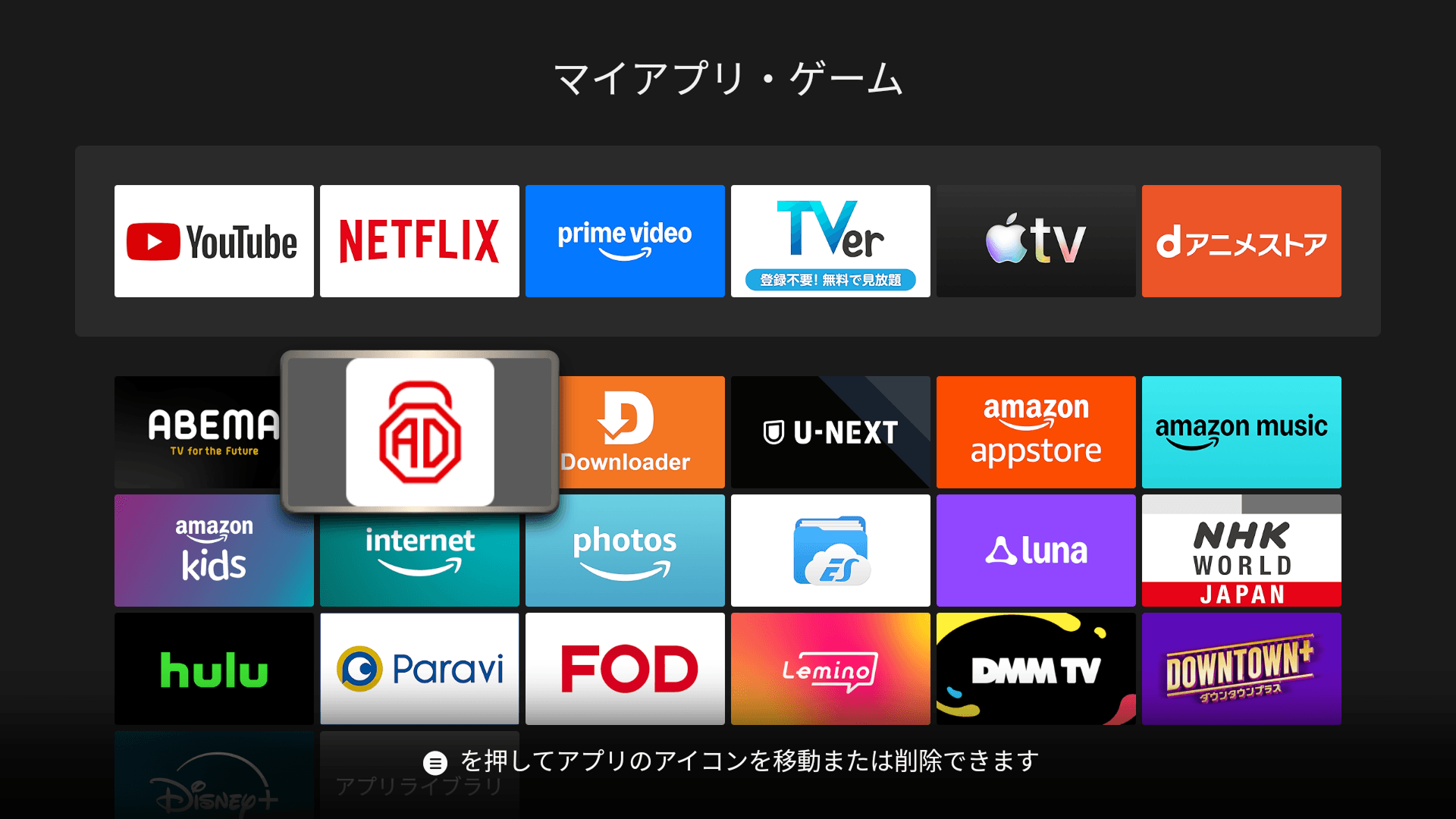
- TVer — Pre-roll and mid-roll ads blocked
- ABEMA — Video ads blocked
- Lemino — Ads blocked
- Pluto TV — Most ads blocked
These are ad-supported free streaming services where ads are delivered through standard ad networks, making them relatively easy to block at the network level.
Apps Where Ad Blocking Didn't Work
- YouTube — Ads are served from the same servers as the video content, so network-level blocking can't distinguish between the two. (See workarounds below.)
- Amazon Prime Video — Ads are embedded in the stream. Blocking the ad server would also block the video.
- Netflix — Ads on the ad-supported tier are built into the stream.
- Hulu — Same approach as Netflix.
Apps That Don't Have Ads in the First Place
- Disney+ — No ads on standard plans
- Apple TV+ — No ads
- Amazon Prime Video (ad-free tier) — No ads if you pay for the ad-free option
How to Block YouTube Ads on Fire TV
Standard ad blockers can't handle YouTube ads because Google serves them from the same infrastructure as the video itself. Here are two workarounds:
Use AdLock's Built-in YouTube Player
AdLock includes a dedicated YouTube player that handles ad removal at the application level rather than the network level. It's not as full-featured as the official YouTube app, but it gets the job done for ad-free viewing.
Use SmartTube
SmartTube is a free, open-source YouTube client designed specifically for Android TV and Fire TV. It blocks ads, supports 4K playback, SponsorBlock (to skip sponsored segments), and offers a clean TV-optimized interface. It needs to be sideloaded via APK.
AdLock vs AdGuard: Which Is Better for Fire TV?
Both are capable ad blockers, but they differ in a few key ways on Fire TV:
- AdLock — Includes a built-in YouTube player, which is a significant advantage on Fire TV. One-time purchase pricing available.
- AdGuard — More customizable filtering rules and DNS-level blocking options. Subscription-based pricing.
For most Fire TV users, AdLock is the better choice because of its YouTube player integration. If you primarily use SmartTube for YouTube and just need network-level blocking for other apps, AdGuard works well too.
Summary: Who Benefits from Ad Blocking on Fire TV
Ad-blocking apps on Fire TV are most effective for free, ad-supported streaming services like TVer, ABEMA, and Pluto TV. For YouTube, you'll need SmartTube or AdLock's dedicated player. For services like Prime Video and Netflix, ad blocking doesn't work because ads are embedded in the video stream itself.
If you mainly watch ad-supported free services, an ad blocker on Fire TV can significantly improve the experience. If you only use paid subscription services, you won't see much benefit.