Fire TV runs on a modified version of Android, which means you can install apps outside the Amazon App Store by sideloading APK files. Here's how to set it up and some recommended apps worth installing.
Table of Contents
- Prerequisites: Enable Developer Mode
- How to Install an APK
- Recommended Apps to Sideload
- Important Notes
- Summary
Prerequisites: Enable Developer Mode
Turn On Developer Options
Before you can sideload apps, you need to enable developer mode on your Fire TV:
- Go to Settings → My Fire TV → About
- Click on your Fire TV Stick name 7 times in a row
- A message will confirm that Developer Options have been enabled
- Go back to My Fire TV → Developer Options
- Turn on "Apps from Unknown Sources" (or "Install unknown apps")
How to Install an APK
The easiest way to sideload APKs on Fire TV is using the Downloader app:
- Install Downloader from the Amazon App Store (it's free)
- Open Downloader and enter the URL of the APK you want to install
- The APK will download automatically
- When prompted, tap "Install"
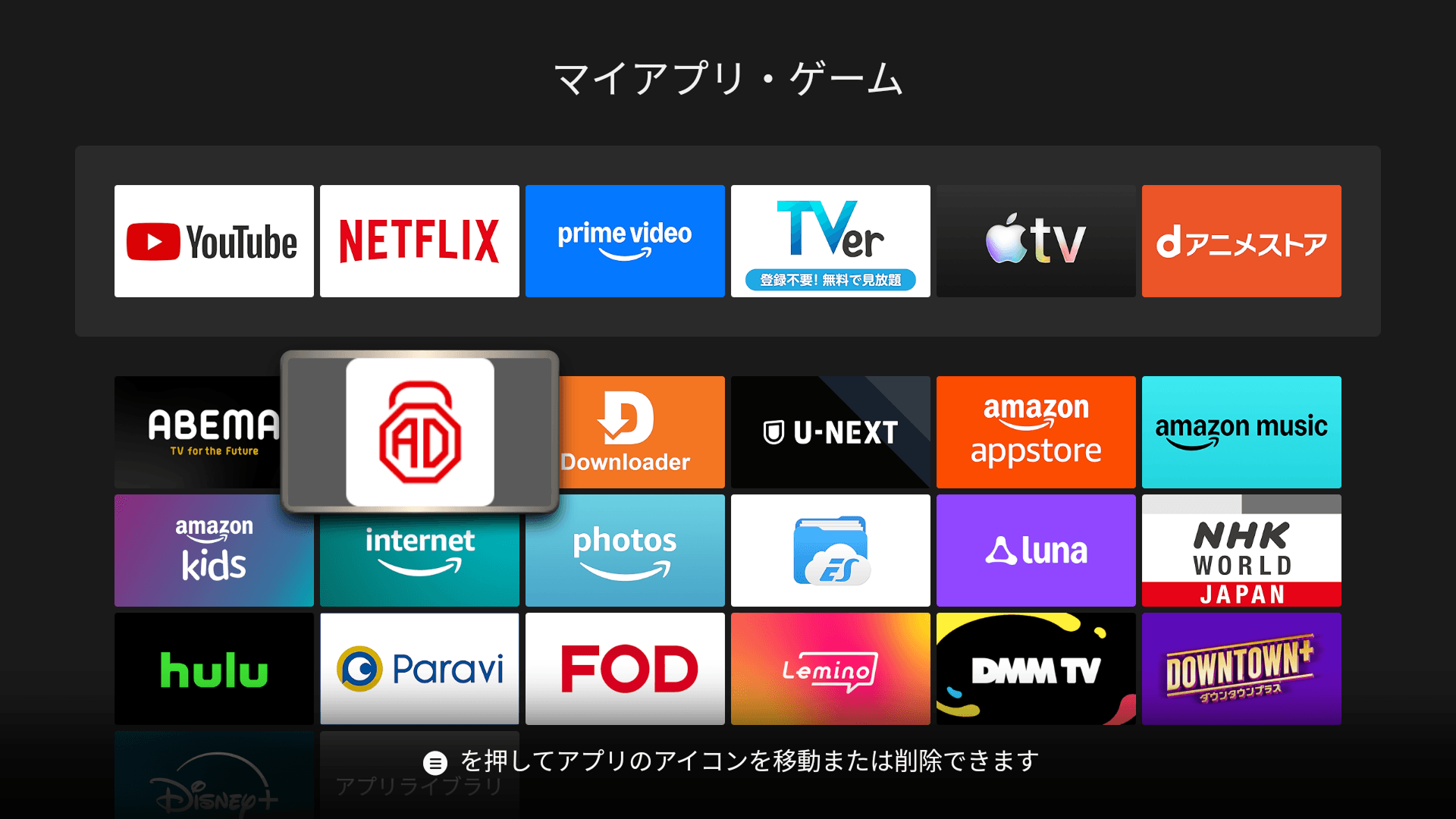
- Once installed, the app will appear in your app list
You can find APK download URLs on the official websites of the apps you want to install. Some apps (like SmartTube) provide direct download links specifically for Fire TV.
Recommended Apps to Sideload
AdLock — Ad Blocking App
AdLock blocks ads across apps and browsers on your Fire TV by filtering network traffic at the device level. It's especially useful for free streaming services that show video ads. It also includes a built-in YouTube player that blocks YouTube ads — something regular ad blockers can't do.
For detailed results on which apps it works with, see: Ad Blocking Apps on Fire TV — Tested
SmartTube — Ad-Free YouTube Client
SmartTube is a free, open-source YouTube client built for Android TV and Fire TV. It blocks all ads (including mid-roll ads), supports SponsorBlock to skip sponsored segments, and offers 4K playback with a clean, TV-optimized interface. It's widely regarded as the best YouTube experience on Fire TV.
Important Notes
- Fire TV Stick 4K Select is not supported. The Select model runs Vega OS instead of Fire OS, which does not support developer mode or APK sideloading. See: Why I Regret Buying the Fire TV Stick 4K Select
- Sideloaded apps don't update automatically. You'll need to manually download and install updated APKs when new versions are released.
- Only install APKs from trusted sources. Sideloading bypasses the Amazon App Store's review process, so make sure you're downloading from official developer websites or reputable sources like GitHub.
- Some sideloaded apps may not work perfectly. Apps designed for phones or tablets may not have a TV-friendly interface. Look for apps specifically built for Android TV / Fire TV.
Summary
Sideloading APKs on Fire TV opens up a world of apps beyond what's available in the Amazon App Store. The process is straightforward: enable Developer Options, install the Downloader app, and enter the APK URL. SmartTube and AdLock are two of the most popular and useful apps to sideload. Just make sure your Fire TV runs Fire OS (not Vega OS on Select models) and only install from trusted sources.