Fire TV devices can slow down over time — apps take longer to load, menus lag, and streaming buffers more than usual. Here are the most effective fixes in the order you should try them.
Table of Contents
- Quick Fixes to Try First
- Storage Issues
- Wi-Fi Issues
- Video Stuttering and Buffering
- If Nothing Else Works
- Summary: Recommended Order
Quick Fixes to Try First
Restart Your Fire TV
A simple restart clears temporary data and stops background processes that may be slowing things down. Go to Settings → My Fire TV → Restart, or unplug the device for 30 seconds and plug it back in.
Clear Cache for Individual Apps
Apps build up cached data over time, which can cause slowdowns. To clear an app's cache:
- Go to Settings → Applications → Manage Installed Applications
- Select the app
- Tap "Clear cache"
Focus on apps you use most frequently — especially streaming apps, which tend to accumulate the most cache.
Clear Cache for All Apps at Once
To clear cache for all apps simultaneously, go to Settings → Applications → Manage Installed Applications and use the option to clear all cached data. The exact wording may vary depending on your Fire TV model and software version.
Storage Issues
Check Available Storage
Fire TV devices have limited internal storage (typically 8–16 GB). When it gets full, the system slows down significantly. Go to Settings → My Fire TV → About → Storage to check how much space is left. Try to keep at least 500 MB–1 GB free for the system to operate smoothly.
Uninstall Unused Apps
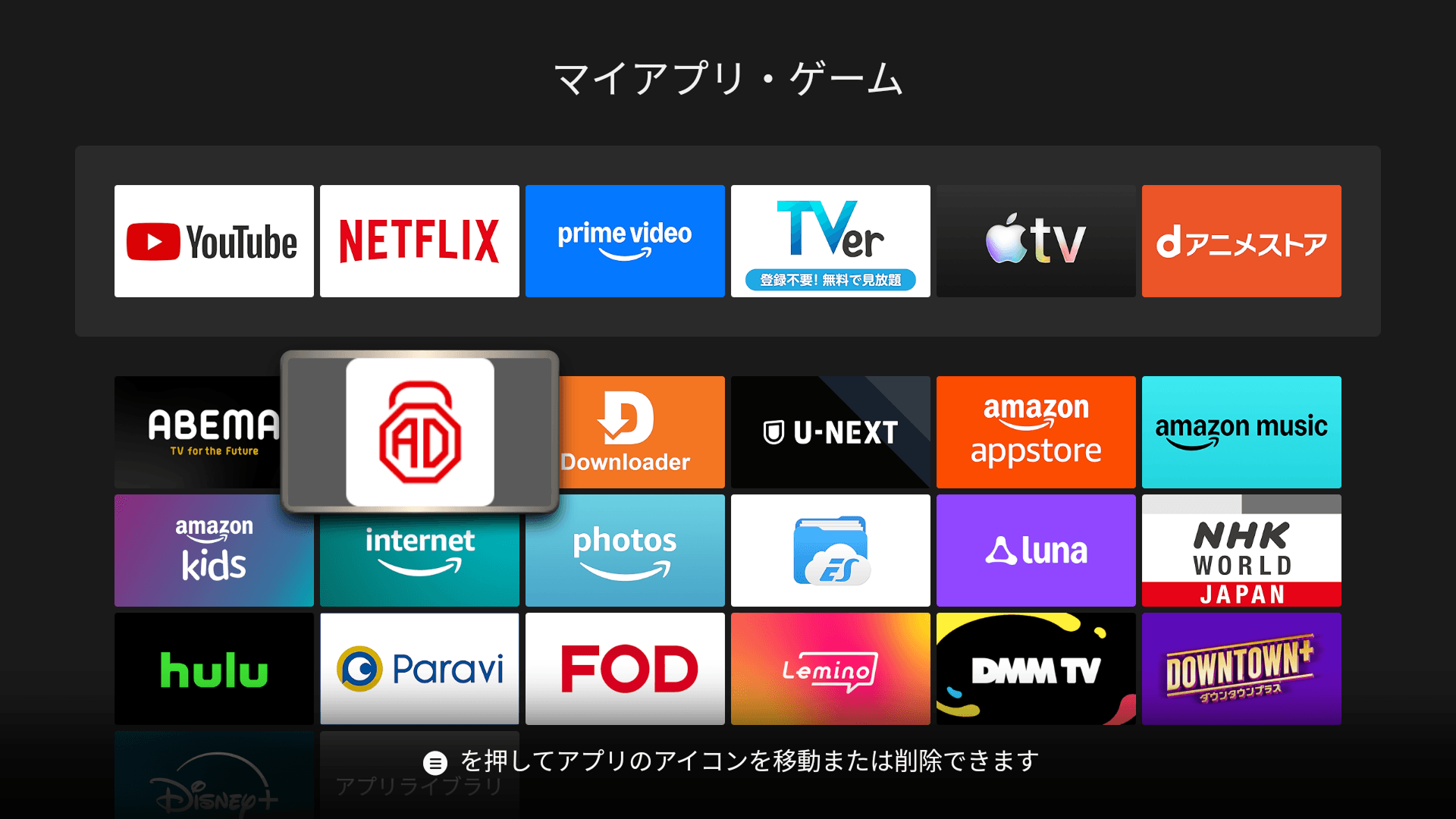
Apps you no longer use still take up storage. Go to Settings → Applications → Manage Installed Applications and uninstall anything you don't need. Sideloaded apps in particular can be easy to forget about.
Wi-Fi Issues
Check Signal Strength
A weak Wi-Fi signal is one of the most common causes of buffering and slow performance on Fire TV. Check your signal strength under Settings → Network. If it shows "Fair" or "Weak," try moving your router closer to the Fire TV or reducing obstacles between them. A Wi-Fi extender can also help.
Restart Your Router
If your internet seems slow across all devices, restart your router by unplugging it for 30 seconds and plugging it back in. This can resolve temporary network issues that affect streaming quality.
Video Stuttering and Buffering
If video playback specifically is stuttering or buffering frequently, try lowering the video resolution. Go to Settings → Display & Sounds → Display → Video Resolution and try switching from "Auto" to "1080p" (instead of 4K). This reduces the bandwidth required and can improve playback on slower connections.
Also check whether the issue occurs with all streaming apps or just one. If it's limited to one app, the problem is likely on the service's side rather than your device.
If Nothing Else Works
Check for Software Updates
Software updates can include performance improvements. Go to Settings → My Fire TV → About → Check for Updates. If an update is available, install it and restart your device.
Factory Reset Your Device (Last Resort)
If you've tried everything and performance is still poor, a factory reset restores the device to its original state. This will erase all data, apps, and settings. Go to Settings → My Fire TV → Reset to Factory Defaults. You'll need to set up the device from scratch afterward.
Summary: Recommended Order
Here's a summary of the fixes in the order you should try them.
- Restart your Fire TV
- Clear cache for frequently used apps
- Clear cache for all apps
- Check available storage and uninstall unused apps
- Check Wi-Fi signal strength
- Restart your router
- Lower video resolution if playback is stuttering
- Check for software updates
- Factory reset (last resort)
In most cases, a restart and cache cleanup will bring back smooth performance. If the problem is buffering, focus on your Wi-Fi connection and video resolution settings.