Spam calls on iPhone — sales pitches from unknown numbers, scam calls from overseas prefixes, and automated robocalls — keep growing every year. The good news: iPhone has three built-in blocking features you can use without any extra app, and combining them with a free identification app like Whoscall or Truecaller gets you close to zero spam. This guide walks through every option from basic settings to situational fixes.
Table of Contents
- Common types of spam calls and what the callers want
- iPhone's three built-in blocking features
- Carrier-level blocking (check your provider)
- Blocking with free apps
- International-prefix calls (+1, +44, etc.)
- Recommended combos by situation
- Common problems and fixes
- Preventive habits to reduce spam at the source
- Summary
Common types of spam calls and what the callers want
Knowing the typical patterns helps you pick the right defense.
| Type | Typical example | What they want |
|---|---|---|
| Sales calls | Real estate, internet plans, insurance | Close a deal |
| Automated surveys | "Press 1 to continue..." | Harvest personal info |
| International scam | One-ring from +1, +44, +675, etc. | Get you to call back (huge toll charges) |
| Tax / refund scam | Caller claims to be from the IRS or a government office | Trick you into wiring money |
| Fake collections | "You have an unpaid bill..." | Trick you into paying |
Sales calls can be handled with individual blocks or "Silence Unknown Callers". For international scams and fake collections, the iron rule is don't answer unknown numbers and don't call them back.
iPhone's three built-in blocking features
iPhone comes with three blocking methods at no extra cost. Used together, they shut down the majority of spam calls.
Block a specific number
The basic, reliable method — blocking a single number that has already called you.
- Open the Phone app
- Tap the "Recents" tab at the bottom
- Tap the "i" icon to the right of the number you want to block
- Scroll down and tap "Block this Caller"
- Confirm by tapping "Block Contact"
For numbers already in your Contacts, open the contact, scroll to the bottom, and tap "Block this Caller."
To review or unblock, go to Settings → Phone → Blocked Contacts.
Silence Unknown Callers
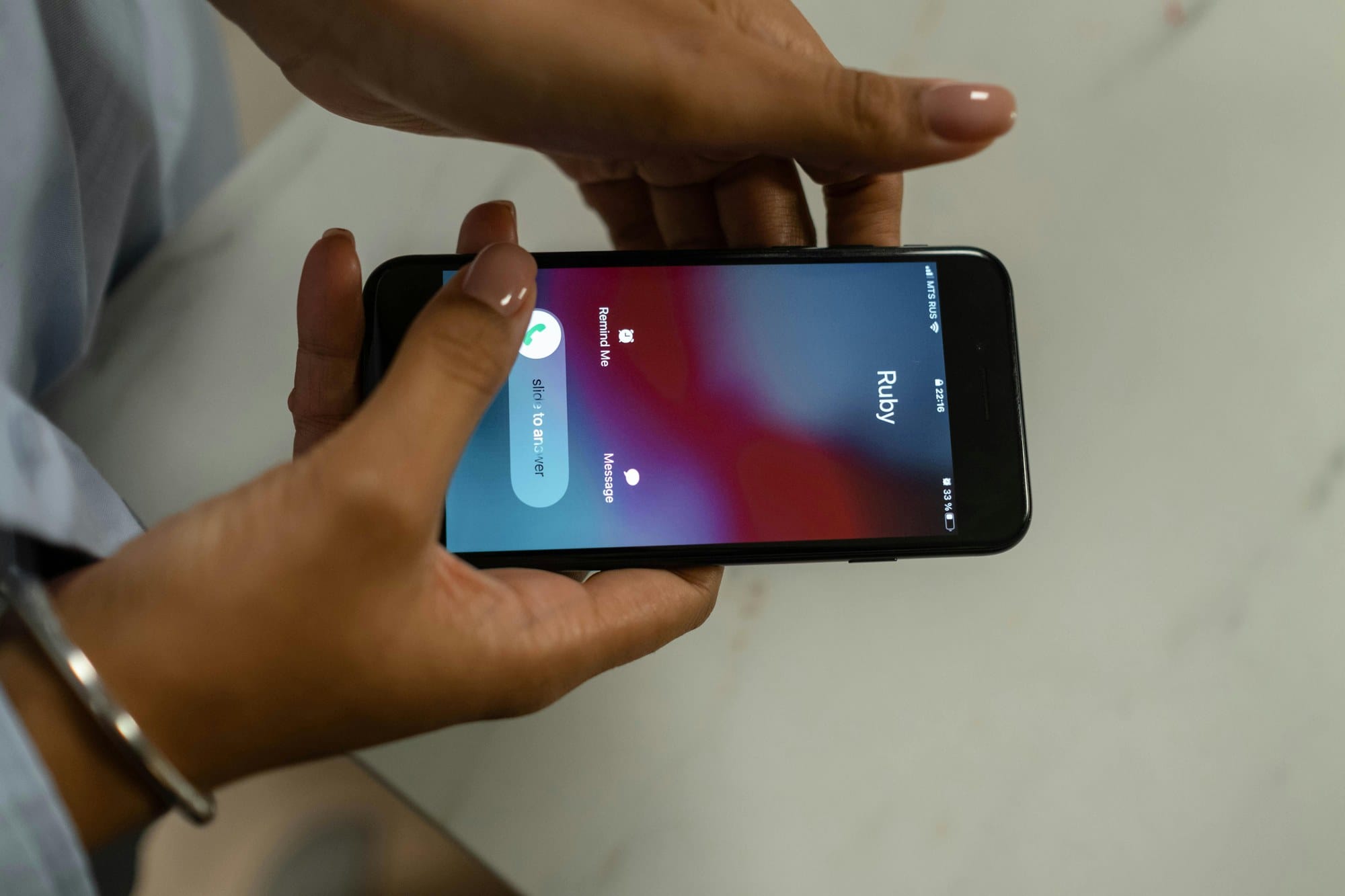
Added in iOS 13, this is a powerful filter that silences any call from a number that isn't in your Contacts, recent outgoing calls, or Siri Suggestions. The phone doesn't ring; the call goes straight to voicemail.
- Open Settings
- Tap Phone
- Turn on "Silence Unknown Callers"
Unknown numbers still appear in your recents list — you just don't get interrupted. If you're expecting important calls, check recents once a day. Not suitable for jobs where strangers need to reach you directly, but for most people it's as close to a silver bullet as it gets.
Note: legitimate calls from numbers you haven't saved — like delivery drivers, doctor's offices, or stores returning your call — also get silenced. If you're waiting on one, temporarily turn the setting off or save the expected number to Contacts first.
Focus mode for notification control
Focus (iOS 15+) lets you shape call behavior by time or location. For example, only allow calls from saved contacts during the day, and block everything at night.
- Settings → Focus
- Pick "Do Not Disturb" or create a new Focus mode
- Under "People", choose "Allow Calls From" → "All Contacts"
- Optionally set up a schedule or automation to enable it automatically
Useful when you want unknown calls blocked only at certain times, like during sleep or meetings.
Carrier-level blocking (check your provider)
On top of iPhone settings, most mobile carriers offer their own spam-call protection — often free or at a small monthly fee. The advantage over iPhone-side blocking is that spam is cut off at the network level before it ever rings your phone, so even voicemail won't be left.
Typical carrier offerings include:
- Automatic blocking based on the carrier's spam database
- Manual blocklist (you add specific numbers through an app or short dial code)
- International-call blocking (prevents all inbound calls from foreign prefixes)
- STIR/SHAKEN caller authentication (in the US, this reduces spoofed caller IDs)
Major US carriers (AT&T, T-Mobile, Verizon) each ship a branded spam-protection app — "Call Protect," "Scam Shield," "Call Filter" — usually with a free tier. Check your carrier's official app or website for what's included in your plan. If you're on a smaller MVNO, support may be more limited; that's when the apps in the next section become more important.
Blocking with free apps
iPhone's built-in filters have one weakness: they can't catch a spam number the first time it calls you. That's where apps with crowdsourced spam databases come in.
Whoscall
A long-running app originally from Taiwan, now widely used across Asia. The core features are free.
- Database of over two billion phone numbers worldwide
- Identifies the caller (sales, scam, taxi company, etc.) the moment the call rings
- Reverse-lookup for unknown numbers
- Premium tier (around $40/yr) adds offline detection and auto-blocking
Pricing can change on the App Store, so check the listing before subscribing. The free tier already catches most commonly reported spam numbers — starting there is usually enough.
Truecaller
One of the largest caller-ID services globally, with particularly strong coverage for calls from the US, Europe, and India.
- Free tier includes caller identification and spam blocking
- Crowdsourced spam-rating system
- Premium tier (around $5/mo) removes ads and shows who has searched for your number
Pricing fluctuates. If you deal with a lot of international calls, Truecaller often outperforms Whoscall for that subset.
Integrating apps with iOS
Installing these apps isn't enough on its own. You need to flip the corresponding iOS integration on.
- Install the app from the App Store
- Open it and finish first-time setup (phone-number verification, etc.)
- On the iPhone, go to Settings → Phone
- Tap "Call Blocking & Identification"
- Toggle on the switch for the app you want to use
From then on, incoming calls show the app's label ("Sales," "Suspected Scam," etc.) above the number. You can enable more than one app at a time, so running Whoscall and Truecaller side by side is a valid setup.
International-prefix calls (+1, +44, etc.)
A growing threat: one-ring calls from prefixes like +1 (US), +44 (UK), +675 (Papua New Guinea). The scam is simple — you call back out of curiosity and get charged an enormous international toll.
The rule is simple: never call back an unfamiliar international number. You can also block the calls themselves:
- Ask your carrier to enable international-incoming-call blocking (usually free)
- Turn on iPhone's "Silence Unknown Callers"
- Use Whoscall or Truecaller — both flag international scam prefixes
If you don't need to receive international calls for work, the most foolproof option is to ask your carrier to disable international incoming calls entirely. Domestic calls continue working normally.
Recommended combos by situation
The right combination varies with how you use your phone. Common patterns:
| Your situation | Recommended combo |
|---|---|
| Shut out as much spam as possible | Silence Unknown Callers + Whoscall |
| Work requires calls from new people | Whoscall + per-number carrier blocks |
| Mostly sales calls are the problem | Per-number block + Whoscall |
| Lots of international scam calls | Carrier international-block + Truecaller |
| Want peace at night only | Focus mode (allow contacts only) |
For most people, the "Silence Unknown Callers + Whoscall free tier" combo is the sweet spot: zero monthly cost, high effectiveness.
Common problems and fixes
Important calls get blocked too
With Silence Unknown Callers on, legitimate calls from numbers you haven't saved — delivery drivers, doctor's offices returning your call, a store you phoned earlier — also get silenced. Three ways to handle it:
- Make a habit of checking Recents once a day
- Turn the setting off temporarily when you're waiting on an important call
- Save known upcoming numbers to Contacts in advance
Even silenced calls still appear in Recents and leave voicemail, so you won't miss anything if you check.
Voicemail still comes through after blocking
This is by design. When you block a number in iPhone, your phone doesn't ring — but from the caller's side, the line keeps ringing, and voicemail can still end up in your inbox. It doesn't make the line look "disconnected."
If you want to prevent voicemail too, use your carrier's block list. Carrier-level blocking drops the call at the network, so no voicemail is ever left.
They keep calling from different numbers
Aggressive sales and scam operations often rotate through multiple numbers when one gets blocked. Blocking them one at a time isn't practical. Layer these instead:
- Enable Silence Unknown Callers (every fresh unknown number is silenced)
- Let Whoscall or Truecaller auto-block numbers rated as spam
- Subscribe to a carrier database-driven blocking service
Preventive habits to reduce spam at the source
Blocking matters, but the real fix is keeping your number out of spam lists in the first place. Day-to-day habits that make a difference:
- Leave phone-number fields blank on signup forms and surveys when they're optional
- For forms that require a number (real estate, insurance, investment inquiries), use a secondary line (eSIM, secondary plan, Google Voice) instead of your main one
- Don't list your phone number in public social-media profiles
- Be careful where you leave business cards — contact lists get resold between companies
- Never tap links in SMS from unknown senders (clicking confirms the number is active, making it more valuable on spam lists)
Once your number is on a spam list, it gets traded among companies in the same industry. Preventing the initial leak is the single most effective long-term defense.
Summary
For most people, turning on "Silence Unknown Callers" and installing Whoscall's free tier handles the majority of spam calls. If you work in a job where strangers need to reach you, add your carrier's blocking service on top for a more granular defense.
The rule for international scam calls is simple: don't call back. If you want to cut them off entirely, ask your carrier to disable international incoming calls. A three-layer setup — iPhone settings + app-based identification + preventive number hygiene — gets spam calls close to zero. Start with the free built-in features and Whoscall's free tier; add more only if that isn't enough.