Backing up your iPhone is a must before changing devices or in case of hardware failure. There are three main ways to do it — iCloud, Mac (Finder), or Windows (Apple Devices / iTunes) — and the best choice depends on your storage capacity and how you use your phone. This guide walks through all three methods step-by-step and recommends which to use based on your iPhone's storage tier.
Table of Contents
- Quick comparison of backup methods
- What an iPhone backup actually contains
- Method 1: iCloud backup (automatic, wireless)
- Method 2: Back up via Mac (Finder)
- Method 3: Back up via Windows (Apple Devices / iTunes)
- Recommended method by iPhone storage tier
- Why "iCloud + PC" together is the strongest setup
- Common problems and fixes
- How often to back up
- Summary
Quick comparison of backup methods
Seeing all three at once makes it easier to pick the one that fits your situation.
| Method | Storage location | Cost | Speed | Automation |
|---|---|---|---|---|
| iCloud | Cloud | 5 GB free / paid from $0.99/mo | Depends on Wi-Fi | ◎ Automatic |
| Mac (Finder) | Mac itself | Free | Fast (USB-C) | △ Manual |
| Windows (Apple Devices) | PC itself | Free | Fast | △ Manual |
In broad strokes, "iCloud for day-to-day, PC right before switching devices" combines safety and speed. More on why below.
What an iPhone backup actually contains
Understanding what's inside a backup helps you avoid surprises before you rely on one.
What gets backed up
- App data and settings (messaging app chat history may need its own backup)
- Photos and videos (only device-stored ones if iCloud Photos is off)
- Contacts, Calendar, Notes, Reminders
- SMS, MMS, iMessage
- Call history and voicemail
- Home screen layout and wallpaper
- General iPhone settings (Wi-Fi, notifications, sounds, etc.)
- Health data and Keychain (encrypted backup only)
What doesn't get backed up
- Apps themselves from the App Store (redownloaded at restore)
- Data already in iCloud (photos, contacts, etc. managed separately by iCloud)
- Apple Pay cards, Face ID / Touch ID data (by design, for security)
- Apple Mail messages (remain on the IMAP server)
Pay special attention to chat apps like LINE, WhatsApp, or LINE-equivalents: their chat history usually needs a separate in-app backup. Run that before switching devices — the iPhone backup alone won't restore your messages.
Method 1: iCloud backup (automatic, wireless)
This is the simplest option — once set up, it runs automatically in the background. With Wi-Fi and a charger, it finishes while you sleep.
Setup steps
- Open Settings and tap your name at the top (Apple ID)
- Go to iCloud → iCloud Backup
- Turn on "Back Up This iPhone"
- To trigger one immediately, tap "Back Up Now"
Once enabled, a backup runs automatically when the iPhone is charging, connected to Wi-Fi, and locked. For most people, that means overnight.
Since iOS 16, there's also a "Back Up Over Cellular" option that works over 5G, but it consumes significant data. Keep it off unless you have a specific reason to enable it.
iCloud+ storage plans
The free tier gives you 5 GB, which fills up quickly as soon as you take many photos or videos. For reliable backups, an iCloud+ paid plan is realistic.
| Plan | Storage | Approx. monthly price (USD) |
|---|---|---|
| Free | 5 GB | $0 |
| iCloud+ | 50 GB | $0.99 |
| iCloud+ | 200 GB | $2.99 |
| iCloud+ | 2 TB | $9.99 |
| iCloud+ | 6 TB | $29.99 |
| iCloud+ | 12 TB | $59.99 |
Prices can change and vary by region, so check Apple's official website for the current rates before subscribing. The 50 GB plan suits light users with few photos; if you take a lot of photos, 200 GB is the realistic entry point.
Best for / caveats
- You don't own a PC or Mac
- You want a daily automatic backup
- You want to restore directly on the iPhone itself after a device swap or failure
The caveat: restoring from iCloud requires re-downloading all your data from the cloud. With large backups, this can take hours — not ideal when you need to be productive immediately.
Method 2: Back up via Mac (Finder)
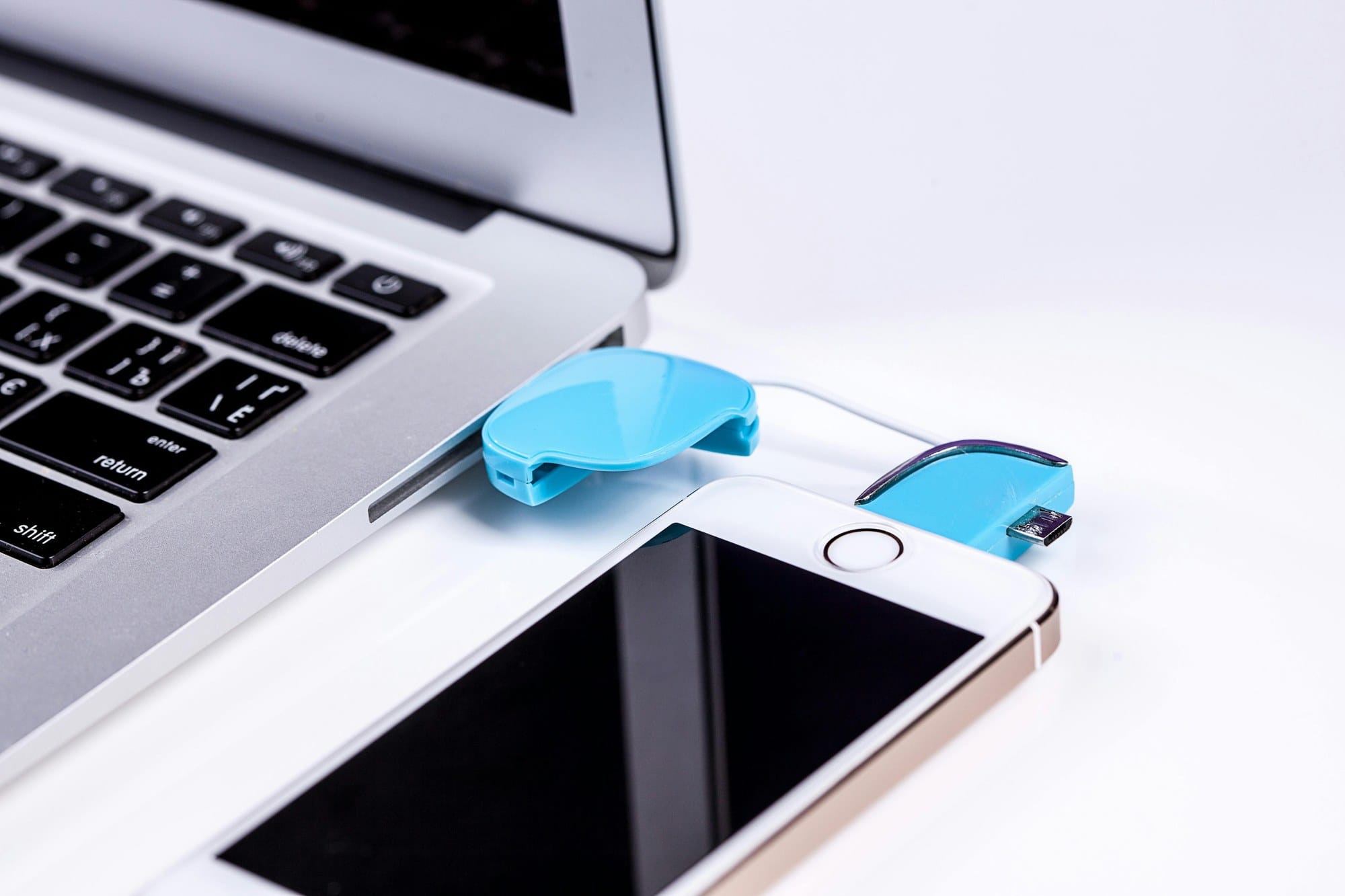
On macOS Catalina (10.15) and later, iTunes is gone and iPhone management lives directly in Finder. This is the fastest method, since you're transferring over USB.
Steps
- Connect the iPhone to the Mac with a USB cable
- On the iPhone, tap "Trust This Computer" and enter your passcode
- Open Finder on the Mac and click the iPhone's name under "Locations" in the sidebar
- Go to the "General" tab; the "Backups" section is in the middle
- Select "Back up all of the data on your iPhone to this Mac"
- Check "Encrypt local backup" (strongly recommended — details below)
- Click "Back Up Now"
The first backup takes tens of minutes; subsequent runs only transfer changes and finish in a few minutes.
Always enable encrypted backup
Checking "Encrypt local backup" will prompt you to set a password — always turn this on. Three reasons:
- Health data, activity records, and Keychain (saved passwords) are only included in encrypted backups
- Saved logins for websites and apps transfer over at restore time
- Unencrypted backups can be read by anyone who has access to the Mac
Never lose this password. Apple cannot reset it, and without it the backup is permanently unusable. Store it in a password manager like 1Password so you won't forget.
Best for
- You own a Mac and don't want to pay for more iCloud storage
- You want fast restores during device upgrades
- You have sensitive data you don't want in the cloud
Method 3: Back up via Windows (Apple Devices / iTunes)
On Windows, backing up your iPhone requires the Apple Devices app (released February 2024) or iTunes. The backup functionality is the same in either.
Steps
- Install "Apple Devices" or "iTunes" from the Microsoft Store (free)
- Connect the iPhone to the PC with a USB cable
- On the iPhone, tap "Trust This Computer" and enter your passcode
- Launch Apple Devices (or iTunes)
- Click the iPhone icon in the upper-left or top of the window
- Under the "Summary" or "General" tab, select "This computer"
- Check "Encrypt local backup" and set a password
- Click "Back Up Now"
The Apple Devices app runs on Windows 10 (version 19045 or later) and Windows 11. On older Windows 7 or 8, you'll need the legacy iTunes (32-bit version).
Best for
- You only have a Windows PC
- You don't want to pay for more iCloud storage
- You want fast restores during device upgrades
On Windows, backups are stored by default at C:\Users\<username>\Apple\MobileSync\Backup\. If it's filling up your system drive and you want to move it to a D drive or an external SSD, search separately for the symbolic-link method to redirect the location.
Recommended method by iPhone storage tier
The more storage your iPhone has, the more room your backup needs. Here's the optimal method by tier.
64 GB / 128 GB models
Smaller-capacity models usually hold less data in practice, so the iCloud 50 GB plan is enough for most people.
- Few photos: iCloud 50 GB plan
- Many photos or videos: iCloud 200 GB plan — or combine PC backup with the free iCloud tier
256 GB models
The most common tier today. Since actual usage can exceed 200 GB, the iCloud 200 GB plan tends to be the optimal choice.
That said, if you're storing photos in iCloud Photos (managed separately), the backup itself may only be 20–50 GB. Check Settings → General → iPhone Storage to see your actual usage before deciding.
512 GB / 1 TB models
For high-capacity models, combine PC backup with iCloud. Storing a full 1 TB in iCloud requires the 2 TB plan ($9.99/mo), which adds up to about $120 per year.
A 1 TB external SSD runs under $100 as a one-time expense. Keeping iCloud on the 200 GB plan for photos and routine backups, and pushing large data to PC with external SSD, is the economical setup.
Why "iCloud + PC" together is the strongest setup
The short answer: combining iCloud and PC backup is the safest option. Each method covers the other's weaknesses.
| iCloud only | PC only | iCloud + PC | |
|---|---|---|---|
| Automation | ○ | × | ○ |
| Restore speed | Slow | Fast | Fast |
| PC failure | Unaffected | Total loss | Unaffected |
| iCloud outage | Can't restore | Unaffected | Unaffected |
| Device upgrade | WAN-speed dependent | USB blazing fast | USB blazing fast |
The realistic pattern: let iCloud run automatically every night, and pull a manual PC backup once a month or before a device swap. Major life events (trips, business travel, moves) are also good checkpoints.
Common problems and fixes
iCloud is full
If you see "iCloud Storage Full," try these in order:
- Exclude unused apps from backup (Settings → Apple ID → iCloud → "Manage Storage" → toggle apps off individually)
- Delete old iPhone backups you no longer need (same Manage Storage screen)
- If iCloud Photos is on, review the library size
- Upgrade to a paid iCloud+ plan
In particular, backups from old iPhones often linger after a device swap. Check first — you can often free up tens of gigabytes in one step.
Backup won't finish or keeps stalling
If iCloud backup stalls partway through, check:
- Stable Wi-Fi (avoid peak hours)
- iPhone plugged into a charger
- Available iCloud storage
- iOS is on the latest version
- Toggle iCloud Backup off and on again
If PC backup is slow, switching to a USB 3.0-compatible USB-C cable makes a dramatic difference. Lightning iPhones (iPhone 14 and earlier) are capped at USB 2.0 speeds (~30–35 MB/s effective) regardless of cable.
PC doesn't recognize the iPhone
If Finder or Apple Devices doesn't see the iPhone:
- Try a different USB port
- Try a different cable (ideally the original Apple cable)
- Restart the iPhone
- Restart the PC
- Re-authorize "Trust This Computer" (on the iPhone: Settings → General → Transfer or Reset iPhone → Reset → Reset Location & Privacy)
If it charges but isn't recognized, the cable is almost certainly charge-only. Cheap cables and worn-out ones often drop data-line support.
Restore fails or old data comes back
Restore problems have unclear causes, but check:
- Destination iPhone has an older iOS version than the backup source — update iOS first, then restore
- Lost the encryption password — that backup is permanently unusable
- "Latest backup" restored but contains old data — automatic backups may have been failing silently. Run a fresh manual backup now
Before restoring, always verify the backup date. In iCloud, this is shown under Settings → Apple ID → iCloud → iCloud Backup.
How often to back up
With iCloud Backup on, the ideal state is automatic nightly backups. As long as the iPhone meets the three conditions (Wi-Fi, charging, locked), it handles itself.
PC backups are manual, so do them at these checkpoints:
- Right before a device upgrade (mandatory)
- Before a major iOS update (in case of bugs)
- Before international travel or business trips (in case of loss or damage)
- Routine maintenance every 3–6 months
You don't need to PC-back up frequently, but as insurance against "iCloud-only and iCloud is down", at least one PC backup every few months is a reasonable habit.
Summary
The three main iPhone backup options — iCloud, Mac (Finder), Windows (Apple Devices / iTunes) — each fit a different storage tier and usage pattern. The safest combination is to let iCloud handle daily backups automatically and run a manual PC backup before device upgrades or major events.
For small-capacity iPhones (64 GB / 128 GB), the iCloud 50 GB plan is enough; 256 GB models suit the 200 GB plan; 512 GB / 1 TB is best paired with external SSD + PC backup. Always enable encrypted backup, back up messaging apps separately, and never skip a PC backup before device upgrades. Stick to those three rules and your data survives any device swap or failure.