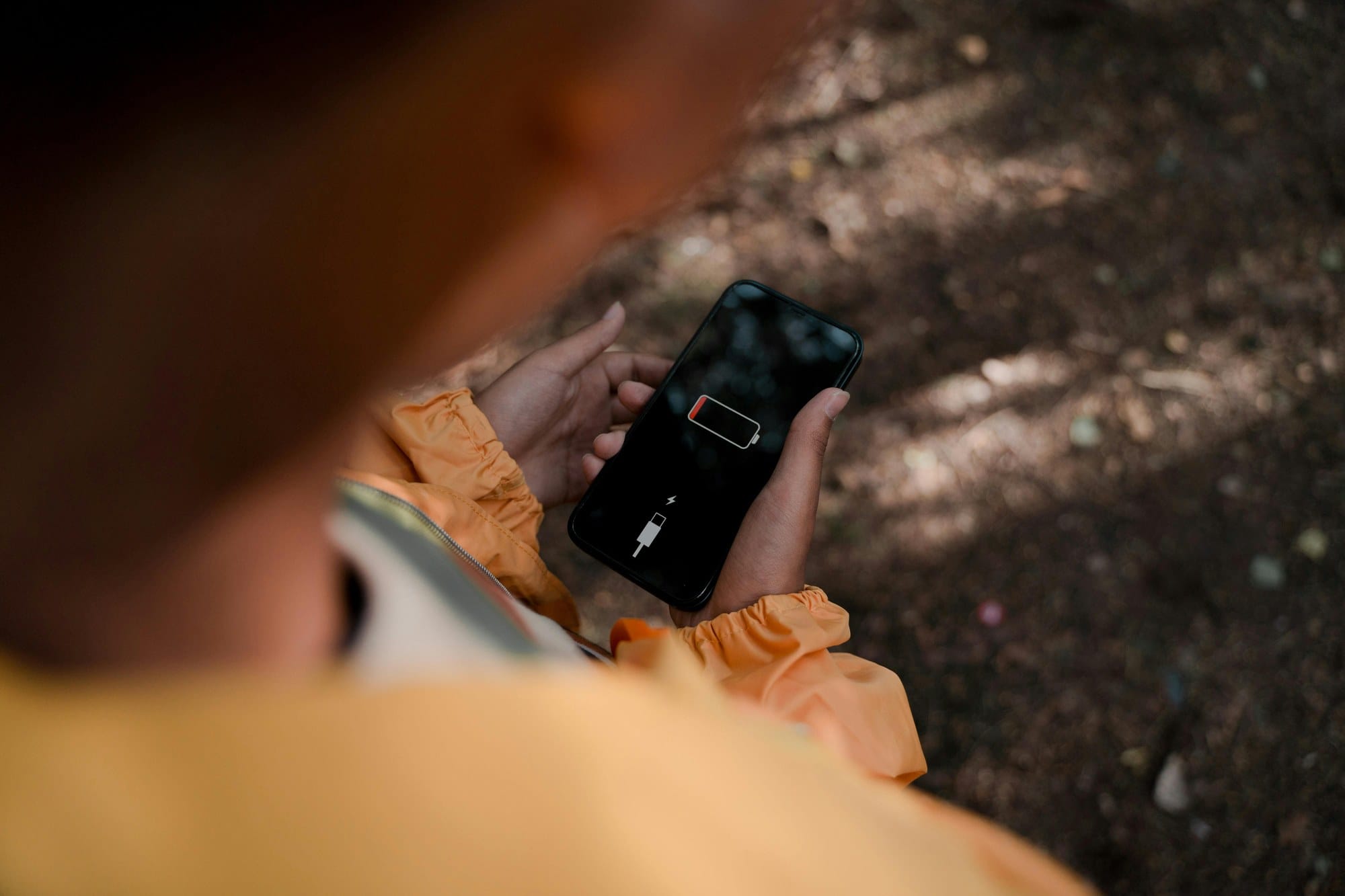
When your iPhone's battery drops below 20%, a notification pops up asking if you'd like to switch to Low Power Mode. Most people tap "Yes" without thinking much about it — but what exactly gets disabled, and how much longer does the battery actually last? This guide breaks down how Low Power Mode works, how to turn it on and off, which features get restricted, and whether leaving it on all the time is a good idea.
Table of Contents
- What Low Power Mode actually is
- How to turn Low Power Mode on and off
- What gets restricted in Low Power Mode
- How much longer will your battery last
- Can you just leave it on all the time
- Common questions
- Summary
What Low Power Mode actually is
Low Power Mode is a battery-saving feature that's been part of iOS since iOS 9 (2015). It works by intentionally reducing CPU performance and background activity so that your remaining battery stretches further.
How it reduces battery consumption
Low Power Mode isn't a single feature — it's a single switch that flips multiple power-saving settings at once. Turning it on triggers all of the following simultaneously:
- CPU and GPU peak clocks are lowered
- Apps stop running in the background
- Mail auto-fetch is paused
- Screen brightness is dimmed automatically
- On ProMotion devices, the refresh rate caps at 60Hz (down from 120Hz)
- 5G operates in standalone mode (supported devices only)
- The Always-On Display is disabled (iPhone 14 Pro and later)
By cutting power consumption across a wide range of components, Low Power Mode makes the same battery percentage last noticeably longer.
When it kicks in automatically
Low Power Mode isn't literally auto-enabled — iOS sends a notification at 20% battery suggesting you turn it on, with one tap. A second notification appears if you hit 10%.
So it's "auto-suggested" rather than "auto-enabled". You have to accept the prompt (or toggle it on manually as described below) for it to take effect. It turns itself off automatically once you charge back above 80% (more on that below).
How to turn Low Power Mode on and off
There are four ways to toggle it. Day-to-day, tapping the notification or using Control Center are the quickest.
Toggle from Settings
- Open Settings
- Tap Battery
- Turn on the Low Power Mode switch
Settings is the best place to check the current state if you're unsure whether it's on or off right now.
Toggle from Control Center
The most accessible option. You need to add the Low Power Mode icon to Control Center once before you can use it:
- Settings → Control Center
- Find "Low Power Mode" and tap the "+" on the left to add it
- Open Control Center (swipe down from the top-right of the screen; on older iPhones, swipe up from the bottom)
- Tap the battery icon to toggle on or off
If you toggle this multiple times a day, taking a minute to add the icon makes the operation dramatically faster.
Toggle with Siri
You can also ask Siri:
- "Turn on Low Power Mode"
- "Turn off Low Power Mode"
- "Save battery"
Useful when you can't look at the screen — driving, working with your hands, etc.
Automate with Shortcuts
Using the Shortcuts app's Automation feature, you can turn it on automatically based on time or location:
- Open the Shortcuts app
- Tap the Automation tab at the bottom → "Create Personal Automation"
- Choose a trigger (time of day, location, battery level, etc.)
- Tap "Add Action" → search for "Set Low Power Mode"
- Choose "On", "Off", or "Toggle" and save
Useful patterns: "Turn on when battery drops below 30%" or "Turn off when I get home".
What gets restricted in Low Power Mode
Understanding what's affected makes the performance trade-offs easier to anticipate.
CPU and GPU performance
This is the biggest single change. Peak clock speeds are reduced, curbing high-power activities.
- The Camera app opens more slowly and the shutter feels laggy
- Scrolling and editing in Photos feels less snappy
- 3D games drop frames
- Video editing and export take longer
For everyday browsing, social media, and messaging, the difference is subtle. But for heavier apps, you'll clearly notice the slowdown.
Background refresh and automatic downloads
Apps stop talking to the network in the background. Specifically:
- Background App Refresh (news, weather, social apps pre-loading content)
- Automatic app updates from the App Store
- iCloud auto-sync (backups, photos)
- New iCloud Photos uploads
Push notifications continue to work, so new message notifications still come through. The one big exception is mail — see below.
Display brightness and ProMotion
The display behavior changes too:
- Auto-brightness trends lower (you can still crank it up manually)
- On ProMotion devices (iPhone 13 Pro and later, Pro/Pro Max models), the refresh rate caps at 60Hz instead of 120Hz
- Always-On Display is disabled on iPhone 14 Pro and later
The drop from 120Hz to 60Hz shows up as slightly choppier scrolling. Apps that render at 120Hz (games, certain UI-heavy apps) are also capped.
Mail auto-fetch
The Mail app's automatic fetch (push or periodic pull) is paused. This is an easy-to-miss catch for anyone using iPhone for work email.
You can still manually open the app to pull new mail, but automatic detection of new messages stops. If you're waiting on an urgent email, turn Low Power Mode off.
Visual effects and Lock Screen
Some smaller behaviors change too:
- Some app animations are simplified
- The Always-On Display is disabled (iPhone 14 Pro and later)
- AirDrop and AirPlay still work, but previews may load more slowly
- Wi-Fi and Bluetooth remain fully functional (not disabled)
Unlike Airplane Mode, network connectivity stays active, so there's no "I can't get online" issue.
How much longer will your battery last
The big question. The honest answer is that it depends heavily on what you're doing.
Apple's official stance
Apple's official support documentation says Low Power Mode "extends your battery life" without providing a specific percentage. That's because the savings depend entirely on what the phone is doing at any given moment. The gain during idle time looks nothing like the gain while watching video.
Real-world impact
Based on third-party benchmarks and everyday testing, you can roughly expect:
| Usage pattern | Approximate extension | Feel |
|---|---|---|
| Mostly idle (just checking notifications) | +30–50% | Big impact |
| Social media / browsing | +20–30% | Clear impact |
| Video streaming | +10–20% | Modest impact |
| Heavy games | +15–25% | Includes frame-rate drops |
| Camera usage | +5–15% | Limited impact |
For a short-term rescue — "I have 20% left and need two to three more hours" — it works great. What it doesn't do is dramatically extend an already-tired battery across a whole day.
Can you just leave it on all the time
Plenty of people leave Low Power Mode on permanently. Apple doesn't explicitly forbid this, but you should understand the trade-offs before deciding.
Benefits of always-on
- Noticeably longer battery per charge: typically an extra 1–2 hours
- Less heat: with CPU clocks capped, the phone runs cooler, reducing thermal throttling in summer
- Potentially gentler on the battery over time: fewer fast charge cycles may extend long-term battery health (not officially confirmed, but plausible)
If your usage is "I don't do anything heavy on my iPhone — mostly social and browsing", always-on is essentially fine.
Drawbacks of always-on
- Games and video editing feel slower
- Mail auto-fetch is off, so work email can be missed
- You lose the smoothness of ProMotion
- iCloud sync is delayed (some days may miss a backup)
- On iPhone 14 Pro and later, Always-On Display is unavailable
Two groups should think twice about always-on: people who rely on iPhone email for work, and iPhone 14 Pro and later users (you lose meaningful features).
A middle ground works well: use Shortcuts Automation to toggle it by time or battery level, e.g., "Off during work hours, on at night" or "Auto-on below 30%".
Common questions
It turns itself off when I charge
This is by design, not a bug. When you charge past 80%, Low Power Mode automatically switches off.
If you want it to stay on even while charging (or want a continuous low-power setup), you'll need to re-enable it manually after charging. Alternatively, use Shortcuts Automation with a time-based or location-based trigger rather than a charge-based one — that way the 80% auto-off doesn't interfere.
The battery icon doesn't turn yellow
Normally, when Low Power Mode is on, the status bar's battery icon turns yellow. If it isn't, check:
- It may not actually be on — re-check in Settings → Battery
- An iOS glitch — toggle off and on again in Settings
- On Dynamic Island devices (iPhone 14 Pro and later), the icon can be hidden behind the Dynamic Island
On Dynamic Island models, check the battery in the top-right specifically — the yellow tint is the only reliable indicator.
Games and videos feel sluggish
That's Low Power Mode working as designed. When performance drops noticeably:
- Check the battery icon color — yellow means Low Power Mode is on
- On ProMotion devices, you're capped at 60Hz while it's on
Before any performance-critical task (gaming, video editing, long camera sessions), turn Low Power Mode off temporarily. Flip it back on afterward — the briefly-off state won't cost you much battery.
Summary
Low Power Mode is an umbrella switch that caps CPU, pauses background activity, lowers the refresh rate, and halts Mail auto-fetch, buying you roughly 20–40% more battery life in typical use. iOS prompts you to enable it at 20% and again at 10%; it automatically turns off when you charge above 80%.
Leaving it on permanently is viable, but you pay in mail auto-fetch, peak performance, and ProMotion smoothness. If you live on iPhone email or own an iPhone 14 Pro or later, a Shortcuts Automation setup — "auto-on below 30%", "off when home" — is usually the smarter middle ground than always-on. Used selectively, Low Power Mode is one of iOS's best battery-management tools.