Whether you're selling your iPhone, handing it to a family member, recovering from a software problem, or tidying up an old device after upgrading — skipping the right steps before a factory reset can leave your data on the device or make it impossible for the next owner to activate it. This guide covers iOS 17/18 iPhones and walks through the full process: pre-reset checklist (Apple ID sign-out, Apple Watch unpair, iMessage off, Find My off), the on-device erase, resetting via Mac or Windows PC, and what to do when the reset doesn't go smoothly.
Table of Contents
- Choose your reset method based on your goal
- Pre-reset checklist
- Reset on the iPhone itself
- Reset via Mac (Finder)
- Reset via Windows (iTunes or Apple Devices)
- When the reset doesn't work
- What to do after the reset
- Frequently asked questions
- Summary
Choose your reset method based on your goal
"Factory reset" means different things in different situations. The preparation required and the specific steps you take at the end depend on why you're doing it. Identify your goal first.
Selling or giving away the iPhone
This requires the most preparation. You need to sign out of Apple ID, unpair Apple Watch, turn off iMessage, and disable Find My before running "Erase All Content and Settings." Skip any of these and the new owner may encounter an Activation Lock screen they can't get past, or find that their text messages aren't arriving.
Fixing software problems
If you're resetting to clear up a performance issue or a bug, the process is simpler: back up first, erase, then restore. You don't need to sign out of Apple ID — you'll just sign back in during setup with the same account.
Clearing an old device after upgrading
After migrating to a new iPhone and confirming everything transferred, you'll want to reset the old one for storage, resale, or a hand-me-down. If you plan to keep the Apple Watch on the new iPhone, unpairing from the old device isn't necessary (the new iPhone handles the re-pair). For resale, follow the full selling checklist; for storage, the minimum steps are enough.
Quick-reference table by goal
| Goal | Preparation needed | Reset method |
|---|---|---|
| Selling or giving away | Backup / Watch unpair / iMessage off / Find My off / Sign out | On-device erase |
| Fix software problems | Backup | On-device erase → Restore |
| Clear after upgrading | Backup / (additional steps if selling) | On-device erase |
| Forgot passcode | — | Recovery Mode restore |
Pre-reset checklist
Take a backup first
A factory reset permanently erases everything on the iPhone. Always back up before you start.
- iCloud backup: Settings → your name → iCloud → iCloud Backup → "Back Up Now"
- PC or Mac backup: Connect to Finder (Mac) or iTunes / Apple Devices (Windows) and click "Back Up Now" (enabling encryption is recommended)
An encrypted backup includes saved passwords, Health data, Wi-Fi settings, and call history — more complete than an unencrypted one. For a full comparison of backup options, see iPhone Backup Methods Compared | iCloud, PC, and How to Pick by Storage.
Confirm your Apple ID password
After the reset, anyone who sets up the device needs to sign in with the Apple ID that was linked to it. If Find My was enabled, this is required for Activation Lock. Before you erase, make sure you can actually sign in to your Apple ID. If you've forgotten the password, reset it at iforgot.apple.com from another device.
Unpair Apple Watch
Erasing the paired iPhone without first unpairing the Watch can disrupt watch faces, notifications, and activity tracking.
- Open the Watch app on your iPhone
- Tap the My Watch tab → tap your Apple Watch name at the top → tap the "i" icon
- Tap "Unpair Apple Watch"
- A Watch backup is created automatically before the unpair completes
If you're moving to a new iPhone, you can restore the Watch from this backup when you pair it with the new device.
Turn off iMessage and FaceTime
This step is critical if you're switching from iPhone to Android. If iMessage is still active on your phone number when you hand over the device, messages from other iPhone users will route to Apple's servers instead of reaching your Android — you'll miss texts from friends and family.
- Settings → Messages → turn iMessage off
- Settings → FaceTime → turn FaceTime off
For iPhone-to-iPhone transfers, this is less critical, but it's good practice to deregister before erasing. If you've already handed over the device and forgot to do this, you can still deregister your phone number at selfsolve.apple.com/deregister-imessage.
Handle the SIM and eSIM
Remove your physical SIM before the reset. Use the SIM eject tool to open the tray and take the SIM out. (Some carriers require you to return it; check your carrier's policy.)
For eSIM, the device will ask whether to keep or erase it during the reset process. If you're taking your number to a new device, choose "Keep eSIM". If you're handing over the phone, choose "Erase eSIM". Erasing the eSIM typically requires a re-issue from your carrier (often with a fee), so review the process with your carrier before resetting.
Turn off Find My (selling or giving away only)
If Find My is still active when you hand over the phone, the new owner will hit Activation Lock and won't be able to get past the initial setup screen. Turn it off before erasing.
- Settings → your name → Find My
- Tap "Find My iPhone" → toggle it off
- Enter your Apple ID password to confirm
Alternatively, if you enter your Apple ID password correctly when you run "Erase All Content and Settings" on the device, Find My and Activation Lock are automatically removed as part of the erase. If you've already handed over the phone and forgot this step, sign in to iCloud.com on another device → Find My → select the iPhone → "Remove This Device" to clear the lock remotely.
Sign out of Apple ID
For transfers to another person, explicitly signing out before erasing provides an extra layer of certainty. (If you've already completed the Watch unpair and Find My steps, the erase process itself signs you out automatically.)
- Settings → tap your name at the top
- Scroll to the bottom and tap "Sign Out"
- Enter your Apple ID password
- Choose which data to keep a local copy of (for a hand-me-down, turn everything off)
- Confirm "Sign Out"
Reset on the iPhone itself
"Erase All Content and Settings"
Once the prep steps are done, run the erase from the device.
- Settings → General → "Transfer or Reset iPhone"
- Tap "Erase All Content and Settings"
- Review the backup status on the confirmation screen → tap "Continue"
- Enter your passcode → enter your Apple ID password
- Choose how to handle the eSIM (Keep or Erase)
- Tap "Erase iPhone" to confirm — the erase starts immediately
How long it takes and what you'll see
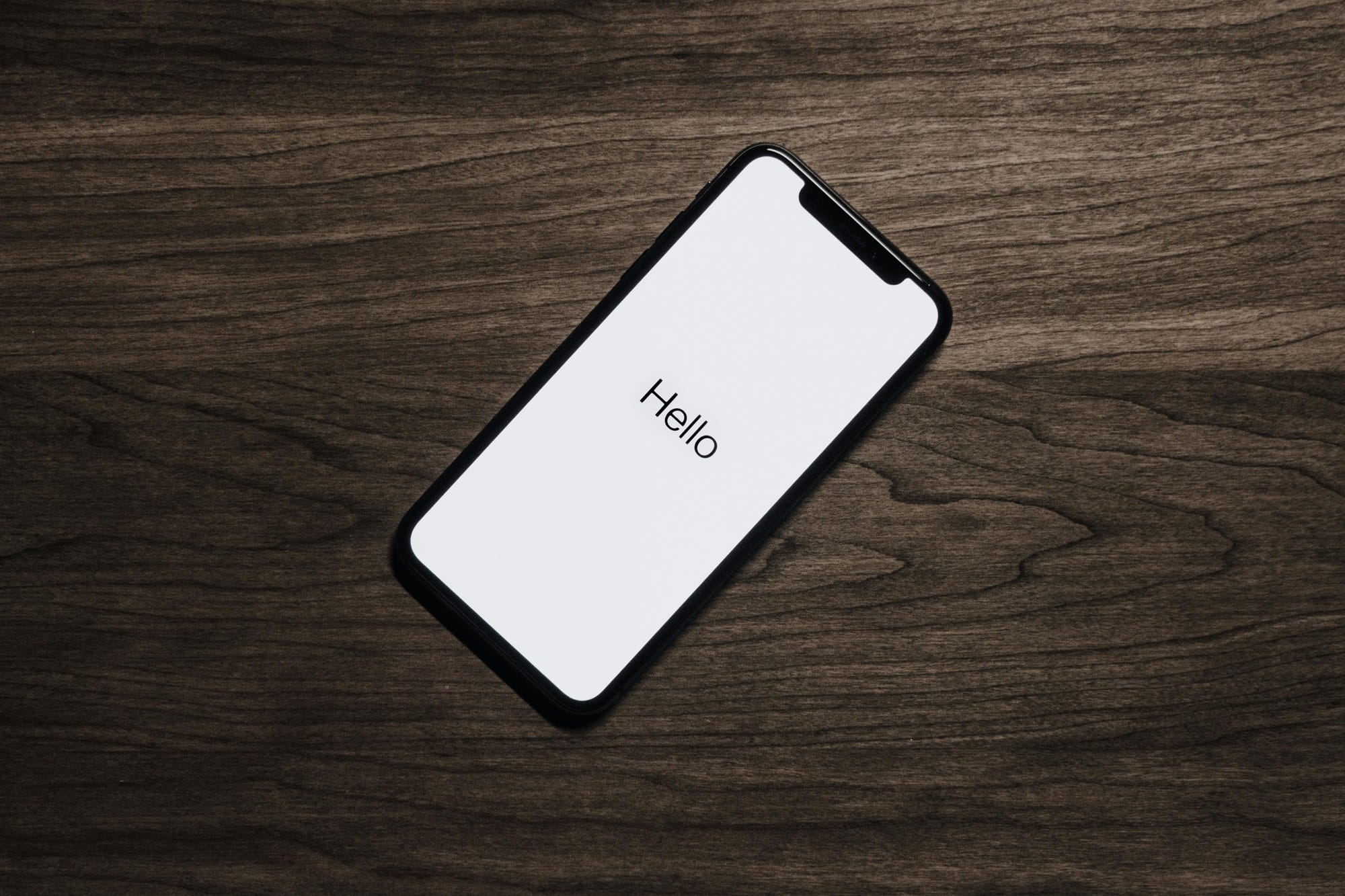
The erase takes a few minutes to about 10 minutes. You'll see the Apple logo with a progress bar, and when it's finished the "Hello" setup screen appears. For a hand-me-down, power off here and pass it along. For personal use, continue through setup.
Important: Only hand over the device once you see the Hello screen. Passing it on from a passcode screen or an Apple ID sign-in prompt means the activation lock is still live.
Reset via Mac (Finder)
If you can't complete the reset on-device — for example, because you've forgotten the passcode or the screen is unresponsive — use a Mac to erase via Recovery Mode.
- Connect the iPhone to your Mac with a USB-Lightning or USB-C cable
- Shut down the iPhone
- Enter Recovery Mode using the model-specific button sequence (volume up → volume down → hold side button until the cable icon appears)
- Select the iPhone in Finder's sidebar
- When the dialog appears, click "Restore"
- Click "Restore and Update" and wait for the process to complete
Depending on your internet speed the download and erase will take 15–45 minutes. Don't disconnect the cable until the Hello screen appears.
Reset via Windows (iTunes or Apple Devices)
On Windows, use iTunes or the Apple Devices app (Microsoft Store) — make sure either is updated to the latest version first.
- Launch iTunes or Apple Devices
- Connect the iPhone via USB and shut it down
- Enter Recovery Mode using the model-specific button sequence
- The "update or restore" dialog appears in iTunes or Apple Devices
- Click "Restore" → click "Restore and Update"
- Wait for the restore to complete
If Windows doesn't detect the iPhone, the Apple Mobile Device Support driver may be missing or outdated — reinstalling iTunes or Apple Devices usually fixes it. For more on this process, see How to Reset a Forgotten iPhone Passcode | iOS 17/18 Recovery Steps.
When the reset doesn't work
Forgot the passcode and can't erase
You can't run "Erase All Content and Settings" without entering the passcode. Instead, use Recovery Mode from a Mac or PC, or — on iOS 15.2 and later with an online iPhone — tap "Erase iPhone" on the lock screen after several failed passcode attempts. Full details are in How to Reset a Forgotten iPhone Passcode.
Find My is still on and the new owner can't activate
If you've already handed over the phone and Find My is still linked to your Apple ID, sign in to iCloud.com on any browser → open Find My → select the iPhone → click "Remove This Device." You don't need to give the new owner your Apple ID password — this remote removal clears the lock completely.
The reset is stuck or frozen mid-progress
If the progress bar stops moving for a long time, check your Wi-Fi connection first — the erase stalls at the Apple ID sign-out step if the network drops. If nothing happens for 30 minutes or more, force-restart the iPhone and then try Recovery Mode via a Mac or PC.
MDM-managed device won't erase
Company- and school-issued iPhones enrolled in MDM (Mobile Device Management) may block user-initiated erases, or they may automatically re-enroll into management after an erase. Contact your IT administrator to remove the MDM enrollment (via Apple Business Manager or Apple School Manager) before proceeding.
What to do after the reset
Set it up again for yourself
If you reset to fix a software problem, choose "Restore from iCloud Backup" or "Restore from Mac or PC" on the Apps & Data screen during setup to put your data back. Choosing "Set Up as New iPhone" brings back only iCloud-synced content — contacts, calendars, notes, and so on — without the full app and settings history.
Use Quick Start to transfer to a new iPhone
If you're setting up a replacement device, Quick Start is the easiest path. Hold the new and old iPhones near each other; the new iPhone camera scans a pattern shown on the old one, and everything — settings, apps, passwords, photos, LINE history — transfers directly. No backup-and-restore round trip needed.
Handing the device to someone else
Confirm that the Hello setup screen is showing before you hand over the iPhone. Never hand it over from a passcode entry screen or an Apple ID sign-in screen — those states mean Activation Lock is still active. Powering off from the Hello screen is fine; the new owner will still see Hello when they turn it back on.
Frequently asked questions
Can a data recovery service retrieve data after a reset?
iPhones use hardware encryption, and the encryption key is destroyed as part of the erase. The raw data may still exist on the NAND storage, but without the key it's effectively unreadable. Professional data recovery services cannot retrieve data from a factory-reset iPhone in practice, so a factory reset is functionally equivalent to complete data destruction. You can hand it over with confidence.
Does a factory reset delete iCloud data?
No. Erasing the iPhone only removes the local copy of your data. Anything stored in iCloud — contacts, photos, Notes, iCloud Drive files — remains in your account and reappears when you sign in to Apple ID on a new device. If you also want to delete that iCloud data, you need to do it separately from within iCloud settings.
How far do I need to go before a trade-in?
Here's the minimum checklist that applies to any carrier, Apple trade-in, or buyback program:
- Take a backup (and migrate to your new device if needed)
- Unpair Apple Watch
- Turn off iMessage and FaceTime
- Turn off Find My → Sign out of Apple ID
- Remove or erase SIM / eSIM
- Run "Erase All Content and Settings"
- Confirm the Hello screen appears
Is a two-pass erase necessary?
You may have heard that erasing twice is "more secure." On iPhone, a single erase is sufficient. Unlike some Android devices, iOS destroys the encryption key during the first erase, making the underlying data irrecoverable regardless of how many times the erase is run. A second erase adds wear on storage and battery with no security benefit.
Summary
Here's the complete factory reset checklist for iPhone.
- Identify your goal (selling / fixing software / clearing after upgrade)
- Back up first (iCloud or PC/Mac)
- Unpair Apple Watch
- Turn off iMessage and FaceTime (especially important if switching to Android)
- Turn off Find My (required for selling or giving away)
- Sign out of Apple ID
- Decide what to do with the SIM / eSIM
- Settings → General → "Erase All Content and Settings"
- Hand over only after confirming the Hello screen appears
If the on-device path is blocked, use Mac (Finder) or Windows (iTunes / Apple Devices) via Recovery Mode. With preparation in place, the actual erase takes about 10 minutes. Once started, it cannot be undone — get the backup and Apple ID steps right first, and the rest takes care of itself.
For broader iPhone troubleshooting, see iPhone Troubleshooting Guide | Fixes Organized by Symptom. For passcode recovery, see How to Reset a Forgotten iPhone Passcode | iOS 17/18 Recovery Steps.