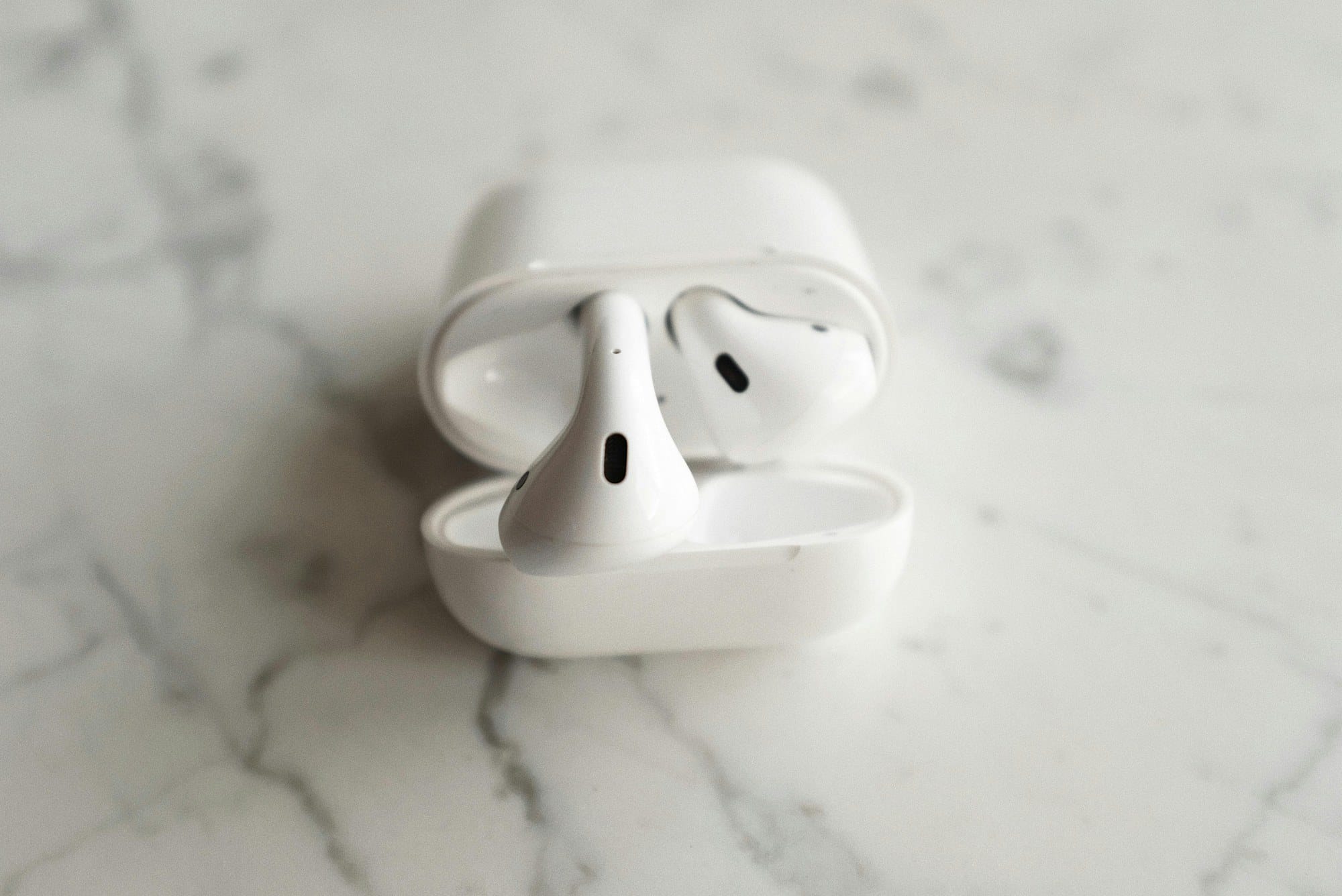
You put in your AirPods and only one side plays audio — a frustrating moment, but usually not a sign of serious hardware failure. The most common culprits are a dead battery, earwax buildup in the speaker mesh, a temporary Bluetooth glitch, or an accessibility setting that's shifted out of place. This guide walks through each cause in order: battery check, cleaning, re-pairing, factory reset, and software settings. It covers AirPods 1st, 2nd, and 3rd generation, AirPods Pro, AirPods Pro 2, and AirPods Max. Start with the symptom quick-reference table to narrow down the cause, then jump to the relevant section.
Table of Contents
- Why one AirPod stops working: cause categories
- Check the battery
- Clean your AirPods
- Re-pair the Bluetooth connection
- Factory reset your AirPods
- Review software settings
- Diagnosing battery wear and repair options
- Model-specific notes
- Frequently asked questions
- Summary: step-by-step checklist
Why one AirPod stops working: cause categories
The five main causes
When one AirPod goes silent, the problem almost always falls into one of these five categories.
- Dead battery on one side: a single earbud can run out of charge before the other, especially if the two are used for different amounts of time or one isn't sitting correctly in the case and isn't charging.
- Speaker mesh clogged with earwax or debris: over time, earwax and skin oils build up in the tiny mesh openings, causing the volume to drop sharply or audio to cut out entirely on one side.
- Temporary Bluetooth connection issue: when iOS or macOS Bluetooth state becomes unstable, one earbud can fail to register as connected even though the other is working fine.
- Software setting out of place: the audio balance slider in Accessibility being pushed to one side, or Mono Audio being turned on by accident, can make it sound like only one side is playing.
- Battery wear from age: AirPods use lithium-ion cells that lose capacity over hundreds of charge cycles. When one side is significantly more worn than the other, it can drain to zero mid-listening session while the other still has charge.
Symptom-to-cause quick reference
| Symptom | Most likely cause | First thing to try |
|---|---|---|
| Silent on one side right after coming out of the case | Low battery or dirty case contacts | Check battery level; clean case contacts |
| One side cuts out after a few minutes of use | Battery dead or severely degraded | Charge and check battery level |
| Muffled sound or volume much lower on one side | Speaker mesh clogged | Clean the mesh |
| Music is fine but one side goes silent during calls | Microphone routing or Bluetooth asymmetry | Re-pair; check microphone setting |
| Volume near zero on one side | Audio balance shifted off center | Check Accessibility settings |
| Still not fixed after a reset | Hardware failure or end-of-life battery | Apple repair or single earbud replacement |
Check the battery
Reading the case LED to check each earbud
The first thing to check is always battery level. When you open the case lid, the LED indicates the following states:
- Green: sufficiently charged
- Amber: charging, or battery is low
- Blinking white: ready to pair (typically after a factory reset)
When the AirPods are inside the case and you open the lid, the LED shows the earbuds' charge status. With an empty case and the lid open, it shows the case's own battery level. The LED alone can't tell you the left and right levels separately — for that, use your iPhone.
Checking left and right battery levels separately on iPhone
Open the case near your iPhone and a connection pop-up should appear showing the left, right, and case charge percentages individually. If the pop-up doesn't appear, try this instead:
- Swipe right from the iPhone home screen or lock screen to open the Today View
- Scroll down to find the Batteries widget (if it's not there, tap "Edit" and add it)
- The widget displays separate percentage readings for the left AirPod, right AirPod, and case
The AirPods must be connected for the widget to show data. Open the case lid and hold it near your iPhone, then check again.
What to do when one side is critically low
If one earbud shows 0–5%, put both in the case and charge for at least 15–20 minutes before trying again. If both sides show adequate charge but one still won't play, the battery isn't the cause — move on to the cleaning steps.
If one side consistently reads far lower than the other (for example, right side at 80% while the left is always at 10%), that earbud's battery may be degrading faster than the other. See the battery wear section for next steps.
Clean your AirPods
Earwax packed into the speaker mesh
With regular use, earwax and skin oils accumulate in the small mesh openings on the speaker side of each AirPod. As the buildup grows, audio on that side becomes muffled, the volume drops sharply, or sound cuts out entirely. If your battery is fine but one side is noticeably quieter, cleaning is the next step to try.
AirPods Pro owners should pay extra attention: there's a second mesh screen inside the ear tip (silicone sleeve). Remove the ear tip and inspect the inner mesh as well.
Tools and step-by-step cleaning method
The following method is consistent with Apple's official cleaning guidance.
- Remove the ear tips (AirPods Pro only): pull the silicone ear tip straight off. Rinse it with plain water, let it dry completely, then reattach. Keep water away from the earbud itself.
- Wipe gently with a dry cotton swab: lightly stroke the mesh surface with a cotton swab. Don't press inward — that pushes debris deeper. Just skim the surface.
- Brush with a soft-bristle brush: use a clean, soft toothbrush or a makeup brush to sweep debris away from the mesh. Short, gentle strokes work best.
- Wipe with 70% isopropyl alcohol: dampen a cotton swab or soft lint-free cloth with a small amount of 70% isopropyl alcohol and lightly wipe the mesh. Don't let any liquid pool, and avoid the charging port and case contacts.
Apple advises against spraying any liquid directly onto the AirPods or using compressed air aimed at the mesh — pressurized air can force liquid or debris into the housing.
Don't forget the charging case contacts
If the metal charging contacts on the bottom of an earbud or the pins inside the case are dirty, one side may not charge at all even when placed in the case. Gently wipe the contacts with a dry cotton swab and check for any corrosion or physical damage.
Re-pair the Bluetooth connection
A corrupted Bluetooth pairing record between your AirPods and a device can cause one earbud to fail to connect. Removing the AirPods from the device and pairing them fresh resolves this in many cases.
Remove and re-pair on iPhone
- Open Settings → Bluetooth
- Tap the info (i) button next to your AirPods
- Tap Forget This Device and confirm
- Put both AirPods in the case, close the lid, and wait about 10 seconds
- Open the lid near your iPhone — the pairing pop-up appears automatically. Tap Connect
The pairing syncs automatically to other devices signed into the same Apple ID, such as an iPad or Mac. If you're seeing the problem on another device too, check the Bluetooth pairing on that device separately.
Remove and re-pair on Android
- Go to Settings → Connections → Bluetooth (the menu path varies by manufacturer)
- Tap the gear or details icon next to your AirPods
- Tap Unpair or Forget
- With the case lid open, press and hold the setup button on the back of the case for about 5 seconds — hold until the LED flashes amber, then white
- In your Android Bluetooth settings, scan for new devices and select your AirPods to pair
Not all AirPods features (ear detection, noise cancellation controls, etc.) are available on Android, but audio playback and calls work fine.
Remove and re-pair on Mac
- Open Apple menu → System Settings → Bluetooth
- Click the more options (…) or info (i) button next to your AirPods
- Click Forget This Device
- Open the case lid near your Mac and press the setup button to enter pairing mode
- Select your AirPods from the Bluetooth device list and click Connect
Factory reset your AirPods
If re-pairing doesn't fix the problem, do a factory reset. This erases all pairing data and returns the AirPods to their out-of-box state. You'll need to pair them again afterward.
How to reset using the case button
- Place both AirPods in the case and close the lid
- Open the lid and press and hold the setup button on the back (or bottom) of the case for about 15 seconds
- Watch the LED: when it flashes amber several times, then switches to steady white flashing, the reset is complete
- Release the button, close the lid, and wait 5–10 seconds
If the LED jumps straight to white blinking without the amber flashes, the AirPods may already be in pairing mode. Close the lid, wait a moment, and try again.
LED behavior and button location by model
| Model | Setup button location | LED location |
|---|---|---|
| AirPods 1st generation | Back of case | Front of case (visible with lid open) |
| AirPods 2nd generation | Back of case | Front of case (visible with lid open) |
| AirPods 3rd generation | Back of case | Front of case (visible with lid open) |
| AirPods Pro 1st generation | Back of case | Front of case (visible with lid open) |
| AirPods Pro 2nd generation | Back of case (next to USB-C or Lightning port) | Front of case |
| AirPods Max | Press and hold the Noise Control button + Volume Down button on the right ear cup simultaneously for 15 seconds | LED on the right ear cup |
AirPods Max don't need to be in a case to reset — you can hold them in your hand and press the buttons directly.
Re-pairing after the reset
After the reset, the AirPods are in pairing mode (LED blinking white). For iPhone, simply open the case lid near your phone and the pairing pop-up appears automatically. If it doesn't, go to Settings → Bluetooth and pair manually.
Review software settings
Check that the audio balance is centered
If the audio balance slider in Accessibility on your iPhone or iPad is pushed to one side, the volume on that side increases while the other drops significantly. Pushed all the way to L or R, one earbud can become nearly silent.
To check and correct it:
- Go to Settings → Accessibility → Audio/Visual
- Confirm the Balance slider is centered at 0.00
- If it's off-center, drag it back to the middle
On Mac, check under System Settings → Accessibility → Audio.
Make sure Mono Audio is off
Mono Audio combines the left and right audio channels so both ears hear the same mix. While that's useful for people with hearing differences, it can create the illusion that one side is silent with certain stereo recordings. If it's been turned on accidentally, stereo width disappears entirely.
- Go to Settings → Accessibility → Audio/Visual
- Confirm that Mono Audio is toggled off
Active Noise Cancellation and Transparency mode
On AirPods Pro, if Active Noise Cancellation (ANC) or Transparency mode appears to be functioning differently on each side — different perceived volume or texture — the issue may be with the microphone array rather than the speaker itself. Try switching noise control modes: long-press the AirPods icon in Control Center, or go to Settings → Bluetooth → tap (i) next to AirPods → Noise Control. Turning ANC off and then back on sometimes clears the asymmetry.
An iOS update can sometimes fix the problem
iOS and iPadOS updates frequently include Bluetooth and AirPods bug fixes. Go to Settings → General → Software Update, install the latest version, then test your AirPods again.
Diagnosing battery wear and repair options
When one side drains dramatically faster than the other
If you've worked through all the steps above and one earbud still goes silent mid-session, or charges to full but drains within minutes, battery degradation is the likely culprit.
AirPods use lithium-ion batteries — the same chemistry as iPhone — and capacity fades with each charge cycle. Apple states the AirPods batteries are designed to retain 80% of their original capacity after around 1,000 complete charge cycles. With one to two charges per day, that's roughly one and a half to three years of use. Because the two earbuds don't always see identical usage, one side can degrade faster than the other.
Unlike iPhone, there's no built-in screen to check AirPods battery maximum capacity as a percentage. The main indicator is behavioral: one side draining noticeably faster than the other, or going silent shortly after a full charge.
Apple's repair and battery replacement options
Apple offers a service replacement for AirPods earbuds. With AppleCare+, you get up to two incidents of accidental damage service per year at reduced cost; battery service may also be covered if capacity has fallen below Apple's threshold. Without AppleCare+, out-of-warranty fees apply and vary by model.
You can request service online through Apple Support, or schedule an in-person appointment at an Apple Store or Apple Authorized Service Provider. Check the Apple Support site for current pricing, as fees change over time.
Can you buy just one AirPod?
Yes — Apple sells individual replacement earbuds through the Apple Store. Look for "Get a replacement" on the AirPods support page, where you can order a single left or right earbud. Note that availability for older models can be limited. Have your AirPods model number handy before ordering (it's printed on the inside of the earbud stem or on the underside of the case lid).
Model-specific notes
AirPods 1st and 2nd generation
The original AirPods launched in late 2016; the 2nd generation followed in 2019. The reset procedure is the same for both: hold the button on the back of the case. Earwax clogging the speaker mesh is a particularly common issue with these models, and cleaning often resolves it.
Both generations use an open-ear design without silicone ear tips. There's less grip to hold them in place, so physical damage from drops is worth ruling out if one side isn't working.
AirPods 3rd generation
Released in 2021, the 3rd generation has a redesigned shape closer to AirPods Pro, MagSafe charging case support, and Spatial Audio. Like the earlier generations, it uses an open-ear design without removable ear tips.
Starting with the 3rd generation, the case has a single LED on the front. Checking individual left/right charge levels requires the iPhone Battery widget — the LED alone won't tell you which side is low.
AirPods Pro (1st and 2nd generation)
AirPods Pro use silicone ear tips to form an in-ear seal. The space between the ear tip and the earbud body is a prime spot for earwax accumulation, and the inner mesh behind the removed ear tip is a common cause of one-sided silence. Always remove the ear tip before cleaning the inner mesh.
The ANC and Transparency mode features rely on an array of microphones. If one side sounds noticeably different in these modes, try a reset and re-pair before concluding it's a speaker issue.
On AirPods Pro 2nd generation (2022), the setup button on USB-C models is located next to the USB-C port rather than centered on the back — just note the different location when you go to reset.
AirPods Max
AirPods Max are over-ear headphones with large drivers, so physical mesh clogging is rarely a problem. Bluetooth connection issues and software problems are equally common, though.
The reset procedure is different from other AirPods: press and hold both the Noise Control button and the Volume Down button on the right ear cup simultaneously for about 15 seconds. Release when the LED flashes amber. AirPods Max also have removable ear cushions — if debris has accumulated where the cushion meets the driver housing, cleaning that area can help as well.
Frequently asked questions
Why did one side suddenly go silent?
The most common reason one earbud cuts out mid-use is a dead battery. The second most common is a momentary Bluetooth disconnect. Put both earbuds in the case to charge, confirm the battery levels, then try again. If it keeps happening after a full charge, try a reset and re-pair.
One side only goes out during calls — what's going on?
If music sounds fine on both sides but one side goes silent specifically during phone or video calls, the issue is likely microphone routing or the call app's audio handling. Go to Settings → Bluetooth → tap (i) next to AirPods → Microphone and confirm it's set to "Automatically Switch AirPods." Also check the in-app audio settings for your call app to make sure it's routing to AirPods rather than the built-in speaker or earpiece.
One side isn't working on a Windows PC — what do I check?
AirPods work on Windows as a standard Bluetooth audio device, but Apple's firmware features don't carry over, so some behaviors differ. Start by removing AirPods from Windows Bluetooth settings and re-pairing. Also confirm that Windows Sound settings → audio balance is centered for your AirPods output device — the Windows balance slider is a separate setting from iOS and is sometimes overlooked.
Still not working after a reset — now what?
If you've gone through battery checks, cleaning, re-pairing, a factory reset, and all the software settings — and one side is still silent — the likely cause is hardware failure or an end-of-life battery. Contact Apple Support to arrange a repair, or order a single replacement earbud through the Apple Store.
Summary: step-by-step checklist
Work through the following steps in order and stop when the problem is resolved. Everything up to and including the factory reset costs nothing to try.
- Check battery levels: use the iPhone Battery widget to confirm the left and right charge percentages. If one side is low, charge for at least 15 minutes before testing again.
- Inspect the case contacts: wipe the metal pins inside the case and the contacts on the bottom of each earbud with a dry cotton swab. Poor contact on one side can prevent that earbud from charging.
- Clean the speaker mesh: use a cotton swab and a soft brush to remove earwax, then wipe with 70% isopropyl alcohol. AirPods Pro owners: remove the ear tip and clean the inner mesh too.
- Check the audio balance: Settings → Accessibility → Audio/Visual → confirm the Balance slider is at 0.00.
- Turn off Mono Audio: on the same screen, make sure Mono Audio is toggled off.
- Re-pair Bluetooth: remove AirPods from your device's Bluetooth settings, then re-pair from scratch using the case lid pop-up.
- Factory reset the AirPods: hold the case button for 15 seconds until the LED flashes amber then white. Re-pair afterward.
- Update iOS: install any available iOS or iPadOS update, then recheck AirPods behavior.
- Contact Apple for repair or order a replacement earbud: if none of the above resolves it, hardware failure is the likely cause.
In most cases, the problem clears up by step 3 or 4. Run through the free steps before considering a repair visit — cleaning the mesh alone fixes more AirPods than people expect.