When your iPhone suddenly stops connecting to Wi-Fi, the cause is somewhere on the iPhone, the router, or the internet line itself — and often it's a combination of several small issues at once. Fiddling with settings at random tends to make things worse. This guide walks through the 30-second basic fixes first, then a symptom-by-symptom checklist covering "it won't connect at all," "the Wi-Fi icon shows but the internet doesn't work," and "only this one network refuses to connect."
Table of Contents
- The 3 basic fixes to try first (30 seconds)
- When the iPhone is the problem
- When the router or internet line is the problem
- When only one Wi-Fi network fails
- Wi-Fi is connected but the internet doesn't work
- Last-resort fixes
- Summary
The 3 basic fixes to try first (30 seconds)
The vast majority of Wi-Fi problems are solved by one of these three things. Before you start diagnosing anything, run through this list in order.
Toggle Wi-Fi off and back on
Roughly 80% of temporary connection glitches are fixed by this alone.
- Open Settings → Wi-Fi
- Turn the Wi-Fi switch off
- Wait about ten seconds, then turn it back on
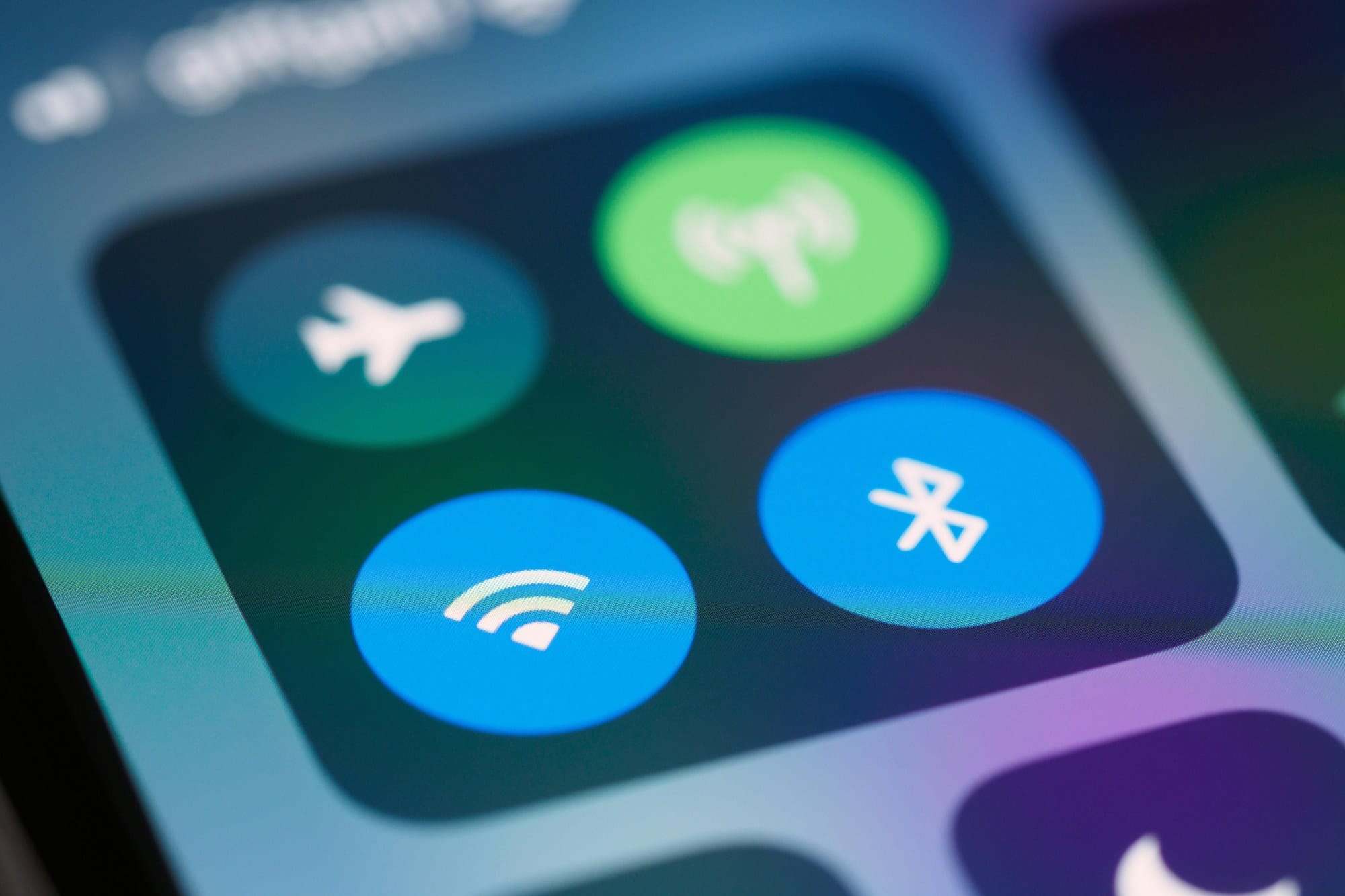
You can toggle Wi-Fi from Control Center (swipe down from the top-right of the screen) and the effect is similar — but the Control Center toggle is treated as a temporary disconnect. For a cleaner reset, use the Settings app.
Restart your iPhone
A surprising range of networking glitches clear up after a restart.
- iPhone X or later: Hold the side button and either volume button → drag the power-off slider → wait a few seconds, then hold the side button to power back on
- iPhone SE / 8 or earlier: Hold the side (or top) button → drag the power-off slider → hold the side button to turn on
If Wi-Fi still doesn't connect after a restart, the problem is probably on the router side.
Restart your router
Routers (the box sending out the Wi-Fi signal) drift over time — memory leaks and accumulated state cause a surprising number of weird symptoms. Unplugging the power cable, waiting 30 seconds, and plugging it back in clears a huge percentage of these problems.
If your home has a separate home gateway and Wi-Fi router, power off both, wait 30 seconds, then turn the home gateway on first and the router second.
When the iPhone is the problem
Airplane Mode is on
When Airplane Mode is on, Wi-Fi is disabled along with cellular. Open Control Center and check whether the airplane icon is highlighted in orange. It's surprisingly easy to toggle accidentally — especially on devices where Control Center is accessible from the lock screen, a stray finger or elbow can flip it on.
A VPN or configuration profile is interfering
If you have a VPN app installed, your traffic is tunneled through Wi-Fi, so a broken VPN configuration can make it look like the connection itself is blocked.
- Open Settings → General → VPN & Device Management
- Under "VPN", turn off any active VPN connection
- If that doesn't help, uninstall the VPN app entirely
Configuration profiles installed by a school or employer can cause similar issues. Check VPN & Device Management → Configuration Profile for anything you don't recognize.
An iOS bug or pending update
Certain iOS versions have known Wi-Fi bugs. Open Settings → General → Software Update and install any pending updates. If you're running a beta build, rolling back to the public release fixes the problem in some cases.
Reset Network Settings
If nothing above has worked, the go-to next step is a network settings reset. All saved Wi-Fi passwords, VPN settings, and cellular preferences are wiped — but photos, apps, and contacts are untouched.
- Settings → General → Transfer or Reset iPhone → Reset
- Tap "Reset Network Settings"
- Enter your passcode to confirm
Every saved Wi-Fi network is erased, so you'll need to enter the passwords again to reconnect. Note down your home and office Wi-Fi passwords before you run this.
When the router or internet line is the problem
Weak signal or physical obstructions
If your Wi-Fi icon shows only one bar, the signal simply isn't reaching your iPhone. Move closer to the router — if that fixes it, you've got a distance or obstruction problem.
- Metal doors, large furniture, aquariums, and refrigerators between the router and your iPhone drastically reduce signal
- Rough rule of thumb: one floor in a wooden house, one room over in a reinforced-concrete building
- Microwaves and Bluetooth headphones interfere with 2.4 GHz Wi-Fi as well
If the problem persists, that's the signal that it's time to look into a Wi-Fi extender or a mesh Wi-Fi system.
Switch between 5 GHz and 2.4 GHz
Modern routers broadcast on both 5 GHz and 2.4 GHz bands simultaneously. The two bands have very different strengths.
| Band | Characteristics | Best for |
|---|---|---|
| 5 GHz | Fast, low interference, weak through obstacles | Near the router, video streaming |
| 2.4 GHz | Slower, more interference, longer range | Distant rooms, through walls |
Most routers distinguish the two bands with an SSID suffix like "XXXXXX-a" for 5 GHz and "XXXXXX-g" for 2.4 GHz. Switch from the one you're connected to, to the other one and see if that fixes it.
Maxed-out device limit on the router
Home routers have a hard limit on simultaneous connections (typically 10–32 devices). Go over the limit and new devices can't join.
- Family members' phones, PCs, and tablets
- Smart speakers and smart home devices
- Nintendo Switch and other game consoles
- Printers and network cameras
Houses where every gadget sits on Wi-Fi quietly accumulate more connections than expected. Open your router's admin panel, list the connected devices, and disconnect the ones you aren't using.
Check for an ISP outage
If every device in the house has lost connection, the problem is probably your ISP (internet service provider).
- On your iPhone, switch to cellular data and open a browser
- Go to your ISP's official site
- Look for an "outage status" or "service status" page
Searching your ISP's name together with "outage" on social media platforms like X (Twitter) often surfaces reports faster than the official status page.
When only one Wi-Fi network fails
Double-check the password
When you see "Incorrect password," look for input mistakes first.
- Case-sensitivity (iOS keyboard auto-capitalization may have silently capitalized the first character)
- Similar-looking characters: 0 (zero) vs. O (letter o), 1 (one) vs. l (lowercase L)
- Make sure you're using the English keyboard, not a language-specific one that may insert unexpected characters
Forgot the password? The default password is usually printed on a sticker on the router itself. If you haven't changed it, that will connect you.
"Forget This Network" and re-add it
A network that used to work but suddenly fails often has corrupted saved-credential data on the iPhone side.
- Open Settings → Wi-Fi
- Tap the "i" icon next to the problem network's name
- Tap "Forget This Network"
- Confirm by tapping "Forget"
- Return to the Wi-Fi list and rejoin the network with the password
This forces a clean re-registration of the Wi-Fi credentials and resolves most "this one network won't work" symptoms.
Turn off Private Wi-Fi Address
Since iOS 14, iPhones use a different randomized MAC address per network for privacy. Office or school networks that filter by MAC address reject iPhones for this reason.
- Open Settings → Wi-Fi
- Tap the "i" icon next to the network you want to connect to
- Turn off "Private Wi-Fi Address"
On a normal home network you can leave this on without any issues, but if a corporate or school network refuses to let you in, this is the first setting to check.
Wi-Fi is connected but the internet doesn't work
The Wi-Fi icon shows up but webpages won't open, or messaging works but videos won't stream — this means the connection itself is fine, but traffic isn't actually reaching the internet.
Switch to a public DNS
When your router's or ISP's DNS server misbehaves, domain names won't resolve and you get "can't open page" errors. Switching to Google's or Cloudflare's public DNS often fixes this.
- Open Settings → Wi-Fi
- Tap the "i" icon next to the connected network
- Tap "Configure DNS" → "Manual"
- Tap "Add Server" and enter one of the following:
- Google Public DNS:
8.8.8.8and8.8.4.4 - Cloudflare:
1.1.1.1and1.0.0.1
- Google Public DNS:
- Delete the existing automatic DNS entries and tap "Save"
To revert, tap "Configure DNS" → "Automatic".
IP address conflict
In rare cases, a router assigns the same IP address to two devices at once, causing an "IP conflict." The symptom: Wi-Fi is connected but unstable, cycling between connected and disconnected.
- Settings → Wi-Fi → the "i" next to the problem network
- Scroll down and tap "Renew Lease"
This re-requests an IP address. If that doesn't fix it, restart the router to re-issue all IPs at once.
The public Wi-Fi login page won't appear
At a café, hotel, or airport, if a free Wi-Fi connection shows "connected but no internet," it's probably because the login page (captive portal) never appeared.
- Open Safari and go to
http://captive.apple.com/(http, not https) - In most cases, the login page appears automatically
- Agree to the terms and enter any required email address
Once you've logged in, your iPhone will reconnect automatically the next time you're on that network.
Last-resort fixes
Reset All Settings
If a network-settings reset didn't fix it, the next step is a full settings reset. Your data — photos, apps, contacts — is not erased. Only customized settings are reverted.
- Settings → General → Transfer or Reset iPhone → Reset
- Tap "Reset All Settings"
- Enter your passcode to confirm
Note that your wallpaper, volume, and notification settings also revert to defaults.
Contact Apple
If you've run through everything above and Wi-Fi still doesn't work, suspect a hardware failure — specifically, the Wi-Fi chip inside the iPhone.
- Book a diagnostic appointment through the Apple Support app
- Visit the Genius Bar at an Apple Store with an appointment
- If you have AppleCare+, repair costs are reduced
If your iPhone has been dropped or water-damaged, physical damage is a common cause, and the fix is typically a logic-board repair or a device swap.
Summary
Diagnosing iPhone Wi-Fi trouble is mostly a process of elimination. Start with the three-step basics: toggle Wi-Fi off and on, restart the iPhone, restart the router. That clears about 80% of cases.
If that doesn't work, sort by symptom. "Nothing connects anywhere" is either an iPhone-side or router-side issue. "Only this one network fails" is usually a corrupted saved credential — forget and re-add the network. "Connected but no internet" means you should look at DNS, IP, or a missing captive portal. The Reset Network Settings and Reset All Settings options don't erase your data, so they're worth trying before you give up.
Only if every fix above has failed should you escalate to Apple for a hardware check — at that point, it's the fastest route to a real repair.