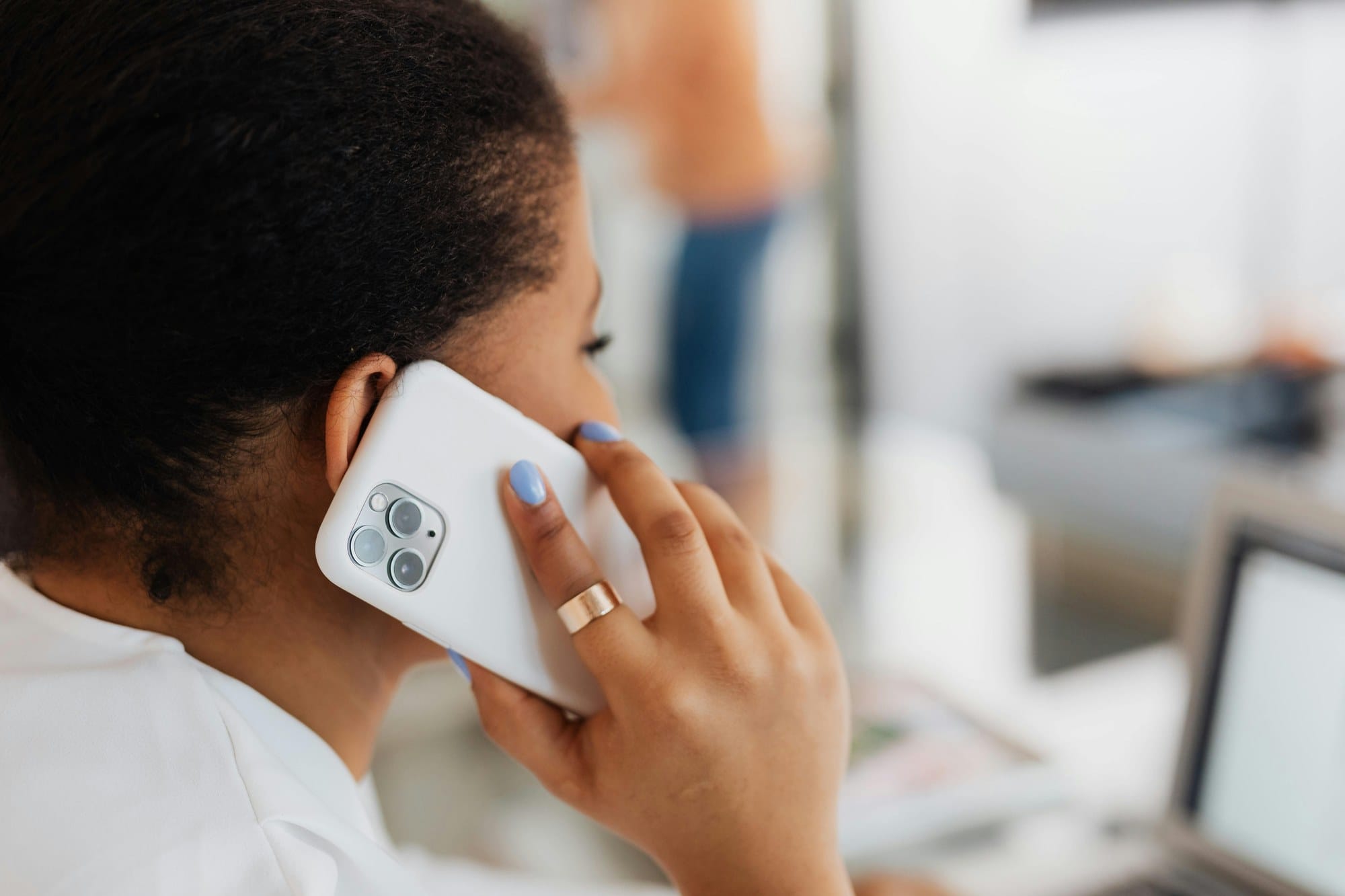
Recording phone calls used to be impossible on iPhone without a third-party app, but iOS 18 added a built-in "Call Recording" feature, so iPhones can finally do this natively. This guide covers the iOS 18 built-in feature, third-party call recording apps, external IC recorders, and the legal considerations to know before you hit record.
Table of Contents
- Overview of Ways to Record Phone Calls on iPhone
- iOS 18 New Feature: Call Recording and Transcription
- Recording With a Voice Recorder App (Speakerphone)
- Third-Party Call Recording Apps
- Recording With an External IC Recorder
- Legal Considerations for Call Recording
- Transcribing Recorded Calls
- Wrap-Up
Overview of Ways to Record Phone Calls on iPhone
The four main ways to record phone calls on iPhone are:
MethodCostQualityHeads-up to other party iOS 18 built-in recorderFreeHighYes Voice recorder + speakerphoneFreeMediumNo Dedicated call-recording app$5–10/month or pay-per-callHighDepends on the app External IC recorderFrom $40 USDHighNo
The easiest and most recommended option is the iOS 18 built-in recording feature, but iOS 17 or earlier users (and people who want a simpler, less app-heavy workflow) have the other options.
Note that iPhone call recording plays an audible "this call is being recorded" notice to both parties (iOS 18 built-in feature) and is subject to legal restrictions, so be sure to read the legal considerations section below before recording.
iOS 18 New Feature: Call Recording and Transcription
iOS 18 introduced an official Apple "Call Recording" feature. No third-party app is required and it's free to use.
How to Record a Call
- During a call in the Phone app, tap the Record button (waveform icon) in the upper-left corner.
- Both parties hear an audible "This call will be recorded" announcement.
- Recording starts.
- When the call ends, the audio and transcription are saved automatically in the Notes app.
The recording lives in a "Call Recordings" folder in the Notes app. On phones that support Apple Intelligence, an AI summary is added alongside the transcript.
iPhones That Support iOS 18 Call Recording
- iPhone 15 Pro / Pro Max or newer
- iOS 18 or later
If your iPhone is older or running iOS 17, you'll need one of the other methods below.
Limitations of the Built-in Recording
- The "this call is being recorded" notice plays for the other party, and there's no way for the user to disable it.
- Only standard cellular voice calls can be recorded (FaceTime, WhatsApp, and other VoIP calls are not supported).
- Transcription works in many languages, but the AI summary depends on what Apple Intelligence supports.
The forced notice is Apple's privacy stance: there is no way to silently record on iPhone with the built-in feature.
Recording With a Voice Recorder App (Speakerphone)
If you have an iPhone running iOS 17 or earlier, or you want to avoid the audible notice, a low-tech alternative is to put the call on speakerphone and run a voice recorder on the same iPhone (or a second device).
Using a Single iPhone for Speakerphone + Voice Memo
iPhone's Voice Memos app keeps recording in the background during a call, so the basic workflow is:
- Open the Voice Memos app and start recording.
- Return to the Home Screen and start your call from the Phone app.
- In the call screen, turn Speakerphone on.
- The iPhone's built-in microphone picks up both the other person's voice (from the speaker) and yours.
- After the call ends, stop the recording in Voice Memos.
The catch: doing this on a single iPhone often gives a faraway-sounding other party, echo, and noise, so audio quality is fairly limited.
A Second Device Gives Better Audio Quality
A more stable setup uses two devices — phone one for the call, phone two (or a tablet) for the recording. Put the first iPhone in Speakerphone mode and place it near the second device. The dedicated mic on the second device avoids the echo loop and gives much cleaner audio.
Third-Party Call Recording Apps
There are several iPhone apps dedicated to call recording. Most are paid — either subscription or pay-per-call — and they work even on older iPhones that don't support the iOS 18 built-in feature.
Most of them use a three-way call workflow to record:
- The app dials the other party for you.
- The app's server is brought in as a third party on the call.
- The conversation is recorded on the server.
- The recording is downloaded to the app.
Because of this design, calls may incur separate per-minute charges beyond your normal carrier plan, especially for international calls. Some apps play an audible recording notice, others don't — always verify before you commit to a plan. Even "free" apps tend to have recording-length caps or upsells, so read the fine print carefully.
TapeACall: Call Recorder
TapeACall is one of the most established call recording apps on iOS. It records both inbound and outbound calls using the three-way call workflow, and the audio quality is consistently good.
Recordings are managed inside the app and can be shared by email, cloud storage, or other apps. The subscription model funds ongoing maintenance, so updates land regularly — a meaningful difference from the many abandoned recording apps on the store. International call recording is supported too, so business users dealing with overseas clients can do everything in one app.

Call Recorder for iPhone (JatApp)
JatApp's "Call Recorder for iPhone" is one of the most-downloaded options in the App Store's call-recorder category. It supports both inbound and outbound calls, exports recordings as MP3, and ships with built-in transcription that turns each recording into searchable text.
The pricing leans subscription with a free trial. The UI is more polished than the older incumbents, which makes it a reasonable pick if you record calls weekly or more often.
Call Recorder - IntCall
If subscriptions aren't your thing, Call Recorder - IntCall uses a pay-per-use model. You top up the app and pay per minute, only when you actually record. For people who only record a few important calls a year, this often works out cheaper than a monthly subscription.
International call recording is supported, with per-country rates that vary by destination. Recordings are stored inside the app as MP3 files and can be shared via email. A solid first try if you want call recording as an occasional safety net rather than a daily tool.
Recording With an External IC Recorder
The most audio-quality- and reliability-friendly option is a dedicated external IC (digital voice) recorder. Purpose-built mics and long-life batteries make them more dependable than an iPhone mic plus a recording app, especially for long sessions. Journalists, lawyers, and researchers have used them for decades for exactly this reason.
Recommended IC Recorder Brands
Three brands have dominated the consumer voice-recorder market for years, each with its own strengths. Prices range from around $40 USD entry-level to $200+ pro-grade, so it pays to match the choice to your use case.
Zoom H Series
Zoom's H1, H4, H5, and H6 are the de facto handheld field recorders for podcasters, musicians, and journalists. Pricing runs from about $99 for the entry-level H1 to $400+ for the H6, all of them offering linear-PCM recording quality well above what a phone can capture.
Stereo built-in mics, external XLR/TRS inputs on the higher models, and SD-card storage make the H series flexible across a wide range of recording situations. For pure phone-call recording, the entry-level H1 is plenty; H4 or higher only really pays off when you also do music or multi-input interview recording.
Sony ICD-PX / ICD-UX Series
Sony's voice recorders are known for strong audio fidelity. The entry-level ICD-PX line sits around $50 USD and is a recommendation alongside Voice-Trek for first-time buyers.
The upper-tier ICD-UX line has a built-in USB plug, a noise-cut switch, and "scene select" modes (meeting, interview, dictation). Sony also ships management software that simplifies organizing and trimming recordings.
TASCAM DR Series
TASCAM is a pro audio recording brand, and the DR series is the choice of musicians, podcasters, and journalists who need higher audio quality than consumer-grade gear. Linear PCM recording, external mic inputs, and multi-track models put it firmly in the "prosumer" range.
Prices run from $150 to $500+ depending on the model. A natural fit if you're recording for downstream publication (a podcast episode, an article, an interview transcript) and audio quality is a hard requirement.
How to Combine iPhone With an IC Recorder
- Get the IC recorder ready.
- Start a speakerphone call from the iPhone.
- Place the IC recorder near the iPhone, or aim its mic at the speaker.
- Start recording on the IC recorder.
- After the call, stop the IC recorder.
Transfer the recording to a computer over USB or via the included microSD card. Some Bluetooth-enabled models can transfer directly to the iPhone.
Why Choose an IC Recorder
- Consistent audio quality from a purpose-built mic
- Long-form recording from a large internal storage capacity
- Doesn't drain the iPhone battery
- Recordings are kept off the iPhone, so they survive a phone wipe or hardware failure
Legal Considerations for Call Recording
Call recording is regulated, and unauthorized recordings can land you in legal trouble in many jurisdictions. Understand the rules before you hit record.
Single-Party vs Two-Party Consent in the US
US federal law (18 USC § 2511) allows recording a call as long as at least one party to the call consents — which can be you, the person making the recording (so-called "one-party consent"). However, state law is what matters in practice, and a number of states require all parties to consent:
- Two-party (all-party) consent states: California, Connecticut, Florida, Illinois, Maryland, Massachusetts, Michigan, Montana, Nevada, New Hampshire, Pennsylvania, Washington (rules vary in detail)
- One-party consent: most other states + federal
If a call crosses state lines, the strictest applicable law generally governs. The safest baseline: ask first.
Other Countries: GDPR and Local Rules
In the EU and UK, GDPR and national e-privacy rules generally treat call audio as personal data. Consent from the other party is usually required, and there are recordkeeping obligations on top of that. Canada, Australia, and Japan have their own frameworks — when in doubt for international calls, assume consent is required.
Business Etiquette When Recording Work Calls
Even where it's legal, announcing the recording at the start of the call is the right etiquette for business contexts:
"Would it be all right if I recorded this call so I can refer back to it later?"
That single sentence avoids almost every downstream issue and keeps the relationship intact.
Transcribing Recorded Calls
Once you have the recording, turning it into searchable text saves enormous time on meeting minutes and follow-ups.
iOS 18 Built-in Transcription
If you used the iOS 18 built-in call recorder, you already have a transcript — the Notes app shows the text alongside the audio so you can navigate by reading or by listening.
Standalone Transcription Apps
For iOS 17 and earlier, or when you need higher accuracy than what Notes provides, a dedicated transcription app or service is the right move. Modern engines are dramatically more accurate than they were a few years ago — meeting minutes that used to take hours now take a fraction of the time.
Notta
Notta is a strong all-around transcription tool with a polished iOS app. Recording, transcription, and translation all live in one app, and it supports real-time transcription as well as uploaded audio files.
The free tier has a monthly minutes cap, but it's generous enough to cover small meetings. Paid tiers unlock more minutes and team-collaboration features. A common pairing: record on an IC recorder, upload the file to Notta for transcription.
Otter.ai
Otter.ai is one of the most established transcription services in English. The iOS app records live audio and turns it into a searchable transcript in real time, with speaker labels and a usable summarization feature.
The free tier covers a few hundred minutes per month and is enough for individual use. Business tiers unlock longer recordings and team workspaces. Otter integrates with Zoom, Google Meet, and Microsoft Teams, which makes it the default for many remote-work setups.
Whisper (OpenAI)
Whisper is OpenAI's open-source speech-to-text model. Behind the scenes, the ChatGPT app uses Whisper for voice input, so if you talk to ChatGPT on iPhone, you're already using it.
For transcribing a separately recorded file, you can use the OpenAI API directly or a third-party app that wraps Whisper (MacWhisper on the Mac side is a common pairing). The open-source repo is on GitHub if you want to dig into the model itself.
Vrew
Vrew specializes in video-paired transcription. It auto-generates subtitles directly from a video file, which makes it a natural fit when your source material is a recorded web meeting or a podcast episode.
The main app runs on PC and Mac, but the web version works in iPhone Safari too. The hook is its editing model: edit the transcript text and the underlying audio/video edits in sync. It leans more toward "produce subtitled videos" than "generate meeting minutes," so the right pick depends on what you do with the recording afterward.
Wrap-Up
The four ways to record phone calls on iPhone:
- iOS 18 + iPhone 15 Pro or newer: built-in "Call Recording" — the easiest path, with automatic transcription
- Voice Memos + speakerphone: works on iOS 17 and earlier; quality is lower
- Dedicated call-recording apps: TapeACall, JatApp Call Recorder, IntCall — paid but reliable
- External IC recorder: best audio, long sessions, off-device storage
How to choose:
- Simplest path: iOS 18 built-in recorder
- Cheapest path: Voice Memos + speakerphone (free)
- Best audio + longest sessions: External IC recorder
- Daily business use: A dedicated app or an IC recorder
Legally, the US is split between one-party and two-party consent states — and the EU, UK, and many other jurisdictions require consent. Even where it's legal, a quick heads-up at the start of the call is the right thing to do. Pair the recording with a transcription tool and you'll spend a fraction of the time on follow-ups.
For other iPhone tips, see the iPhone troubleshooting guide.