You do not need a dedicated app to scan QR codes on iPhone — the feature is built into iOS, and you can point the camera at a code and it just works. This guide covers the three official ways to scan QR codes on iPhone (camera, Photos, and the Control Center Code Scanner) along with what to do when a code refuses to scan.
Table of Contents
- Three Ways to Scan QR Codes on iPhone
- Scan With the Built-in Camera App
- Scan a QR Code From a Saved Photo
- Use the Code Scanner From Control Center
- When iPhone Won't Scan a QR Code
- Security Tips for Scanning QR Codes
- Wrap-Up
Three Ways to Scan QR Codes on iPhone
There are three main built-in ways to scan a QR code on iPhone:
- Built-in Camera app: Just point the camera and it auto-recognizes
- From a saved photo: Scan QR codes inside screenshots or saved images
- Control Center Code Scanner: A dedicated tool that launches faster than the Camera app
Any iPhone running iOS 11 or later can do all three without installing a single extra app. The Photos and Code Scanner options are surprisingly underused, but they are handy in their own situations, so it pays to know all three.
Scan With the Built-in Camera App
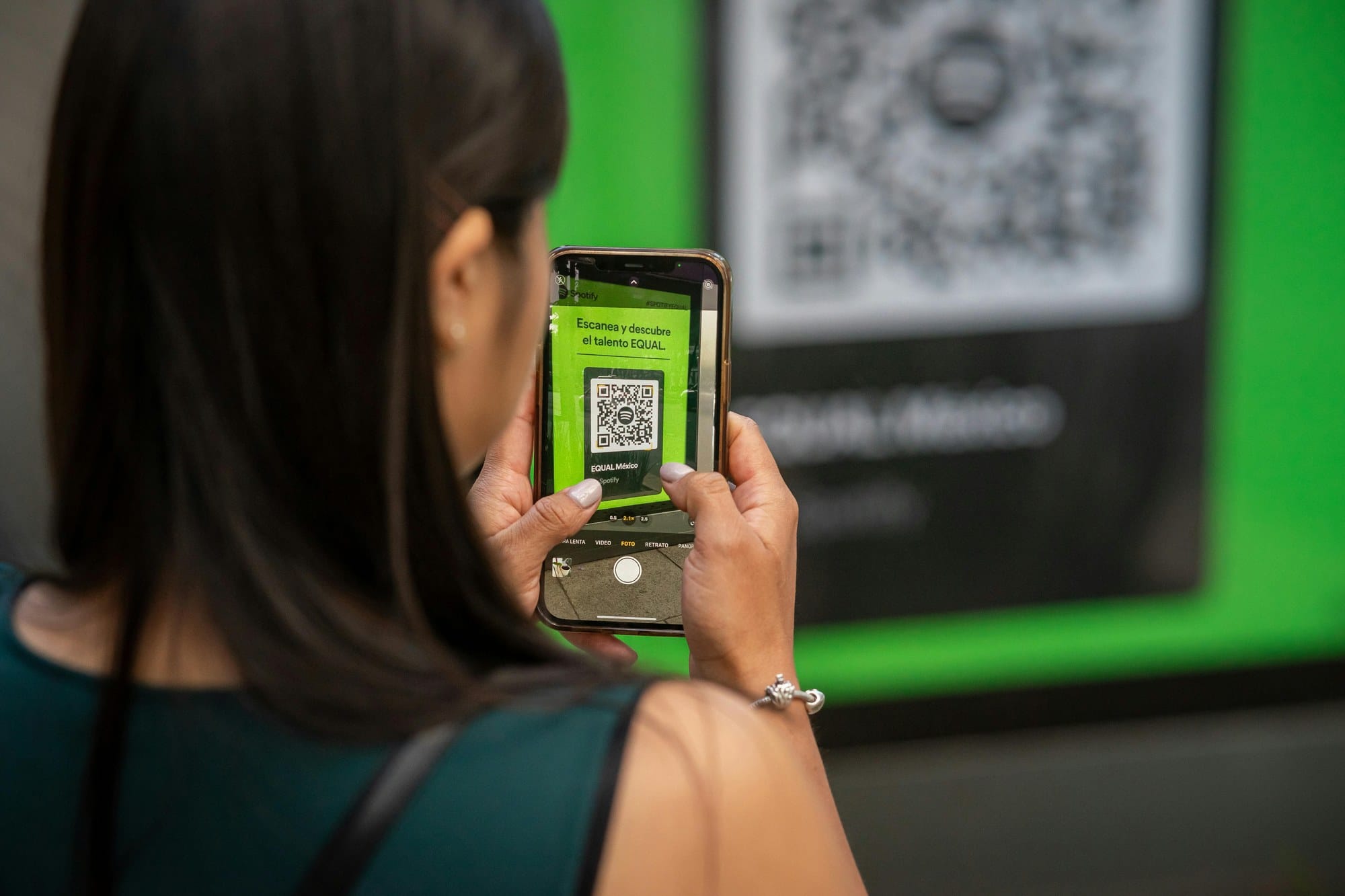
The most common workflow is the simplest one — open the Camera app and aim it at the QR code.
- Launch the Camera app from the Home Screen.
- Aim the camera so the QR code is in the frame.
- A yellow banner appears at the top of the screen — tap it.
- The linked web page opens automatically.
The camera mode (Photo, Video, or Square) does not matter — all of them recognize QR codes. You do not even need to press the shutter button: once the camera focuses, the code is read.
If nothing happens when you point at a code, jump to the troubleshooting section below.
Scan a QR Code From a Saved Photo
QR codes inside screenshots, or images people send you, can be scanned directly from the Photos app. This works on iOS 15 and later.
- Open the Photos app.
- Open the photo that contains the QR code.
- Long-press the QR code area, or tap the Live Text icon in the lower-right corner.
- The URL is recognized, and a menu lets you Open it.
When Live Text picks up the code, a white outline appears around the QR area. If no outline shows up, the photo may be too low-resolution or out of focus — try a different image.
This method is especially useful when all you have is a screenshot of a QR code (for example, one that someone DM'd you on your phone) and there is no physical code to point the camera at.
Use the Code Scanner From Control Center
iPhone has a dedicated Code Scanner that lives in Control Center. It is built specifically for QR scanning and launches faster than the full Camera app.
Add the Code Scanner to Control Center
By default it may not be in your Control Center yet. Add it first:
- Open Settings → Control Center.
- In the More Controls section, tap the + next to Code Scanner.
- The item is added to Control Center.
Scan a Code With the Code Scanner
- Swipe down from the top-right corner to open Control Center (on phones with a Home button, swipe up from the bottom).
- Tap the Code Scanner icon (a square with a dot in the center).
- The camera opens — aim at the QR code.
- The code is read automatically and the URL opens.
Unlike the Camera app, the Code Scanner is QR-only — there are no mode switchers or other UI elements, just the viewfinder.
When iPhone Won't Scan a QR Code
If pointing the camera at a code does nothing — no yellow banner — work through these checks:
Check the "Scan QR Codes" Camera Setting
iOS has a toggle for QR scanning, and it might be off.
- Open the Settings app.
- Tap Camera.
- Turn on Scan QR Codes.
When this switch is off, the Camera app will not auto-detect QR codes at all.
Adjust Distance, Angle, and Lighting
To recognize a QR code, all of these need to be true:
- The whole QR code is inside the camera frame
- There is enough light for the camera to focus
- The code is not heavily distorted, partially covered by shadow, or warped
In a dark room the camera may simply not have enough light to focus. Turn on the flash or move to a brighter spot and try again.
Clean the Camera Lens
A dirty lens prevents the camera from focusing properly. Wipe it gently with a soft cloth and try again.
Restart the iPhone
The Camera app can occasionally hang. A quick restart of the iPhone is enough to clear it.
Check Your iOS Version
Any iPhone on iOS 11 or later supports QR scanning, but older versions may have limitations. Go to Settings → General → Software Update and install the latest version.
If none of these help, the iPhone troubleshooting guide covers broader camera and system issues.
Security Tips for Scanning QR Codes
QR codes are convenient, but they can also be used to send you to malicious sites. A few habits to build in:
Always Verify the URL Before Opening
When iPhone scans a QR code, it shows you a preview of the URL before opening it. Before you tap, check that the domain name (the part right before .com, .jp, etc.) actually belongs to the company you expect. Phishing scams often use lookalike domains — for example amaz0n.co.jp (with a zero) instead of amazon.co.jp. Read carefully.
Be Wary of Random QR Codes in Public
QR codes stuck on light poles, posted in public spaces, or pasted into unsolicited emails or DMs can be there to push you toward phishing sites. If the source is not clearly identified, the safer move is simply not to scan it.
Watch Out for Pages Asking for Sensitive Info
If a page you reach through a QR code suddenly asks for your login credentials or credit card information, treat it as suspicious by default. The safer move is to open the official site directly from the browser's address bar instead.
For a related look at protecting yourself, see the guide on checking an iPhone for viruses and how to spot phishing emails.
Wrap-Up
The three ways to scan a QR code on iPhone:
- Built-in Camera app: Point and it just recognizes — the everyday default
- Photos + Live Text: Reads QR codes from saved images and screenshots
- Control Center Code Scanner: A fast, dedicated tool
You do not need a third-party app for any of these — iOS handles them all. When a code refuses to scan, check the Scan QR Codes switch in Settings → Camera, then look at distance, lighting, and lens cleanliness.
QR codes are useful, but verifying the URL before tapping and ignoring suspicious-looking codes in public goes a long way toward keeping you safe.