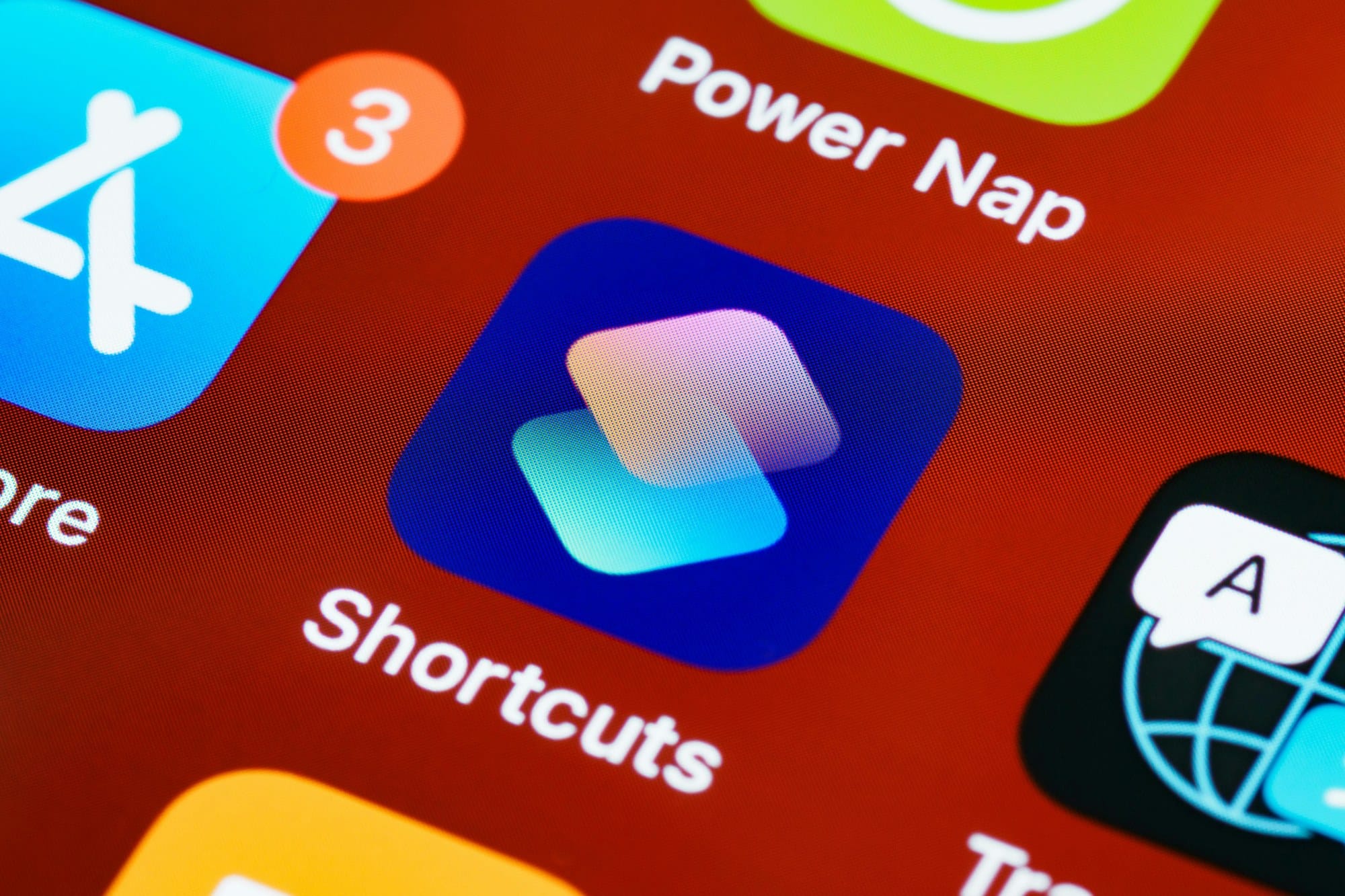
The iPhone Shortcuts app is Apple's built-in automation tool — it bundles a sequence of operations into a single tap. "Play music when I get home," "send a quick canned message in LINE," "PDF a stack of photos" — these everyday small frictions can disappear with a few minutes of setup. This guide covers ready-made Gallery recipes, building your own, time- and location-based automations, putting shortcuts on the Home Screen, and the Siri voice triggers.
Table of Contents
- What the Shortcuts App Is
- Installing and Launching Shortcuts
- Pulling Recipes From the Gallery
- Five Useful Default Shortcuts
- Building a Shortcut From Scratch
- Triggering Shortcuts Automatically with Automations
- Adding a Shortcut as a Home Screen Icon
- Calling Shortcuts via Siri
- When Shortcuts Don't Run
- Wrap-Up
What the Shortcuts App Is
Shortcuts is Apple's built-in automation app. It chains a series of actions into a "recipe" you can fire with one tap. A typical example: "turn on Wi-Fi, launch Spotify, play a specific playlist" — three steps, one tap.
Because it's first-party, Shortcuts integrates deeply with system features (Settings, Health, Messages) in ways third-party automation apps can't reach. The basics alone deliver real time savings every day.
Installing and Launching Shortcuts
Shortcuts ships with iOS 13 and later — search "Shortcuts" on the Home Screen to find it. If you removed it, reinstall for free from the App Store.
The app has three tabs at the bottom:
- Shortcuts: your saved or imported recipes.
- Automation: recipes that fire automatically.
- Gallery: Apple's curated recipe collection.
Starting with the Gallery is the fastest way to feel the upside.
Pulling Recipes From the Gallery
The Gallery has hundreds of ready-made recipes — Morning Routine, Calendar Glance, Send ETA — that work right away.
- Open the Gallery tab.
- Pick a category (Morning Routine, Photo, Health, etc.).
- Tap Add Shortcut.
- Grant any required permissions (Contacts, Calendar, Location, etc.).
Once added, the recipe appears under Shortcuts and runs on tap. You can edit the recipe later to adapt it.
Five Useful Default Shortcuts
A few that earn their keep:
Directions home
Opens turn-by-turn directions from your current location to the home address on your contact card. Set "Home" properly and accuracy improves significantly. Pair with an automation that triggers at end-of-workday for hands-free navigation.
Send a canned message in LINE
Tap once to send "On my way" or "Home now" to a specific contact. Great for partner / family check-ins.
Combine photos into a PDF
Picks photos from the camera roll and bundles them into a single PDF in Files. Useful for receipts and document scans.
Auto-switch Focus modes
Toggles Focus modes by location or time — Work mode at the office, Personal at home.
Speak the battery level
Reads the battery percentage out loud at a set time. Works as a "did you forget to plug in" reminder before bed.
Building a Shortcut From Scratch
To build something the Gallery doesn't cover:
- On the Shortcuts tab, tap + in the top-right.
- Tap Add Action and pick what you want to happen.
- Stack actions — they execute top to bottom.
- Add Variables, If, or Repeat actions for branching and loops.
- Set the name and icon, then save.
Actions are organized into App, Scripting, Web, and other categories. Start with two or three simple actions; layer in branches and variables once that feels comfortable.
Triggering Shortcuts Automatically with Automations
Automations run shortcuts based on triggers — no tap required.
Available triggers:
- Time of day: 7 AM weekdays, etc.
- Location: arriving home or work, leaving home or work.
- Connection: connecting to a specific Wi-Fi or Bluetooth device.
- Charging: when plugged in, or battery dropping below 20%.
- Alarm: when an alarm fires or is dismissed.
- App launch: when a specific app opens.
"Disable silent mode when home Wi-Fi connects" or "lower brightness at 11 PM" — automations like these hook into your daily rhythm without effort.
Adding a Shortcut as a Home Screen Icon
For frequently used shortcuts, putting them on the Home Screen makes them feel like apps.
- In the shortcut's edit screen, tap the i in the top-right.
- Pick Add to Home Screen.
- Customize the icon image and the displayed name.
- Tap Add.
The icon image can be any photo from your library — handy when you want shortcuts to fit the visual style of your Home Screen.
Calling Shortcuts via Siri
Every shortcut gets an automatic Siri voice trigger. "Hey Siri, [shortcut name]" runs it.
Pick names that say out loud easily. "Go home" recognizes more reliably than "Directions to home address." Voice triggers are especially useful in CarPlay or while driving.
When Shortcuts Don't Run
Quick checklist when a shortcut misfires:
- Permissions: Contacts, Photos, Location — all required permissions actually granted?
- App updates: an out-of-date integration target may be missing actions.
- iOS version: some actions need a recent iOS.
- Personal Automations: some triggers default to "Ask Before Running" which requires a manual confirmation.
- Background restrictions: Focus mode or Low Power Mode can block automations.
- Trust setting: "Allow Untrusted Shortcuts" may need to be on for shared shortcuts.
When something breaks, drop a Quick Look action mid-flow to inspect the intermediate values — that usually pinpoints the failing step.
Wrap-Up
Start with Gallery recipes — you'll feel the value the same day. From there, build your own and chain them to time/location automations to layer in real time savings. Combine with Home Screen icons and Siri triggers, and your daily friction shrinks to one tap or one sentence. When something doesn't run, check permissions and iOS version first.