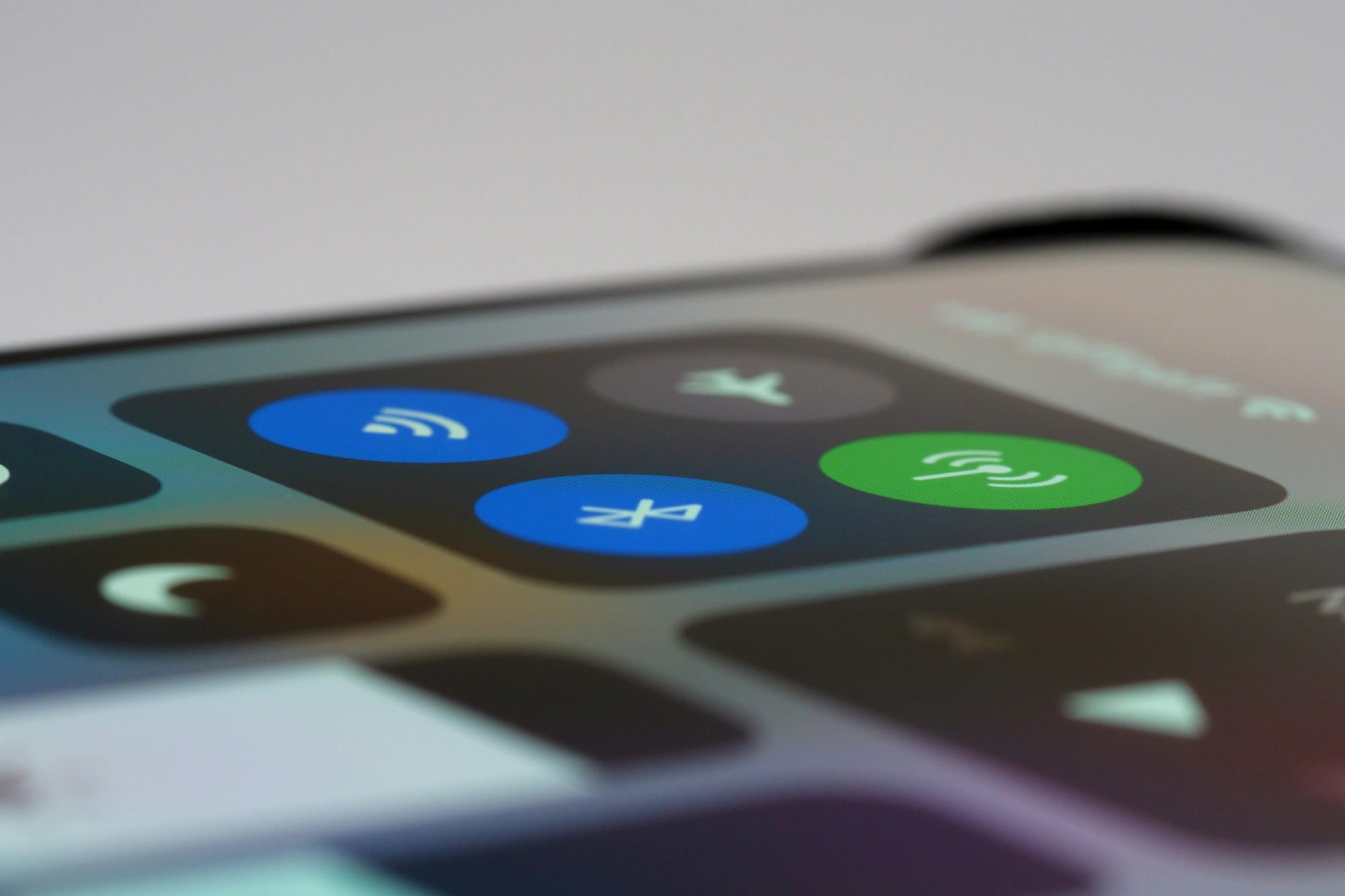
Control Center is one of the first interfaces to learn on an iPhone. Wi-Fi, Bluetooth, brightness, volume, flashlight — most of the everyday controls live here, one tap away. iOS 18 rebuilt it into a multi-page, freely arrangeable surface. This guide covers opening Control Center, the iOS 18 customization, the hidden long-press menus, the items most people end up adding, and the fixes when it stops responding.
Table of Contents
- What Control Center Is
- How to Open Control Center
- The iOS 18 Customization Overhaul
- Adding and Rearranging Items
- Hidden Menus Behind a Long Press
- Ten Items Worth Adding
- Lock Screen Access Settings
- When Control Center Won't Open
- Wrap-Up
What Control Center Is
Control Center is a quick-settings panel that's been part of iOS since version 7. It saves you from digging into the Settings app for the operations you reach for the most. Its single biggest benefit is removing "open Settings → drill down to the right pane" from your daily flow.
iOS 18 reworked it from the ground up: items can now be sized, placed freely, and split across multiple pages — much more like the Home Screen.
How to Open Control Center
The gesture depends on the model.
- Face ID models (iPhone X and later): swipe down from the top-right of the screen.
- Home Button models (iPhone SE, iPhone 8 and earlier): swipe up from the bottom.
The same gesture works on the Lock Screen and inside any app, so you can change brightness in the middle of a full-screen video or game. To dismiss, tap an empty area or swipe up.
The iOS 18 Customization Overhaul
iOS 18 made big changes to Control Center.
- Multiple pages: swipe up and down between Main, Media, Home, and so on.
- Resizing: drag the bottom-right handle of any control to make it bigger or smaller.
- Free placement: any control can sit anywhere on the grid.
- Third-party controls: supported apps can drop their own controls right into Control Center.
- Power button: a slider at the top can launch the power-off menu.
Coming from iOS 17 or earlier, the new layout takes a moment to get used to.
Adding and Rearranging Items
To customize on iOS 18:
- Open Control Center.
- Tap the + in the top-left to enter edit mode.
- Drag controls to rearrange, or pull the bottom-right corner to resize.
- Tap the − in the top-left of any control to remove it.
- Tap Add a Control at the bottom to add new ones.
- Tap an empty area to exit edit mode.
iOS 17 and earlier only allowed adding and removing through the Settings app — no resizing or placement freedom.
Hidden Menus Behind a Long Press
Most Control Center controls open a detail menu when you long-press them. These hidden options are easy to miss and unlock a lot more functionality.
| Control | Long-press unlocks |
|---|---|
| Wi-Fi | Network picker |
| Bluetooth | Connected device picker / disconnect |
| Brightness | True Tone, Night Shift toggles |
| Music playback | AirPlay target picker |
| Flashlight | Brightness slider |
| Camera | Selfie, Video, Slo-mo direct launch |
| Timer | Slider to set duration |
| Voice Memo | Start a recording in place |
Once you build the long-press habit, Control Center becomes a much more powerful tool.
Ten Items Worth Adding
Useful items that aren't in Control Center by default:
- Screen Recording: see How to Use iPhone Screen Recording for details.
- Low Power Mode: toggle battery saver instantly.
- Voice Memo: start recording the moment you have an idea.
- Guided Access: lock the iPhone to a single app.
- Magnifier: turn the camera into a magnifying glass.
- Dark Mode: flip the system appearance in one tap.
- Apple TV Remote: control the Apple TV from your pocket.
- Notes: jump straight from launch to writing.
- Text Size: adjust Dynamic Type quickly.
- Hearing: surface AirPods accessibility features like Conversation Boost.
iOS 18 also lets supported third-party apps add their own controls.
Lock Screen Access Settings
Control Center is reachable from the Lock Screen, which is convenient but means anyone holding your iPhone can toggle the flashlight or kill Wi-Fi. To restrict this:
- Open Settings.
- Tap Face ID & Passcode (or Touch ID & Passcode).
- Enter your passcode.
- Under Allow Access When Locked, turn Control Center off.
Locking it down prevents accidents and tampering, but you lose the convenience of one-tap flashlight from a locked screen. Pick the side that matches how you actually use the phone.
When Control Center Won't Open
If the swipe isn't responding:
- Are you starting from the very edge? Starting too far in often misses.
- Some full-screen apps: games and video apps may need a first swipe to reveal a bar, then a second to open.
- Accessibility: Settings → Accessibility → Touch → AssistiveTouch changes gesture behavior when on.
- Screen protector edges: thick or lifted edges break edge-swipe detection.
- iOS bug: try Settings → General → Software Update for the latest version, or restart.
If nothing helps, try Settings → General → Transfer or Reset iPhone → Reset All Settings (your data stays).
Wrap-Up
Control Center is the central one-tap interface on iPhone. iOS 18 turned it into a multi-page, freely arrangeable surface so you can shape it around how you actually use the device. Long-press almost any control to find a hidden menu — that's where the real depth lives. If swipes aren't opening it, start with where you're swiping from before assuming a deeper bug.