A ringtone going off mid-meeting, a notification chime in a movie theater — silent mode (sometimes called Mute mode) is the iPhone's defense against those moments. It looks simple, but iPhone 15 Pro and later swap the physical switch for a long-press Action Button, which trips up a lot of users. This guide covers both the legacy side switch and the Action Button, plus how to let specific contacts ring through and how silent mode differs from Focus modes.
Table of Contents
- What iPhone Silent Mode Is
- Legacy Models: Toggling the Side Switch
- iPhone 15 Pro and Later: The Action Button
- Customizing What the Action Button Does
- Sounds That Still Play in Silent Mode
- Letting Specific Contacts Ring Through
- Silent Mode vs. Focus Modes
- When Silent Mode Doesn't Work
- Wrap-Up
What iPhone Silent Mode Is
iPhone silent mode mutes ringtones, notification sounds, keyboard clicks — basically every system sound — in one toggle. Vibration can be configured to remain on. Unlike Android, where the toggle lives in Settings, iPhone uses a physical switch or button so you can flip it without unlocking.
Which control you have depends on the model.
Legacy Models: Toggling the Side Switch
Up through the iPhone 14 series (and on iPhone 15 / 15 Plus), there's a small switch on the upper-left edge of the device.
- Orange visible (flipped down): silent mode on.
- Orange hidden (flipped up): silent mode off.
Flipping it shows a brief "Silent Mode On" or "Silent Mode Off" banner. Because it's a physical switch, it can flip accidentally in your pocket. A leather case with a covered switch area is the usual fix.
iPhone 15 Pro and Later: The Action Button
iPhone 15 Pro / 15 Pro Max and the entire iPhone 16 lineup replaced the side switch with the Action Button. By default it's mapped to silent mode toggle.
How to use it:
- Press and hold to turn silent mode on.
- Press and hold again to turn it off.
- A short tap does nothing — by design.
The long-press requirement basically eliminates accidental pocket toggles. The trade-off: it doesn't feel quite as "snappy" as the old switch, so it takes a couple of days to internalize.
Customizing What the Action Button Does
The Action Button can do plenty besides silent mode.
- Open Settings.
- Tap Action Button.
- Swipe to pick a function.
Available options:
- Silent Mode (default)
- Focus
- Camera
- Flashlight
- Voice Memo
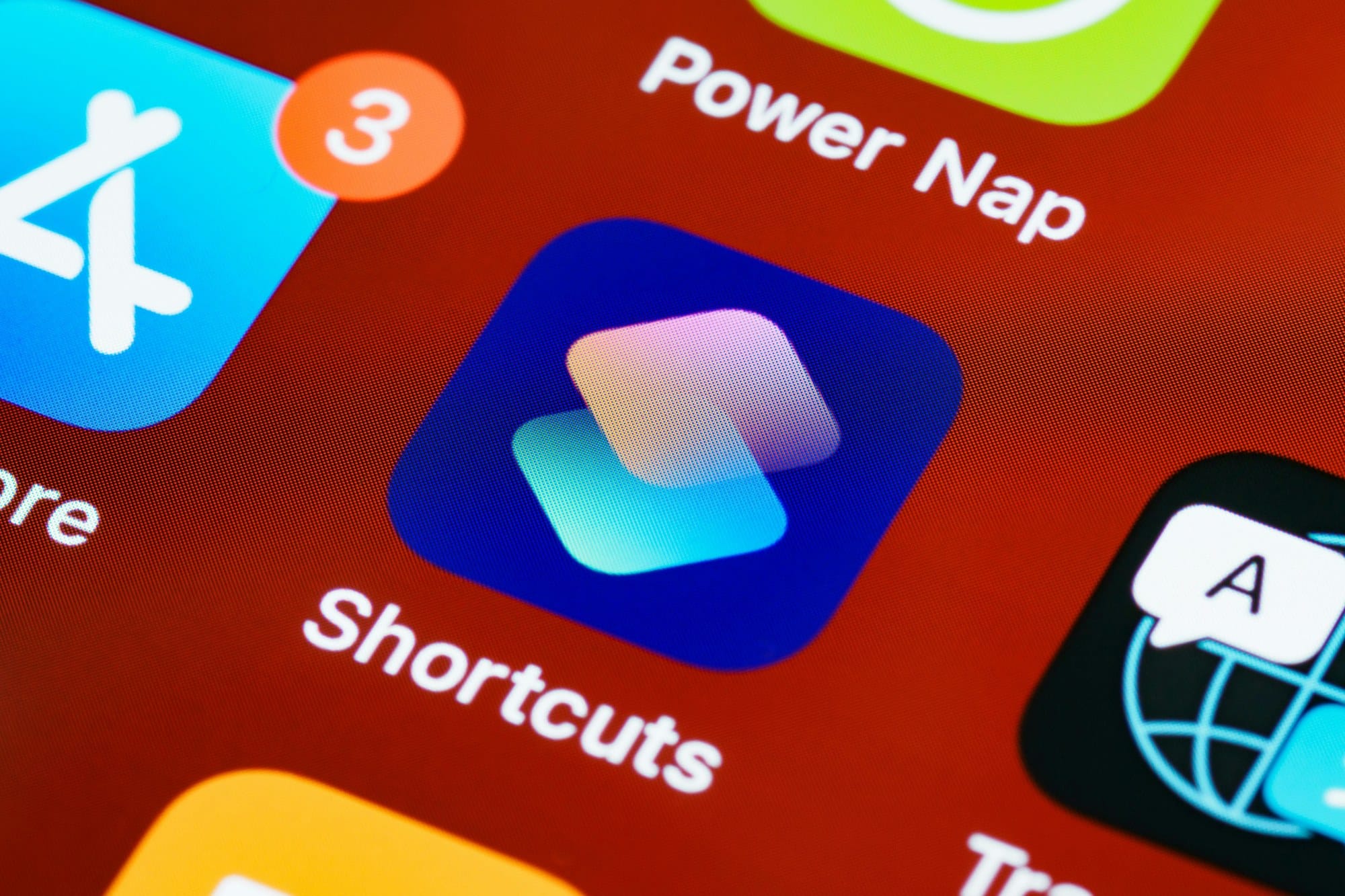
- Shortcut
- Accessibility
- Translate
Pick Shortcut and you can assign any shortcut you've built. If you don't toggle silent mode often, repointing the Action Button at something more useful is a clear win.
Sounds That Still Play in Silent Mode
Silent mode doesn't mute everything. These sounds always play:
- Emergency Alerts (earthquake, tsunami, public safety alerts)
- Alarms (Clock app)
- Timer end sounds
- Outgoing call ringback (when you place a call)
- Music and video playback (anything you intentionally start)
- Camera shutter (Japan-spec restriction)
To stop emergency alerts specifically, see the reverse of How to Fix iPhone Emergency Alerts Not Sounding.
Letting Specific Contacts Ring Through
Want family or your boss to ring even when silent mode is on? Each contact has an Emergency Bypass option.
- Open the contact in Contacts.
- Tap Edit in the top-right.
- Tap Ringtone.
- Toggle Emergency Bypass on.
That contact's calls will ring regardless of silent mode. Useful for "I'm in a meeting but family emergencies must reach me."
Silent Mode vs. Focus Modes
iPhone has a related feature called Focus. Side-by-side:
| Feature | Silent Mode | Focus Mode |
|---|---|---|
| Toggle | Switch / Action Button | Control Center / automation |
| Notifications | Sound off, still delivered | Delayed or hidden entirely |
| Per-contact exception | Per contact | By group |
| Auto-toggle | Manual only | By time, location, app |
| Lock Screen | Standard | Switchable wallpaper |
Reach for silent mode for short, immediate quiet. Use Focus for sustained, scheduled quiet — sleep, drive, work.
When Silent Mode Doesn't Work
If silent mode is on but sound is still playing:
- Re-check the switch or button: orange visible? Action Button held long enough?
- Volume buttons: silent mode keeps media volume — playing music still produces sound.
- Independent volumes: confirm Settings → Sounds & Haptics for ring/notification volumes.
- AirPods / speaker connected: behavior changes when output isn't the iPhone speaker.
- App-specific notification sounds: LINE, Slack, etc. have their own in-app sound settings.
- Restart: switch contact issues or software glitches often clear with a reboot.
If a physical switch failure is suspected, take the iPhone to an Apple Store. For related symptoms where vibration also fails, see How to Fix iPhone Not Vibrating.
Wrap-Up
iPhone silent mode lives on the side switch through iPhone 14, and on a long-press Action Button from iPhone 15 Pro onward. The Action Button can be re-mapped to plenty of other functions — handy if you don't toggle silent mode often. Knowing what still plays in silent mode (alarms, emergency alerts, contact bypass) prevents the embarrassing mid-meeting moments. For longer windows of quiet, lean on Focus modes instead.