Windows 10 and later include a clipboard history feature accessible via Win+V — past copied text and images are recallable from a small popup. A one-time setup unlocks a meaningfully better copy-paste workflow, but a lot of people never realize it exists.
This guide covers enabling the built-in clipboard history, the basic operations, pinning and cross-PC sync, and third-party clipboard managers for anyone who needs more than the 25-item built-in limit.
Table of Contents
- The Built-in Windows Clipboard History
- Enabling Clipboard History
- Practical Ways to Use It
- Third-Party Alternatives When the Built-in Isn't Enough
- Cautions When Using Clipboard History
- Wrap-Up
The Built-in Windows Clipboard History
Start with what the feature actually is.
Supported OS Versions and Requirements
Clipboard history ships standard in Windows 10 (version 1809 and later) and Windows 11. Older Windows 7 and 8.1 don't have it, so you'll need a third-party tool there. Keep Windows Update current and essentially every modern PC has it.
What Win+V Actually Does
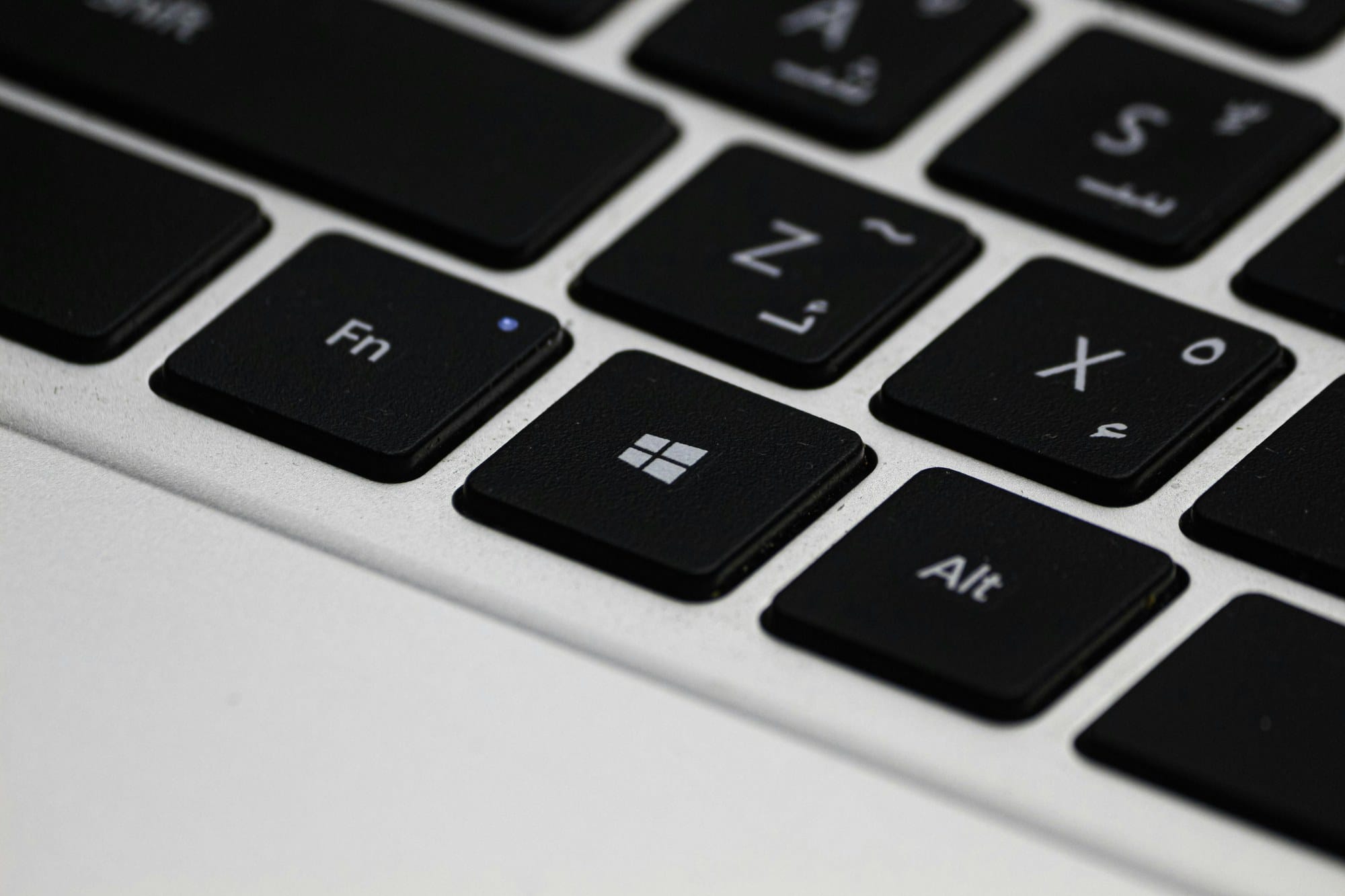
Pressing Win+V opens a small popup in the lower right of the screen listing up to 25 previously copied items. Text, images, and HTML all show up, and clicking an item pastes it at the current cursor position. You can also pin frequently-used items to the top, turning the history popup into a lightweight snippet manager.
Enabling Clipboard History
The feature is off by default, so first-time enablement is required.
Turning It On From Settings
From the Start menu, open Settings → System → Clipboard and flip the Clipboard history toggle to On. Windows 11's Settings app looks a little different, but the path (System → Clipboard) is the same.
Turning It On From Win+V
Skip the Settings app entirely: just press Win+V. If clipboard history is off, you'll see a "Clipboard history is off" message with a Turn On button. One click and you're done. It's the faster onboarding flow.
Practical Ways to Use It
After enabling, here's what you'll actually use day to day.
Pasting Text and Images
Win+V brings up the history; click the entry you want and it pastes at the cursor. Beyond text, screenshots and cropped images also live in history and paste directly into image editors, Word, or PowerPoint.
Pinning Frequently-Used Items
Each history entry has a pin icon. Click it and that entry is pinned — it stays put even when new items push other history off the 25-item limit. Addresses, email signatures, canned messages, and code snippets all become a few-click paste away.
Syncing Clipboard Across PCs
The Settings → Clipboard screen also has a "Sync across your devices" option. Enable it on multiple PCs signed into the same Microsoft account, and text copied on one device pastes on another. There's a choice between "Automatically sync" and "Manually sync" — pick manual if you're worried about accidentally syncing sensitive content.
Clearing History and Auto-Deletion
To clear the entire history, click the Clear button on Settings → Clipboard, or use Clear all at the top of the Win+V popup. Pinned items survive a clear. Restarting the PC also wipes unpinned history automatically.
Third-Party Alternatives When the Built-in Isn't Enough
When 25 entries don't cut it, or you need richer search and sync — third-party options.
Ditto
Ditto is a free, open-source clipboard manager with a long track record. It can hold effectively unlimited history, supports full-text search, grouping, and encrypted multi-PC sync. The settings surface is dense, but you can tune shortcuts and display style precisely. A safe first pick for a workstation.
ClipboardFusion
ClipboardFusion is a high-feature clipboard manager with free and paid tiers. The standout is Macros, which automatically reshape text on copy — strip URL query parameters, remove line breaks to merge multi-line text, and so on, before you ever paste. Sync uses a cloud account and includes a web interface.
1Clipboard
1Clipboard is a simple, free clipboard manager that syncs history via Google account. It supports Macs as well as Windows, so it's popular with users on mixed Windows-Mac setups. Features are minimal, but the UI is approachable — a good "first third-party app" choice.
Cautions When Using Clipboard History
A few things to keep in mind.
Handling Sensitive Information
Passwords, credit card numbers, and bank account numbers in history are a risk if anyone else uses the PC. The safe moves: paste directly from a password manager, clear history immediately after copying sensitive data, and leave cross-device sync off if you don't need it.
When History Won't Stay
"Setting is on but nothing's saved" or "Win+V opens nothing" sometimes happens right after Windows Update or sign-out. Standard fix sequence: toggle the setting off, restart, toggle on; then confirm you're signed in to your Microsoft account. If that doesn't resolve it, check for a conflicting third-party keyboard utility.
Wrap-Up
Windows includes a genuinely useful clipboard history (Win+V) right out of the box, and a single toggle makes every day a little smoother. Master the three concepts — the 25-item cap, pinning, and cross-PC sync — and most daily use cases are covered by the built-in feature alone.
For heavier needs — much larger history, automated text transformation — Ditto or ClipboardFusion is the natural next step. Keep an eye on what ends up in your history (especially sensitive data), and the upside more than pays back the small setup cost.