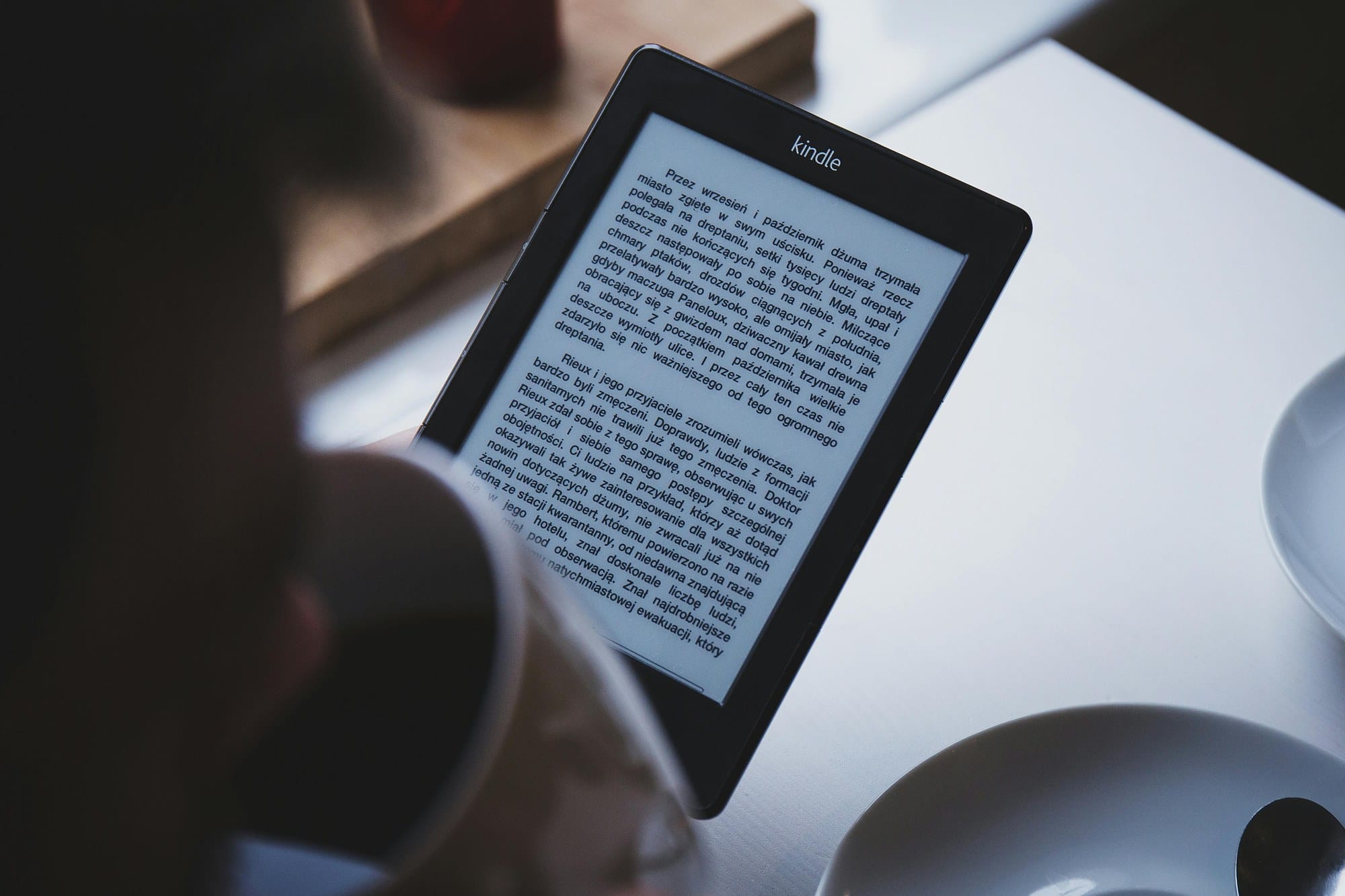
Kindle is Amazon's ebook platform — and the name refers to three things at once: the hardware reader, the free apps for every other device, and the read-it-all subscription. If you're wondering "do I actually need the device?", "can I start for free?", and "is the unlimited plan worth it?", this guide walks through the whole Kindle ecosystem and how to make practical decisions.
Table of Contents
- What "Kindle" actually means — devices, apps, subscription
- Starting free with the Kindle app
- Kindle devices and how to choose between them
- How to buy Kindle books
- Kindle Unlimited (the all-you-can-read subscription)
- Prime Reading (a perk of Amazon Prime)
- Reading and navigating books
- Highlights, notes, and the searchable knowledge layer
- Troubleshooting common Kindle issues
- Summary
What "Kindle" actually means — devices, apps, subscription
"Kindle" actually refers to three different things:
| Tier | What it is | Cost |
|---|---|---|
| Kindle device | Amazon's dedicated e-reader hardware (Paperwhite, etc.) | One-time $99+ |
| Kindle app | Free apps for iPhone / iPad / Android / Mac / Windows | Free |
| Kindle Unlimited | All-you-can-read subscription with 4M+ titles | About $11.99/mo |
If you just want to read Kindle books, the free app is enough. The dedicated device is "I really do read a lot and want a glare-free screen and weeks of battery." The unlimited plan is for heavy readers.
Starting free with the Kindle app
The lowest-effort start is installing the Kindle app on a phone or computer you already own.
Supported platforms
- iPhone / iPad: search "Kindle" in the App Store
- Android: same in Google Play
- Mac: Mac App Store or the official Amazon download
- Windows: Microsoft Store or the official Amazon download
- Web: read directly at read.amazon.com
First-time setup
- Install the app
- Sign in with your Amazon account
- Your previously purchased Kindle books appear in the library
- Tap a book to download and start reading
Signing in across multiple devices keeps your reading position synced via the cloud — you can switch from phone to tablet and pick up exactly where you left off.
Kindle devices and how to choose between them
The Kindle hardware uses an E Ink (e-paper) display that's easier on the eyes for long reading sessions and runs weeks per charge.
Current Kindle lineup
| Model | Key features | Price |
|---|---|---|
| Kindle (basic) | Entry-level, 6 inch, lightweight | From $99 |
| Kindle Paperwhite | Waterproof, 7 inch, higher resolution | From $159 |
| Kindle Paperwhite Signature | Wireless charging, auto-brightness, 32 GB | From $199 |
| Kindle Oasis | Premium, physical page-turn buttons, 7 inch | From $249 |
| Kindle Scribe | 10.2 inch, included stylus for handwritten notes | From $339 |
Quick recommendation
- Cost-first, first-time: basic Kindle
- Serious reader: Kindle Paperwhite (the most-recommended)
- Reads in the bath / pool: Paperwhite Signature
- Wants to take handwritten notes: Kindle Scribe
There's also an "ads" version of each model that's about $20 cheaper but shows ads on the lock screen. For anything you'll use for years, the ad-free version is the better long-term choice.
Should you buy a device or stick with the app?
- Stick with the app: short reading sessions on the commute, comics, magazines, illustrated books
- Buy a device: long novels, business books, anything where you'll spend hours reading and want minimal eye strain
If you read five-plus hours a week, a dedicated Kindle is a good investment.
How to buy Kindle books
Buying from Amazon's website
- On a product page, choose the "Kindle Edition"
- Click "Buy Now" or "Buy now with 1-Click"
- The book is automatically delivered to your registered Kindle apps/devices
Buying from a device or app
The Kindle app has a built-in store tab. iPhone/iPad apps cannot complete purchases inside the app (Apple's rules), but you can search there and complete the purchase in Safari.
Pricing
- Kindle editions usually run 10–30 percent cheaper than print
- Sales of 50–70 percent off are common
- Payment goes through whatever's on your Amazon account
Watch out for Kindle Daily Deal and Kindle Monthly Deal pricing if you want to stockpile cheap reads.
Kindle Unlimited (the all-you-can-read subscription)
Kindle Unlimited (KU) is roughly $11.99/month for unlimited access to 4+ million titles.
How Kindle Unlimited works
- About $11.99/month with a 30-day free trial for new accounts
- Hold up to 20 books at a time (return one to borrow another)
- Catalog includes magazines, comics, business books, novels, and English-learning titles
What's in the Kindle Unlimited catalog (examples)
- Magazines: Time, The New Yorker, Wired, and many more
- Comics: not the latest issues, but huge back catalogs
- Business books: classics like The 7 Habits and modern bestsellers
- Novels: a strong mix of indie and traditionally-published titles
- Language learning: ESL/EFL content and grammar references
Is Kindle Unlimited worth it?
- One book a month → breaks even with regular book prices
- Two-plus books a month → clearly worth it
- Heavy magazine reader → trivially worth it
Always start with the 30-day free trial to gauge the catalog before committing.
Identifying KU-eligible books
Look for the "Kindle Unlimited" badge on Amazon product pages. You can also filter Amazon search results by "Kindle Unlimited Eligible."
Prime Reading (a perk of Amazon Prime)
If you already pay for Amazon Prime (about $14.99/month or $139/year), you get Prime Reading at no extra cost.
Prime Reading vs Kindle Unlimited
| Prime Reading | Kindle Unlimited | |
|---|---|---|
| Price | Included in Prime | About $11.99/month standalone |
| Title count | ~1,000 | 4M+ |
| Concurrent holds | Up to 10 | Up to 20 |
| Best for | Light readers | Heavy readers |
A practical play: try Prime Reading first as a Prime member, then upgrade to Kindle Unlimited if the smaller catalog feels limiting.
Reading and navigating books
Turning pages
- App: tap the right side of the screen for next page, left for previous
- Device: tap the screen, or use the physical buttons on Oasis
Adjusting font and layout
Tap the "Aa" icon at the top or bottom of the screen to change font size, font face, line spacing, margins, and theme.
Table of contents and jumping
Tap the menu / hamburger icon to bring up the table of contents and jump between chapters.
Searching within a book
The menu has a search option that scans the body text. Useful when you want to find "where was that passage?" later.
Reading progress
The bottom of the screen shows minutes-to-end and percentage complete — handy for pacing your reading.
Highlights, notes, and the searchable knowledge layer
Kindle's quiet superpower is highlights and full-text search across every book you own.
Adding highlights
Long-press a passage to start a selection, drag to extend, tap "Highlight." Four colors are available.
Adding notes
After highlighting, tap "Note" and type. Your notes are searchable too.
Reviewing all highlights at read.amazon.com/notebook
The notebook view collects every highlight and note across every Kindle book in your account:
- Search across every book at once
- Copy and paste into Notion, Obsidian, or any other notes tool
- Treat your highlights as a personal knowledge base
For business books and study books, this single feature is reason enough to read on Kindle instead of paper.
Troubleshooting common Kindle issues
Book not syncing or showing up
- In the Kindle app, tap the sync icon (top right, the circular arrows)
- If that doesn't help, sign out and sign back in
- In Amazon's "Manage Your Content and Devices," confirm the book isn't marked "Pending delivery"
Book bought on the wrong device
In Amazon's account settings, the Content and Devices page lets you redirect a book delivery:
- Log into Amazon
- Go to Account & Lists → Manage Your Content and Devices
- Pick the book → Deliver → choose the correct device
Out of space
iPhone/iPad users: see how to clear iPhone storage. On Kindle hardware, removing finished books from the library frees device space (the purchase record stays so you can re-download anytime).
Summary
Three tiers, three ways to start:
- Try it free: install the Kindle app on a phone you already own
- Get serious about reading: buy a Kindle Paperwhite (from $159) for a dedicated reading device
- Read two or more books a month: subscribe to Kindle Unlimited (about $11.99/month, 30-day free trial)
- Already a Prime member: try Prime Reading first
The unique Kindle wins are the cross-book searchable highlights, the lighter physical footprint, and the regular sales. Try the Unlimited free trial to gauge the catalog before committing.