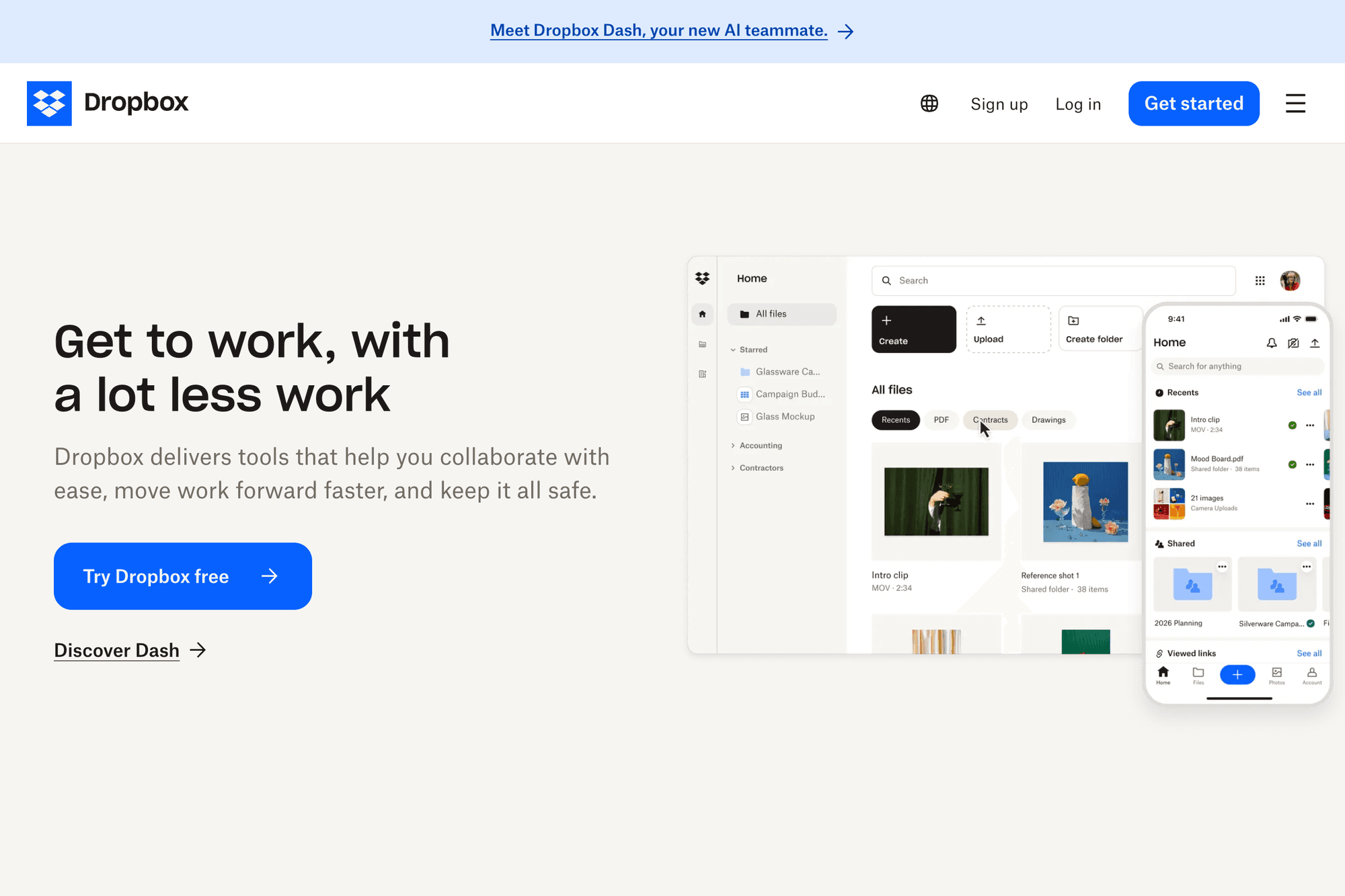
Dropbox is the veteran cloud-storage service, still widely loved for the reliability of its sync engine and the simplicity of sharing. This guide walks through account setup, syncing files between machines, sharing folders, the limits of the free plan, and how Dropbox compares to Google Drive, OneDrive, iCloud, and Box.
Table of Contents
- What Dropbox is
- Account setup and installation
- Uploading and syncing files
- Sharing files and folders
- Smart Sync for saving local disk space
- The mobile app
- Dropbox Paper, Sign, and Transfer
- Free vs paid plans
- Dropbox vs other cloud storage
- Summary
What Dropbox is
Dropbox launched in 2007 with a simple idea: put a folder on your PC, drop files in, and they sync to the cloud automatically. The model spread, but Dropbox is still the benchmark for sync quality.
Dropbox's defining characteristics
- Sync reliability: industry-leading sync engine
- Cross-platform: Windows, Mac, Linux, iPhone, Android
- Block-level sync: only the changed parts of large files get uploaded
- Simple UI: minimal learning curve
For a broader cloud-storage comparison, see our cloud storage comparison guide. Dropbox still wins on sync quality even though its free tier is smaller.
Account setup and installation
Creating an account
- Go to Dropbox
- Enter email, name, password
- Social login with Google or Apple is also supported
- Start with the free Dropbox Basic plan (2 GB)
Installing the desktop app (Windows / Mac)
- Download the desktop installer
- Run the installer
- Sign in
- A "Dropbox" folder is created on your PC
- From here on, any file you drop into that folder syncs automatically
Installing the mobile app
- iPhone: search "Dropbox" in the App Store
- Android: search in Google Play
The mobile app focuses on viewing, auto-uploading photos, and sharing links.
Uploading and syncing files
Uploading from a PC
Drop a file into your local Dropbox folder and it uploads automatically. Sync state shows as:
- Green checkmark: synced
- Blue spinning arrows: syncing
- Red X: sync failed
With Dropbox installed on multiple PCs under the same account, every machine sees the same files.
Uploading via the browser
You don't even need the desktop app. From dropbox.com:
- Sign in
- Click "Upload" → "Files" or "Folder"
- Drag-and-drop also works
Auto-uploading photos from your phone
Enable "Camera Uploads" in the mobile app and every photo you take gets backed up automatically. Even if you lose the phone, the photos are safe.
Sharing files and folders
Dropbox's biggest strength is how easy sharing is.
Sending a share link
- Right-click a file or folder (or long-press on mobile)
- Choose "Copy Dropbox link"
- The link is on your clipboard
- Share via email, chat, social
The recipient can download the file without needing a Dropbox account.
Per-link restrictions (paid plans only)
Paid plans add:
- Expiration date: link becomes inactive after a set date
- Password protection: require a password to open
- Download disabled: viewing only (PDFs)
- Edit vs view permission
Shared folders for collaboration
You can share an entire folder so multiple people can read, edit, and add files inside it:
- Right-click a folder → Share
- Type the collaborator's email
- Choose "Edit" or "View only"
- Send the invite
The recipient (who needs a free Dropbox account) sees the shared folder appear inside their own Dropbox. Excellent for projects and family-photo collections.
Smart Sync for saving local disk space
If your PC's storage is tight, Smart Sync (Dropbox Plus and up) lets you keep files in the cloud while showing them as if they were local.
How Smart Sync works
- Mark files or folders as "Online only"
- They appear as a cloud icon on your PC instead of taking real space
- They download on demand when you open them
- Even after deletion from local disk, you can re-open and re-download
This is how you keep "1 TB in the cloud" on a 256 GB local SSD without manually choosing what to keep.
How to enable
- Right-click a file or folder
- Smart Sync → "Online only"
- The icon changes to a cloud
Not available on the free plan. If you need this, you'll want Dropbox Plus (about $11.99/month for 2 TB).
The mobile app
Key features
- Access all your Dropbox files
- Camera Uploads (auto-backup of new photos)
- Document scanning (turn paper into PDF)
- Mark files for offline use
- Send share links
Document scanning
Scan paper documents straight into Dropbox as PDFs:
- Tap the "+" button
- Choose "Scan documents"
- Photograph the paper
- The app auto-crops and corrects perspective
- Add more pages for multi-page documents
- Choose a destination folder
Particularly nice if you also use Notion or another note system — Dropbox PDFs play well with everything.
Offline files
Mark a file for offline access in the mobile app and it downloads to your phone so you can view it without internet.
Dropbox Paper, Sign, and Transfer
Dropbox has expanded beyond pure storage.
Dropbox Paper
- Lightweight document tool (think Notion-lite, Google Docs-style)
- Free, supports collaboration
- Built-in task lists, code blocks
Limited compared to Notion, but useful if you want to keep everything inside Dropbox.
Dropbox Sign (formerly HelloSign)
- E-signature service
- Send a PDF to someone for digital signature
- Free for a few signatures per month; paid for higher volume
Dropbox Transfer
- Send one-off large files (up to 100 GB on Pro plans)
- Set link expiration, password, download-count limits
- An alternative to dedicated large-file-transfer services
If you're already paying for Dropbox, Transfer is more convenient than a separate big-file service.
Free vs paid plans
Dropbox Basic (free)
- 2 GB of storage (extendable to 16 GB via referrals)
- Up to 3 devices
- Basic sharing
Dropbox Plus (personal paid)
- About $11.99/month (cheaper paid yearly)
- 2 TB of storage
- Unlimited devices
- Smart Sync, file recovery, password-protected links
- Dropbox Passwords (password manager) included
Dropbox Professional
- About $19.99/month
- 3 TB of storage
- Advanced sharing controls, branded sharing pages
- Aimed at freelancers and solo professionals
Is the free plan enough?
- Photo backup → 2 GB runs out quickly, you'll want Plus
- Work documents only → 2 GB often suffices
- Video files → 2 GB lasts about a day, consider Google Drive (15 GB free)
Dropbox vs other cloud storage
| Service | Free tier | Strength | Weakness |
|---|---|---|---|
| Dropbox | 2 GB | Sync reliability, simple sharing | Small free tier |
| Google Drive | 15 GB | Big free tier, Google Docs integration | Shared with Gmail/Photos |
| OneDrive | 5 GB | Office 365 integration, Windows-native | Slightly quirky UI |
| iCloud | 5 GB | Apple-device integration | Awkward outside Apple |
| Box | 10 GB | Enterprise security | Feature overload for personal use |
Quick recommendation
- Sync reliability matters most: Dropbox
- Lots of free space: Google Drive
- Office-centric workflow: OneDrive
- Mac/iPhone-only: iCloud
- Business security: Box
Dropbox has lost mainstream share to bigger-free competitors, but if you collaborate often or work across multiple PCs, the sync quality and share simplicity still set it apart.
Summary
The Dropbox basics:
- Setup: register at Dropbox.com → install desktop app and mobile app
- Sync: drop a file in the Dropbox folder, sync is automatic
- Share: right-click → "Copy Dropbox link"
- Free is 2 GB, real use cases want Plus (about $11.99/month for 2 TB)
Sync reliability and sharing simplicity are the durable wins. If you primarily need raw free space, Google Drive (15 GB) is more generous; for Apple-only environments, iCloud is smoother; for Office-centric setups, OneDrive is the obvious pick. Match the tool to the workflow.
For a deeper comparison see our cloud storage roundup and large file transfer services.