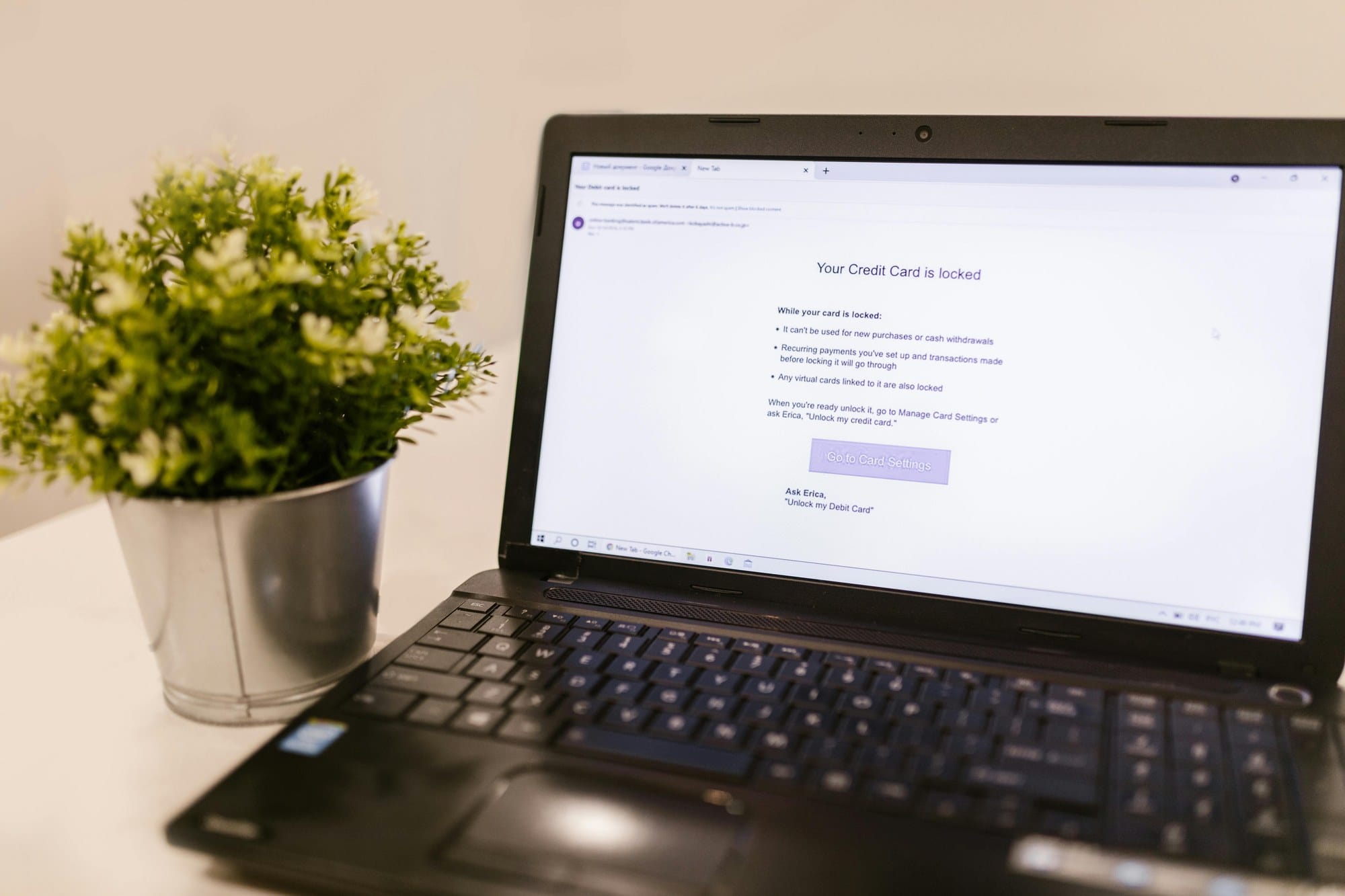
Fake notifications dressed up as Amazon, your bank, or the post office have become spectacularly convincing. This guide walks through the most common phishing patterns, how to inspect a suspect email step by step, what to do if you already clicked, and the simple defenses that prevent most damage in the first place.
Table of Contents
- What is a phishing email?
- Five common phishing patterns
- Check the sender address
- Check the language and tone
- Inspect the real URL behind a link
- Watch out for dangerous attachments
- What to do if you already clicked
- How to prevent phishing in the first place
- Summary
What is a phishing email?
A phishing email is a fraudulent message that impersonates a real organization — your bank, a shopping site, a delivery service, a government agency, or a social network — to trick you into handing over login credentials, credit-card numbers, or other sensitive information.
The name combines "fishing" (using bait to catch a target) with "phreak" (the original computer-security underground). Phishing causes tens of billions of dollars in losses every year. Anyone with an inbox is a potential target.
Five common phishing patterns
Most phishing campaigns fall into five archetypes:
Shopping account suspension
- "Your Amazon account has been temporarily suspended"
- "We detected a suspicious login on your account"
- "You need to update your payment information"
- → leads to a fake login page
Bank or credit-card security warning
- "We froze your card because of suspicious activity"
- "Please re-login to verify your identity"
- → leads to a fake banking page
Delivery / postal redelivery
- "We tried to deliver your package but missed you"
- "Please confirm your address to schedule redelivery"
- → increasingly delivered via SMS too ("smishing")
Government / tax / benefits
- "You have a tax refund waiting"
- "Action required on your benefits account"
- "Update your information at the IRS / HMRC"
- → harvests personal information and bank details
Prize / promotion / "you won"
- "Congratulations, you won a $100 Amazon gift card"
- "Free iPhone giveaway — claim by clicking here"
- → harvests personal information, then payment information
Check the sender address
Always start with the sender's email address itself.
Suspicious sender examples
- [email protected] (zero instead of "o")
- [email protected] (real Amazon doesn't use random extra domains)
- [email protected] (a real company never emails from a free webmail address)
- [email protected] (subtly different from the genuine domain)
How to confirm the real sender domains
Most large services publish their official sending domains:
- Amazon US: amazon.com, marketplace.amazon.com, etc.
- Apple US: appleid.apple.com, apple.com
- Major banks publish their domains on their "report a phishing email" page
When in doubt, go to the real company website directly (not from the email link) and check their published list of legitimate domains.
Make sure you see the full address, not just the display name
Mobile mail apps often show only the friendly name like "Amazon." Always expand to view the actual underlying email address before trusting anything:
- Gmail mobile: tap the sender name → details
- iCloud Mail: tap the chevron next to the sender
- Gmail web: hover over the sender name
Check the language and tone
Hallmarks of phishing copy
- Grammar mistakes, punctuation errors, weird spacing
- Overly formal or stiff polite language that doesn't match real corporate style
- Manufactured urgency ("act in the next 24 hours or lose access")
- Generic "Dear customer" salutation with no real account info
- Missing real transaction details (no order number, no specific dates)
- Mismatched fonts, weird Unicode characters, broken HTML
Modern phishing emails are increasingly polished thanks to AI translation, so language alone isn't a perfect signal — combine it with the other checks.
Hyper-personal messaging is a tell
Real corporate notifications are machine-generated and dry. Emails that emphasize "only you," "specially selected," or "exclusive offer" are typically templated mass-emails dressed up as personal.
Inspect the real URL behind a link
Always confirm the real URL before clicking a link.
Hovering on a desktop
Hover the mouse over any link. The actual destination URL appears in the browser's lower-left status bar, or in the mail app's status area. Compare it to the real, expected domain.
Long-press on a phone
- iPhone: long-press the link to see a preview and the actual URL
- Android: same — long-press to inspect
Typical fake-domain tricks
Common impersonation patterns:
- amazon-co-jp.com (extra hyphens making it look like amazon.co.jp)
- amazon.co.jp.evil.com (subdomain trick — the real domain is evil.com)
- amaz0n.com (number "0" instead of letter "o")
- amazon-secure.com (extra "secure" appended to make it look authoritative)
The decisive test: the part immediately before the final TLD is the real domain. In amazon.co.jp.evil.com, the part before .com is evil, not amazon.
Display text is not the URL
Phishing emails often show "Click here" text that hides a completely unrelated URL underneath. Always inspect the actual link target, not the visible text.
The safest move: don't use the link at all
Open a new browser tab, type the company's real URL into the address bar (or use a bookmark), and log in there. This single habit defeats most phishing.
Watch out for dangerous attachments
Malware delivered via attachment is on the rise.
High-risk attachment types
- .exe, .bat, .cmd, .scr — Windows executables
- .zip, .rar — archive files that may hide an executable inside
- .doc, .docm, .xlsm — Office files that can run macros
- .pdf — usually safe, but malicious PDFs with embedded exploits exist
Before opening, check
- Does the extension match what a legitimate sender would attach?
- Is the filename double-extension'd, like invoice.pdf.exe?
- Would this specific person normally email you an attachment?
When in doubt, don't even download it. Delete the message.
What to do if you already clicked
It happens. Here's the recovery flow for each scenario.
You only clicked the link, didn't enter anything
- Clear the browser history and cookies for that domain
- If you didn't enter any credentials, you're probably fine
- Run a security scan on your device anyway
You entered login credentials
Immediately:
- Go to the real company's site (typed URL, not the email link)
- Change your password
- Enable two-factor authentication if it wasn't on already
- Change the same password anywhere else you used it
- If you typed a credit-card number, call the card issuer to freeze and reissue the card
You opened a malicious attachment
- Disconnect the device from the network (Wi-Fi and cellular off)
- Run a full antivirus / anti-malware scan
- If anything looks abnormal (sluggishness, unfamiliar apps launching), get professional help
- On Windows, in the worst case, do a full OS reinstall
You entered banking details
- Call your bank's support line immediately
- Request that the account or card be frozen
- File a police report (fraud)
Speed matters. The first few minutes to hours after disclosure determine how much you lose.
How to prevent phishing in the first place
Enable two-factor authentication everywhere
Even if your email or password leaks, 2FA (authenticator apps or SMS codes) blocks unauthorized logins. Turn it on for Amazon, Google, social networks, banks — anywhere it's offered.
Stop reusing passwords
Use a unique password per service, managed in a password manager. Then a leak of one site can't be used to log into others.
Lean on your mail provider's spam filter
Gmail and iCloud Mail's spam detection keeps getting better. Make sure you've turned it on and are actively training it (move things you don't want into the Spam folder).
Access sites through bookmarks or apps, not email links
For banks, shopping, and anywhere you log in regularly, build the habit of starting at a bookmark or the native mobile app. This alone defeats most phishing.
Talk about it with family and coworkers
Phishing victims often think "this would never happen to me." Discussing recent scams openly — at home or at work — is one of the cheapest defenses.
Report phishing when you spot it
Gmail and iCloud Mail both have a "Report phishing" button. Using it improves the provider's classifier for everyone.
Summary
The four detection steps:
- Sender: verify the email address against the real domain
- Tone: watch for manufactured urgency, generic salutations, broken language
- Links: hover or long-press to see the real URL
- Attachments: never run executables or macros from unexpected senders
If you slipped, change passwords and call your card issuer immediately — speed limits the damage. To stop slipping in the first place: 2FA, a password manager, and accessing trusted sites through bookmarks instead of email links.
For more on email security, see our guides on free email and security risks and email encryption.