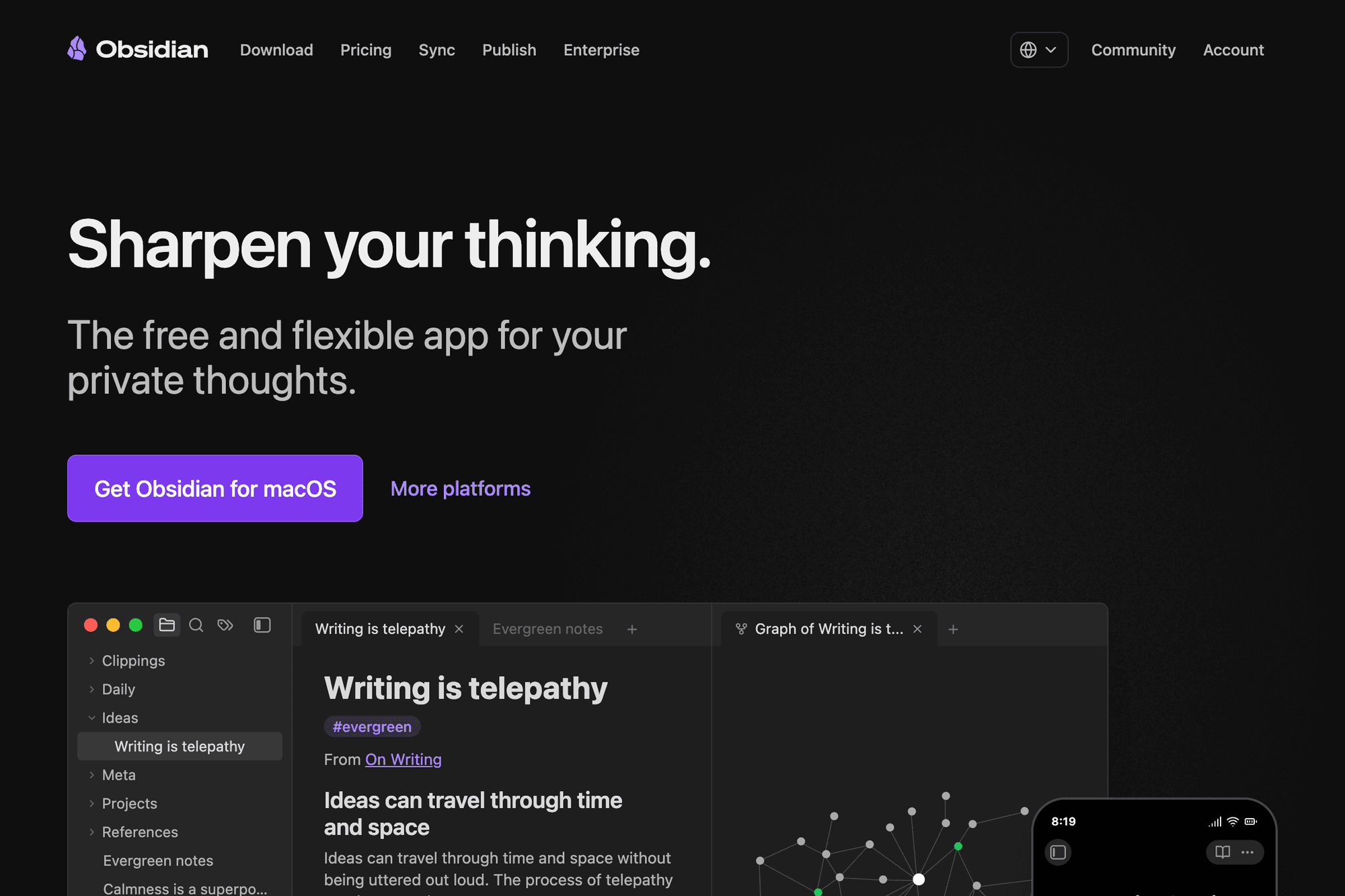
Obsidian is a knowledge-management note app that treats locally stored Markdown files as your notes. Its standout feature is a "knowledge graph" that visualizes how notes link together, and it has earned a global following among researchers, engineers, and writers. This guide walks new Obsidian users through everything in order — installation, basic operation, internal links, plugins, and sync — and points out where Windows, Mac, iPhone, and Android behave differently.
Table of Contents
- What Obsidian Is
- How to Install
- Creating a Vault
- Note Basics and Markdown Syntax
- Internal Links and Backlinks
- Visualizing Connections with Graph View
- Tags and Folder Organization
- Recommended Plugins
- How to Sync Your Notes
- Wrap-Up
What Obsidian Is
Obsidian is a Markdown-based note app built around the "Second Brain" idea — a long-lived store for everything you learn. Because all data lives locally, your notes are unaffected if a service shuts down, which makes Obsidian a strong choice for accumulating notes over years.
The main characteristics are:
- Notes are plain Markdown files (.md)
- All data stays local (no cloud dependency)
- Notes can be linked with [[ ]] syntax
- Bidirectional links and graph view
- Free for personal use
- Plugins extend the feature set
The biggest difference from Evernote or Notion is that each note is literally a .md file inside a folder. Even if the app disappears, the files remain — which keeps the data-loss risk low.
How to Install
Obsidian supports the four major platforms.
- Windows / Mac / Linux: download an installer from the Obsidian official site
- iPhone / iPad: search for "Obsidian" in the App Store
- Android: search for "Obsidian" in Google Play
Personal use is completely free and no account is required. Commercial use (including in-house corporate use) needs a Commercial License, so check the license page before rolling it out at work.
Creating a Vault
In Obsidian, the folder that holds your notes is called a Vault. The first time you launch the app you either create a new Vault or open an existing one.
- Click "Create new vault" on the launch screen
- Enter a vault name (for example, "main")
- Choose where to store it
- The main window opens once the vault is created
You can place a Vault inside iCloud Drive, Google Drive, or Dropbox to sync across devices, but the official Obsidian Sync service is the safest option for avoiding conflicts.
You can also keep multiple Vaults in parallel — one for work, one for personal notes, one for study, and so on.
Note Basics and Markdown Syntax
Create a new note from the "New note" icon in the left sidebar, or with Ctrl+N (⌘+N on Mac). The body is written in Markdown.
The most-used syntax:
- Headings: # H1 ## H2 ### H3
- Emphasis: *bold italic*
- Lists: - bullet 1. numbered
- Links: text
- Images:

- Quotes: > quoted text
- Code: wrap with backticks
- Checkboxes: - [ ] task
Toggle between edit mode and preview mode with Ctrl+E (⌘+E). Live Preview mode lets you see formatting render in real time while you type.
Internal Links and Backlinks
Linking notes together is Obsidian's biggest strength.
- [[Note name]] creates a link to another note
- If the target note doesn't exist, clicking the link creates it
- Open a note and the right sidebar shows its "Backlinks"
- "Unlinked mentions" can also be detected automatically
For example, if you write [[Obsidian]] inside a "Notion" note, the Obsidian note automatically shows a "Notion → Obsidian" backlink. You build a bidirectional web without thinking about it.
You can also link to a specific heading inside a note with [[#Heading]], similar to a tag.
Visualizing Connections with Graph View
Open "Graph view" from the left sidebar to see notes and their links rendered as a network.
- Each note is a node
- Each link is an edge
- Heavily linked notes appear larger and closer to the center
- Filters let you show only specific tags or folders
- Local Graph zooms in on the note you currently have open
Things get interesting once you pass roughly 100 notes. Hub notes — the ones with the most incoming links — make it visually obvious where your interests are concentrated.
Tags and Folder Organization
Obsidian supports both tags and folders.
- Tags: written inline like #programming, multiple tags per note allowed
- Folders: regular filesystem folders
A workable approach:
- Use folders for "where it lives" (project, year)
- Use tags for "what it is" (in-progress, idea, reading-notes)
- Keep folder hierarchy shallow — deep nesting is hard to navigate
- Don't over-invest in folder structure; let links do the heavy lifting
Type tag:#programming in the search bar to pull up only notes carrying that tag.
Recommended Plugins
Open Settings → Community plugins to browse a large library of community-built extensions.
- Templater: a more powerful template engine
- Calendar: navigate daily notes from a calendar
- Dataview: query notes like a database
- Excalidraw: insert hand-drawn diagrams
- Tasks: stronger task-management features
- Advanced Tables: easier table editing
- Periodic Notes: auto-generate weekly/monthly notes
Installing too many plugins slows the app down, so start with two or three and add more as you find concrete needs.
How to Sync Your Notes
There are three main ways to keep a Vault in sync across devices.
- Obsidian Sync (official, paid): from $4/month, end-to-end encrypted, very reliable
- iCloud Drive: free and easy between iPhone and Mac, but Windows interop is shaky
- Dropbox / Google Drive: works on every platform but is prone to sync conflicts
- Git: an engineer-friendly option that doubles as version control
Official Sync has E2E encryption and is the safest choice, but it costs money. For free options, iCloud Drive (Apple-only) or Git are realistic. Dropbox is convenient but generates conflicts when two devices are open at the same time, so be careful.
Wrap-Up
A few tips for getting started with Obsidian:
- Create one Vault and use it as your daily scratchpad
- Get into the habit of linking related notes with [[ ]]
- Prefer links and tags over folders for organization
- Add plugins gradually once you're comfortable with the basics
- Pick a sync method that matches the devices you actually use
To get the most out of local storage, Markdown, and bidirectional links, the main thing is to keep writing — even just a little every day. Don't try to design the perfect structure up front; jot down what comes to mind and the connections will emerge on their own.