Notion is an all-in-one document tool that rolls notes, task management, databases, wikis, and collaboration into a single workspace. Its flexibility is also its biggest hurdle: the sheer number of features makes it hard to know where to start. This guide walks new users through Notion in order — sign-up, workspaces, blocks, databases, templates, sharing, and pricing — so you can get productive without getting lost. The interface is essentially identical across Web, Windows, Mac, iPhone, and Android.
Table of Contents
- What Notion Can Do
- Sign-Up and App Installation
- Workspaces and Pages
- Block Types and How to Use Them
- Database Fundamentals
- Using Templates
- Sharing and Collaboration
- Free Plan Limits
- Wrap-Up
What Notion Can Do
Notion treats everything as a "block" — text, headings, images, tables, databases, embeds — and lets you combine them freely so documents and structured data live in the same place.
Common use cases include:
- Notes, meeting minutes, and reading journals
- Task management (to-do lists, kanban boards)
- Personal or family wikis
- Project management for teams
- Lightweight CRM with database views
- Study notes (flashcards, progress tracking)
- Blogs and internal documentation
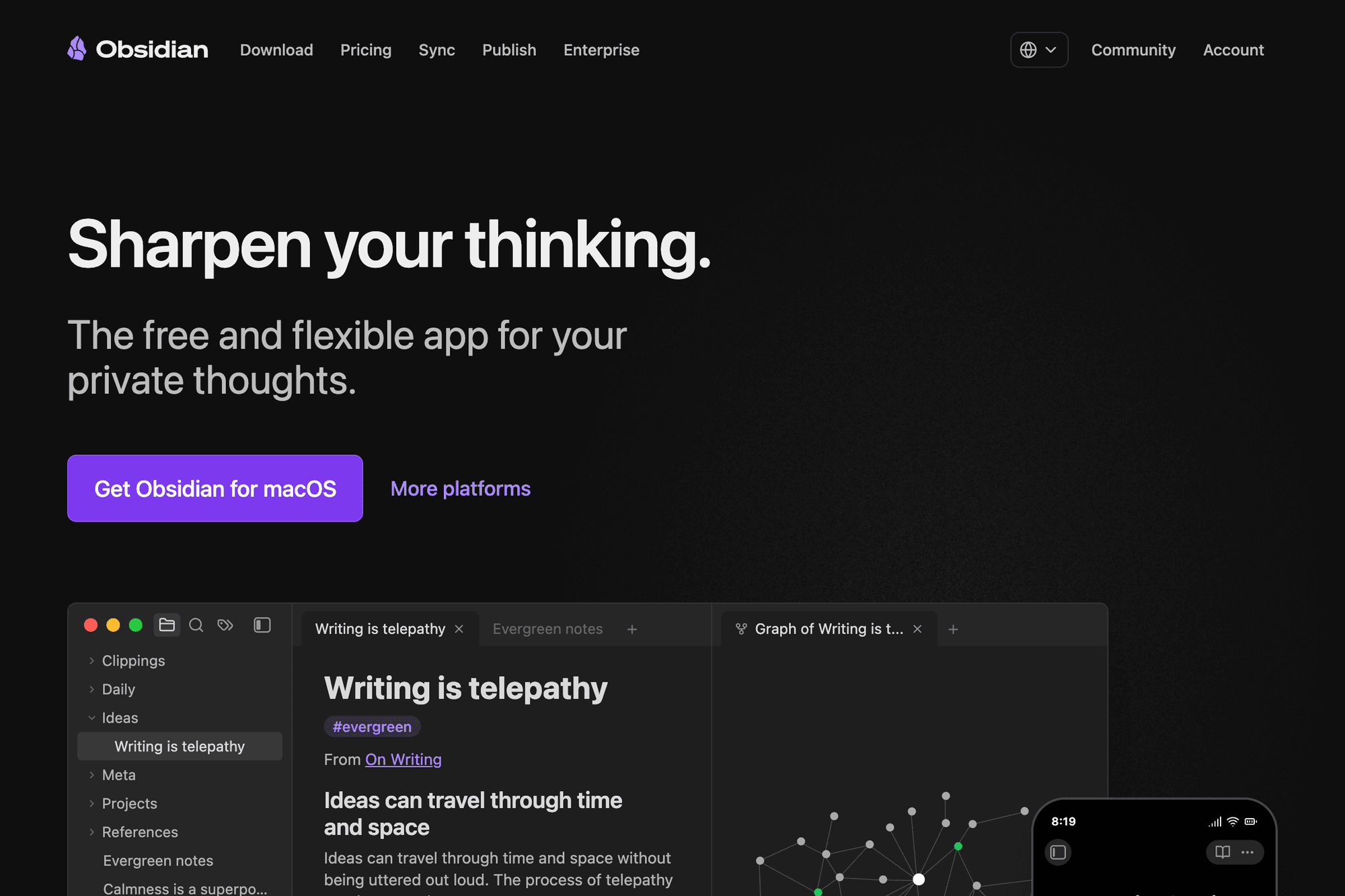
Notion sits between dedicated note apps like Evernote or Obsidian and dedicated task tools like Trello — its database engine is stronger than those note apps, and its document features are richer than Trello. The appeal is being able to cover both jobs without switching tools.
Sign-Up and App Installation
You can sign up at the Notion official site using an email address, a Google account, or an Apple account.
- Web version: works directly in any modern browser
- Desktop apps: native apps for Windows and Mac
- Mobile apps: iPhone and Android apps
The feature set is identical on every platform. Desktop apps have an edge for offline editing and launch speed, so it's worth installing the native app on your main device.
During sign-up Notion asks whether you'll use it personally or with a team — you can switch later, so picking either is fine. Most people start on the Personal plan and upgrade only if they hit a real limit.
Workspaces and Pages
Notion organizes content in this hierarchy:
- Workspace: the top-level container (personal or team)
- Page: the equivalent of a note
- Subpage: a page nested inside another page
To create a new page:
- Click the "+" button in the left sidebar
- An empty page opens
- Add a title at the top and write the body below
- Setting an icon and a cover image makes the page much easier to scan later
Pages can nest infinitely, so a good practice is to build an "index page" at the top that links out to each category. That keeps you from getting lost as the workspace grows.
Block Types and How to Use Them
Every line in Notion is a block. Type / on a new line to open the block menu.
The main block types are:
- Headings (H1, H2, H3)
- Text, lists, and checkboxes
- Toggles (collapsible sections)
- Callouts (highlighted boxes)
- Quotes and dividers
- Code blocks (with syntax highlighting)
- Images, files, video, and bookmarks
- Math expressions (LaTeX)
- Databases (covered below)
- Embeds (YouTube, Figma, Twitter, and more)
Blocks can be reordered with drag-and-drop, duplicated, or moved into another page. You can also select multiple blocks and operate on them in one go.
Database Fundamentals
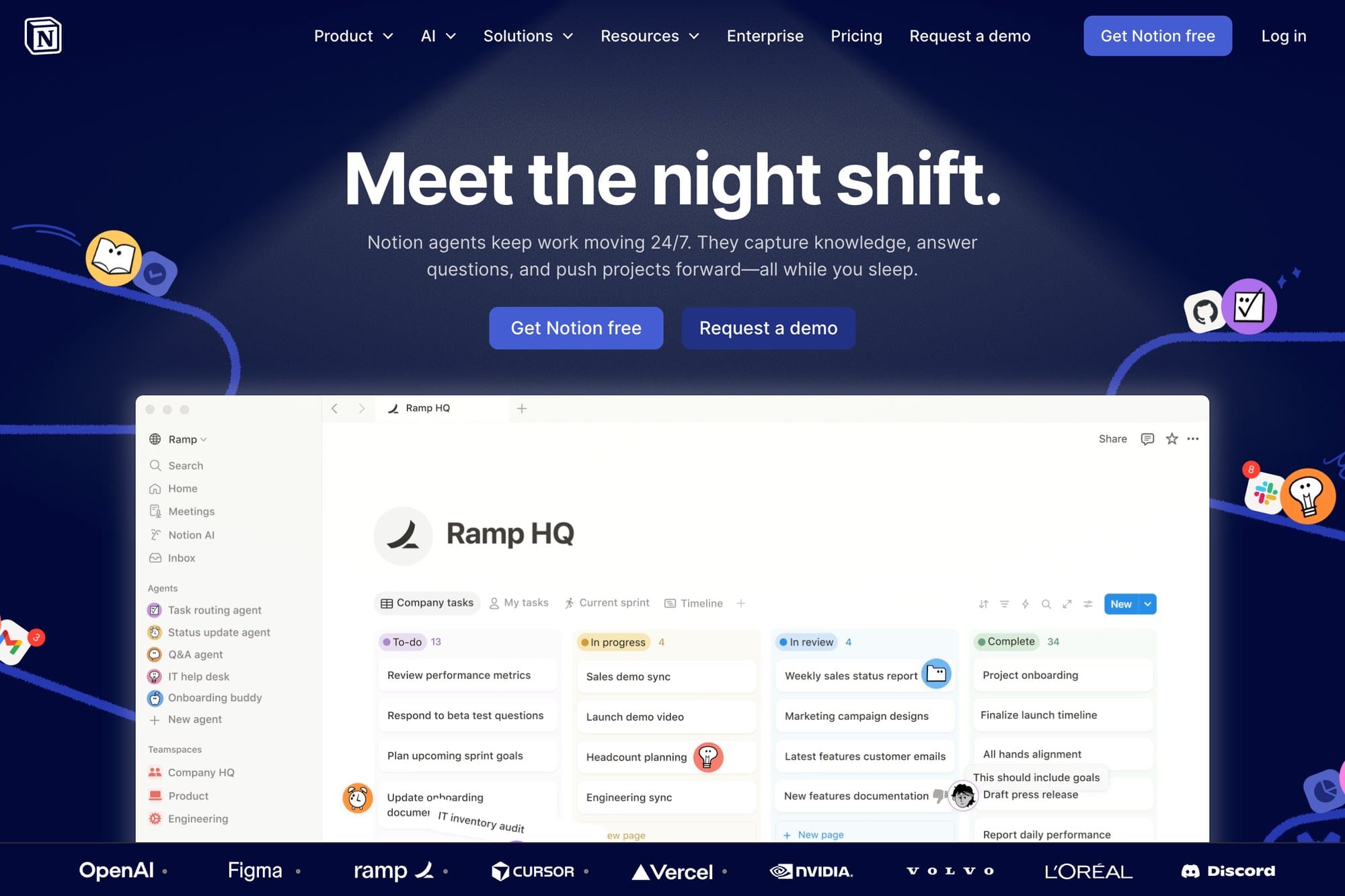
Notion's real power lives in its database feature. The same data can be displayed in multiple views without duplicating it.
The main database view types are:
- Table: a spreadsheet-style row/column grid
- Board: kanban grouped by status
- Calendar: items placed on dates
- List: a clean vertical layout
- Gallery: card layout with images
- Timeline: gantt-chart-style scheduling
For example, a single "Tasks" database can show a Table view for the full backlog, a Board view split by progress, and a Calendar view sorted by deadline — all powered by the same underlying records.
Each column can hold a rich set of types: text, date, checkbox, select, URL, relation (linking to another database), and more.
Using Templates
Building from scratch every time is tedious, so Notion ships with first-party and community templates you can drop in.
- Pick a template from the "Template" button when creating a page
- Browse the Notion Template Gallery for hundreds of layouts
- Categories cover personal use, task management, team operations, study, and more
- You can save your own pages as templates for reuse
The fastest learning path is to start with someone else's template, then customize it as you learn what you actually need.
Sharing and Collaboration
The "Share" button at the top right of any page lets you invite others.
- Invite individuals by email
- "Share to web" generates a public URL (with edit-permission control)
- Permissions can be set per page
- Comments attach feedback directly to a document
- @-mentions trigger notifications
- Multiple users can edit at the same time
Even on the free plan you can co-edit with up to 10 guests. To publish a page completely publicly, enable "Share to web" — anyone with the link can then view it without signing in.
Free Plan Limits
Notion's pricing tiers stack like this:
- Free (Personal): unlimited blocks, file uploads up to 5 MB, up to 10 guests
- Plus: $10/month, unlimited file size, up to 100 guests
- Business: $15/month, SAML SSO, private team spaces
- Enterprise: advanced security and admin tooling for larger organizations
For solo use, the free plan covers most needs. The usual reason to move to Plus is the file-size cap, which becomes annoying once you start uploading larger images or PDFs.
Students and educators can get the Plus plan for free. If you qualify, sign up with your school email to claim it.
Wrap-Up
A few tips for getting the most out of Notion:
- Start with a single workspace and one note page — don't try to design the perfect structure on day one
- Learn block types as you go (the / command is the gateway to all of them)
- Touching databases unlocks a huge step-up in what you can build
- Use templates to skip the blank-page problem
- The sharing feature scales the same workspace from solo notes to team operations
- The free plan is more than enough for individual use
Don't try to build a perfect system upfront. Notion rewards an iterative approach — write first, then organize as patterns emerge. Once databases click for you, notes, tasks, schedules, and knowledge management can all live in a single app.