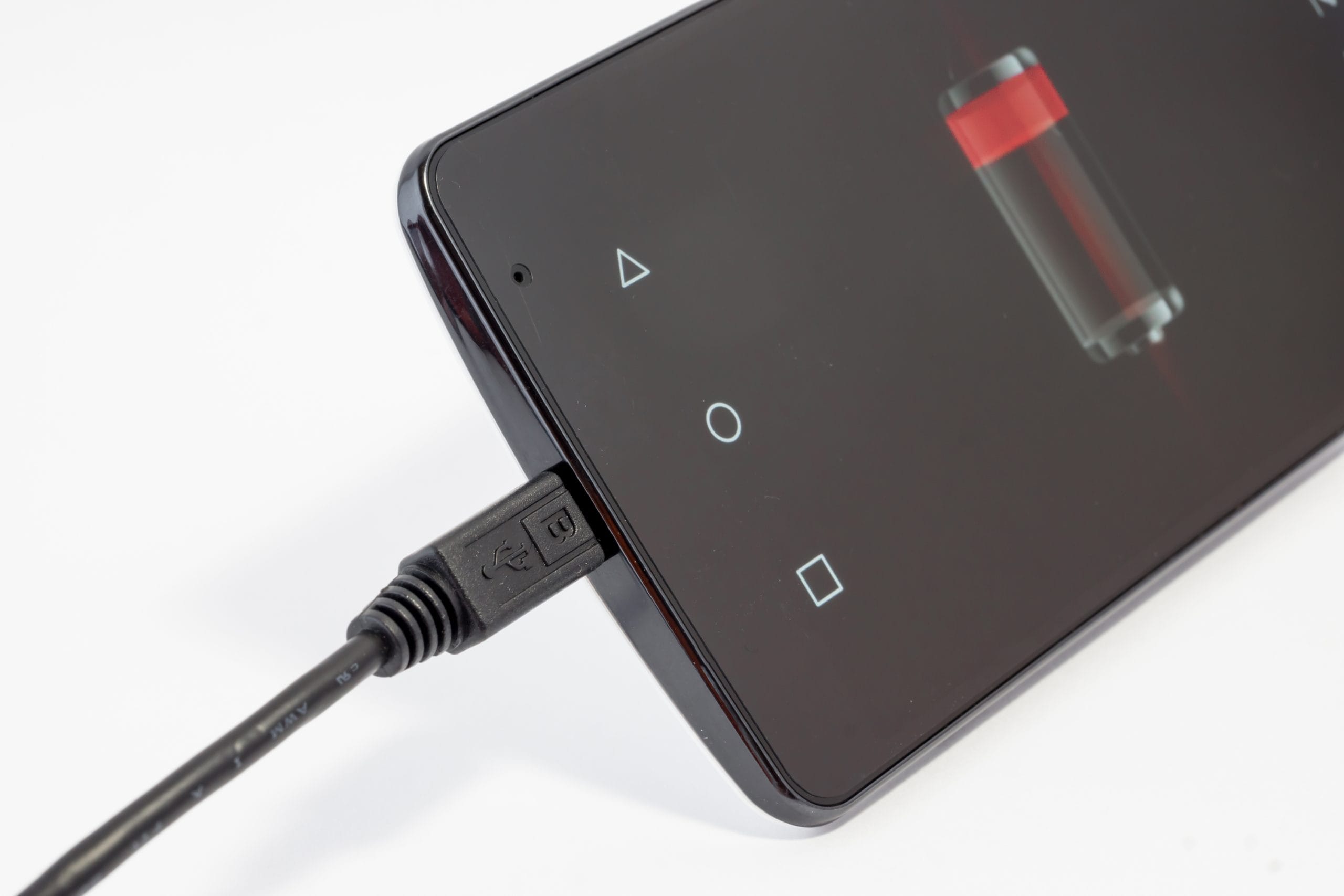
If your Android phone's battery drains faster than expected, there are several things to check and adjust. Here's a guide organized by cause, starting with the easiest checks.
Table of Contents
- Start by Checking the Basics
- Adjust Your Settings
- App and OS Fixes
- If Nothing Else Works
- Summary: Recommended Order
Start by Checking the Basics
Check Battery Usage by App
Start by identifying which apps are consuming the most battery. Go to "Settings" → "Battery" → "Battery usage" to see a breakdown. If one app is using a disproportionate amount, you'll know where to focus your efforts.
Check Battery Health (Degradation)
Batteries degrade over time and hold less charge. Some Android phones show battery health under "Settings" → "Battery" → "Battery health" (availability varies by manufacturer). If your battery capacity has dropped significantly, no amount of software adjustment will fully fix the drain — replacement may be necessary.
Adjust Your Settings
Lower Screen Brightness
The display is one of the biggest battery consumers. Lower the brightness manually or enable adaptive brightness under "Settings" → "Display" → "Adaptive brightness" so the screen adjusts to ambient light automatically.
Shorten the Screen Timeout
A long screen timeout means the display stays on longer than necessary after you put your phone down. Go to "Settings" → "Display" → "Screen timeout" and set it to 30 seconds or 1 minute.
Review Always-On Connectivity Settings
Bluetooth, NFC, Wi-Fi scanning, and location services drain battery when left on constantly. Disable any you're not actively using. For location services, consider switching individual apps from "Always" to "Only while using the app."
Reduce Push Notifications and Sync Frequency
Frequent syncing for email, social media, and cloud services keeps the processor and radios active. Review your sync settings under "Settings" → "Accounts" and reduce the frequency for accounts that don't need real-time updates. Also review which apps send push notifications under "Settings" → "Notifications."
Use Dark Mode
On phones with OLED or AMOLED displays, Dark Mode saves battery because dark pixels use less power (and pure black pixels are turned off entirely). Enable it under "Settings" → "Display" → "Dark theme."
App and OS Fixes
Limit Background Apps
Apps running in the background consume battery even when you're not using them. Go to "Settings" → "Apps" → select an app → "Battery" and set power-hungry apps to "Restricted" or "Optimized." Be cautious with messaging apps — restricting them too aggressively may delay notifications.
Check for App and OS Updates
Updates often include battery optimizations. Check the Play Store for app updates and "Settings" → "System" → "System update" for OS updates.
Uninstall Unused Apps
Even apps you never open may run background services that drain battery. Remove anything you no longer use.
For related troubleshooting, see: How to Fix Android Apps That Keep Crashing / How to Fix a Slow Android Phone / How to Free Up Android Storage
If Nothing Else Works
Consider Replacing the Battery
If your battery health is poor and drain is severe, a battery replacement is the most effective solution. Check with your phone manufacturer or an authorized repair center for options and pricing.
Contact Support
If the problem persists after trying everything, contact your phone manufacturer's support for further diagnosis.
Summary: Recommended Order
Here's a summary of the fixes in the order you should try them.
- Check battery usage by app
- Check battery health
- Lower screen brightness or enable adaptive brightness
- Shorten the screen timeout
- Review always-on connectivity settings
- Reduce push notifications and sync frequency
- Use Dark Mode
- Limit background apps
- Check for app and OS updates
- Uninstall unused apps
- Consider replacing the battery
- Contact support
In many cases, adjusting display and connectivity settings combined with limiting background activity will noticeably improve battery life. If the battery itself is degraded, replacement is the most reliable fix.