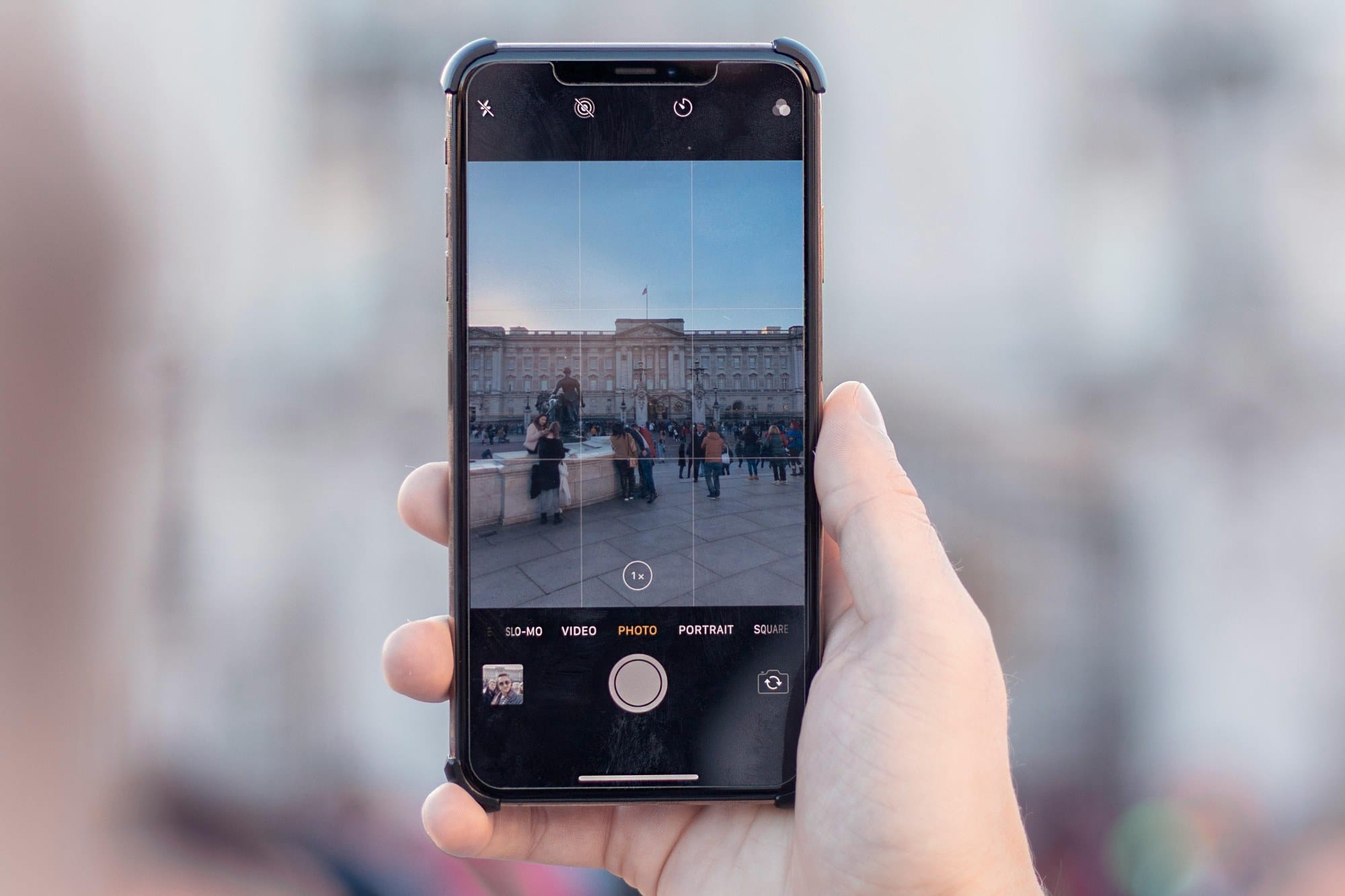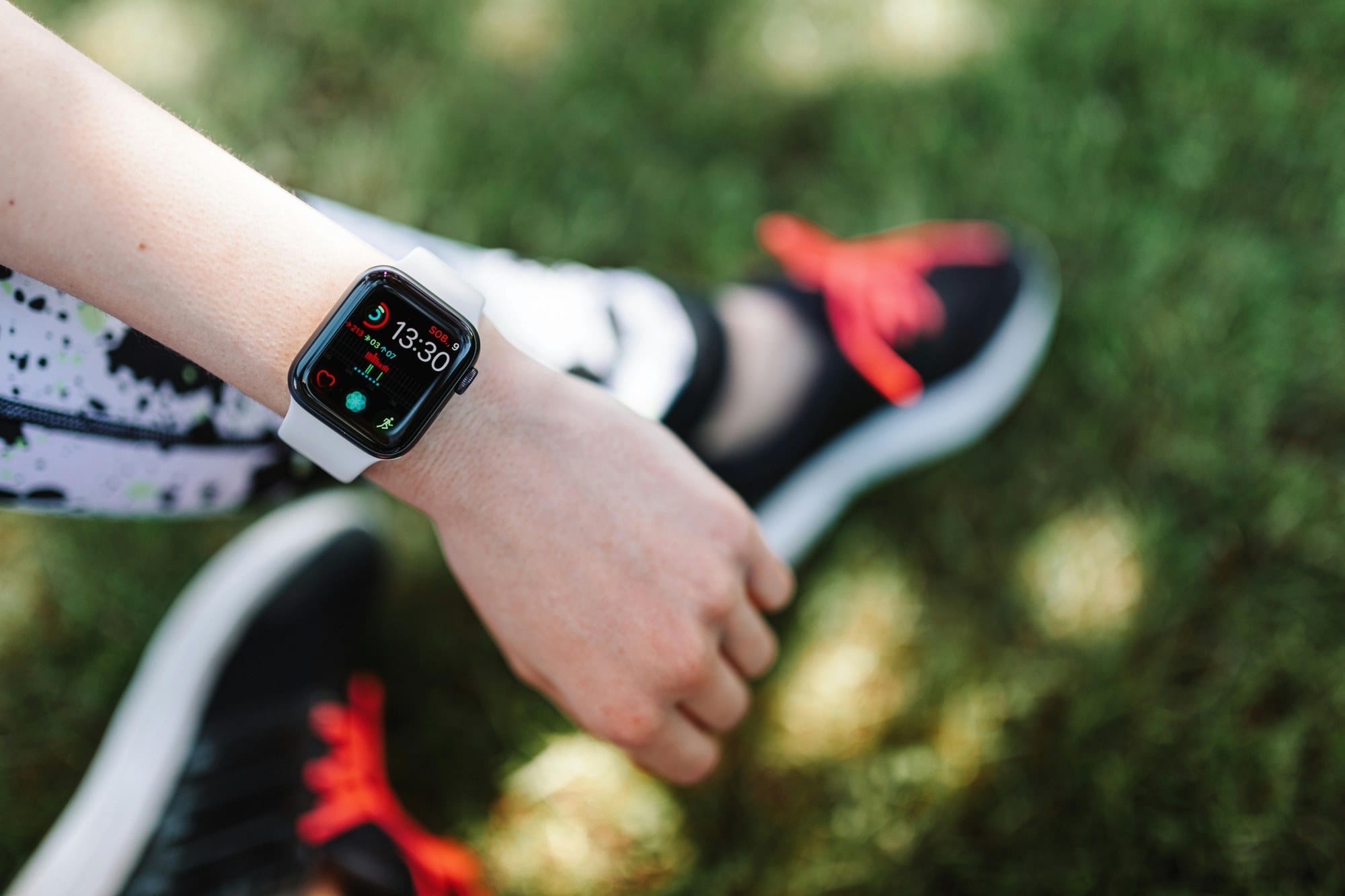
Paired with an iPhone, the Apple Watch handles notifications, health tracking, contactless payments, and workout logging — all from your wrist. At the same time, plenty of new owners say "I don't know what to set up first" or "I can't quite see how far the iPhone integration goes." This guide walks first-time users through the initial setup, the day-to-day controls, and the health, communication, and payment features in roughly the order you'll encounter them.
Table of Contents
- What the Apple Watch Can Do
- Initial Setup
- Everyday Controls
- Health and Fitness Features
- Notifications and Communication
- Apple Pay and Contactless Payments
- Recommended Apple Watch Apps
- Tips for Extending Battery Life
- Summary
What the Apple Watch Can Do
Knowing the full surface area up front makes it much easier to prioritize what to set up first.
- Check iPhone notifications on your wrist: Mail, messaging apps, calendar, calls in a timeline
- Reply to messages and calls: Quick replies, dictation, Scribble (handwriting)
- Log health data: Heart rate, steps, active calories, sleep, blood oxygen, ECG (select models)
- Track workouts: Running, walking, cycling, swimming, and 50+ other workout types
- Apple Pay and transit cards: Tap your wrist at gates, convenience stores, and vending machines
- Music playback controls: Play, skip, and adjust volume for the iPhone's Spotify and Apple Music
- Alarms, timers, and stopwatch: Set and run them entirely from the wrist
- Siri: Voice-driven notes, reminders, weather, and smart-home control
- Location sharing: See where your family is, share where you are
- Fall detection and Emergency SOS: Automatic calls for help after a hard fall
You don't need to use all of these. Picking two or three that fit your daily life is the realistic place to start.
Initial Setup
Once you unbox the Apple Watch, follow this sequence.
Pair with iPhone
The iPhone effectively does the setup for you.
- Put the Apple Watch on its charger and turn it on (long-press the side button)
- Turn on Bluetooth on the iPhone
- Bring the iPhone close to the Apple Watch — the "Set Up Apple Watch" screen appears automatically
- Follow the prompts and use the iPhone's camera to scan the pattern shown on the Apple Watch
- Pairing completes automatically
Keep the two devices close together during pairing (about 10–15 minutes).
Basic Settings (Language, Passcode, Apple ID)
While pairing runs, the iPhone walks you through the following.
- Language selection
- Apple Watch passcode (6 digits recommended — used for unlocking)
- Apple ID sign-in
- iCloud sync
- Location services
- Siri setup
The Apple Watch is automatically signed in with the same Apple ID as the iPhone, so photos, contacts, calendars, and similar data sync over without any extra steps.
Pick a Watch Face
Once the initial setup ends, the watch face is the first thing most people want to customize. See Best Apple Watch Faces for a use-case-by-use-case rundown — information-heavy, minimal, fitness, or photo-driven options.
Everyday Controls
The Apple Watch shares some conventions with the iPhone but has its own gestures.
Digital Crown, Side Button, and Taps
- Digital Crown (turn): Scroll the screen, adjust volume
- Digital Crown (press): Return to the watch face, open the App view
- Side button: Control Center, Siri, Apple Pay
- Tap: Select or trigger an item
- Long press: Open menus or enter edit mode
- Swipe up from the bottom: Control Center
- Swipe down from the top: Notification Center
- Swipe left/right: Switch between watch faces
Above all, press the Digital Crown to return to the watch face — it's the gesture you'll use most, and remembering it keeps you from getting lost in nested screens.
Reading and Replying to Notifications
Notifications that arrive on the iPhone are mirrored to the Apple Watch with a haptic tap, as long as the two are paired.
- Tap a notification to see details
- Reply with a canned response, an emoji, or voice dictation via Siri
- Swipe down on the watch face for the list of unread notifications
If notifications start to feel like too much, the filtering tips below help.
Calling Siri
You can invoke Siri three ways: "Hey Siri", long-press the side button, or long-press the Digital Crown.
- "Set a timer for 5 minutes"
- "What's the weather tomorrow?"
- "Take a note", "Add a reminder"
- "Turn off the lights" (with a smart-home integration)
It's especially useful when your hands are full — cooking, driving, or carrying groceries.
Health and Fitness Features
The real value of the Apple Watch comes from the data it collects by being on your wrist all day.
Make the Activity Rings Your Goal
The signature gamification feature is the three Activity Rings.
- Move (red): Active calories burned during the day
- Exercise (green): Minutes of brisk-walking-or-faster activity (goal: 30 min/day)
- Stand (blue): Hours in which you stood and moved at least once (goal: 12 hours/day)
Making it a habit to close all three rings is a surprisingly effective antidote to a sedentary day. Tap the Activity app and choose Change Goals to dial the targets to a level that matches your fitness.
Heart Rate, Sleep, and Blood Oxygen
- Heart rate: Sampled 24/7 — resting heart rate, walking average, peak workout rate
- Sleep: Bed time, wake time, and sleep stages (Core, REM, Deep)
- Blood oxygen: Available on Series 6 and later, sampling oxygen saturation periodically
These show up as graphs in the Health app so you can spot long-term trends. Treat them as a general wellness signal, not a medical device.
Logging Workouts
Open the Workout app and start an activity, and the watch tracks the relevant metrics — time, distance, heart rate, calories — automatically.
- Outdoor Run, Walk, Cycle (with GPS)
- Pool and open-water swimming (on water-resistant models)
- Yoga, HIIT, traditional strength training, dance
- Custom workouts (Series 8 and later)
Workouts show up in the Activity app's history, which is a great long-term motivator.
Notifications and Communication
The biggest day-one win on Apple Watch is handling notifications without taking out your iPhone.
Curating iPhone Notifications
Forwarding every iPhone notification to the watch quickly becomes overwhelming. Choosing what to forward is the real skill.
- Open the Watch app on the iPhone
- Tap Notifications
- For each app, pick "Mirror my iPhone", "Custom", or "Notifications Off"
- Forward only the apps that genuinely matter — messages, mail, calendar
Keeping it under roughly 10 notifications a day turns the Apple Watch into "a wrist device that only tells you the important things".
Replying to Messages and Calls
Reply options for messages include:
- Quick replies: Pre-set strings like "Yes", "No", "Got it"
- Emoji: Tap a face/check/heart to send it
- Scribble: Trace letters on the screen one at a time
- Dictation: Speak and let Siri transcribe
- Tapback: One-tap "thumbs up" or "haha" on a message
Calls can also be answered directly on the Apple Watch's mic and speaker. Pair Bluetooth headphones and the quality is good enough for short conversations.
Apple Pay and Contactless Payments
In Japan the Apple Watch supports Suica, which means you can tap through transit gates from your wrist. In other regions, the same approach applies to Apple Pay-enabled credit and transit cards.
Apple Pay Setup
- Open the Watch app on the iPhone and tap Wallet & Apple Pay
- Tap Add Card
- Add credit/debit cards or transit cards (Suica in Japan)
- Set a default card
For Suica, use the iPhone Suica app's Transfer to Apple Watch option, or issue a new card directly from the Apple Watch.
Using It in Stores and Transit
- Transit gates: Tap the Apple Watch on the reader (with Suica as the default card)
- Stores and vending machines: Double-press the side button, then tap the reader
Not pulling the iPhone out of a pocket is a much bigger quality-of-life upgrade than it sounds — especially in rain or when your hands are full.
Recommended Apple Watch Apps
A short list of built-in apps to try first, plus dependable third-party picks.
Built-in Apps to Try First
- Activity: Track ring progress
- Workout: Log exercise
- Messages and Mail: Read and reply
- Maps: Wrist navigation, with haptic taps for turns
- Timer and Alarms: Cooking and sleep helpers
- Mindfulness: Guided breathing to reset focus
- Weather: Today and tomorrow at a glance
Popular Third-Party Apps
- Strava: Social workout tracking, loved by runners and cyclists
- AutoSleep: Automatic, more granular sleep tracking
- PCalc: A calculator that actually works on a watch screen
- Streaks: Habit tracking that pairs nicely with closing rings
- Bear / Drafts: Voice-dictated quick notes
You can browse and install third-party apps from the Apple Watch tab in the App Store.
Tips for Extending Battery Life
Most Apple Watches last roughly 1–2 days. These settings buy more time.
- Turn off Always On: Settings → Display & Brightness → Always On
- Disable notifications for noisy apps: Adjust in the Watch app on iPhone
- Lower brightness: Use medium brightness indoors
- Use GPS only when needed: Indoor workouts don't need GPS
- Low Power Mode: Settings → Battery → Low Power Mode
- Mute haptic and audio feedback for features you don't use
Topping up for 30 minutes before bed or during desk time keeps the watch from ever needing a long, full charge.
Summary
The key points for getting the most out of an Apple Watch.
- Initial setup: Bring it close to the iPhone for automatic pairing; signing in with the Apple ID syncs photos and contacts
- Everyday controls: Press the Digital Crown to return to the watch face; press the side button for Control Center
- Health and fitness: Close the Activity Rings daily, log workouts with GPS where it matters
- Notifications: Forward only the apps that genuinely matter
- Apple Pay: Double-press the side button to pay
- Apps: Start with Activity, Workout, Maps, and Mindfulness from the built-ins
- Battery: Always-On off, notifications curated, Low Power Mode when needed
The Apple Watch shines when it removes the friction of pulling out an iPhone for small tasks. Start with the watch face and notifications, then layer on health data, Apple Pay, and workouts as the habit forms.
For watch face customization, see Best Apple Watch Faces.