The iPhone camera is designed so that anyone can take a great photo just by pressing the shutter, but tweaking a handful of settings dramatically improves image quality, file size, and the overall shooting experience. This guide walks through the major options under Settings → Camera — quality and format, shooting behavior, night/portrait/macro, QR detection, shutter sound, and iCloud storage tactics — and explains which choice fits which use case.
Table of Contents
- What You Can Configure in iPhone Camera Settings
- Quality and Save Format
- Fine-Tuning the Shooting Experience
- Night, Portrait, and Macro
- QR Codes and Subject Detection
- How to Mute the Shutter Sound
- Settings That Save Photo Storage
- Summary
What You Can Configure in iPhone Camera Settings
Under Settings → Camera, you can adjust the following kinds of options.
- Quality: Photo/video format and resolution (HEIF, H.265, 4K, 60fps)
- Capture experience: Grid, volume-button behavior, level, Live Photo preservation
- Scene modes: Night, Portrait, Macro on/off and automatic behavior
- Subject detection: QR scanning, Live Text, subject lift
- Shutter sound: In some regions it cannot be muted; tactics for quiet capture
- Storage management: HEIF/HEVC compression and iCloud Photos optimization
The defaults already produce excellent results, but revisiting maybe 10% of these settings can meaningfully rebalance storage cost against image quality.
Quality and Save Format
The save format for photos and videos directly determines the trade-off between image quality and storage use.
Photo Format (HEIF vs JPEG)
Settings → Camera → Formats lets you choose how photos are saved.
- High Efficiency (HEIF): About half the file size of JPEG at equivalent quality — the recommended default
- Most Compatible (JPEG): For sending photos to older PCs or services that do not yet understand HEIF
For everyday use, High Efficiency is the right choice. HEIF has been supported natively since macOS High Sierra (2017) and Windows 10, and using it makes your local and iCloud storage roughly twice as efficient.
Video Resolution and Frame Rate
Settings → Camera → Record Video controls resolution and frame rate.
- 720p HD at 30fps: ~40 MB/min (lightest, storage-first)
- 1080p HD at 30fps: ~65 MB/min (standard, plenty for social media)
- 1080p HD at 60fps: ~100 MB/min (smoother motion, good for sports)
- 4K at 30fps: ~170 MB/min (high quality, good for editing and large screens)
- 4K at 60fps: ~400 MB/min (highest quality, very storage-hungry)
For everyday capture, 1080p at 30fps is more than enough for social posts and family videos. Step up to 4K only if you actually edit serious video.
Apple ProRAW and Apple ProRes
iPhone Pro models (12 Pro and later) include pro-grade formats aimed at editing.
- Apple ProRAW: A RAW file with much more editing latitude. Roughly 25 MB per photo
- Apple ProRes: A high-bitrate format intended for video editing
These are unnecessary for everyday shooting, but attractive if you edit in Lightroom, Final Cut Pro, or DaVinci Resolve. Turning them on only at capture time keeps storage cost manageable.
Fine-Tuning the Shooting Experience
Several smaller settings make the shooting experience itself noticeably better.
Show the Grid and Level
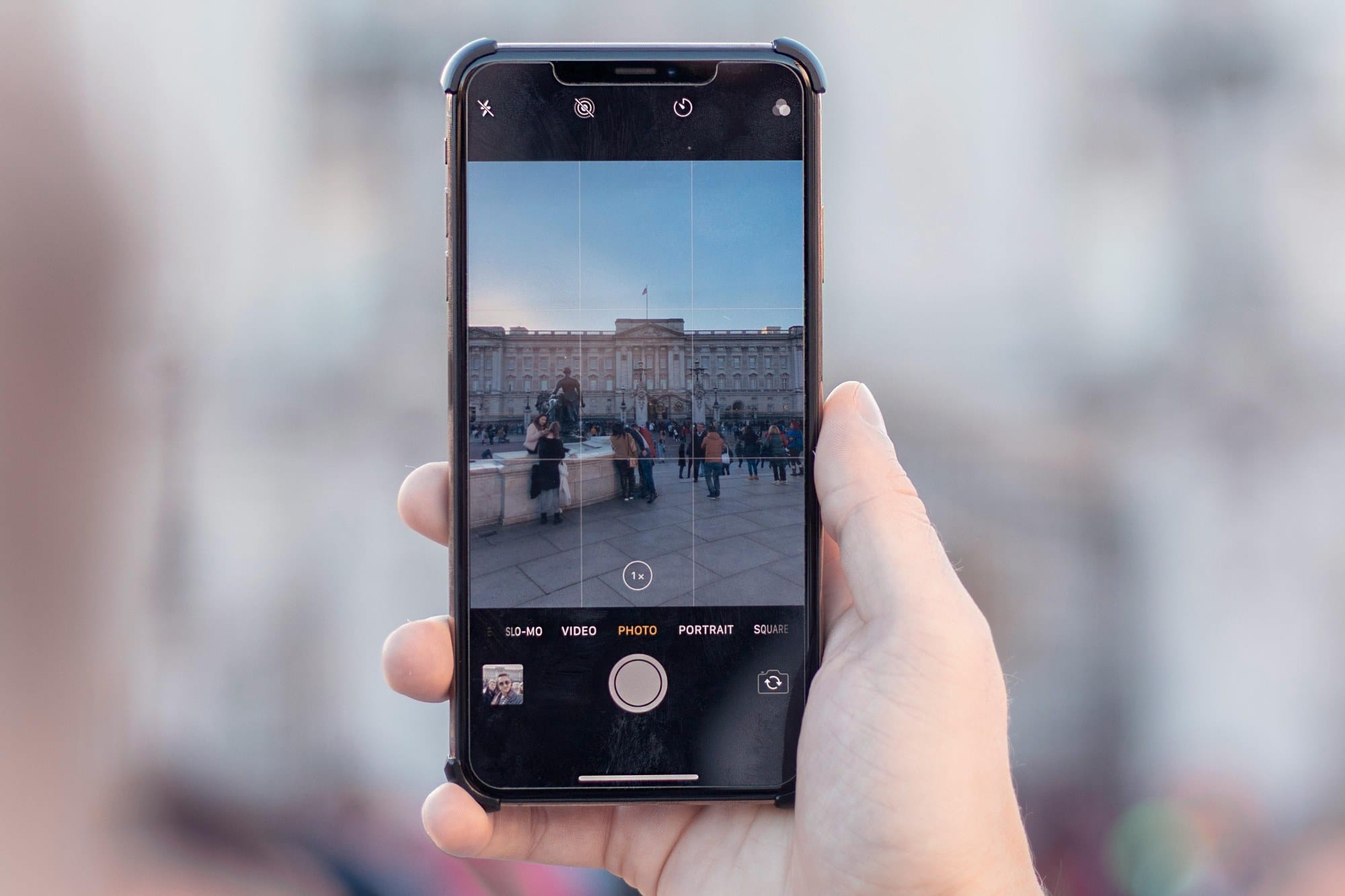
Turn on Settings → Camera → Grid to overlay a 3×3 grid on the viewfinder. Composing with the rule of thirds produces noticeably more stable, well-balanced photos.
iOS 17 and later also add a Level indicator near the middle of the grid, perfect for keeping buildings and horizons straight.
Use the Volume Button for Burst and Video
Turn on Settings → Camera → Use Volume Up for Burst and holding the Volume Up button shoots a burst.
Pressing the on-screen shutter often introduces shake; the volume button lets you fire the shutter with a natural grip. Combined with Quick Take (hold Volume Down to record video), one-handed capture becomes dramatically easier.
Preserve Live Photo and Capture Settings
Live Photo embeds 1.5 seconds of audio and motion before and after the shutter into the still. It has been available since the iPhone 6s and is on by default.
Turn on Settings → Camera → Preserve Settings and the last-used Live Photo state, filter, and exposure carry over to the next launch. If you never use Live Photo, preserving it in the off state saves you from toggling it every time.
Night, Portrait, and Macro
Scene-specific capture is an area where Apple has invested heavily.
Using Night Mode Effectively
Night mode is supported on iPhone 11 and later — in low light it automatically takes a long exposure to lift the image.
- Point the camera in a dark scene and night mode turns on automatically
- The top of the screen shows the exposure time, e.g. 1s, 3s, 30s
- After pressing the shutter, keep the iPhone still for that duration
Turning off Settings → Camera → Night Mode (Auto) lets you decide whether to engage it on each shot. On a tripod, even longer exposures become available.
Blurring the Background with Portrait Mode
Portrait mode blurs around the subject to deliver a DSLR-like sense of depth.
- Select Portrait in the Camera app (iPhone X and later)
- Frame the subject — people, pets, or objects — at roughly 50 cm to 2 m
- The on-screen f-stop dial controls how strong the blur is (f1.4 to f16)
You can also revisit the Photos app, tap the f badge, and change the blur strength or lighting effects (Studio Light, Contour, etc.) after the fact.
Macro for Close-Up Subjects
Starting with iPhone 13 Pro, Macro mode focuses as close as 2 cm from the subject.
- The camera switches to macro automatically when you get close
- Turn on Settings → Camera → Macro Control and a flower icon appears on screen so you can override the auto switch
This is ideal for capturing texture in flowers, accessories, or food. If macro turns on when you don't want it, leaving the control visible lets you switch back manually.
QR Codes and Subject Detection
The iPhone camera also includes AI-powered features for using what it sees, not just capturing it.
QR Code Scanning
Turn on Settings → Camera → Scan QR Codes and simply pointing the camera at a QR code surfaces the link on screen.
See How to Scan QR Codes on iPhone for step-by-step instructions and what to try when scanning fails.
Live Text (Text Recognition)
Turn on Settings → Camera → Show Detected Text and the camera recognizes text in print, signs, business cards, and similar surfaces. Drag a finger to select, then copy, dial, or translate it.
Live Text has been available since iOS 15 and supports many languages, including Japanese. It is invaluable for translating restaurant menus or street signs while traveling.
How to Mute the Shutter Sound
iPhones purchased through the Japanese Apple Store have a legally mandated shutter sound that cannot be muted (an anti-voyeurism measure). There is no fully reliable way to silence it, but the following workarounds can effectively reduce or avoid the sound.
- Shoot a Live Photo with the device on silent: In some cases the shutter sound is suppressed (Apple may change this behavior)
- Pull a still from a video: Video recording produces no shutter sound
- Screen recording + screenshot: Useful when you need a quiet capture from on-screen content
- Volume at zero: Setting the iPhone's overall volume to zero makes the shutter much quieter
See How to Mute the iPhone Camera Shutter for the full background and additional workarounds.
Settings That Save Photo Storage
Camera settings only matter once you also manage where the photos live.
iCloud Photos and Optimize Storage
Go to Settings → [your name] → iCloud → Photos and turn on iCloud Photos. New photos upload automatically and stay in sync across every Apple device on the same Apple ID.
- Optimize iPhone Storage: Keep lightweight versions on the device and full resolution in iCloud
- Download and Keep Originals: Keep every photo at full resolution on the device as well
When iCloud runs low, consider upgrading to iCloud+ — paid tiers start at 200 GB and scale to 2 TB.
Cut File Size with HEIF/HEVC
The High Efficiency setting above roughly halves photo size, and the corresponding video codec (H.265) cuts video size in half too. For a library of 10,000 photos, switching to HEIF can save tens of GB.
Before paying for more iCloud, revisit HEIF/HEVC first — it is the highest-leverage change you can make.
Summary
The most important iPhone camera settings, at a glance.
- Quality: High Efficiency (HEIF) and 1080p at 30fps video for everyday use
- Capture experience: Grid and level on, volume-button burst on, Preserve Settings on
- Scene modes: Try Night Mode (Auto), Portrait, and Macro and tune them to your subjects
- Detection: Turn on QR code scanning and Live Text — they pay back daily
- Shutter sound: Cannot be fully silenced in Japan; substitute with video stills or screen recording
- Storage: iCloud Photos + Optimize Storage + HEIF/HEVC can reclaim 30% or more
Almost every choice lives in a single screen — Settings → Camera. Walk through it once with this guide in hand, find the balance that matches your style, and the rest of your photo life becomes a lot easier.
If you want to go deeper on QR codes, see How to Scan QR Codes on iPhone; for shutter sound details, see How to Mute the iPhone Camera Shutter.