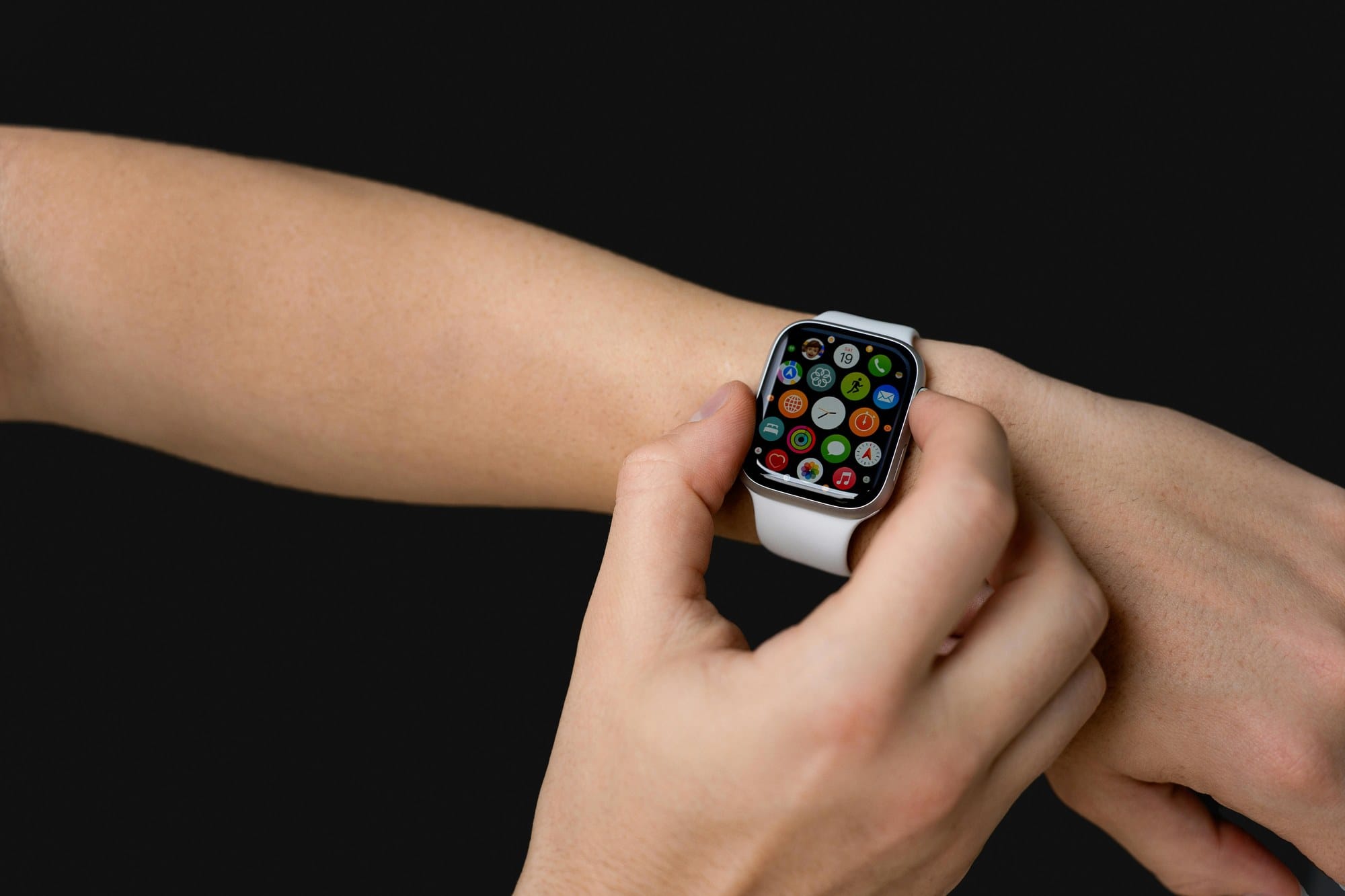
One of the real pleasures of the Apple Watch is customizing the watch face. Apple ships more than 50 built-in faces, and starting with watchOS 10 you can also add faces distributed by third-party apps. This guide walks through the best built-in faces by use case, how to customize complications (the tiny widgets on a face), and how to switch, add, and remove faces — all in one place.
Table of Contents
- Apple Watch Face Basics
- Recommended Built-in Faces by Use Case
- Customizing Complications
- Making a Watch Face From a Photo
- Adding Third-Party Watch Faces
- Organizing and Removing Faces
- Wrap-Up
Apple Watch Face Basics
The watch face affects more than just how the time looks — it shapes what information you see at a glance and how usable the watch is day to day.
Faces and Complications
A face can hold small widgets called complications: weather, calendar, activity rings, heart rate, timers, stock prices, and so on. These show information you check often, right in the corners or center of the face.
Each face has its own number of complication slots and shapes, so the basic rule is to pick a face that matches how much information you want to see.
Adding and Switching Faces
- Switch: swipe left or right on the face to cycle through your saved faces
- Edit: long-press a face to enter edit mode, where you can change complications, color, and style
- Add: in edit mode, swipe all the way right and tap the + button to add a new face
- Organize: open the Watch app on iPhone → My Faces, then drag to reorder or remove faces
The Watch app on iPhone gives you finer control over adding, editing, and reordering faces than working directly on the Apple Watch.
Recommended Built-in Faces by Use Case
When you can't decide on a face, the easiest sort is "what do I want to see most often?"
Information-Heavy: Infograph and Modular
Infograph and Infograph Modular are built for information density, with up to 8 complication slots. They suit business users who want weather, calendar, stocks, heart rate, and step count all on one screen, or anyone using the Apple Watch as a life-logging device.
Modular carries the same kind of information but with a cleaner look that doesn't fatigue the eye over long sessions. It also works well with always-on display (Apple Watch Series 5 and later).
Minimal: Simple and California
When you want the time itself to be the main thing, analog faces like Simple, California, and Utility are good choices. You can fine-tune the hand thickness, numeral style, and tick marks for a balanced mix of legibility and design.
California mixes Arabic and Roman numerals for a distinctive look, and was added in watchOS 6. It suits people who'd rather not pile information onto the face.
Stylish: Portraits, Snoopy, and Peanuts
Portraits is a unique face that uses photos shot in iPhone's Portrait mode. The subject (a person or pet) is placed in front of the time numerals to create a 3D layered effect — great for personalizing the watch with family or pet photos.
Character faces like Snoopy, Mickey Mouse, and Peanuts animate when you tap, with playful designs many people switch to for off-hours.
Fitness-Focused: Activity and Activity Analog
The Activity face shows your Move, Exercise, and Stand rings in a big central display. It's ideal if you check your daily fitness goals often or use the Apple Watch primarily for workouts.
Activity Analog combines the look of an analog watch with ring indicators — balanced enough to wear outside of workouts too.
Customizing Complications
A face really comes into its own through the complications you pair with it.
How to Add or Change Complications
- Long-press the face to enter edit mode
- Tap Edit to open the detailed editor
- Swipe left or right to reach the Complications page
- Tap the complication slot you want to change
- Turn the Digital Crown to pick a different complication
Tapping out of the face saves your changes automatically. It's handy to keep multiple versions of the same face, like "Weekday" and "Weekend."
Recommended Complication Setups
For business users, a good baseline is:
- Top left: Calendar (next event)
- Top right: Weather
- Top center: Activity Rings
- Bottom left: Battery
- Bottom right: Heart Rate
For fitness and health, lean on heart rate, step count, breathing, and sleep duration in the central slots.
Making a Watch Face From a Photo
You can turn a photo of family, pets, or a favorite landscape into your watch face.
Creating a Face From the iPhone Photos App
- Open the Photos app on iPhone and pick a photo
- Tap the Share button
- Scroll the action sheet and tap Create Watch Face
- Choose Photos or Kinetic (rotates through multiple shots like a slideshow)
- The new face is added on the Apple Watch
Whether the time appears at the top or bottom of the face is decided automatically based on the composition of your photo.
Portrait Faces That Cut Out People and Pets
Photos taken in iPhone's Portrait mode get an automatic subject cutout, and the time slides behind the subject for a striking layered look. It's a watchOS 8 and later feature that works on photos of people, dogs, and cats.
Making a Portrait face works the same way as a regular photo face — just pick a Portrait-mode photo and it's created automatically.
Adding Third-Party Watch Faces
From watchOS 10 onward, you can install faces distributed by third-party apps.
Where to Get Distributed Faces
Faces from outside Apple come from a few main sources:
- Designer web distribution: face files shared on SNS or blogs that you open on iPhone
- Shared faces: another Apple Watch user can send you one via Messages or email
- In-app distribution: pick from the catalog inside dedicated apps (see below)
When you open the file, a dialog asks if you want to add the face to your Apple Watch — accept it and the face appears in your face list.
Customization Apps Like Facer and Watchsmith
There are also third-party apps for customizing face designs freely.
- Facer: a world-famous face marketplace with thousands of designs
- Watchsmith: a utility that auto-rotates faces by time of day
These suit people who want more freedom than the built-in options, or who like to change designs every day. They mostly run on monthly or annual subscriptions.
Organizing and Removing Faces
Too many saved faces makes side-swiping clunky, so it pays to clean up periodically.
- Open the Watch app on iPhone
- Go to My Faces
- Tap Edit
- Tap the red − next to a face to remove it
- Drag the handle on the right to reorder
You can also delete from the Apple Watch directly: long-press the face, swipe up, then tap Remove. Trimming down to your 5–7 favorites makes side-swipe switching smooth.
Wrap-Up
To recap the key points for choosing and customizing Apple Watch faces:
- Information-heavy: Infograph and Modular
- Minimal: Simple and California
- Stylish and playful: Portraits, Snoopy, Peanuts
- Fitness-focused: Activity and Activity Analog
- Use complications to surface weather, calendar, heart rate, and activity at a glance
- Use photo faces to personalize with family and pet pictures
- Use third-party apps like Facer and Watchsmith for more freedom
- When faces pile up, organize them in the Watch app
The fun of the Apple Watch is in shaping the face around your own lifestyle. Start with 5 or 6 built-in faces, pick the one you find easiest to read or most attached to, and customize from there.