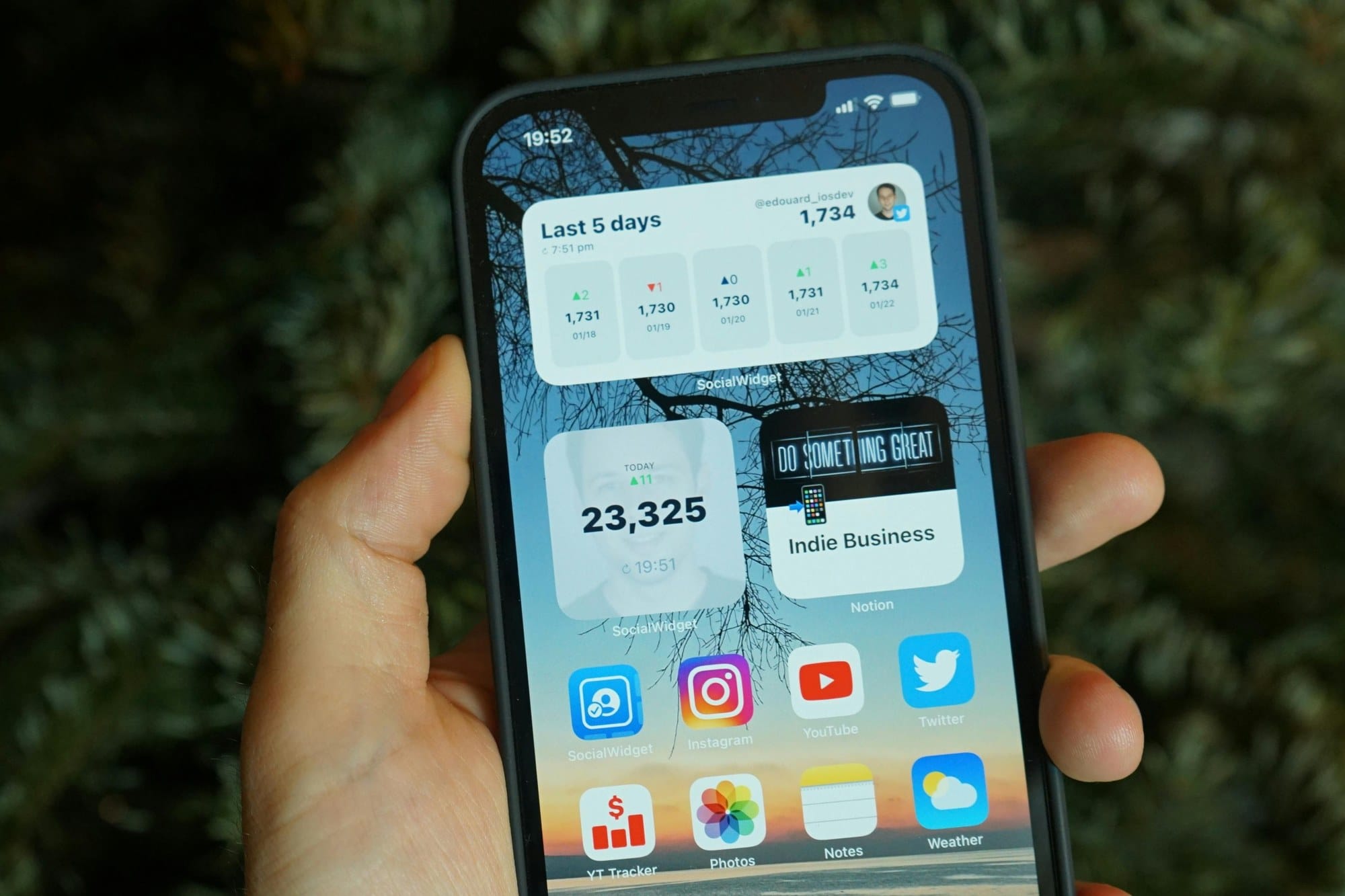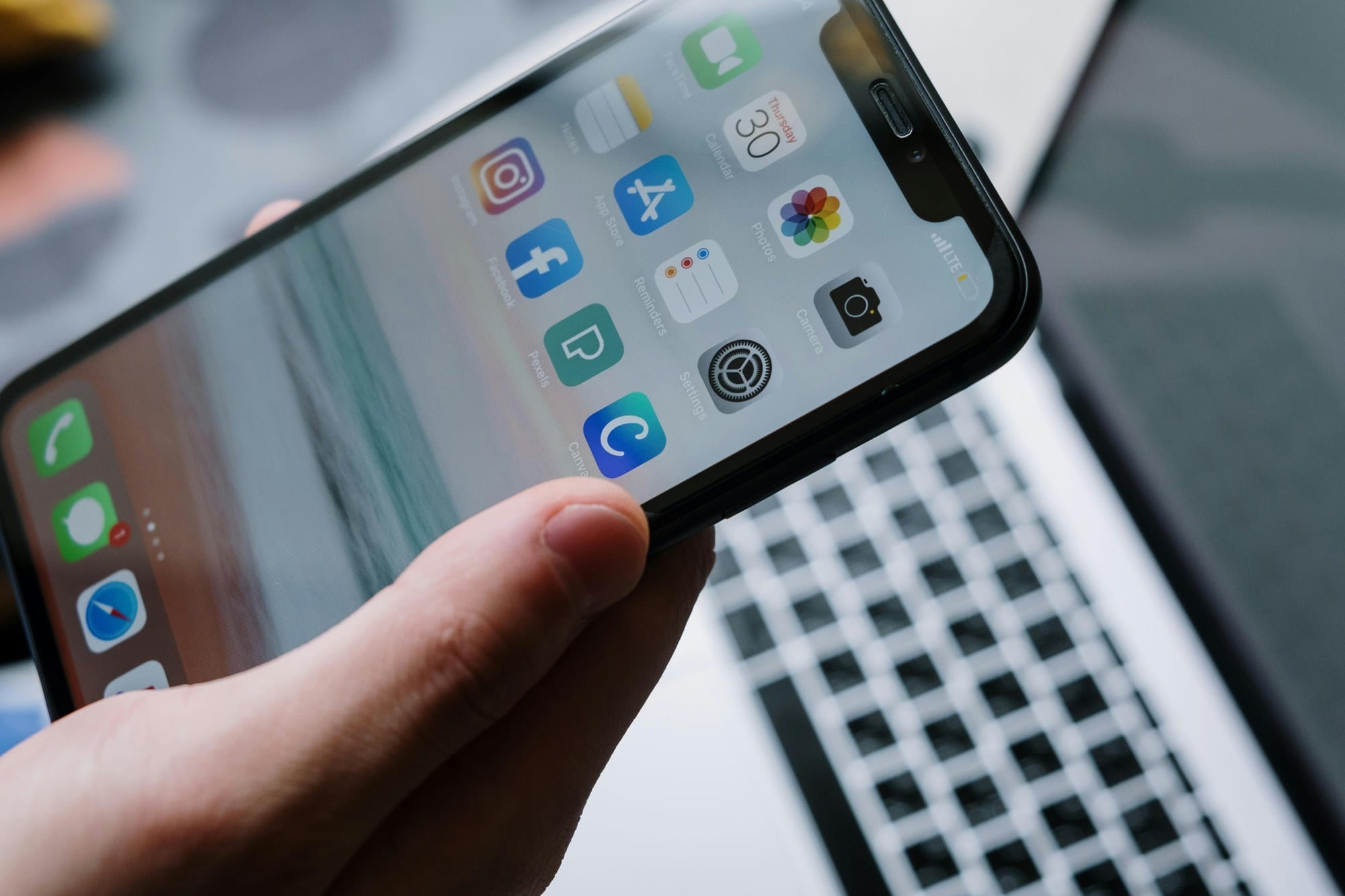
With nothing more than the built-in tools and a couple of third-party apps, your iPhone Home Screen can transition from default to magazine-cover. The four building blocks are unifying the color palette, layering in widgets for visual interest, swapping app icons for custom images, and using transparent spacer icons to leave breathing room. This guide walks through the patterns most people copy and the concrete steps to make each one work.
Table of Contents
- Common Patterns to Aim For
- Picking a Wallpaper and Setting the Theme
- Using Widgets as Design Elements
- Replacing App Icon Images
- Transparent Icons to Frame the Layout
- Three Apps Worth Trying
- Linking Lock Screen and Home Screen Themes
- Trade-Offs to Be Aware Of
- Wrap-Up
Common Patterns to Aim For
Most polished Home Screens fall into a few recognizable styles.
- Minimal: black, white, and grey, with consistent fonts and icons.
- Muted: beige, terracotta, dusty pastels — soft palette throughout.
- Monochrome photo: black background with one or two large photo widgets.
- Magazine collage: multiple widgets arranged like editorial layout.
- Character-themed: icons and wallpaper from one favorite character or world.
Pick whichever palette you can live with for a long time. The biggest predictor of "did the customization stick" is whether you still like it after a month.
Picking a Wallpaper and Setting the Theme
Eighty percent of the look is the wallpaper. To unify the theme:
- Match icons to color: if existing app icons are loud, use a calm solid wallpaper.
- Leave space in the center: pick photos with breathing room top and bottom so icons don't clash with the subject.
- Use the right resolution: matching your model's resolution avoids stretch artifacts.
- Use Photos editing: tweak Filter and Brightness to bring assorted images into the same mood.
Free wallpapers are easy to find on Unsplash, Pexels, and Pinterest. Always check the commercial-use terms before publishing anything that uses them.
Using Widgets as Design Elements
Widgets are more visually flexible than icons, which makes them the best surface for theming.
Common combinations:
- Clock + Calendar + Weather: morning info panel.
- Photo widgets: three or four large photos in a magazine-style grid.
- Battery widget: shows AirPods and Apple Watch alongside the iPhone.
- Notes + Reminders: to-do panel.
iOS Smart Stacks let you stack widgets in one slot, so you can pack in information without losing space. For setup, see iPhone Widgets Guide.
Replacing App Icon Images
You can't change an app's actual icon, but the Shortcuts app lets you create a launcher with any image you want. The launcher icon goes on the Home Screen, opens the target app, and uses your image instead.
- Open Shortcuts.
- Tap + in the top-right.
- Add Action → Open App.
- Pick the target app.
- Tap the i in the top-right and pick Add to Home Screen.
- Tap the icon area under "Home Screen Name and Icon."
- Pick Choose Photo and select the replacement image.
- Enter a name and tap Add.
For more on Shortcuts in general, see iPhone Shortcuts App Guide. The catch: launching through a Shortcut briefly flashes the Shortcuts app on its way to the real one.
Transparent Icons to Frame the Layout
Placing transparent icons where you don't want anything visible lets the wallpaper show through, framing the real icons.
The general approach:
- Take a screenshot of your Home Screen wallpaper.
- Use a transparent-icon site like iEmpty or Makeoves to slice the image.
- Add the resulting transparent tiles to the Home Screen.
The result: real icons cluster where you want them, with wallpaper visible everywhere else. Transparent icons are added as Web Clips, which means perfect transparency isn't always possible.
Three Apps Worth Trying
A few apps show up over and over in Home Screen builds.
Widgetsmith
The default for designing custom clock, calendar, and photo widgets. Fonts, colors, and padding are fully adjustable. Free for the basics, subscription for advanced features.
Color Widgets
A close competitor to Widgetsmith with a strong template library. Even non-designers can produce something attractive in a few taps.
Themify
A theme-pack app: pick a color scheme and you get a coordinated wallpaper plus icon set. Some packs are paid.
Linking Lock Screen and Home Screen Themes
Since iOS 16, the Lock Screen is fully customizable and can be paired with a matching Home Screen.
- Long-press the Lock Screen to enter edit mode.
- Tap + for a new Lock Screen.
- Pick a wallpaper and add widgets.
- Optionally Link to Focus to switch with a Focus mode.
- Choose Set as Wallpaper Pair to apply the same wallpaper to the Home Screen.
Saving multiple sets — work, weekend — lets you swap themes by Focus or by hand.
Trade-Offs to Be Aware Of
Customization comes with a few side effects.
- Notification badges hide: transparent icons and shortcut launchers can't show the red unread badge.
- Slight launch delay: shortcut-based icons launch slightly slower than the real app.
- Major iOS updates can break layouts: a major iOS version bump may rearrange things.
- Battery impact: animated wallpapers can shorten battery life. See also How to Fix iPhone Battery Draining Fast.
- Distraction tax: heavy customization can take more time than the productivity it gains back.
Start with two or three custom icons and one widget, then expand. That keeps the project manageable.
Wrap-Up
iPhone Home Screen customization comes down to four blocks: wallpaper, widgets, icon images, and transparent spacers. Pick a palette and unify color first — wallpaper alone changes the feel completely, so start there. Custom icons go through Shortcuts; widgets go through Widgetsmith and friends. Be aware of the trade-offs — hidden notification badges, slower launches, and the chance an iOS update reshuffles things — and you'll keep enjoying the result instead of rebuilding it constantly.