iPhone widgets land in three places — the Home Screen, the Lock Screen, and StandBy mode — and let you check information at a glance without unlocking. iOS 14 brought Home Screen widgets, iOS 16 added the Lock Screen, and iOS 17 added StandBy. This guide walks through setting them up in each location, building Smart Stacks and manual stacks, the most useful built-in widgets, and what to do when a widget stops updating.
Table of Contents
- Widget Types and Where They Go
- Adding Widgets to the Home Screen
- Lock Screen Widgets (iOS 16 and later)
- StandBy Mode Widgets (iOS 17 and later)
- Building Smart Stacks and Manual Stacks
- Editing and Removing Widgets
- Recommended Built-In Widgets
- When Widgets Don't Show Up
- Wrap-Up
Widget Types and Where They Go
Widgets vary by location in size and capability.
| Location | Sizes | Required iOS |
|---|---|---|
| Home Screen | Small / Medium / Large | iOS 14 or later |
| Lock Screen | Circular / Inline | iOS 16 or later |
| StandBy mode | Dedicated landscape size | iOS 17 or later (charging in landscape only) |
iPad supports Extra Large too. Third-party apps that ship widgets can be placed using the same steps.
Adding Widgets to the Home Screen
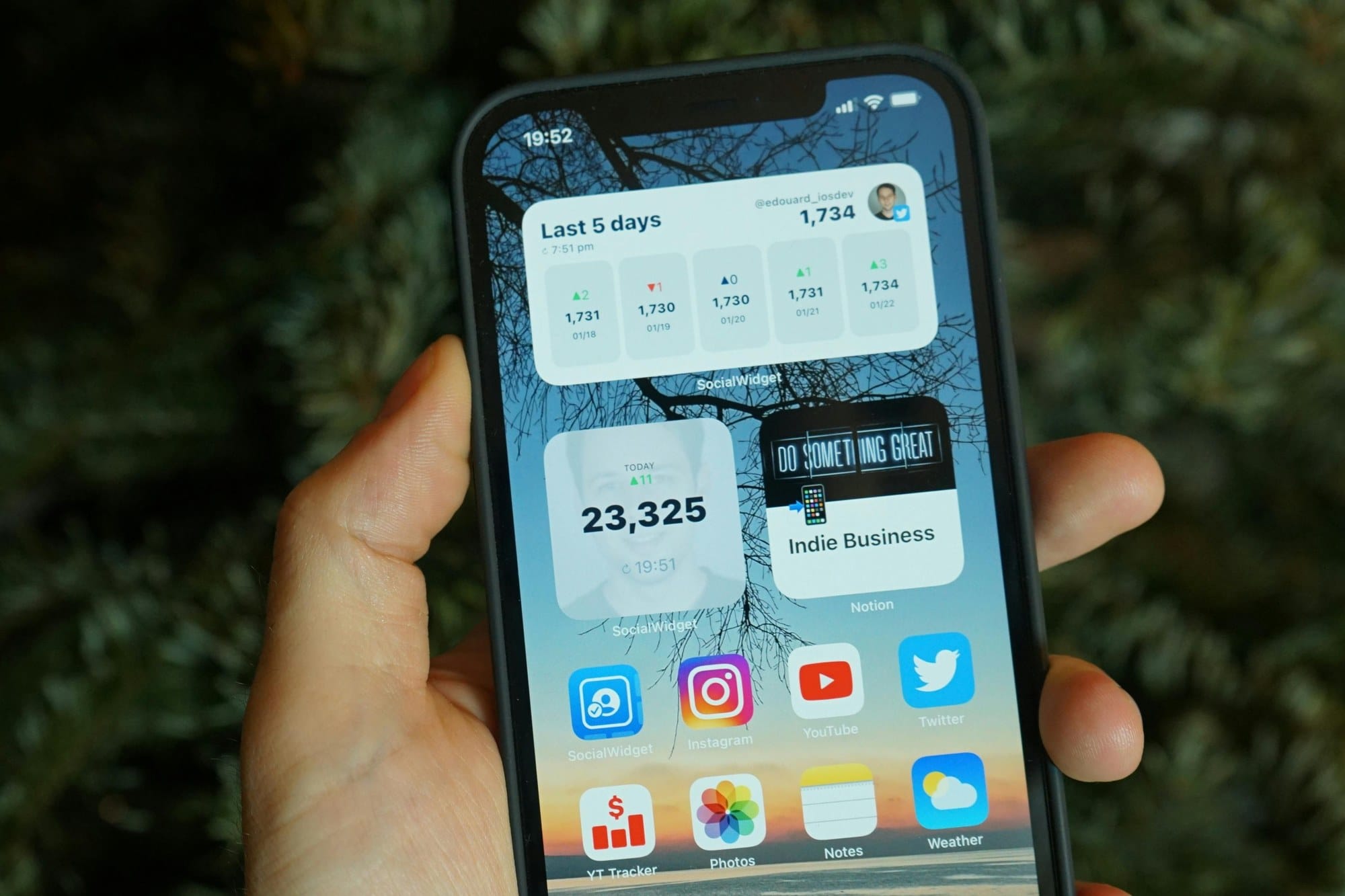
The Home Screen is widgets' main home.
- Long-press any empty area of the Home Screen until icons start jiggling.
- Tap the + in the top-left.
- Pick a widget from the search bar or the app list.
- Swipe sideways to choose a size (Small / Medium / Large).
- Tap Add Widget.
- Drag it where you want it on the Home Screen.
Different sizes show different amounts of detail. Weather, for example, shows just the current temperature in Small, but a full hourly forecast in Large.
Lock Screen Widgets (iOS 16 and later)
iOS 16 introduced widgets right on the Lock Screen so you can read them without unlocking.
- Long-press the Lock Screen to enter edit mode.
- Tap Customize.
- Pick Lock Screen.
- Tap the slot above the clock (inline) or below the clock (circular and inline mix).
- Choose widgets to drop in.
- Tap Done.
The slot above the clock holds one inline widget. The area below holds up to four circular ones, two inline ones, or a mix. It's a similar idea to Apple Watch complications — one consolidated info strip.
StandBy Mode Widgets (iOS 17 and later)
When the iPhone is on a charger in landscape orientation, it switches to StandBy mode automatically. It works well as a bedside clock or a desk display showing time and weather.
- Place the iPhone on a landscape-capable charger like a MagSafe stand.
- Rotate it sideways — StandBy activates.
- Long-press the screen to enter widget edit mode.
- Swipe left and right to switch between Widgets, Photos, and Clock screens.
- Swipe up and down to cycle widgets within a screen.
StandBy works best on iPhone 14 Pro and later thanks to the Always-On display. On other models the screen dims after a few seconds, but tapping it brings it back.
Building Smart Stacks and Manual Stacks
Stacks let you stack multiple widgets in the same slot.
Smart Stack: Apple-curated bundle that auto-rotates based on time of day and usage patterns.
Manual Stack: a stack you build by combining same-size widgets yourself, swipeable.
To build a manual stack:
- Place two same-size widgets on the Home Screen.
- Drag one slowly on top of the other until they merge.
- The stack appears.
- Long-press later and choose Edit Stack to toggle Smart Rotate.
Up to 10 widgets fit in a stack. Group related items (calendar + weather + clock) to consolidate information without crowding.
Editing and Removing Widgets
To change settings or remove a widget:
Edit:
- Long-press the widget.
- Pick Edit Widget.
- Change the displayed app, calendar, region, etc.
Remove:
- Long-press the widget.
- Pick Remove Widget.
- Confirm.
Removing the widget doesn't delete the underlying app — only the widget tile.
Recommended Built-In Widgets
The built-in widgets that get the most use:
- Weather: current temperature, forecast, precipitation chance for any location.
- Calendar: today's and tomorrow's events.
- Reminders: to-dos and due dates.
- Maps: travel time and traffic to home or work.
- Batteries: iPhone, AirPods, and Apple Watch battery levels at a glance.
- Health: steps, heart rate, and other health data.
- Photos: a slideshow of memories.
- Stocks: market prices, always visible.
- Notes: latest notes, quick to add to.
Third-party apps like Widgetsmith and other home-screen customization tools let you build more designed widgets.
When Widgets Don't Show Up
If a widget is missing or not refreshing:
- App was never opened: open the source app once to activate its widget.
- Location permission: Maps and Weather need location access.
- iCloud sync: Calendar and Reminders work best with iCloud on.
- Background App Refresh: Settings → General → Background App Refresh must be on.
- Low Power Mode: refresh frequency drops in Low Power Mode.
- Reinstall the app: as a last resort, delete and reinstall the source app.
iOS bugs sometimes resolve with a restart.
Wrap-Up
iPhone widgets work in three places — Home Screen, Lock Screen, and StandBy — and each has a different role. Use the Lock Screen when you want info without unlocking, the Home Screen for the most customization, and StandBy as a bedside info display. Smart Stacks and manual stacks let you pack a lot of information into a small footprint. When a widget isn't behaving, check Background App Refresh and location permissions first.