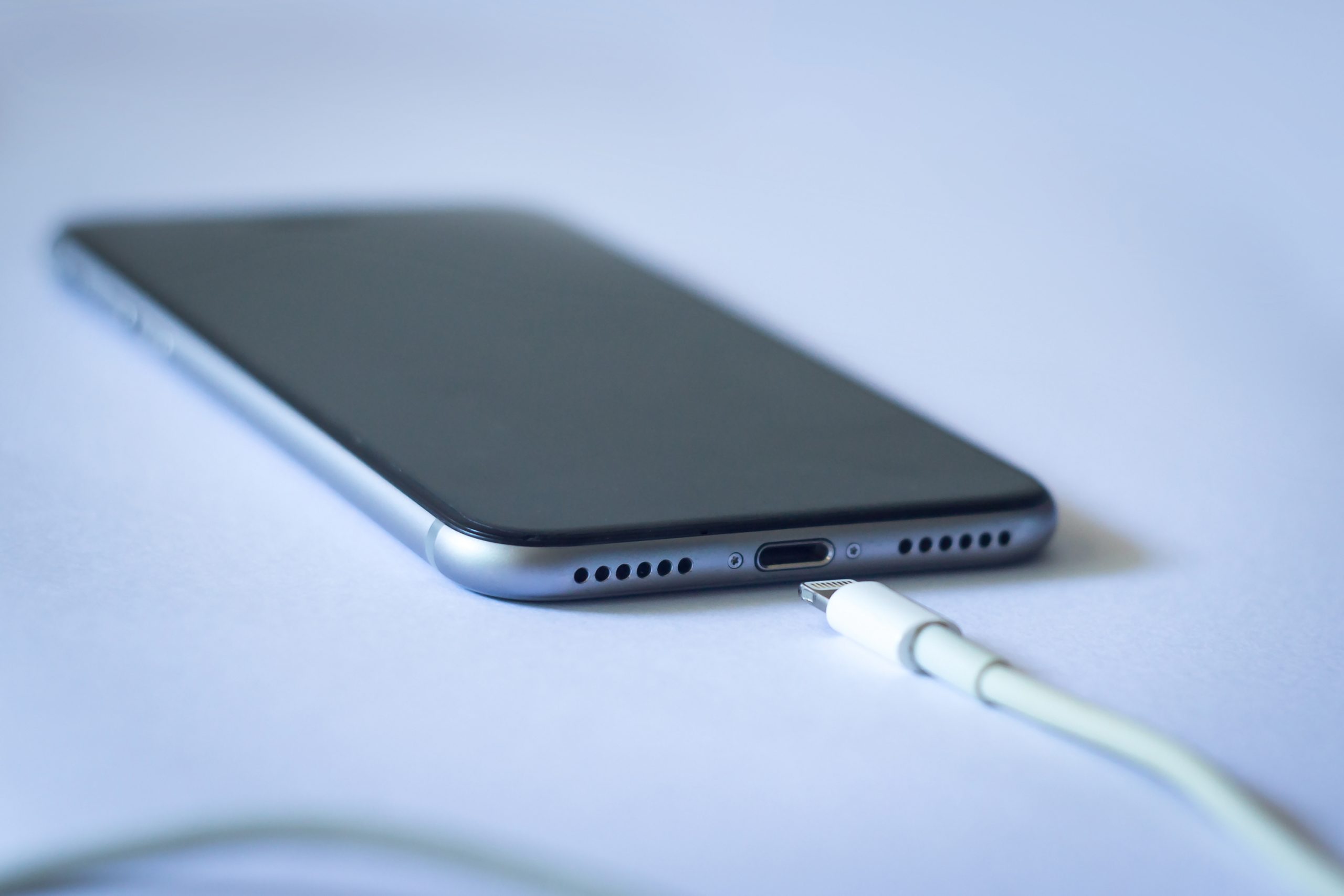
If your iPhone's battery seems to drain faster than it should, there are several things you can check and adjust. Here's a guide organized by cause, starting with the easiest checks.
Table of Contents
- Start by Checking the Basics
- Adjust Your Settings
- App and iOS Fixes
- If Nothing Else Works
- Summary: Recommended Order
Start by Checking the Basics
Check Battery Usage by App
Before making any changes, find out which apps are using the most battery. Go to "Settings" → "Battery" to see a breakdown of battery usage by app over the last 24 hours or 10 days. If a specific app is consuming a disproportionate amount, you'll know where to focus.
Check Battery Health (Degradation)
iPhone batteries degrade over time and hold less charge. Go to "Settings" → "Battery" → "Battery Health & Charging" to check your maximum capacity. If it's below 80%, the battery is significantly degraded and may need to be replaced. In this case, no software fix will fully resolve the issue.
Adjust Your Settings
Lower Screen Brightness or Enable Auto-Brightness
The display is one of the biggest battery consumers. Lowering the brightness or enabling auto-brightness (under "Settings" → "Accessibility" → "Display & Text Size" → "Auto-Brightness") lets the screen adjust to ambient light and saves power throughout the day.
Shorten the Auto-Lock Timer
If your screen stays on for too long after you set it down, it's wasting battery. Go to "Settings" → "Display & Brightness" → "Auto-Lock" and set it to 30 seconds or 1 minute.
Review Always-On Connectivity Settings
Features like Bluetooth, AirDrop, and Location Services are convenient but drain battery when left on constantly. Review your settings and turn off anything you're not actively using. For Location Services, consider switching individual apps from "Always" to "While Using the App."
Reduce Push Notifications and Email Fetch Frequency
Frequent push notifications and email fetching keep your iPhone's radios and processor active. Go to "Settings" → "Mail" → "Accounts" → "Fetch New Data" and consider switching from "Push" to "Fetch" with a longer interval (e.g., every 30 minutes or hourly). Also review which apps truly need push notifications under "Settings" → "Notifications."
Use Dark Mode
On iPhones with OLED displays (iPhone X and later), Dark Mode can save battery because black pixels are actually turned off. Go to "Settings" → "Display & Brightness" and select "Dark." The savings are especially noticeable if you use your phone frequently.
App and iOS Fixes
Disable Background App Refresh
Background App Refresh lets apps update content even when you're not using them, which consumes battery. Go to "Settings" → "General" → "Background App Refresh" and turn it off for apps that don't need it, or disable it entirely.
Check for iOS Updates
iOS updates frequently include battery life optimizations and bug fixes. If you're running an older version, an update may help. Go to "Settings" → "General" → "Software Update."
Delete Unused Apps
Even apps you never open can run background processes that drain battery. Remove anything you no longer use to reduce unnecessary load.
If Nothing Else Works
Consider Replacing the Battery
If your battery health is below 80% and drain is severe, a battery replacement is the most effective fix. Apple offers battery replacement through Apple Stores and Apple Authorized Service Providers. Third-party repair shops are also an option, though they may affect your warranty.
Contact Apple Support
If you've tried everything and the issue persists, reach out to Apple Support. They can run diagnostics remotely or direct you to a nearby service center for a hands-on inspection.
Summary: Recommended Order
Here's a summary of the fixes in the order you should try them.
- Check battery usage by app
- Check battery health (degradation)
- Lower screen brightness or enable auto-brightness
- Shorten the auto-lock timer
- Review always-on connectivity settings
- Reduce push notifications and email fetch frequency
- Use Dark Mode
- Disable Background App Refresh
- Check for iOS updates
- Delete unused apps
- Consider replacing the battery
- Contact Apple Support
In many cases, adjusting display and connectivity settings combined with disabling unnecessary background activity will noticeably improve battery life. If battery health is low, a replacement is the most reliable fix.
For other iPhone troubleshooting topics, see the iPhone Troubleshooting Guide | Fixes Organized by Symptom.