Airplane mode is one of the quickest ways to stop wireless communication on an Android phone. It is useful on flights, but it is also handy when you want fewer interruptions, need to save battery, or want to reset a poor mobile connection. This guide explains what airplane mode does, how to turn it on and off, which features still work, and how to use Wi-Fi or Bluetooth while airplane mode is enabled.
Table of Contents
- What Is Airplane Mode on Android?
- How to Turn On Airplane Mode
- How to Turn Off Airplane Mode
- Using Wi-Fi and Bluetooth in Airplane Mode
- When Airplane Mode Is Useful
- FAQ
- Summary
What Is Airplane Mode on Android?
Airplane mode is a system setting that disables wireless communication on your Android phone. It was originally designed for use on aircraft, but today it is also used as a quick "disconnect" switch.
Different Android manufacturers use slightly different menu names, but the core behavior is similar across Pixel, Samsung Galaxy, Xiaomi, Motorola, and other Android phones.
Connections Disabled by Airplane Mode
When airplane mode is enabled, Android usually turns off:
- Mobile data such as 4G, LTE, and 5G.
- Phone calls and SMS over the mobile network.
- Wi-Fi.
- Bluetooth.
- Some NFC behavior, depending on the device.
GPS location is a little different. Airplane mode does not necessarily disable the GPS receiver itself, but maps and location apps may have limited functionality if they need mobile data.
Features That Still Work
Many offline features continue to work:
- Camera and photo viewing.
- Offline music and videos.
- Downloaded podcasts or audiobooks.
- Offline games.
- Notes, calculator, clock, and alarms.
- Files saved on the device.
If an app requires the internet, it will not update until you reconnect. If the content is already downloaded, it should usually remain available.
How to Turn On Airplane Mode
The fastest method is Quick Settings, but the Settings app also works.
Use Quick Settings
- Swipe down from the top of the screen.
- Swipe down again to expand Quick Settings if needed.
- Tap the airplane icon.
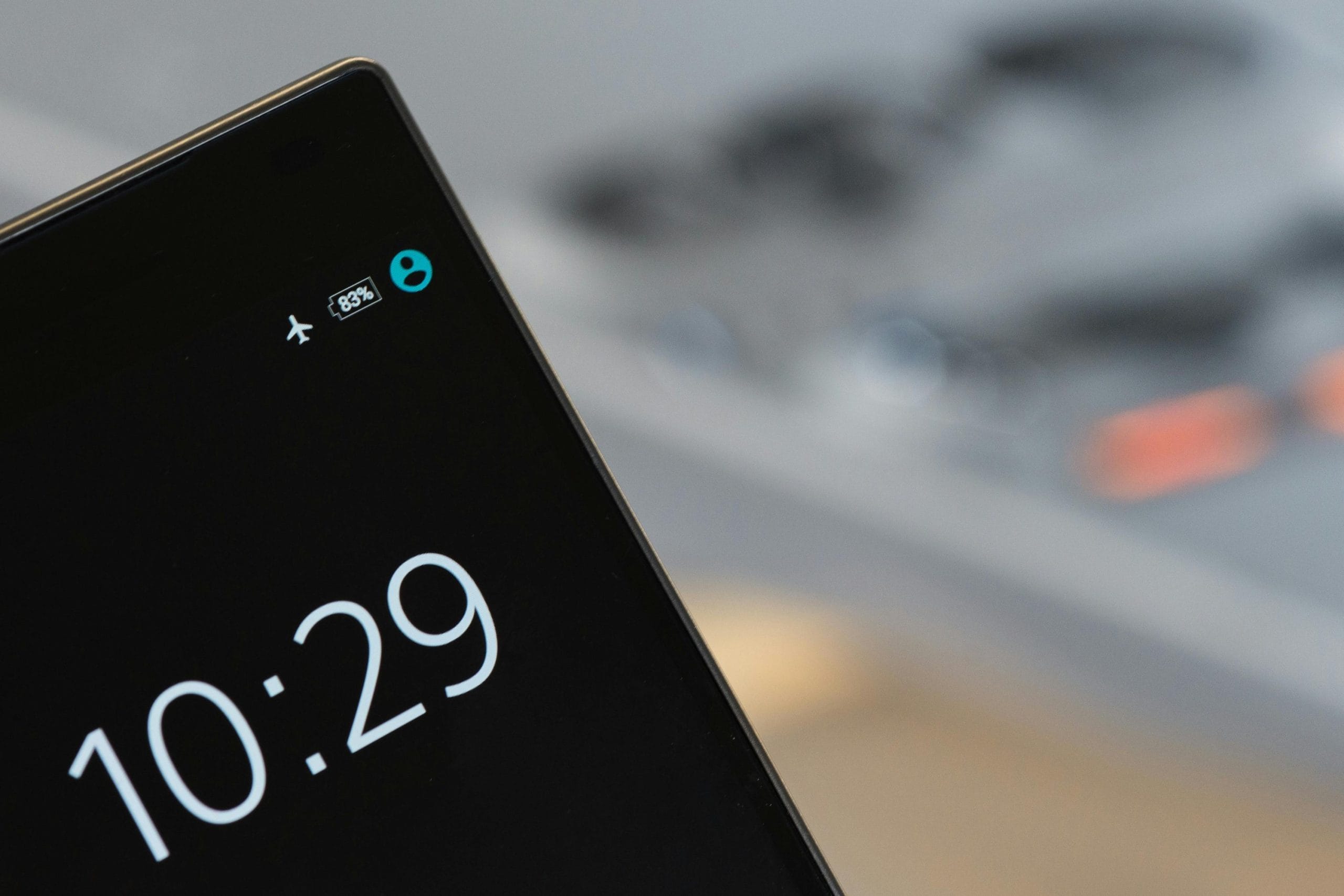
- Check that the airplane icon appears in the status bar.
If you do not see the airplane icon, tap the edit button for Quick Settings and add Airplane mode to the visible tiles.
Use the Settings App
On many Android phones:
- Open Settings.
- Tap Network & internet or Connections.
- Turn on Airplane mode.
Samsung phones often place it under Connections. Pixel phones usually show it under Network & internet. If you cannot find it, use the search bar inside Settings and search for "airplane mode."
How to Turn Off Airplane Mode
To turn airplane mode off, use the same control again:
- Swipe down to open Quick Settings.
- Tap the airplane icon.
- Wait a few seconds for mobile signal, Wi-Fi, and Bluetooth to reconnect.
If the mobile signal does not return immediately, give the phone a short moment. It may need to register with the carrier network again.
Using Wi-Fi and Bluetooth in Airplane Mode
Modern Android phones usually let you turn Wi-Fi and Bluetooth back on while airplane mode remains enabled. This is useful on flights that offer Wi-Fi or when you want to use wireless earbuds without mobile data.
Turn Wi-Fi Back On
- Turn on airplane mode.
- Open Quick Settings.
- Tap Wi-Fi.
- Select a network and connect as usual.
Your mobile network stays off, but Wi-Fi can work if the airline, office, home, or public network allows it.
Turn Bluetooth Back On
- Turn on airplane mode.
- Open Quick Settings.
- Tap Bluetooth.
- Connect headphones, a smartwatch, a keyboard, or another accessory.
Some Android versions remember your last behavior. For example, if you turned Bluetooth back on during airplane mode before, the phone may keep Bluetooth enabled the next time.
When Airplane Mode Is Useful
Airplane mode is not only for airplanes. It is a simple troubleshooting and focus tool.
During Flights
Airplane mode is still the standard setting to use during flights. Follow the airline's instructions, especially during takeoff and landing. If in-flight Wi-Fi is available, you can usually enable Wi-Fi again after airplane mode is on.
Battery Saving and Connection Reset
When the signal is weak, a phone can consume extra battery while searching for a network. Airplane mode stops that behavior quickly. It can also work as a simple connection reset: turn it on for about 10 seconds, then turn it off and wait for the phone to reconnect.
Temporary Focus Time
Airplane mode can also create quiet time. It stops calls, messages, and mobile notifications at once. If you still need Wi-Fi for work, turn Wi-Fi back on manually after enabling airplane mode.
FAQ
Can I receive calls in airplane mode?
Not through the normal mobile network. If Wi-Fi is enabled and your carrier supports Wi-Fi calling, calls may still work depending on your plan and settings.
Does airplane mode save battery?
It can, especially in areas with weak signal. The battery savings are smaller if you turn Wi-Fi and Bluetooth back on.
Does airplane mode turn off alarms?
No. Alarms set in the Clock app should still ring.
Is airplane mode the same as Do Not Disturb?
No. Airplane mode disables wireless connections. Do Not Disturb controls notifications and alerts while keeping network connections active.
For a related troubleshooting topic, see how to fix Android notifications not coming through.
Summary
Android airplane mode disables mobile communication and usually turns off Wi-Fi and Bluetooth, but many offline features still work. You can enable it from Quick Settings or the Settings app, then turn Wi-Fi or Bluetooth back on if needed. It is useful for flights, weak-signal battery saving, connection resets, and temporary focus time.