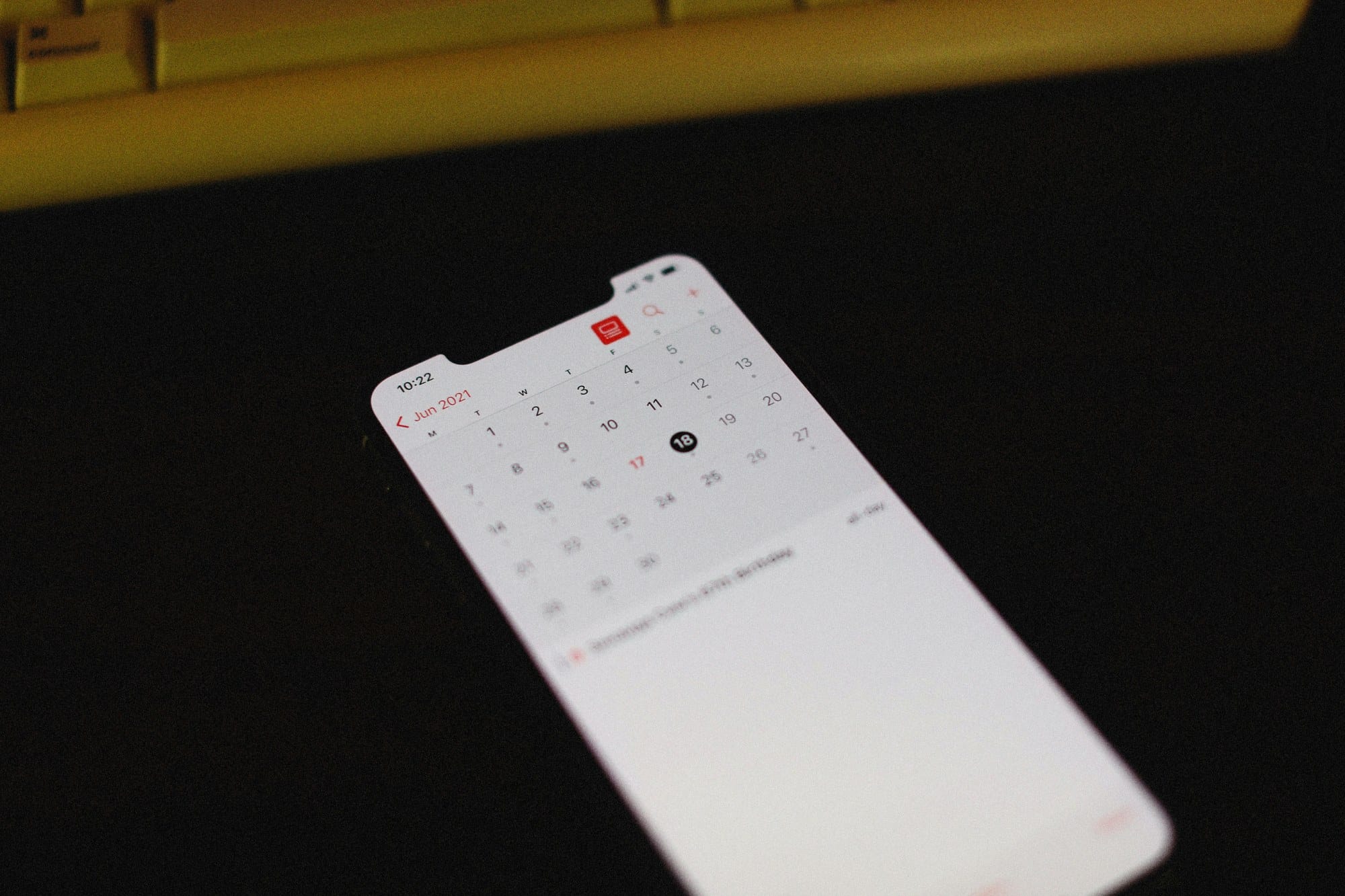
Sharing a family calendar to avoid double-booking school pickups, syncing meeting room availability with coworkers, publishing a club's event schedule for anyone to see — the iPhone's built-in Calendar app handles all three. This guide walks through iCloud sharing for families, scoping a single calendar to specific people, Google Calendar integration, building a public (URL-accessible) calendar, and what to check when sharing isn't propagating.
Table of Contents
- Calendar-Sharing Options on iPhone
- Sharing With Family via iCloud Calendar
- Restricting Sharing to Specific People
- Permissions: View Only vs. Edit
- How the Recipient Joins
- Stopping Sharing
- Sharing via Google Calendar
- Public Calendars (URL-Accessible to Anyone)
- When Sharing Doesn't Propagate
- Wrap-Up
Calendar-Sharing Options on iPhone
There are three broad options.
| Method | Audience | Editing | Best for |
|---|---|---|---|
| iCloud Calendar sharing | Apple ID holders | View or edit | Family, partner |
| Google Calendar sharing | Google account holders | View / edit / manage | Work, teams |
| Public calendar (URL) | Anyone with the URL | View only | Clubs, event announcements |
You can use both services side by side — iCloud for family, Google for work is a common split.
Sharing With Family via iCloud Calendar
Sharing with someone who has an Apple ID is the simplest path.
- Open the Calendar app.
- Tap Calendars at the bottom.
- Tap the i (info) icon next to the calendar you want to share.
- Tap Add Person.
- Enter the recipient's name or Apple ID email.
- Tap Add.
- Toggle Allow Editing as needed.
- Tap Done in the top-right.
The recipient gets a notification. Once they accept, events sync in both directions.
Restricting Sharing to Specific People
When you don't want to share every event on your main calendar, the standard pattern is to create a separate calendar just for shared items.
- Open Calendar.
- On the Calendars tab, tap Add Calendar (or New Calendar).
- Give it a clear name like "Family" or "Work Project."
- Place it under iCloud.
- Share only that calendar using the steps above.
Now your "Family" calendar holds only the shared events while your "Personal" calendar stays private.
Permissions: View Only vs. Edit
iCloud sharing lets you set permissions per person.
- View only: they can see events but can't edit them (good for kids or external partners).
- Edit: they can add, change, and delete events (good for spouses or team members).
To change a permission later:
- On the Calendars tab, tap the i next to the calendar.
- Under Shared With, tap the person.
- Toggle Allow Editing on or off.
Get the permission wrong and a child might accidentally delete an event, or an outside partner might modify an internal schedule. Always confirm before sharing.
How the Recipient Joins
What the person on the other end does:
- Open the Calendar app.
- Tap Join if a sharing notification is waiting.
- Or open the invitation email in Mail and tap Join.
- Confirm the new shared calendar appears under the Calendars tab.
If the notification was missed, ask the sender to resend, or pull up the original email and tap Join again.
Stopping Sharing
To end sharing later:
If you're the owner (revoking):
- On the Calendars tab, tap the i next to the calendar.
- Tap the recipient's name.
- Tap Remove Person.
- Confirm with Delete.
If you're the recipient (leaving):
- On the Calendars tab, tap the i next to the shared calendar.
- Tap Delete Calendar.
Past events that synced to either side stay where they are even after sharing ends — that's Apple's privacy policy.
Sharing via Google Calendar
For workplaces using Google Workspace, or when sharing with someone without an Apple ID, Google Calendar works well. The iPhone's stock Calendar app can host a Google account directly.
- Settings → Calendar → Accounts → Add Account.
- Pick Google and sign in.
- Toggle Calendar sync on.
Once set up, sharing configured on the Google Calendar side propagates to the iPhone Calendar app.
Sharing settings on the Google side (browser or app):
- Open Google Calendar.
- From the calendar's settings, choose Share with specific people or groups.
- Add the email address and pick a permission level.
- Save.
Google's permission tiers are finer-grained: See only free/busy, See all event details, Make changes to events, and Make changes and manage sharing.
Public Calendars (URL-Accessible to Anyone)
For club schedules and event announcements you want anyone to see, you can publish a calendar via a URL.
- On the Calendars tab, tap the i next to the calendar.
- Toggle Public Calendar on.
- Copy the URL.
- Share it on social media or your website.
Anyone who copies the URL can subscribe (read-only) from their own Calendar app or Google Calendar. They can't edit it.
Public calendars can be indexed by search engines — only publish events you're comfortable making truly public.
When Sharing Doesn't Propagate
If sharing is set up but events aren't appearing or edits aren't syncing:
- iCloud sign-in: Settings → Apple ID → iCloud → Calendar must be on.
- Internet: Wi-Fi or cellular must be working.
- Manual refresh: pull down on the Calendars tab.
- Latency: iCloud sharing can lag a few minutes (sometimes up to ten).
- Recipient hasn't accepted: sharing doesn't actually start until the invitee taps Join.
- Google sync interval: when going through the stock app, Google sync can lag tens of minutes.
If the iCloud servers themselves are having issues, check Apple System Status for the iCloud Calendar row to confirm.
Wrap-Up
For iPhone calendar sharing, pick the right channel for the audience: iCloud for family, Google Calendar for work, public URL calendars for clubs and events. Always confirm "view only" vs. "edit" permissions before sharing to avoid accidental deletions. Using a separate calendar just for shared events keeps your private schedule from leaking. When sharing isn't propagating, check iCloud sign-in, internet, then trigger a manual refresh — that order will isolate the cause fastest.