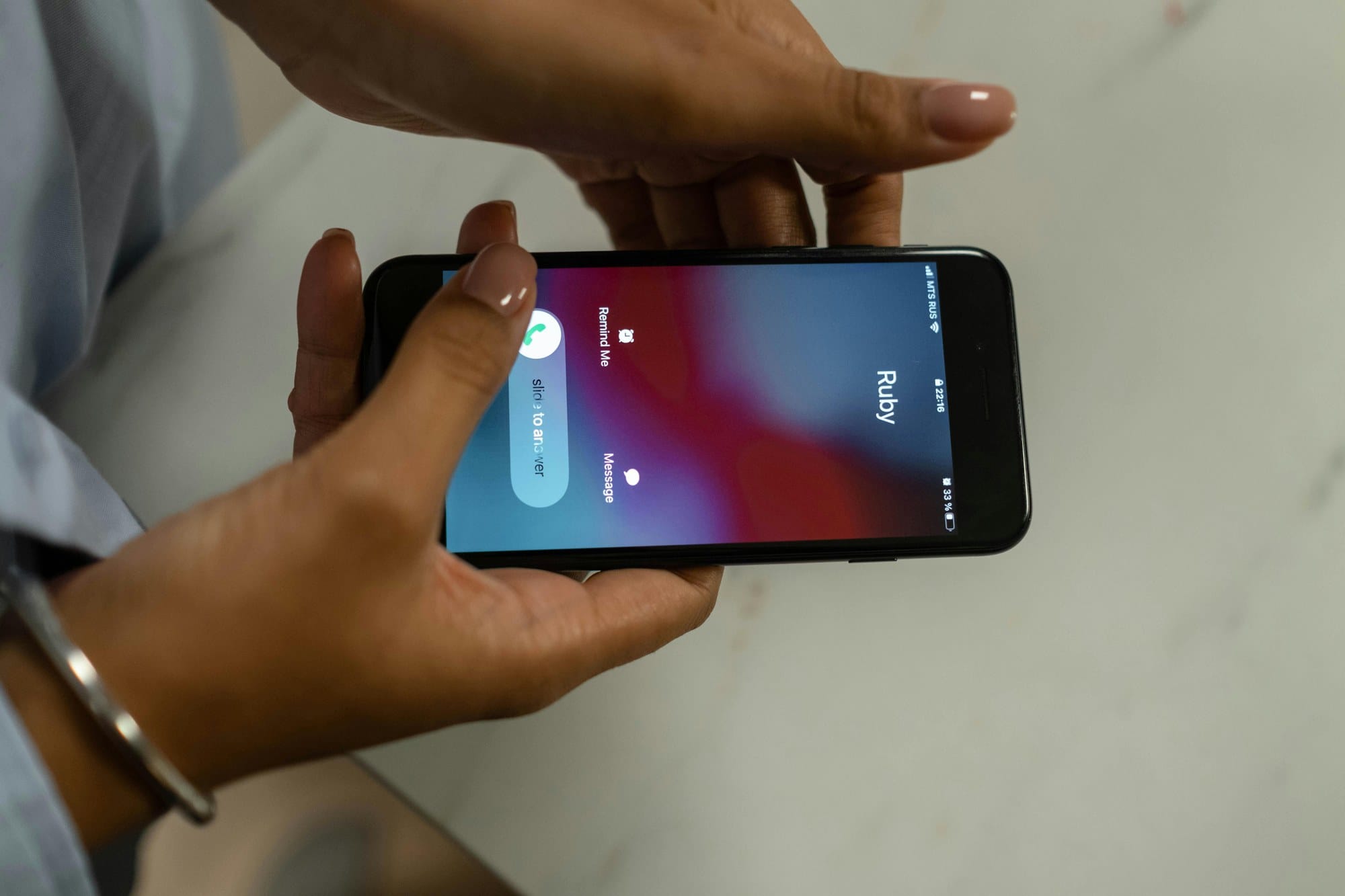
You want a ringtone that fits you, a different sound for calls from family, the chorus of your favorite song as your ringtone — Apple's stock tools cover all of it for free. This guide walks through changing the default ringtone, setting per-contact tones, buying from the iTunes Store, and building custom ringtones in GarageBand. The same approach also handles text tones and alarm sounds.
Table of Contents
- iPhone Ringtone Basics
- Changing the Default Ringtone
- Setting a Different Tone for a Specific Contact
- Buying Ringtones From the iTunes Store
- Building a Custom Ringtone in GarageBand
- Using Music From Your Computer
- Changing the Text Message Tone
- Using a Ringtone as an Alarm
- Related: When the Ringtone Won't Play
- Wrap-Up
iPhone Ringtone Basics
There are four sources for ringtones on iPhone.
- Built-in iOS tones: stock ringtones like Opening or Reflection.
- iTunes Store purchases: paid tones, typically $1.29–$2.49.
- Your own GarageBand creations: free, custom-built from any source you have rights to.
- Synced from a computer: .m4r files moved over via Finder or iTunes.
The format is .m4r, with a 40-second maximum (30 seconds for text tones). Knowing the limits up front saves trouble when building your own.
Changing the Default Ringtone
To change the ringtone for all incoming calls:
- Open Settings.
- Tap Sounds & Haptics.
- Tap Ringtone.
- Pick a tone from the list.
- A preview plays.
- Back out — your choice is saved automatically.
Under Haptics, you can pick a vibration pattern. Custom lets you build your own pattern by tapping out a rhythm.
Setting a Different Tone for a Specific Contact
If you want to recognize family or your boss without looking at the screen, set a per-contact tone.
- Open Contacts and pick the person.
- Tap Edit in the top-right.
- Tap Ringtone.
- Pick a tone.
- Optionally toggle Emergency Bypass so it rings even in silent mode.
- Tap Done.
A unique tone for VIP contacts means you can identify the caller from your pocket. For how silent mode interacts with rings, see iPhone Silent Mode Setup.
Buying Ringtones From the iTunes Store
The official paid route is the easiest and the quality is reliable.
- Open the iTunes Store app.
- Tap More at the bottom and select Tones.
- Browse by genre or popularity.
- Preview to confirm.
- Tap the price to purchase.
- A pop-up lets you set it as the default ringtone, the default text tone, or assign it to a specific contact.
Purchases are tied to your Apple ID, so you can re-download them on a future iPhone for free.
Building a Custom Ringtone in GarageBand
The free GarageBand app lets you build a ringtone from your music library or voice memos. It takes a few minutes, but you can clip exactly the section of a song you want.
- Install GarageBand from the App Store (free).
- Open it and tap + to start a new project.
- Pick any instrument like Audio Recorder.
- Tap the loop (rope) icon at the top.
- Import audio from Files or Music.
- Drag it onto the timeline and trim with the side handles to under 30 seconds.
- Tap My Songs in the top-left to save.
- Long-press the project in the list, choose Share, then Ringtone.
- Under Use sound as, pick Standard Ringtone, Text Tone, or Assign to Contact.
DRM-protected Apple Music tracks won't work — use songs you've purchased, audio you've recorded yourself, or GarageBand's built-in loops.
Using Music From Your Computer
If you have a .m4r file already prepared on Windows or Mac, you can sync it directly.
Mac (macOS Catalina or later):
- Connect the iPhone with a cable.
- Open Finder and select the iPhone in the sidebar.
- Drag the .m4r onto the Music or Files tab.
- The tone appears under Settings → Sounds & Haptics → Ringtone.
Windows:
- Open iTunes (or the Apple Devices app).
- Connect the iPhone.
- Drag the .m4r into iTunes.
- Sync once it appears under Tones.
Ripping a CD and using the audio as a ringtone is fine for personal use only — copyright still applies.
Changing the Text Message Tone
Text tones (SMS / iMessage) are configured separately from the call ringtone.
- Settings → Sounds & Haptics → Text Tone (or Messages).
- Pick a tone.
Per-contact text tones are configured the same way as ringtones, but use the Text Tone field on the contact's edit screen.
Using a Ringtone as an Alarm
The Clock app's alarms can use the same ringtones.
- Open Clock.
- Tap the Alarm tab and edit an alarm.
- Tap Sound.
- Pick from the Ringtones section.
Alarms behave a bit differently than ringtones: they ring even in silent mode, and their volume is independent. For alarm-related issues, see How to Fix iPhone Alarm Not Ringing.
Related: When the Ringtone Won't Play
If you've changed the ringtone but it's not playing, the cause is usually elsewhere — silent mode, ring volume, Focus settings, or a hardware issue. See:
- iPhone Silent Mode Setup: silent mode may have toggled by accident.
- How to Fix iPhone Not Vibrating: when haptics are also missing.
Wrap-Up
You can source iPhone ringtones from four places: built-in tones, iTunes Store purchases, your own GarageBand creations, or synced .m4r files from a computer. Per-contact tones let you identify callers without looking at the screen — the same approach works for text tones and alarms. With GarageBand you can clip any 30-second section of a song you have rights to and use it as your perfect tone. If a ringtone isn't playing, start with the silent switch and the ring volume rather than the ringtone setting itself.