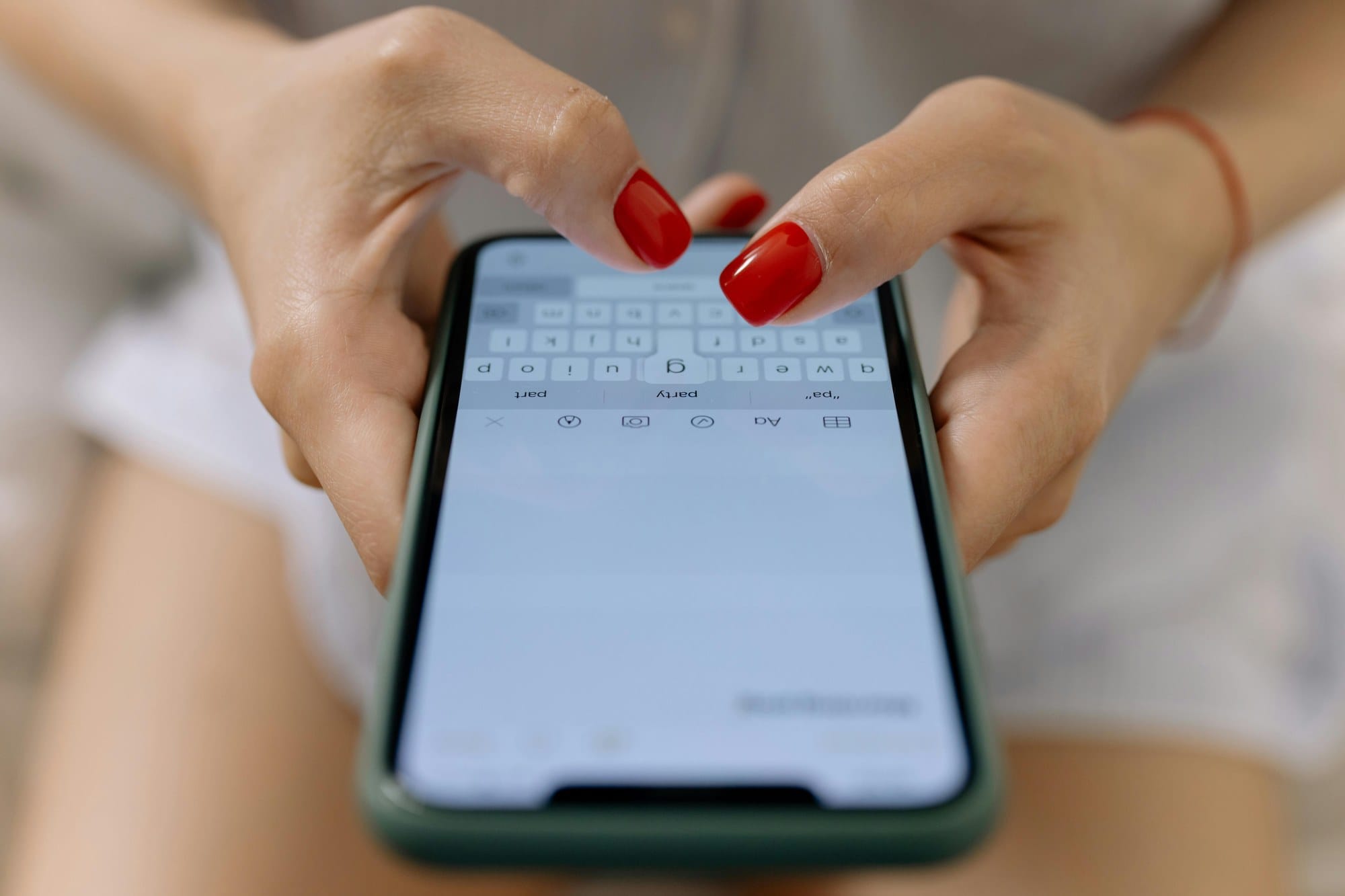
The iPhone keyboard works fine with its default settings, but reviewing just your input sources, flick typing, text replacement, auto-correction, and haptic feedback can make a big difference in everyday typing speed. This article covers iOS 17 / 18 and explains the overall setup for the standard keyboard, with a focus on Japanese input, plus practical fixes for common typing problems. For symptoms where the keyboard does not respond, see the text-input section of What to Do When the Microphone Does Not Work on iPhone. For behavior when using a hardware keyboard, refer to the separate article.
Table of Contents
- Where do you open iPhone keyboard settings?
- Add, delete, and reorder input sources
- Settings that speed up flick typing
- Auto-correction, predictive text, and spell check
- Register and sync text replacements
- Emoji, kaomoji, and symbol input settings
- One-handed keyboard and haptic feedback
- Add third-party keyboards
- Settings when using a hardware keyboard
- What to do when something goes wrong
- Summary: The first 5 settings to review
Where do you open iPhone keyboard settings?
All iPhone keyboard-related settings are gathered in the Settings app under "General" -> "Keyboard". This is where you manage input sources, flick typing, auto-correction, text replacement, emoji, and third-party keyboards.
Where to find "General" -> "Keyboard"
Open the Settings app -> tap "General" -> scroll down and select "Keyboard." At the top, you will see "Keyboards (n)" with the current number of input sources. Tap it to open the input source list, where you can add, delete, and reorder keyboards.
Shortcut to keyboard settings while typing
If you want to open keyboard settings while typing in Notes or Mail, press and hold the Globe key (🌐 icon) and choose "Keyboard Settings..." to jump directly to the settings screen. If you only want to switch between Japanese and English, tap the Globe key. If multiple candidates are available, press and hold it to open the menu.
Add, delete, and reorder input sources
The iPhone is designed to be used by switching between multiple input sources. A typical setup is Japanese Kana, Japanese Romaji, English (Japan), and Emoji. Removing the ones you do not use makes switching with the Globe key smoother.
How to add Japanese Kana, Japanese Romaji, and English
Go to "Settings" -> "General" -> "Keyboard" -> "Keyboards" (at the top of the list) -> tap "Add New Keyboard...". To add Japanese, choose "Japanese," then select either "Kana," "Romaji," or both. For English input, choose "English (Japan)" or "English (US)" so you can switch to it with the Globe key.
Delete input sources you do not use
In the input source list, tap "Edit" in the top right -> tap the red minus button on the row you want to remove -> "Delete." Common unnecessary input sources include "Emoji" (you can still open it by long-pressing the Globe key, so it can be removed from the list), "English (Japan)" (if you use the US layout), and "Chinese" or "Korean" (left over even though you do not remember enabling them).
Change the keyboard switching order
In the input source list, tap "Edit" in the top right -> drag the three-line icon on the right side of each row to change the order. The cycle order when you tap the Globe key follows this list. Put the keyboard you use most at the top to make one-tap switching more efficient.
Settings that speed up flick typing
For Japanese Kana input, the fastest approach is not pressing and holding a key before flicking in a direction, but using "Flick Only" mode, where you flick immediately without waiting for the guide to appear.
Turning on "Flick Only" reduces typing mistakes
Go to "Settings" -> "General" -> "Keyboard" -> turn on "Flick Only". It is off by default, which means toggle input is enabled: repeatedly tapping the same key cycles through "a -> i -> u -> e -> o." For people who are used to flick typing, that toggle behavior often causes mistakes. When "Flick Only" is on, tapping a key by itself only enters "a"; the other vowels appear only when you flick up, down, left, or right.
How to decide whether to use Live Conversion
"Settings" -> "General" -> "Keyboard" -> "Live Conversion" is the feature that automatically converts text to kanji while you type. It is convenient for long-form writing, but if you prefer to intentionally choose conversion candidates or often write text with many technical terms, turning it off prevents unwanted conversions from getting in your way. Use it based on the task: on for long writing, off when you want to check candidates as you type.
How cancelable flicks and continuous input behave
When "Cancelable Flick" is on, even after you start flicking, you can cancel the input by moving your finger back onto the key before lifting it. If you make frequent flick mistakes, enabling this is recommended. "Auto-Capitalization" automatically applies Caps Lock at the start of a sentence during Romaji input, which affects typing when English is mixed into your text.
Auto-correction, predictive text, and spell check
Words being changed without permission in English, proper nouns not appearing in suggestions, the first letter of a sentence being capitalized automatically, all of these annoyances can be controlled through the auto-correction-related settings.
When you should turn off auto-correction
Go to "Settings" -> "General" -> "Keyboard" -> turn "Auto-Correction" off to stop English words from being replaced automatically. Engineers, programmers, and anyone who frequently uses specialized terminology should generally leave it off. It has almost no effect on Japanese input, so if you rarely write in English, you do not need to worry much about this setting.
Control predictive text suggestions
When "Predictive" is on, a bar of conversion candidates appears while you type. These are the three suggestions shown above the keyboard on the iPhone. The keyboard also learns frequently used words and gradually optimizes suggestions to your typing patterns. If you want to stop or clear that learning for privacy reasons, you can reset it from "Keyboard Settings" -> "Reset Keyboard Dictionary."
Spell check and automatic capitalization
"Check Spelling" marks typos with a red underline when you type in English. Turning it off removes the underline, but it is independent from auto-correction, so you can turn auto-correction off while keeping spell check on. "Auto-Capitalization" capitalizes the start of sentences and text after periods automatically. People who type on social media or use their own formatting often find it more comfortable turned off.
Register and sync text replacements
Email addresses, home addresses, boilerplate phrases, company names, and personal names, words and phrases you type often but that do not appear in conversion candidates, become much faster to enter when you add them to text replacement.
How to add a "phrase" and "shortcut"
Go to "Settings" -> "General" -> "Keyboard" -> "Text Replacement" -> "+" in the top right -> enter the "Phrase" (the actual text you want to output) and "Shortcut" (the characters you type) -> "Save." For example, if you register "Phrase: [email protected] / Shortcut: mail," typing "mail" will show your email address as a conversion candidate.
Share them with other Apple devices using iCloud sync
Text replacements are automatically synced across all iPhones, iPads, and Macs using the same Apple ID through iCloud. Go to "Settings" -> Apple ID (top row) -> "iCloud" -> "Show All" -> make sure "iCloud Drive" is on, and your dictionary will be included in sync. When you switch to a new iPhone, signing in to iCloud is enough to carry your entries over.
Useful examples and management tips
Recommended entries:
- "mail" -> your email address
- "addr" -> your home address
- "office" -> your workplace address
- "phone" -> your phone number
- "thanks" -> "Thank you as always."
- "regards" -> "Best regards."
The key is to choose shortcuts that do not overlap with real words. If you use a normal word, it will mix with ordinary conversion candidates. Shortcuts that are too short also trigger accidentally, so about 2 to 4 characters is usually easiest to manage.
Emoji, kaomoji, and symbol input settings
Emoji are included in the standard keyboard, but if you do not know how to open them, you will end up searching for them every time. Kaomoji (^_^) need to be registered separately in text replacement.
Add and search the emoji keyboard
To use the emoji keyboard, "Emoji" must be included in your input source list. Tap the Globe key -> tap Emoji (the smiley icon) to switch to it. If you enter Japanese words such as "neko" or "heart" in the search field at the bottom of the emoji keyboard, matching emoji will appear as suggestions.
How to register kaomoji (^_^)
The standard iPhone keyboard no longer shows a "kaomoji" key. It existed in older versions of iOS, but has been removed. The common approach is to register entries in Text Replacement, such as "Phrase: (^_^) / Shortcut: kao". You can register multiple kaomoji separately as "kao1," "kao2," and so on, or use a shortcut such as "kaomoji" and let multiple candidates appear.
Open stickers and Memoji
In iOS 16 and later, you can access stickers and Memoji from the character icon on the emoji keyboard. Memoji lets you send a character based on your own face in messages, and you can create or edit it from "Settings" -> "Memoji." It is different from LINE stickers and is used mainly between iMessage users.
One-handed keyboard and haptic feedback
For people who find one-handed use difficult on larger iPhones, the "One-Handed Keyboard" and the "Haptic Feedback" setting that improves typing feel are both worth knowing.
Move the one-handed keyboard to the left or right
Go to "Settings" -> "General" -> "Keyboard" -> "One-Handed Keyboard" and choose "Right," "Left," or "Off." During Romaji input, the keyboard shifts to the right or left side of the screen, leaving blank space on the opposite side. You can also switch it by pressing and holding the Globe key -> using the layout icons at the bottom of the keyboard. This setting is especially useful on large iPhones such as Plus and Pro Max models.
Turn on haptic feedback when typing
In iOS 16 and later, go to "Settings" -> "Sounds & Haptics" -> "Keyboard Feedback" -> turn "Haptic" on. The iPhone will vibrate slightly each time you tap a key, letting you confirm input by feel. Battery use increases slightly, but it makes a major difference in confidence when typing without looking directly at the screen.
Turn keyboard clicks on or off
On the same "Keyboard Feedback" screen, turn "Sound" off to silence keyboard clicks. If you do not want typing sounds to stand out in meetings or on trains, turning this off is recommended. Keyboard sounds may still play even in Silent Mode, so you need to turn this setting off directly.
Add third-party keyboards
You can also add non-Apple keyboard apps such as Gboard, Simeji, and ATOK. However, you should understand the risks of granting full access.
Add and switch to Gboard, Simeji, and similar keyboards
Install the target app from the App Store -> "Settings" -> "General" -> "Keyboard" -> "Keyboards" -> "Add New Keyboard..." -> add it from the "Third-Party Keyboards" section. You will then be able to switch to it with the Globe key. Gboard is known for voice input and built-in Google Search, Simeji for kaomoji and themes, and ATOK for its conversion accuracy.
Risks of "Allow Full Access" and how to decide
Third-party keyboards initially operate in a state similar to Airplane Mode, but if you turn on "Allow Full Access," what you type may be sent to the developer's servers. This is required for convenient features such as cloud conversion and custom stickers, but the recommended practice is to switch back to the standard keyboard when entering passwords or credit card information.
How to switch back to the standard keyboard
Use the Globe key to return to the standard keyboard. To delete a third-party keyboard, go to "Settings" -> "General" -> "Keyboard" -> "Keyboards" -> Edit -> red minus button for the relevant keyboard -> Delete. If you do not plan to use it at all, delete the keyboard and uninstall the app itself for better safety.
Settings when using a hardware keyboard
When you connect an iPad Pro Magic Keyboard or a Bluetooth keyboard, a separate group of settings appears. On iPhone, you can also connect a keyboard via USB-C or Lightning.
Pair and recognize a Bluetooth keyboard
Go to "Settings" -> "Bluetooth" -> turn "Bluetooth" on -> select the keyboard in pairing mode -> enter the displayed PIN. After connecting, a new item appears: "Settings" -> "General" -> "Keyboard" -> "Hardware Keyboard".
Switch between English and Japanese layouts
"Hardware Keyboard" -> "Hardware Keyboard Layout" lets you choose the layout that matches the physical keyboard you connected. If an English layout is selected while you are using a Japanese-layout keyboard, characters such as @ and : will be in the wrong positions and may not type correctly.
Customize Caps Lock and modifier keys
In "Modifier Keys," you can swap the behavior of Control, Caps Lock, Option, and other keys. Remapping Caps Lock to Control is a standard customization for people who often use the terminal. If you turn on "Use Caps Lock to Switch Languages," pressing Caps Lock instantly switches between Japanese and English.
What to do when something goes wrong
Here are typical cases and fixes for when the keyboard does not behave as expected even after changing settings.
The keyboard does not appear or looks smaller
If the keyboard does not appear when you tap a text field, restarting the iPhone is the most reliable fix. In some cases, "One-Handed Keyboard" may be enabled even though you thought it was off, making the keyboard look smaller because it is shifted to one side. Press and hold the Globe key -> tap the center keyboard layout icon to return to the normal layout.
Conversion suggestions do not appear or predictions seem wrong
If predictive suggestion learning has become skewed, go to "Settings" -> "General" -> "Transfer or Reset" -> "Reset" -> "Reset Keyboard Dictionary" to initialize the learned data. This is separate from text replacement, so words you registered there will not be deleted.
Reset keyboard settings
If you want to return all keyboard-related settings close to their initial state, reset the conversion learning and delete all input sources once, then add them again. A complete reset is available from "Settings" -> "General" -> "Transfer or Reset" -> "Reset" -> "Reset All Settings," but this also removes settings unrelated to the keyboard, such as Wi-Fi passwords, so treat it as a last resort.
Summary: The first 5 settings to review
iPhone keyboard settings include many options, but reviewing just these 5 items first can make typing feel noticeably faster.
- Turn on "Flick Only" (the most important setting for flick typists)
- Remove unnecessary input sources (optimize the Globe key cycle)
- Register email addresses, addresses, and boilerplate phrases in Text Replacement (cut typing time dramatically)
- Turn on haptic feedback (reduce mistypes)
- Reset keyboard dictionary learning (when conversions start to feel degraded)
Once you have configured these settings, the daily burden of typing will clearly decrease. If you want to go further, the next step is to try third-party keyboards or a hardware keyboard depending on your needs. For iPhone tips beyond text input, also see iPhone Troubleshooting Guide.