Macs can slow down over time due to a variety of causes. Working through the fixes below in order will resolve the issue in most cases. Here's a step-by-step guide organized by cause.
Table of Contents
- Quick Fixes to Try First
- Clean Up Storage
- Check Apps and macOS
- Settings and Environment Issues
- If Nothing Else Works
- Summary: Recommended Order
Quick Fixes to Try First
Restart Your Mac
Restarting clears temporary data and stops lingering processes that may be slowing things down. If your Mac has been running for a while (especially just sleeping rather than shutting down), a restart can make an immediate difference.
Check CPU and Memory Usage in Activity Monitor
Open Activity Monitor (search in Spotlight or find it in Applications → Utilities) and check the CPU and Memory tabs. If a specific process is consuming an unusually high amount of resources, you can quit it from here. This helps you identify whether the slowdown is caused by a particular app or a system process.
Clean Up Storage
Check Available Storage
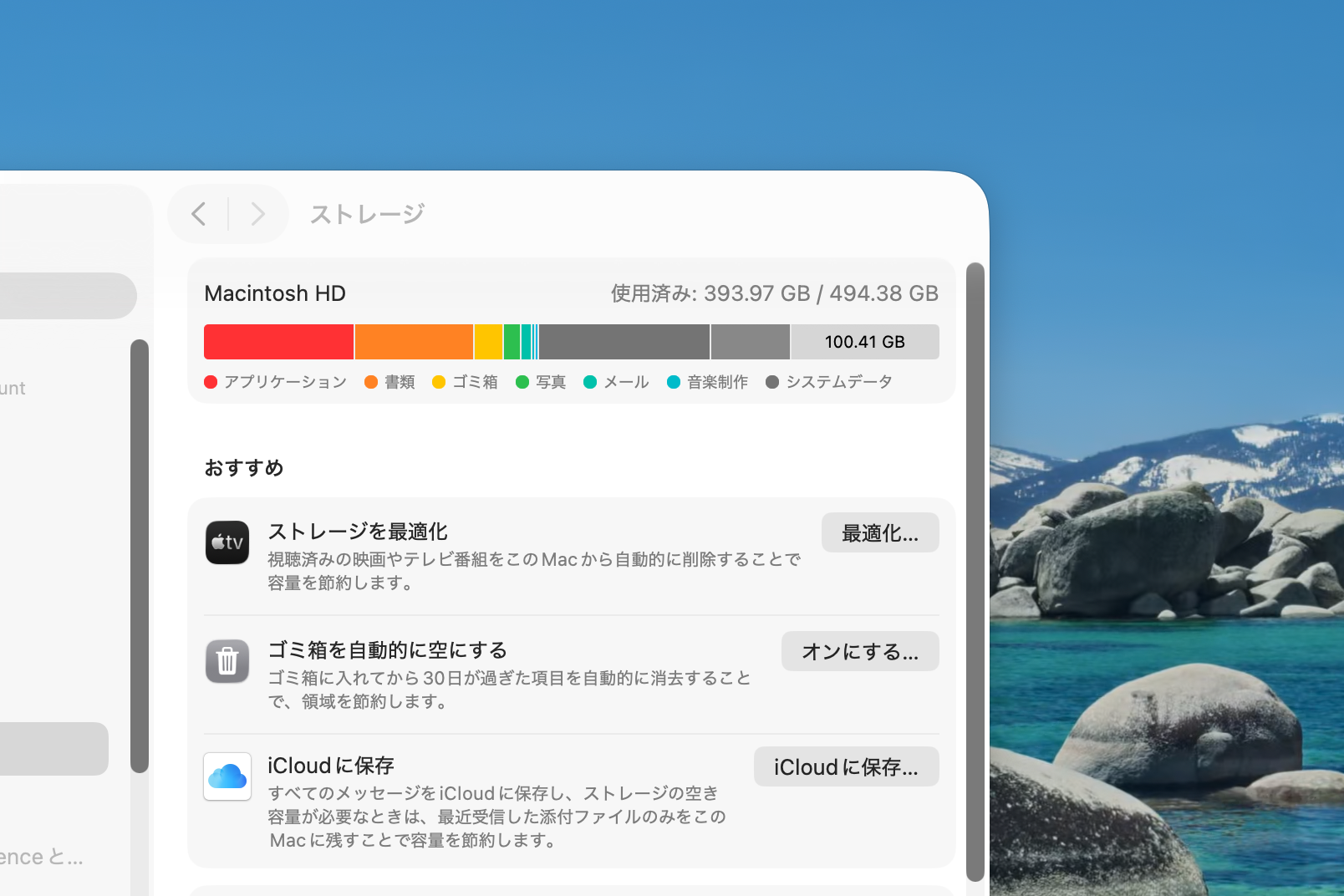
Low disk space can slow your Mac significantly. Go to Apple menu → "About This Mac" → "Storage" (or "System Settings" → "General" → "Storage" on newer macOS versions) to check how much space is available. Try to keep at least 10–15% of your total storage free.
Delete Unnecessary Files
Go through your Documents, Downloads, and Desktop folders and remove files you no longer need. Videos and large media files are the quickest way to reclaim space. The macOS storage management tool ("Manage" button in Storage settings) can help you identify large files and recommendations.
Empty the Trash
Deleted files sit in the Trash until you empty it, continuing to occupy disk space. Right-click the Trash icon in the Dock and select "Empty Trash." If you haven't done this in a while, you may be surprised at how much space you recover.
Check Apps and macOS
Check for macOS Updates
macOS updates include performance improvements and bug fixes. Go to "System Settings" → "General" → "Software Update" to check for the latest version. Major version upgrades can also bring meaningful performance improvements to supported hardware.
Check for App Updates
Outdated apps can cause slowdowns and compatibility issues. Check the App Store for updates, and for apps installed outside the App Store, check their built-in update mechanisms or official websites.
Reduce Login Items
Apps that launch automatically when you log in can slow down startup and consume resources in the background. Go to "System Settings" → "General" → "Login Items" and remove anything you don't need running at startup.
Settings and Environment Issues
Reduce Browser Extensions and Tabs
A browser overloaded with extensions and dozens of open tabs can consume a huge amount of memory and CPU. Disable extensions you rarely use, and make a habit of closing tabs you're done with. This is one of the most common causes of a Mac feeling slow.
Reduce Visual Effects
macOS includes various visual effects (transparency, animations) that use GPU and CPU resources. Reducing them can make your Mac feel snappier, especially on older hardware. Go to "System Settings" → "Accessibility" → "Display" and enable "Reduce motion" and "Reduce transparency."
Check Wi-Fi and Network Connection
A slow or unstable network connection can make cloud-dependent apps and web browsing feel sluggish. Try toggling Wi-Fi off and on, restarting your router, or testing with a wired Ethernet connection if available.
If Nothing Else Works
Try an SMC Reset or NVRAM Reset
On Intel-based Macs, resetting the SMC (System Management Controller) and NVRAM can resolve hardware-related performance issues like fan behavior, thermal management, and power management. Search Apple's support site for the specific steps for your Mac model. Note: Apple Silicon Macs (M1/M2/M3/M4) don't have a traditional SMC — a simple restart handles the equivalent reset.
Contact Apple Support
If the problem persists after trying everything, there may be a hardware issue (failing storage, insufficient RAM for your workload, etc.). Contact Apple Support or visit an Apple Store for diagnosis.
Summary: Recommended Order
Here's a summary of the fixes in the order you should try them.
- Restart your Mac
- Check Activity Monitor for resource-heavy processes
- Check available storage and free up space
- Delete unnecessary files and empty the Trash
- Check for macOS updates
- Check for app updates
- Reduce login items
- Reduce browser extensions and tabs
- Reduce visual effects
- Check Wi-Fi and network connection
- Try an SMC/NVRAM reset (Intel Macs)
- Contact Apple Support
In most cases, restarting, freeing up storage, and managing login items will bring back smooth performance. If the issue persists, work through the remaining steps.