When your Mac's storage fills up, performance suffers and you can't save new files or install updates. Fortunately, a combination of cleanup, cloud offloading, and macOS's built-in tools can reclaim plenty of space. Here are the most effective methods.
Table of Contents
- Start by Checking Your Current Usage
- Quick Deletions and Cleanup
- Offload to the Cloud
- Use Built-in macOS Features
- Long-Term Solutions
- Summary: Recommended Order
Start by Checking Your Current Usage
View Your Storage Breakdown
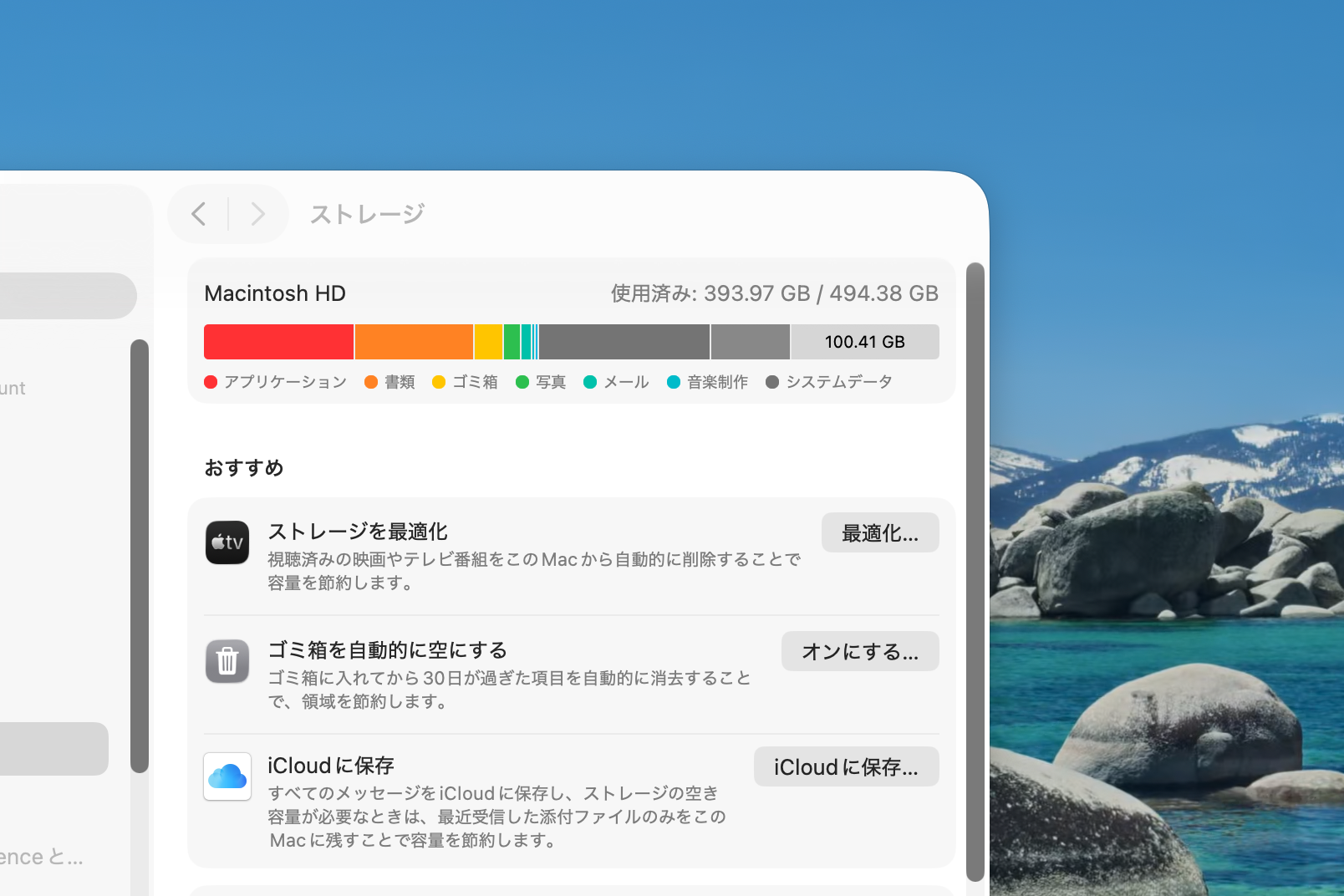
Before deleting anything, find out what's using the most space. Go to Apple menu → "About This Mac" → "Storage" (or "System Settings" → "General" → "Storage" on newer macOS versions). The color-coded bar shows a breakdown by category. Click "Manage" for detailed recommendations.
Quick Deletions and Cleanup
Delete Unnecessary Files
Start with documents, images, and videos you no longer need. Videos are the biggest offenders — removing even a few can free up significant space. Check your Desktop and Documents folders, which tend to accumulate clutter over time.
Delete Unused Apps
Applications you no longer use still take up space. Open Finder → Applications and drag unwanted apps to the Trash. For apps installed from the App Store, you can also right-click and select "Move to Trash." Some apps leave behind support files — a cleanup utility like AppCleaner (free) can help remove those as well.
Empty the Trash
Files you delete go to the Trash but still occupy disk space until you empty it. Right-click the Trash icon in the Dock and select "Empty Trash." This is one of the quickest ways to reclaim space.
Clean Up the Downloads Folder
Downloaded files — disk images (.dmg), installers (.pkg), zip archives, and more — pile up in the Downloads folder. Open Finder → Downloads and remove anything you no longer need. Sorting by size makes it easy to spot the biggest files.
Find and Remove Large Files
The macOS storage management tool (Apple menu → "About This Mac" → "Storage" → "Manage") includes a "Review Files" section that lists large files sorted by size. This is the fastest way to find and remove the biggest space hogs.
Offload to the Cloud
Use iCloud Drive
iCloud Drive lets you store files in the cloud and access them from any Apple device. With "Optimize Mac Storage" enabled, macOS automatically removes local copies of files you haven't used recently while keeping them available for download on demand. The free tier includes 5 GB — larger plans start at $0.99/month for 50 GB.
Use Other Cloud Storage Services
Google Drive, Dropbox, OneDrive, and other services work well alongside iCloud. Moving infrequently accessed documents and backups to the cloud can free up local space without losing access to your files.
Use Built-in macOS Features
Use "Optimize Storage"
macOS can automatically remove Apple TV movies and TV shows you've already watched, and keep only recent email attachments locally. Enable this feature in the storage management tool (Apple menu → "About This Mac" → "Storage" → "Manage" → "Optimize").
Enable "Store Desktop and Documents in iCloud"
This feature syncs your Desktop and Documents folders to iCloud Drive, making them available across all your Apple devices. Combined with "Optimize Mac Storage," macOS will automatically remove local copies of files you haven't used recently, freeing up disk space. Enable it under "System Settings" → "Apple ID" → "iCloud" → "iCloud Drive."
Long-Term Solutions
Use External Storage
An external SSD or HDD provides additional storage for large files like photos, videos, and backups. A portable SSD is fast and convenient for on-the-go use. Time Machine backups can also be directed to an external drive to avoid using internal storage.
Consider Upgrading Your Mac
If storage is chronically tight despite your best efforts, upgrading to a Mac with more built-in storage is the most practical long-term solution. Note that Mac storage generally can't be upgraded after purchase (especially on Apple Silicon models), so choose a storage size that gives you room to grow.
Summary: Recommended Order
Here's a summary of the steps in the order you should try them.
- Check your storage breakdown
- Delete unnecessary files
- Delete unused apps
- Empty the Trash
- Clean up the Downloads folder
- Find and remove large files
- Use iCloud Drive with Optimize Mac Storage
- Use other cloud storage services
- Enable "Optimize Storage" for media
- Store Desktop and Documents in iCloud
- Use external storage
- Consider upgrading your Mac
In most cases, deleting unnecessary files and leveraging iCloud will do the job. External storage and a future upgrade are the best options if you consistently need more space.