Windows can play many video files out of the box, but DVD-Video playback is a different case. On Windows 11 and many Windows 10 PCs, the built-in Media Player may not include the DVD playback features needed for a movie DVD.
This guide explains what to check first, which Windows DVD player apps are worth trying, and how to choose between free and paid options. If your goal is to reduce the size of video files rather than play a disc, use a video compressor instead of a DVD player.
Table of Contents
- Why Windows May Not Play DVDs
- What to Check First
- Comparison Table
- VLC Media Player
- Windows DVD Player
- Leawo Blu-ray Player
- What Windows Media Player Can and Cannot Do
- DVD Drive Troubleshooting
- FAQ
- Summary
Why Windows May Not Play DVDs
The Media Player app included with Windows is useful for common video and audio files, but it does not always include DVD-Video playback. That means a commercial movie DVD or a DVD made for a set-top DVD player may fail even though MP4 files work normally.
First, separate two problems: whether Windows can read the disc, and whether an app can play the DVD-Video structure. If File Explorer can show the contents of the disc but the movie does not start, the playback app is probably the issue. If Windows does not detect the disc at all, check the external DVD drive, USB cable, USB port, disc damage, and drive power first.
What to Check First
Before installing another app, check these basics.
- The DVD drive appears in File Explorer
- The disc is a DVD-Video disc, not only a data backup
- The DVD region matches your drive and country
- The disc is not scratched or dirty
- Another DVD shows the same problem
- Your work or school PC allows new software installation
- The external drive is connected directly to the PC, not through an unstable USB hub
If Windows does not recognize the drive or disc, a player app will not fix the problem. Try another USB port, another disc, and another cable before spending time on software.
Comparison Table
| App | Price | Best For | Windows Support |
|---|---|---|---|
| VLC Media Player | Free | Trying DVD playback without paying first | Windows 10 / 11 |
| Windows DVD Player | Paid or free for some eligible Windows 10 upgrades | Users who want Microsoft's official DVD playback route | Windows 10 |
| Leawo Blu-ray Player | Free version available | Testing another DVD/Blu-ray player when VLC is not enough | Windows 10 / 11 |
VLC Media Player

VLC Media Player is the first app many Windows users should try. It is free, open source, and supports a wide range of video and audio formats in addition to DVD playback.
It is a practical choice when the disc is readable but Windows Media Player or the modern Media Player app will not start the DVD. Still, some discs can fail because of region settings, drive issues, or copy protection. Download VLC from the official VideoLAN website rather than from third-party download pages.
Windows DVD Player
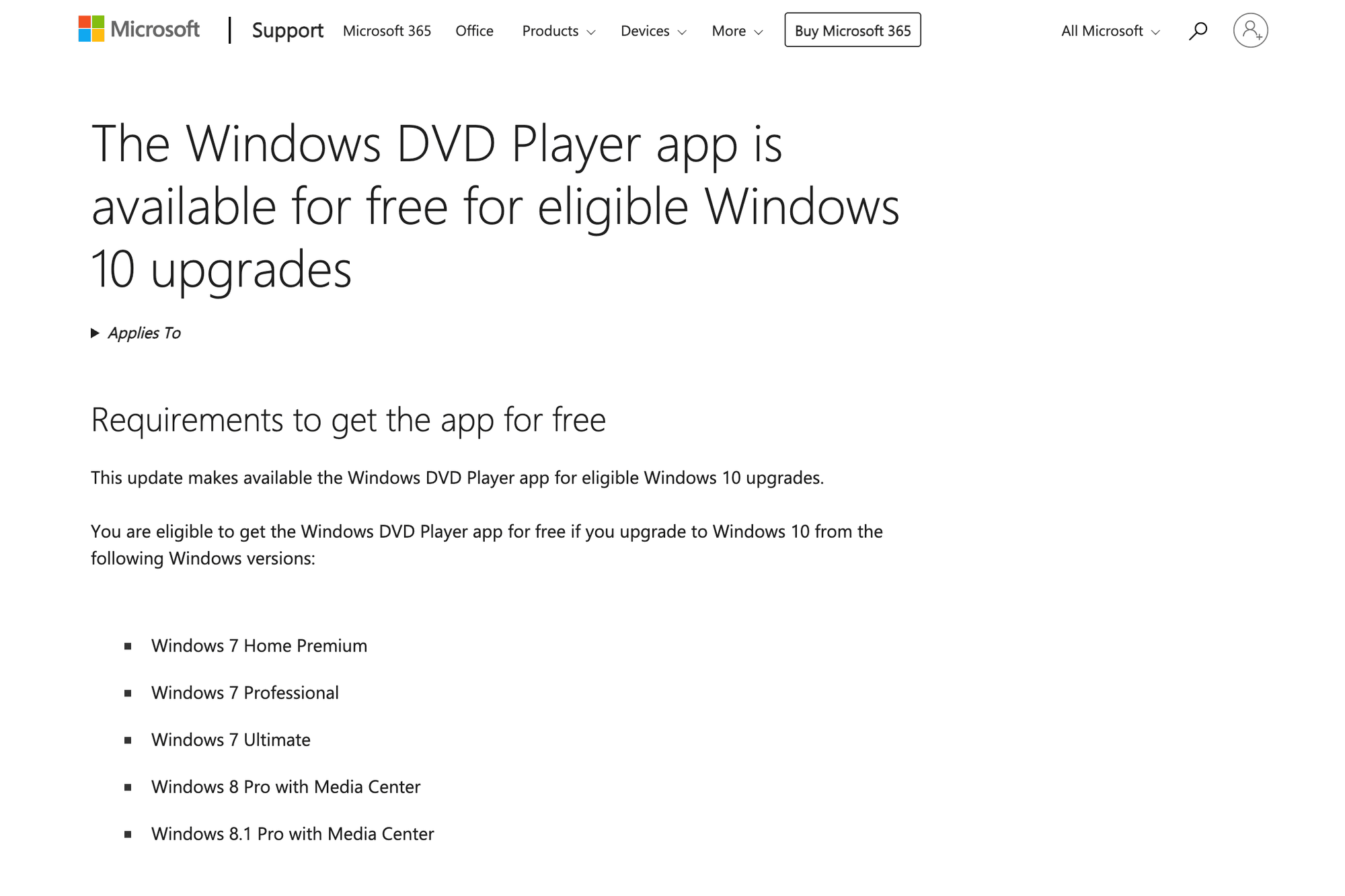
Windows DVD Player is Microsoft's own DVD playback route for some Windows 10 users. Microsoft explains that it was available for free to eligible Windows 10 upgrades from specific Windows 7 and Windows 8 editions, while other users may need to buy a DVD player app from the Microsoft Store.
This is worth knowing if you upgraded an older PC and expect DVD playback to be available through Windows itself. For most Windows 11 users and clean Windows 10 installations, however, VLC is usually the simpler first option.
Leawo Blu-ray Player
https://www.leawo.org/blu-ray-player/
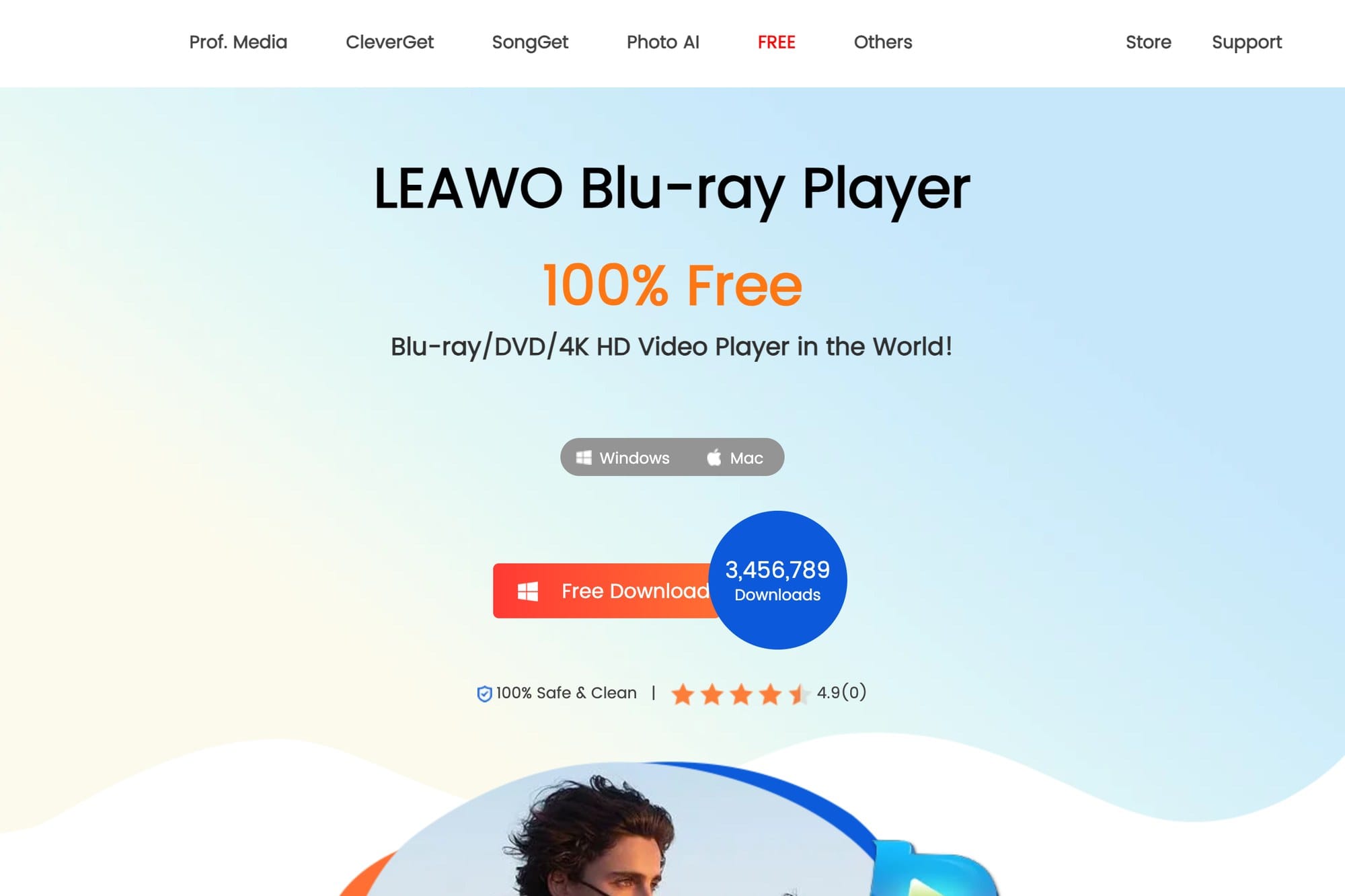
Leawo Blu-ray Player is another option when you want to test DVD or Blu-ray playback without starting with a paid app. It can be useful when VLC does not behave well with a specific disc or drive.
As with any free desktop app, read each installer screen carefully and avoid optional extras you do not need. If you only need a simple DVD player, keep the installation minimal and download it from the official site.
What Windows Media Player Can and Cannot Do
The legacy Windows Media Player can still be enabled on some Windows PCs, but that does not guarantee DVD-Video playback. It may help with music CDs and some media files, but commercial movie DVDs often need a separate DVD-capable player.
If your goal is DVD playback, it is usually faster to install a player that is made for DVDs instead of trying to force the legacy Windows Media Player to handle the job. If you are also checking whether your PC should move to Windows 11, see how to upgrade to Windows 11.
DVD Drive Troubleshooting
If no app can read the disc, focus on the drive and disc before changing software again.
- Connect the external DVD drive directly to the PC
- Try a different USB port
- Avoid low-power USB hubs
- Test another DVD
- Test the same DVD on another computer or DVD player
- Clean the disc gently with a soft cloth
- Check Device Manager to confirm the DVD drive appears
Old external drives and scratched discs can be inconsistent. If several discs fail in the same way, replacing the USB DVD drive may be more effective than installing more software.
FAQ
Can Windows 11 play DVDs by itself?
Not always. The built-in Media Player may play common video files but not DVD-Video discs. A DVD player app is often required.
Which free DVD player should I try first?
VLC Media Player is the easiest first choice for most users. Download it from VideoLAN, open the disc from the Media menu, and test whether the DVD starts.
Can these apps play Blu-ray discs too?
DVD and Blu-ray are different. For Blu-ray playback, you need a Blu-ray drive and software that supports Blu-ray discs. Leawo is more relevant for Blu-ray than VLC, while Microsoft's Windows DVD Player information is about DVDs.
Summary
If Windows will not play a DVD, first confirm that the PC can read the drive and disc. When the disc appears in File Explorer but the movie does not start, install a DVD-capable player.
Start with VLC Media Player if you want a free option. Check Microsoft's Windows DVD Player information if you upgraded from an older Windows version and expected a Microsoft DVD player to be available. Try Leawo Blu-ray Player if you want another free-to-start option for DVD and Blu-ray playback. The key is to match the app to the disc and drive you actually use, rather than assuming the default Windows media apps can handle every DVD.