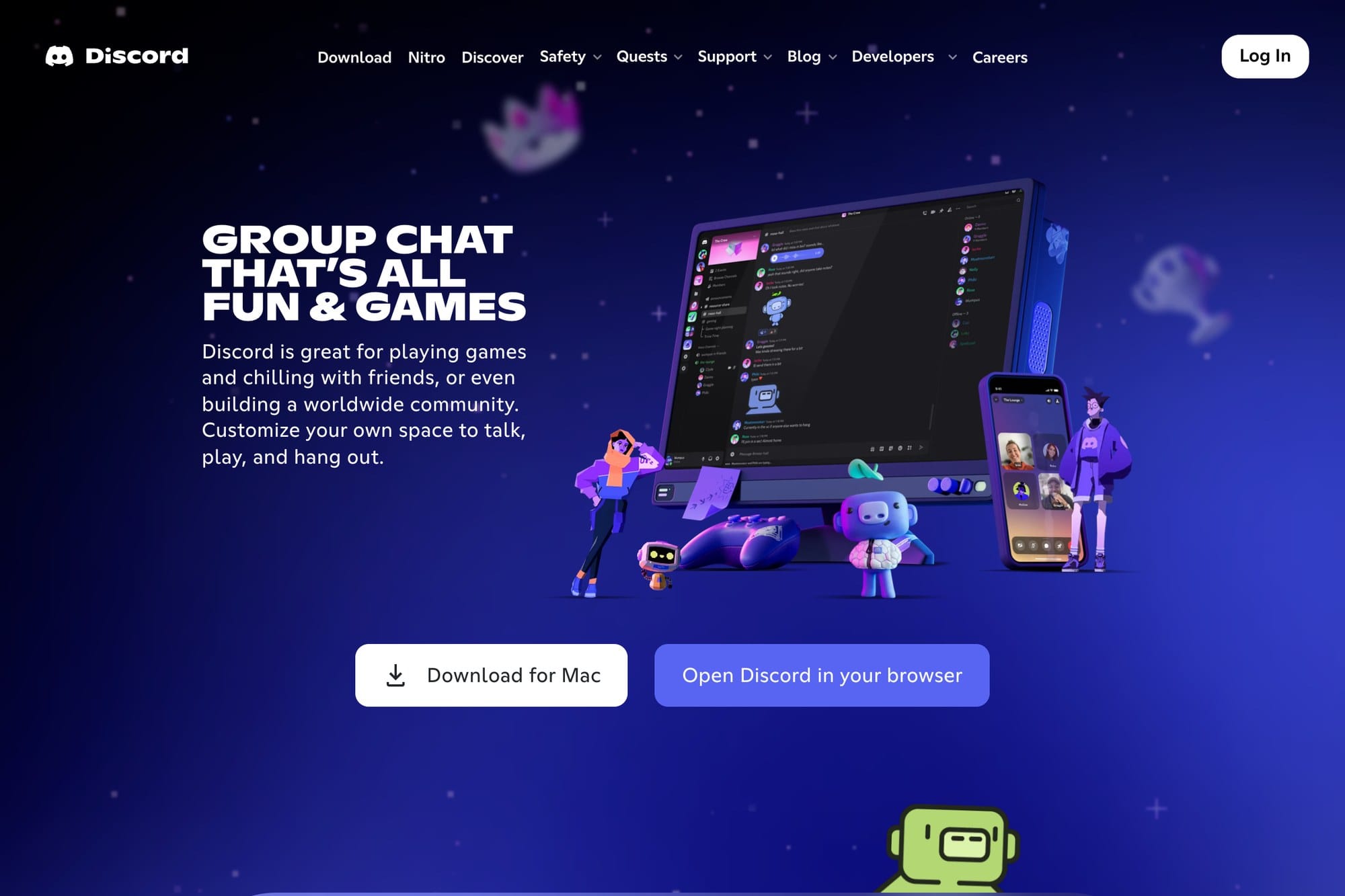
Discord is a communication app for text chat, voice chat, video calls, screen sharing, and online communities. It started with a strong gaming image, but it is now common for friend groups, creators, study groups, hobby communities, and small teams.
This guide explains the basics for people opening Discord for the first time: creating an account, joining a server, understanding channels, joining voice calls, adjusting notifications, and staying safe. Discord's interface changes over time, so the focus here is on the concepts that help you avoid getting lost.
Table of Contents
- Quick Answer
- What Discord Is Used For
- What You Need Before Starting
- How to Join a Discord Server
- How Discord Channels Work
- How to Use Voice and Video Chat
- How to Manage Discord Notifications
- Basic Safety Tips
- FAQ
- Summary
Quick Answer
The easiest way to understand Discord is this: you usually join a server from an invite link, then use the server list on the left, the channel list in the middle, and the microphone controls near the bottom when you join voice chat.
You do not need to learn every setting on day one. Start by joining the right server, reading the rules or welcome channel, and setting notifications to mentions only if the server feels too noisy.
What Discord Is Used For
Discord can handle text conversations, voice rooms, video calls, direct messages, screen sharing, and community announcements. Unlike a simple one-to-one chat app, Discord is built around servers.
A server is like a shared space for a group or community. Inside that server, channels separate different types of conversation: general chat, questions, announcements, voice rooms, events, support, and more. Once you understand that structure, the app becomes much easier to navigate.
What You Need Before Starting
To use Discord, create an account with an email address, display name, username, and password. You can use Discord from the mobile app, desktop app, or web browser.
If you plan to join voice calls, check your microphone and speaker settings before the call starts. A headset or earbuds are helpful because they reduce echo and make it easier for other people to hear you clearly.
How to Join a Discord Server
Most people join a Discord server through an invite link. Open the link from a friend, creator, school, workplace, or community, review the server name, and join if it is the correct place.
After joining, the server icon appears in the left sidebar. Many servers have a welcome channel, rules channel, or onboarding screen. Read those first before posting, especially in larger communities where each channel has a specific purpose.
How Discord Channels Work
Discord channels usually fall into two main types: text channels and voice channels. Text channels are where people post messages, links, images, questions, and announcements. Voice channels are rooms you enter when you want to talk live.
Large servers often split channels by topic. For example, there may be a general chat channel, a questions channel, an announcements channel, and several voice channels. If you are not sure where to post, check pinned messages, the welcome channel, or the server rules first.
How to Use Voice and Video Chat
To join a voice chat, select a voice channel. Once you enter, Discord connects you to the call. Use the microphone button to mute yourself, the headphones button to deafen, and the disconnect button when you want to leave.
If you use video or screen sharing, close private windows and turn off sensitive notifications first. When possible, share only a specific window instead of your entire screen so personal information does not appear by accident.
How to Manage Discord Notifications
Discord notifications can become overwhelming when you join multiple servers. If a server is too noisy, open the server notification settings and change notifications from every message to mentions only.
You can also adjust notification settings per channel. A common setup is to keep notifications enabled for announcement channels while muting busy casual chat channels. That way, you still see important updates without being interrupted by every conversation.
Basic Safety Tips
In servers with people you do not know, avoid sharing personal information such as your real name, address, phone number, school, workplace, login details, or private documents. Treat public channels as public spaces.
Be careful with links, files, and direct messages from strangers. If a link claims to offer free Nitro, account verification, giveaways, or urgent security steps, verify it through an official Discord page or a trusted server moderator before opening it.
FAQ
Q. Is Discord free?
Yes. Discord's core features are free. Paid plans add extras such as larger uploads, profile customization, and server-related perks.
Q. What is the difference between a server and a channel?
A server is the overall community or group space. A channel is a specific place inside that server for a topic, announcement, or voice call.
Q. What should I do if Discord sends too many notifications?
Set busy servers to mentions only, then keep notifications enabled only for the channels that truly matter.
Summary
Discord becomes easier once you understand four basics: servers, channels, voice chat, and notifications. Start with an invite link, read the welcome or rules channel, and adjust notifications before the server becomes distracting.
After that, you can gradually explore screen sharing, roles, direct message settings, and community features. For a comfortable first setup, focus on joining the right server, keeping notifications under control, and protecting your personal information.