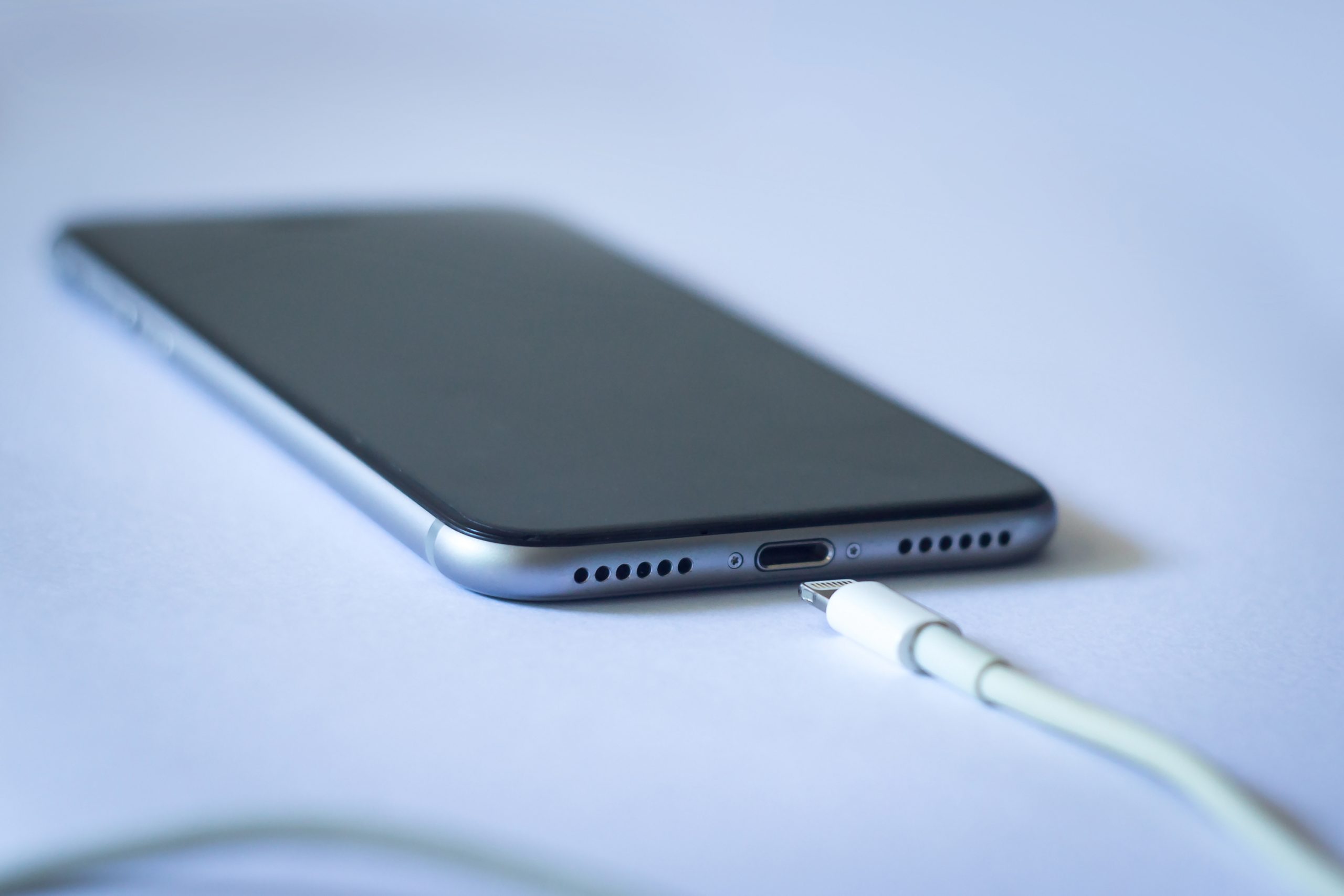
iPhones can slow down or become unresponsive over time. The causes vary, but working through the fixes in order will resolve the issue in most cases. Here's a step-by-step guide organized by cause.
Table of Contents
- Quick Fixes to Try First
- Check iOS and Apps
- Check for Insufficient Resources
- Settings and Environment Issues
- If Nothing Else Works
- Summary: Recommended Order
Quick Fixes to Try First
Restart Your iPhone
When your iPhone feels slow, a simple restart is the best first step. It clears temporary data from memory and often restores normal performance. Making it a habit to restart your iPhone periodically can help keep it running smoothly.
On iPhone X and later, press and hold the side button and either volume button to bring up the power-off slider. On iPhone SE (2nd generation) or iPhone 8 and earlier, press and hold the side or top button.
Force Restart Your iPhone
If the screen is frozen and you can't restart normally, try a force restart. This won't erase any data.
On iPhone 8 and later (including iPhone SE 3rd generation): quickly press and release the volume up button, then quickly press and release the volume down button, then press and hold the side button until the Apple logo appears.
Check iOS and Apps
Check for iOS Updates
Running an older version of iOS can cause performance issues. Go to "Settings" → "General" → "Software Update" to check for the latest version.
Check for App Updates
Outdated apps can cause slowdowns and bugs. Open the App Store and check the "Updates" tab to keep your installed apps up to date.
Delete Unused Apps
Apps you no longer use still take up storage and may run in the background, affecting performance. Long-press an app on your home screen and tap "Remove App" to clean up anything you don't need.
Check for Insufficient Resources
Check Available Storage
Low storage can cause your entire device to slow down. Go to "Settings" → "General" → "iPhone Storage" to review your usage. Remove unnecessary photos, videos, and apps to free up space. As a rule of thumb, try to keep at least 10–20% of your total storage free.
Disable Background App Refresh
The "Background App Refresh" feature lets apps update their content in the background. When enabled for many apps, it can drain memory and battery, slowing things down.
- Go to "Settings" → "General" → "Background App Refresh"
- Turn off refresh for apps that don't need it, or disable it entirely
Settings and Environment Issues
Reduce Motion and Parallax Effects
iOS includes screen transition animations and wallpaper parallax effects that look nice but use processing power. Turning them off can make your iPhone feel noticeably snappier.
- Go to "Settings" → "Accessibility" → "Motion"
- Turn on "Reduce Motion"
Check Low Power Mode
Low Power Mode conserves battery by intentionally throttling CPU speed. If it's left on, it can be the reason your device feels slow. Go to "Settings" → "Battery" to check whether Low Power Mode is still enabled.
Check Wi-Fi and Network Connection
An unstable network connection can make apps load slowly, giving the impression that your entire device is lagging. Try toggling Wi-Fi off and back on, or restart your router. Switching to mobile data to see if the issue persists can help determine whether the network is the cause.
If Nothing Else Works
Reset Your iPhone (Last Resort)
If none of the above fixes help, resetting your iPhone to factory settings is the last resort. This will erase all data on the device. Make sure to back up to iCloud or your computer before proceeding. Go to "Settings" → "General" → "Transfer or Reset iPhone" → "Erase All Content and Settings."
Contact Apple Support
If the problem persists after a reset, or if you suspect battery degradation is causing the slowdown, consider contacting Apple Support. An Apple Store or Apple Authorized Service Provider can diagnose your battery health.
Summary: Recommended Order
Here's a summary of the fixes in the order you should try them.
- Restart your iPhone
- Check for iOS updates
- Check for app updates
- Delete unused apps
- Check available storage
- Disable Background App Refresh
- Reduce Motion and parallax effects
- Check Low Power Mode
- Check Wi-Fi and network connection
- Reset your iPhone (last resort)
- Contact Apple Support
In most cases, a restart, updating iOS, and freeing up storage will do the trick. If the problem persists, work your way down the list.
If a restart, storage cleanup, and an iOS update don't get you back to normal speed, the last-resort option is a full erase. How to Factory Reset an iPhone walks through the backup, sign-out, and erase steps so you don't lose anything you didn't intend to. For other iPhone troubleshooting topics, see the iPhone Troubleshooting Guide | Fixes Organized by Symptom.