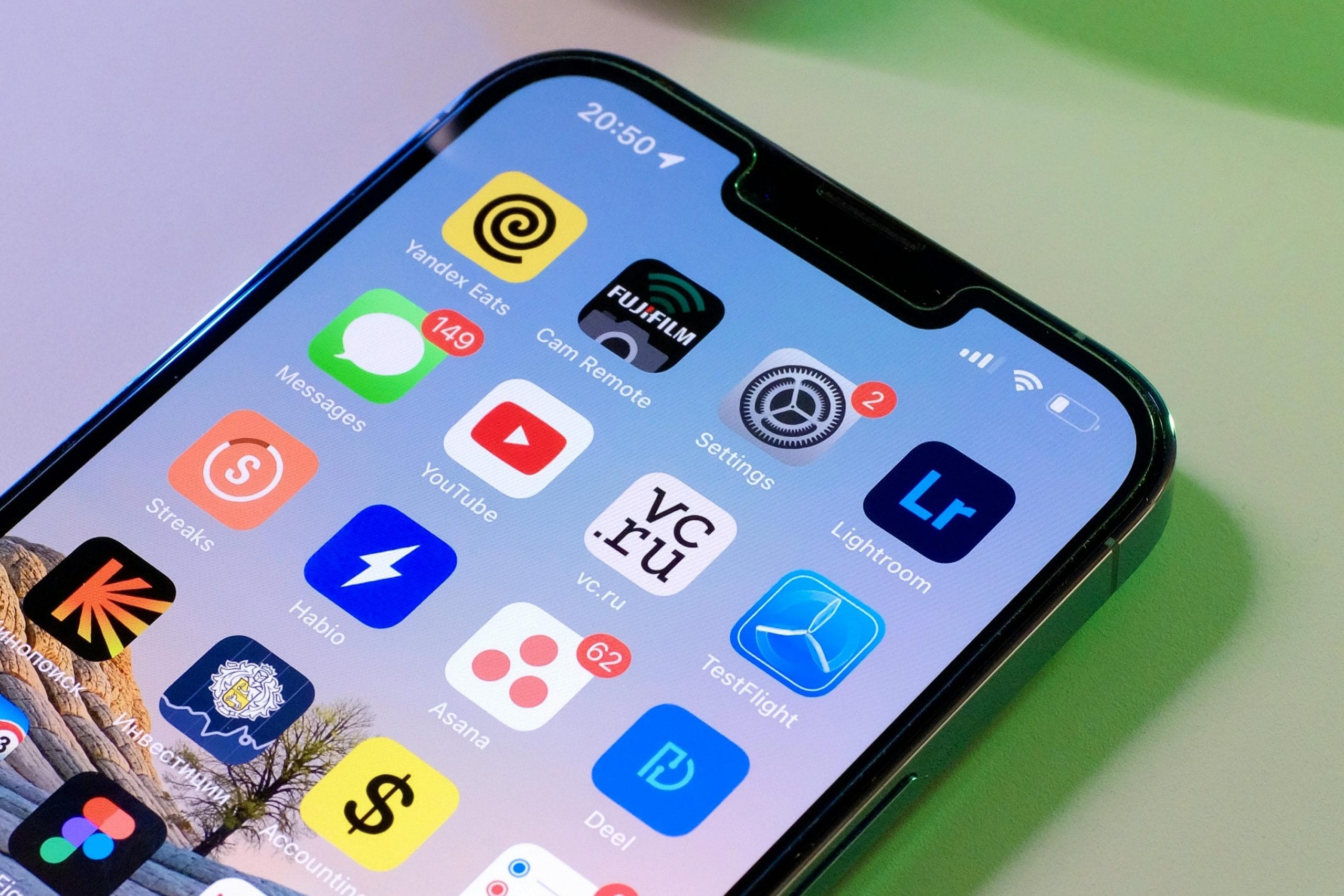
If you long-press an iPhone app and do not see Delete App, if an app comes back after you delete it, or if it disappears from the Home Screen but storage does not free up, there is usually a specific reason. In most cases, app deletion is being blocked by Screen Time, the app is a protected Apple system app, or the iPhone is managed by a workplace or school through MDM. This guide explains how to identify the cause and fix it on iOS 17 and iOS 18. If your real goal is to recover storage space, also see How to Free Up iPhone Storage.
Table of Contents
- Main Reasons You Can't Delete Apps on iPhone
- Allow App Deletion in Screen Time
- Check App Store Content Restrictions
- The Correct Way to Delete an App from the Home Screen
- How to Delete Apps from the App Library
- Apple Apps That Cannot Be Deleted
- What to Do If App Deletion Is Grayed Out on a Managed iPhone
- Restart Your iPhone and Try Again
- Last-Resort Fixes When Apps Still Won't Delete
- Summary
Main Reasons You Can't Delete Apps on iPhone
When the delete option is missing, grayed out, or does nothing, the cause usually falls into one of the following patterns. Identifying the right one first saves a lot of unnecessary troubleshooting.
Screen Time Is Blocking App Deletion
If Deleting Apps is set to Don't Allow in Screen Time, the Delete App option disappears from the Home Screen long-press menu. This can happen on a child's iPhone, a family-shared device, or even your own iPhone if you previously enabled the restriction to prevent accidental deletion. If Screen Time is managed through Family Sharing, the setting must be changed from the organizer's device.
Some Built-In Apple Apps Cannot Be Deleted
Some Apple apps are protected by iOS and cannot be removed. Phone, Messages, Camera, Safari, App Store, Settings, and several other system-level apps may show only Remove from Home Screen, or no delete option at all. This is normal behavior, not a bug.
The iPhone Is Managed by MDM
An iPhone provided by a company or school may be controlled through MDM (mobile device management). The administrator can block app installation and deletion. If Delete App is grayed out, or if Settings says that the iPhone is managed by an organization, MDM is probably the reason.
iOS or the Home Screen Is Temporarily Glitching
Sometimes the Home Screen freezes, the long-press menu does not appear, or a deleted app seems to come back after a restart. These symptoms can be caused by a temporary iOS glitch. A restart or iOS update often fixes them.
Allow App Deletion in Screen Time
This is the most common cause, so check it first.
- Open the Settings app.
- Tap Screen Time.
- Tap Content & Privacy Restrictions.
- Tap iTunes & App Store Purchases.
- Change Deleting Apps to Allow.
If a Screen Time passcode is set, you must enter it before changing the setting. If you forgot the passcode, see How to Turn Off iPhone Screen Time. After changing the setting, go back to the Home Screen and long-press the app again. Delete App should appear.
Check App Store Content Restrictions
If app deletion is allowed but the delete option still does not appear, another restriction may be involved. In Content & Privacy Restrictions, open Content Restrictions, then check Apps. If the age rating is set too strictly, or if apps are not allowed, many apps may behave as if they are unavailable or restricted.
The Correct Way to Delete an App from the Home Screen
Once Screen Time restrictions are cleared, deleting an app from the Home Screen works like this:
- Long-press the app icon on the Home Screen.
- Tap Delete App.
- In the confirmation dialog, choose Delete App again.
Be careful not to choose Remove from Home Screen if your goal is to free storage. That option only hides the icon from the Home Screen. The app remains installed in the App Library, and its data still occupies storage.
How to Delete Apps from the App Library
Apps removed from the Home Screen remain in the App Library. To delete one from there:
- Swipe left until you reach the App Library.
- Long-press the app you want to remove.
- Tap Delete App.
- Tap Delete to confirm.
You can also delete apps through Settings. Go to Settings > General > iPhone Storage, select the app, and tap Delete App. This method is especially useful when you are cleaning up storage, because apps are listed by size.
Apple Apps That Cannot Be Deleted
Some Apple apps cannot be removed from iOS. If Delete App does not appear, the app may be one of these protected system apps.
| App | Can it be deleted? |
|---|---|
| Phone / Messages / FaceTime | No |
| Safari | No |
| Camera | No |
| Settings | No |
| App Store | No |
| Health / Wallet / Find My | No |
| Mail / Contacts / Calendar | Yes |
| Maps / Stocks / Weather / Voice Memos | Yes |
| Music / TV / Podcasts | Yes |
| Notes / Reminders / Home | Yes |
Built-in Apple apps that can be deleted can be reinstalled from the App Store. Search for the app name, such as Mail or Notes, and download the official Apple version again.
What to Do If App Deletion Is Grayed Out on a Managed iPhone
On a company- or school-issued iPhone, app deletion may be blocked by an administrator. Go to Settings > General > VPN & Device Management. If you see a management profile, the device is managed. Apps restricted by that policy cannot be removed by the user. Contact your IT department or device administrator and ask whether the app can be removed.
If this is your personal iPhone and you do not recognize the management profile, you may be able to remove it from the same screen by opening the profile and tapping Remove Profile. Do not do this on a work or school device. Removing an authorized management profile can violate your organization's device policy.
Restart Your iPhone and Try Again
If the Home Screen is stuck, the long-press menu does not respond, or the app comes back after deletion, restart the iPhone and try again.
- iPhone X or later: Hold the side button and either volume button, then slide to power off.
- iPhone SE / iPhone 8 or earlier: Hold the side or top button, then slide to power off.
Wait about 30 seconds after the iPhone turns off, then power it back on and try deleting the app again. If the problem continues, go to Settings > General > Software Update and install the latest iOS update.
Last-Resort Fixes When Apps Still Won't Delete
If none of the steps above work, try these options:
- Delete the app from Settings > General > iPhone Storage instead of the Home Screen.
- Update the app first, then try deleting it again.
- As a final measure, go to Settings > General > Transfer or Reset iPhone > Erase All Content and Settings.
- Contact Apple Support.
Erasing the iPhone is powerful but destructive. Back up your data to iCloud or a Mac before using it. In most cases, Screen Time, App Library deletion, Settings-based deletion, restart, and iOS update are enough.
Summary
When you cannot delete apps on iPhone, the most likely cause is the Screen Time Deleting Apps restriction. The next most common causes are protected Apple system apps, MDM restrictions on a work or school device, and temporary iOS glitches. Start by allowing app deletion in Screen Time, then try deleting the app from the Home Screen, App Library, or iPhone Storage settings. If the app is managed by an organization or built into iOS, the limitation is intentional rather than a problem with your iPhone.