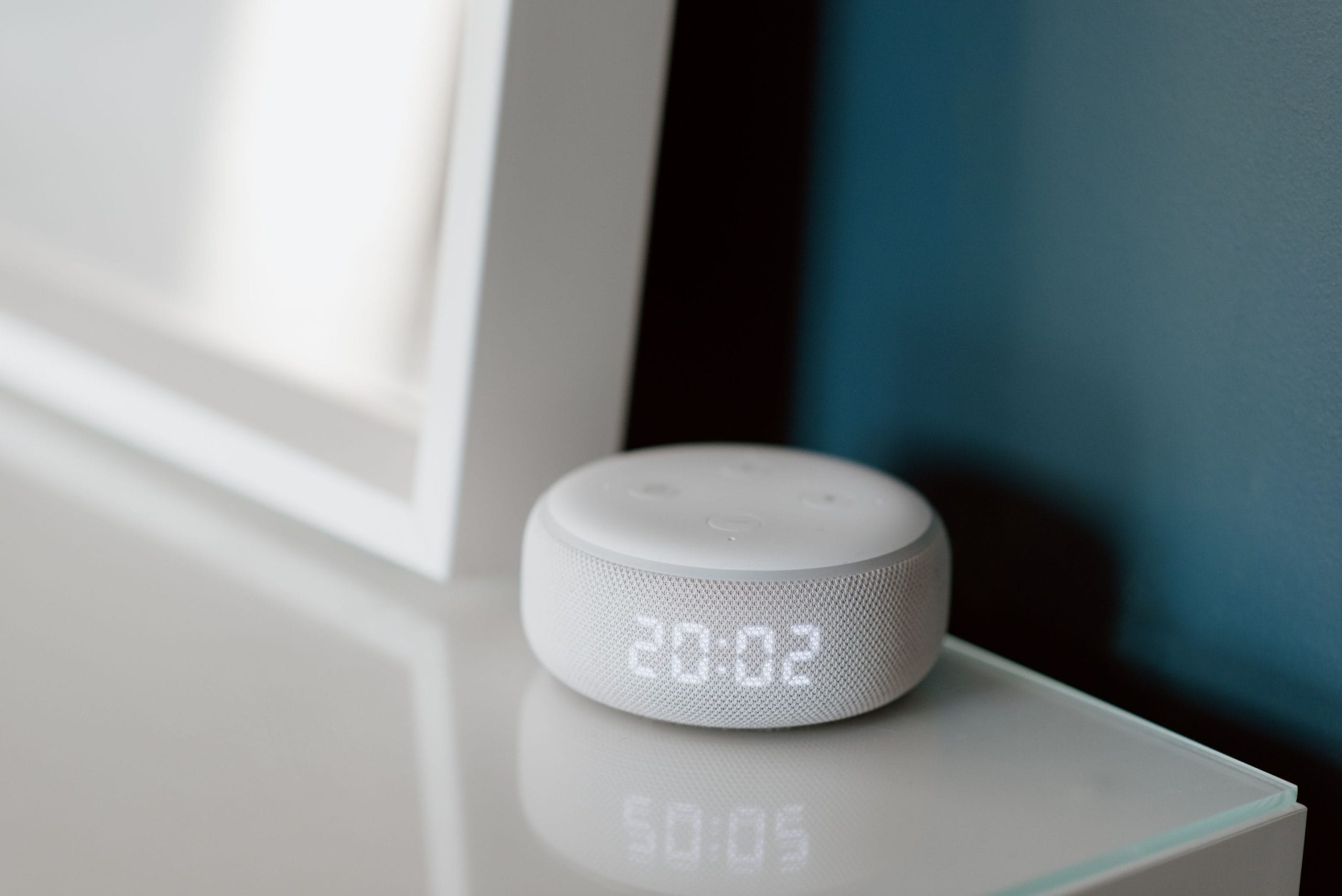
The default keyboard on Android is good enough for most people, but it is not the only option. A better keyboard can improve autocorrect, multilingual typing, swipe input, grammar suggestions, privacy controls, and the way emoji or symbols appear while you type.
This guide compares four Android keyboard apps that make sense for English-speaking users: Gboard, Microsoft SwiftKey, Grammarly, and Typewise. It also explains how to change your default keyboard and what to check before granting keyboard permissions.
Table of Contents
- How to Choose an Android Keyboard App
- How to Change the Keyboard on Android
- Gboard: Best Default Choice for Most Android Users
- Microsoft SwiftKey: Best for Prediction and Multilingual Typing
- Grammarly: Best for Writing Suggestions
- Typewise: Best for Large Keys and Typo Reduction
- Quick Comparison
- Privacy and Permission Checks
- FAQ
- Summary
How to Choose an Android Keyboard App
Keyboard apps can feel similar at first, but small differences matter when you use them all day. Before switching, think about the kind of typing you do most often.
| What to Check | Why It Matters |
|---|---|
| Autocorrect | Good correction saves time; aggressive correction can be frustrating |
| Swipe typing | Useful for one-handed typing and quick messages |
| Multilingual support | Important if you switch between English and another language |
| Writing help | Grammar, tone, and rewrite suggestions are useful for work messages |
| Key size and layout | Larger keys can reduce typos on small screens |
| Privacy settings | Keyboard apps can process sensitive text, so permissions matter |
If you mostly type short messages, Gboard or SwiftKey is usually enough. If you write emails, posts, or customer replies from your phone, Grammarly is worth considering. If you often mistype on small screens, Typewise has a layout designed around larger keys.
For related Android basics, you may also find the guide to taking screenshots on Android useful.
How to Change the Keyboard on Android
The exact menu names vary by phone brand, but the general flow is similar:
- Install the keyboard app from Google Play.
- Open Settings.
- Go to System or General management.
- Open Keyboard, On-screen keyboard, or Language and input.
- Enable the new keyboard.
- Choose it as the default keyboard.
Google's Gboard Help also explains that you can switch keyboards from Android settings after installing a keyboard app. On Samsung phones, the wording may be closer to General management > Keyboard list and default.
After switching, open a notes app or messaging app and type a few sentences. Check autocorrect, punctuation, emoji, swipe typing, and whether the keyboard gets in the way of normal typing.
Gboard: Best Default Choice for Most Android Users

Gboard is the safest first choice for most Android users. It supports Glide Typing, voice typing, handwriting, emoji, GIFs, and multilingual typing. It also feels familiar because many Android phones already ship with it or offer it as the default Google keyboard.
Choose Gboard if you want:
- A clean, familiar keyboard
- Reliable swipe typing
- Voice typing and handwriting options
- Good multilingual support
- A simple setup without learning a new layout
Gboard is especially good as a baseline. If it feels comfortable, you may not need anything else. If you later want stronger prediction, more writing help, or a very different key layout, then try one of the alternatives below.
Microsoft SwiftKey: Best for Prediction and Multilingual Typing
Microsoft SwiftKey is a strong alternative if you care about prediction and multilingual typing. It learns your writing style over time, supports emoji, GIFs, stickers, and includes Microsoft Copilot features in supported regions and versions.
Choose SwiftKey if you want:
- Strong word prediction
- Smooth switching between languages
- A keyboard that adapts to your writing habits
- Themes and customization
- Microsoft account sync options
SwiftKey is particularly useful if you frequently type in more than one language or write longer messages on your phone. If Gboard feels too plain, SwiftKey is the first alternative I would test.
Grammarly: Best for Writing Suggestions
Grammarly is not just a keyboard replacement. It is a writing assistant that works with Android typing and offers real-time suggestions for grammar, spelling, clarity, and tone. It is most useful when the words matter more than typing speed.
Choose Grammarly if you want:
- Grammar and spelling suggestions
- Help rewriting unclear sentences
- Tone checks for professional messages
- Better writing support in email, chat, and documents
- An English-focused typing assistant
Grammarly is best for work messages, social posts, resumes, customer replies, and longer English writing. For casual chat, it may feel heavier than Gboard or SwiftKey, so it works best when you actually want writing feedback.
Typewise: Best for Large Keys and Typo Reduction
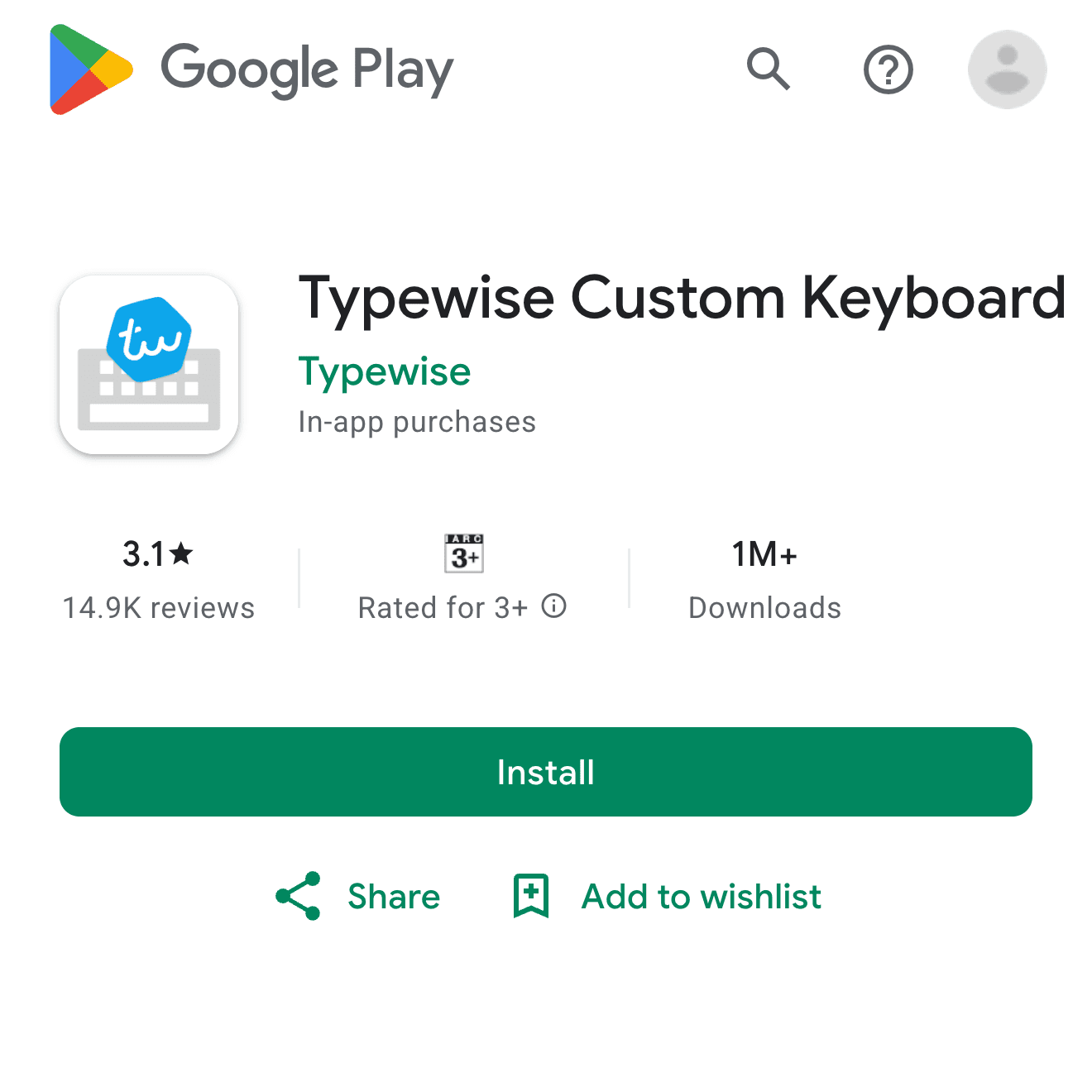
Typewise takes a different approach from standard Android keyboards. It focuses on larger keys, custom layouts, and typo reduction. The layout may take a little time to learn, but it can help if you often hit the wrong key on narrow phones.
Choose Typewise if you want:
- Larger keys
- A layout designed to reduce typos
- A more privacy-focused keyboard pitch
- A keyboard that feels different from the default Android layout
- More control over typing ergonomics
Typewise is not the best first keyboard for everyone. It is better for people who are willing to spend a few days adjusting to a new layout in exchange for fewer accidental taps.
Quick Comparison
| App | Best For | Main Strength | Best Starting User |
|---|---|---|---|
| Gboard | Everyday Android typing | Familiar layout, swipe typing, voice typing | Most users |
| Microsoft SwiftKey | Prediction and multilingual typing | Learns writing style and switches languages well | Users who type in multiple languages |
| Grammarly | Better English writing | Grammar, tone, and rewrite suggestions | Work messages and longer writing |
| Typewise | Fewer typos | Large keys and alternative layout | Users who mistype often |
If you are unsure, start with Gboard. If you want more prediction, try SwiftKey. If your main problem is writing quality, try Grammarly. If your main problem is hitting the wrong keys, try Typewise.
Privacy and Permission Checks
Keyboard apps can see what you type, so it is worth being careful. This does not mean every third-party keyboard is unsafe, but it does mean you should check the developer, permissions, and settings before using one for sensitive text.
Before making a keyboard your default, check:
- The developer name on Google Play
- The privacy policy
- Whether cloud sync is optional
- Whether personal dictionary sync is enabled
- Whether the keyboard sends usage data
- Whether you are comfortable typing passwords, payment details, or private messages with it
For sensitive fields, Android and apps may switch to a secure input mode, but you should still treat keyboard choice as a privacy decision. If you only need a simple keyboard, Gboard or SwiftKey is usually easier to trust than a random themed keyboard with little developer information.
FAQ
What is the best Android keyboard app for most people?
Gboard is the best starting point for most Android users because it is familiar, reliable, and supports swipe typing, voice typing, emoji, GIFs, and multilingual input.
Is Microsoft SwiftKey better than Gboard?
SwiftKey can be better if you care about prediction, multilingual typing, and customization. Gboard is usually simpler and more familiar, while SwiftKey feels more adaptive.
Is Grammarly a full keyboard replacement?
Grammarly can work as a keyboard and writing assistant, but it is best when you want grammar, spelling, clarity, and tone suggestions. For casual texting, Gboard or SwiftKey may feel faster.
Can I install more than one Android keyboard?
Yes. You can install multiple keyboards and switch between them in Android settings. After testing, disable or uninstall keyboards you do not use.
Are third-party Android keyboards safe?
They can be safe, but they require trust. Use well-known developers, read the privacy policy, avoid unknown keyboard apps, and be careful with cloud sync or personalization features.
Summary
For most Android users, Gboard is the best first keyboard to try. Microsoft SwiftKey is the strongest alternative for prediction and multilingual typing, Grammarly is best for English writing help, and Typewise is worth testing if you want larger keys and fewer mistaps.
The safest approach is to install one keyboard at a time, test it in real apps, and then check permissions before making it your daily default. A keyboard is small on the screen, but it touches almost every message you write.