If you search for an Alexa app for PC, the answer is not as simple as "download the Windows app." Depending on your region, device, and Microsoft Store availability, the old Alexa for Windows experience may not appear or may not be the best route anymore.
This guide explains what still works on a Windows PC, when to use Alexa in the browser, and why the iPhone or Android Alexa app is still the safest way to set up Echo devices and manage your smart home.
Table of Contents
- Can You Install the Alexa App on a PC?
- Best Option on PC: Alexa in the Browser
- Comparison Table
- Use the Alexa App on iPhone
- Use the Alexa App on Android
- What You Can and Cannot Do on a Windows PC
- Avoid Third-Party Alexa Downloads
- FAQ
- Summary
Can You Install the Alexa App on a PC?
Some Windows users may still see Alexa in Microsoft Store, but availability is not consistent enough to treat it as the main method. If you cannot find an official listing from Amazon or Microsoft Store on your PC, do not download Alexa installers from random software sites.
For most users, the safer approach is:
- Use Alexa in a browser on your PC
- Use the official Alexa app on iPhone or Android for Echo setup and smart home management
- Avoid unofficial Windows downloads that claim to be Alexa
This is especially important because "Alexa app for PC" search results often include third-party download pages. Those pages may be outdated, repackaged, or unrelated to Amazon's current Alexa experience.
Best Option on PC: Alexa in the Browser
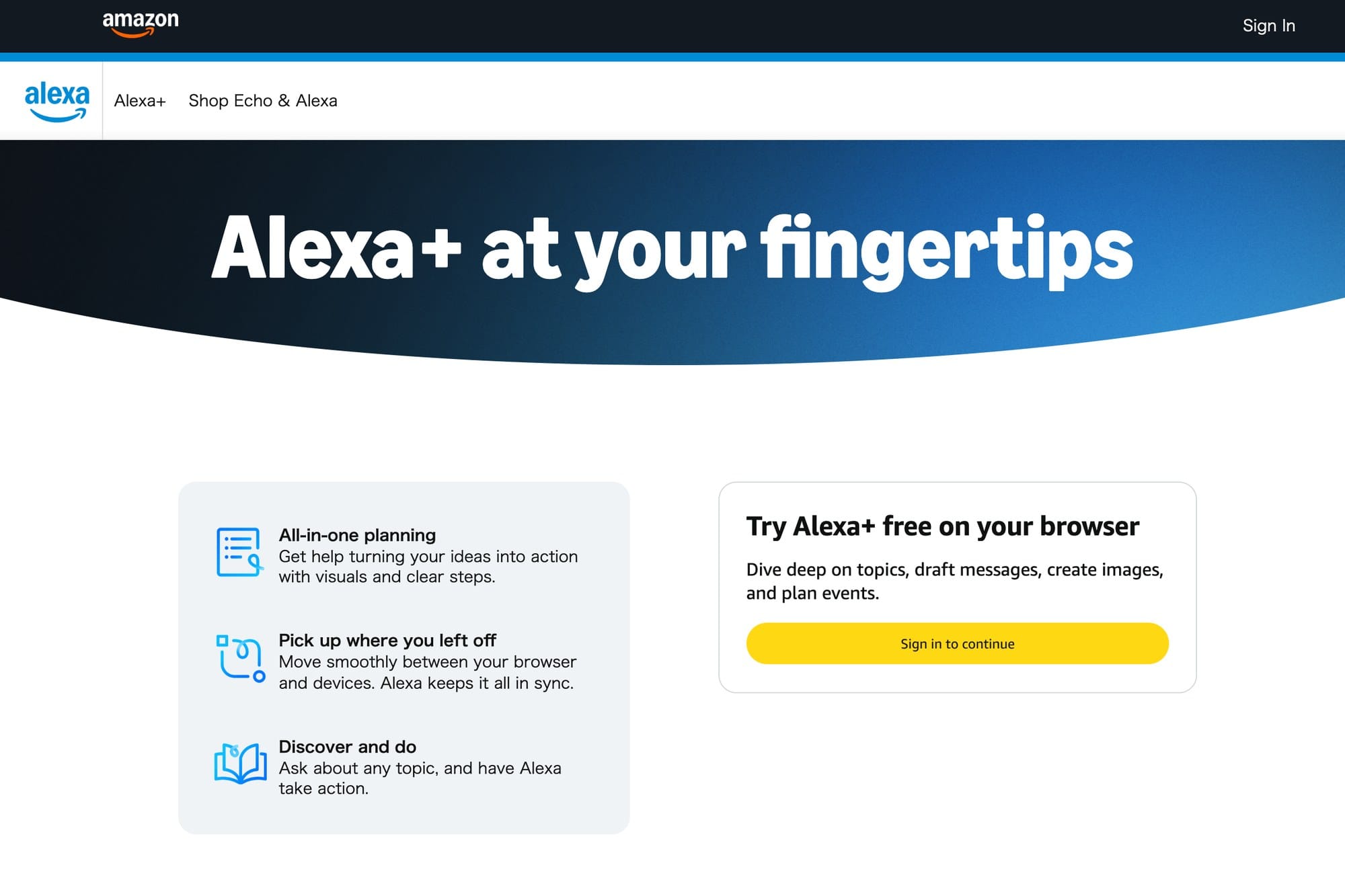
https://alexa.amazon.com/about
Amazon's Alexa web experience is the cleanest PC route to check first. It is designed for browser use and does not require you to hunt for a Windows installer.
Use this route when you want to access Alexa from a laptop or desktop browser. It is also a better starting point than third-party download pages because the URL is controlled by Amazon. If you are already checking Windows tools, you may also find the guide to screen recording on Windows useful for recording setup steps or troubleshooting.
Comparison Table
| Option | Best For | Works On | Notes |
|---|---|---|---|
| Alexa in the browser | PC access without installing a Windows app | Windows, Mac, Chromebook browsers | Best PC-first option to check |
| Alexa app on iPhone | Echo setup, smart home control, mobile Alexa use | iPhone and iPad | Use the official App Store listing |
| Alexa app on Android | Echo setup, smart home control, mobile Alexa use | Android phones and tablets | Use the official Google Play listing |
| Microsoft Store Alexa listing | Only if it appears officially on your PC | Windows 10 / 11, availability varies | Do not use third-party installers if it is missing |
Use the Alexa App on iPhone
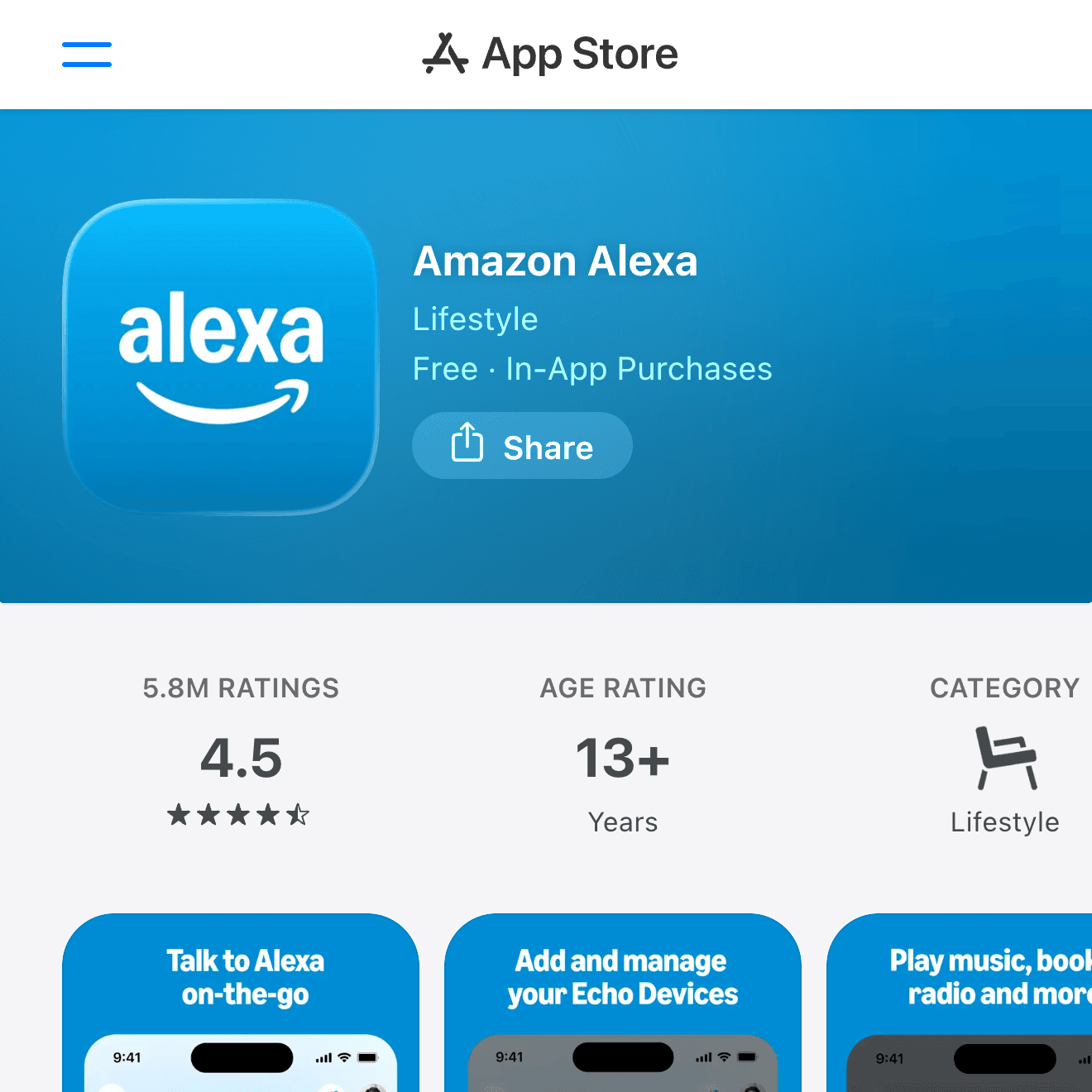

The official iPhone app is still the best way to set up Echo devices, manage smart home devices, edit routines, check lists, and use Alexa away from your PC.
If your goal is device setup rather than typing to Alexa from a computer, use the iPhone app first. It is also easier for permissions such as Bluetooth, Wi-Fi setup, notifications, and location-based features.
Use the Alexa App on Android
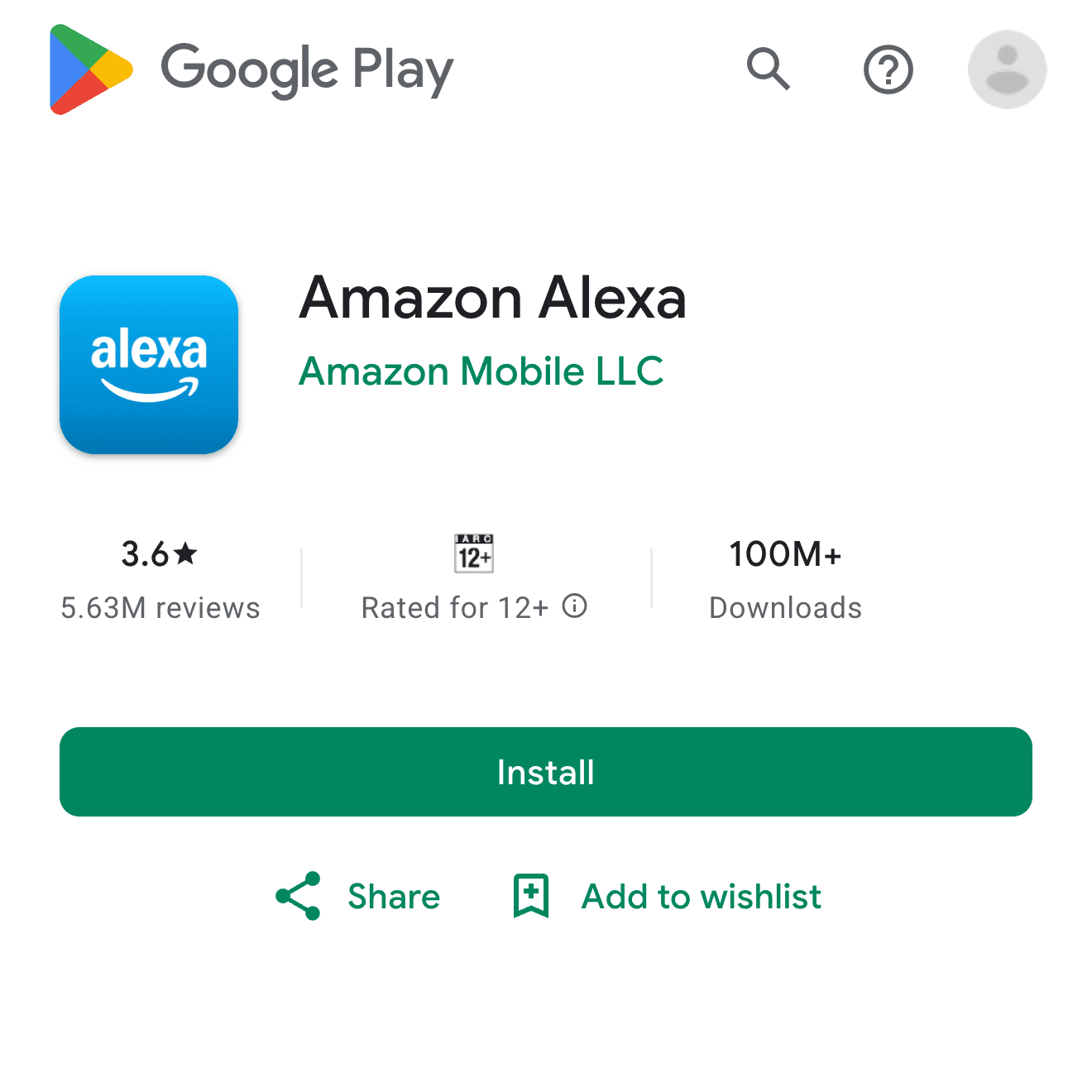

The official Android app is the other reliable way to manage Alexa devices and smart home settings. It is the route to use if your main phone or tablet is Android.
For many people, the best setup is simple: use the PC browser when you are at a desk, and use the mobile Alexa app when you need device setup, smart home control, or notifications.
What You Can and Cannot Do on a Windows PC
On a Windows PC, Alexa is useful for browser-based access, quick questions, and continuing some tasks across devices. It is not always a full replacement for the mobile Alexa app.
Expect the mobile app to be better for:
- Setting up Echo devices
- Managing smart home devices
- Editing routines
- Handling app permissions
- Receiving mobile notifications
- Using location-based features
Expect the browser route to be better for:
- Using Alexa while working at a computer
- Typing or asking questions from a desktop browser
- Avoiding unofficial installers
- Keeping Alexa separate from Windows system settings
If you are organizing a Windows setup more broadly, the Windows DVD playback guide is another example of why official routes matter: old download pages and third-party installers can create more confusion than they solve.
Avoid Third-Party Alexa Downloads
Do not install an Alexa app for PC from generic download sites just because Microsoft Store does not show it. Alexa involves your Amazon account, smart home devices, voice history, lists, and sometimes payment-related account access. That makes unofficial installers a poor tradeoff.
Use these safer rules:
- If it is not from Amazon, Microsoft Store, App Store, or Google Play, skip it
- Do not download old Alexa Windows installers from third-party software mirrors
- Do not enter your Amazon password into unknown Alexa-looking apps
- Use the browser or the official mobile app instead
FAQ
Is there an Alexa app for Windows 11?
Availability can vary. If Microsoft Store shows an official Alexa listing on your PC, you can evaluate it there. If it does not appear, use Alexa in the browser and the official mobile app instead of a third-party installer.
Can I set up an Echo device from a PC?
The mobile Alexa app is usually the better route for Echo setup. It handles phone permissions, Bluetooth, Wi-Fi setup, and mobile notifications more naturally than a PC browser.
Can I use Alexa without installing anything on Windows?
Yes. Start with the Alexa browser experience from Amazon. It is the safest PC-first option because it does not require a Windows installer.
Should I use an Android emulator for the Alexa app on PC?
Usually no. An emulator adds complexity and may not handle device setup or permissions cleanly. Use the browser on PC and the official mobile app on your phone.
Summary
The safest answer to "Alexa app for PC" is: use Alexa in the browser on Windows, and use the official Alexa app on iPhone or Android for setup and smart home management. If a verified Microsoft Store listing appears on your PC, you can consider it, but do not chase unofficial Windows installers.
For most users, the practical combination is browser on PC plus mobile app on phone. That covers desk use, Echo setup, routines, lists, and smart home control without relying on questionable downloads.