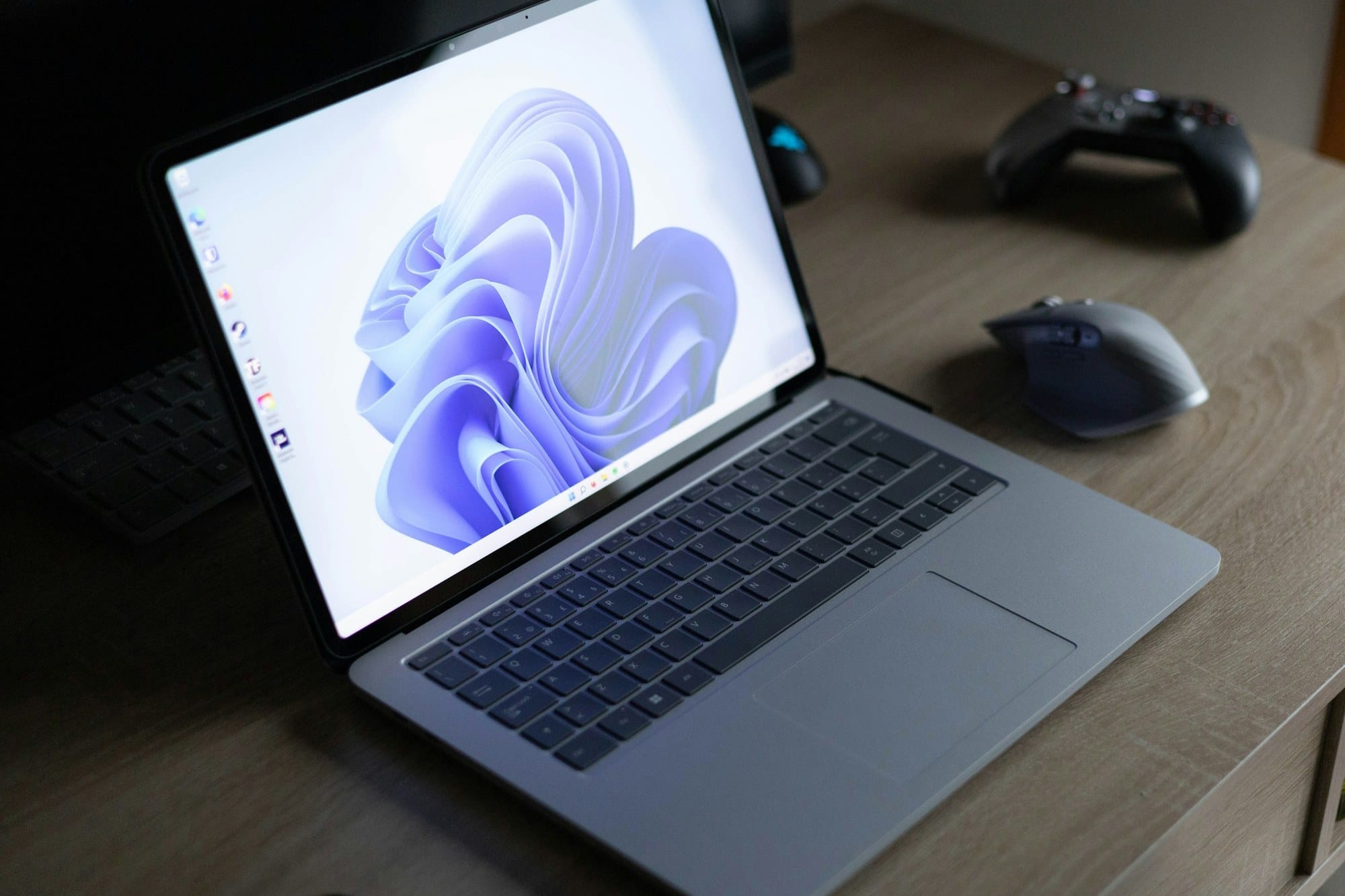
Splitting your screen on Windows is one of the quickest ways to work with two or more apps without constantly switching windows. Windows 11 includes Snap Layouts, Snap Groups, and improved multi-monitor behavior, while Windows 10 still has the classic Snap feature that works well for two-window and four-corner layouts. If you need a custom grid for an ultrawide monitor or a very specific workspace, Microsoft PowerToys FancyZones fills the gap. This guide explains the practical differences between Snap, Snap Layouts, virtual desktops, and FancyZones, then shows the shortcuts and settings that make each one reliable in daily work. If you also organize work by separate desktops, see our Windows Virtual Desktops guide. If you use macOS too, the equivalent workflow is covered in How to Split the Screen on Mac.
Table of Contents
- The four ways to split your screen on Windows
- Use Snap with your mouse or keyboard
- Use Snap Layouts on Windows 11
- Bring back a layout with Snap Groups
- Use virtual desktops when splitting is not enough
- Create custom layouts with PowerToys FancyZones
- Split windows across multiple monitors
- Troubleshooting
- Summary: which split-screen method should you use?
The four ways to split your screen on Windows
Windows gives you several ways to arrange apps. They overlap a little, but each one solves a different problem. If you only want two windows side by side, use Snap. If you want a ready-made Windows 11 layout, use Snap Layouts. If you want to separate tasks completely, use virtual desktops. If you want a custom grid, use PowerToys FancyZones.
Snap: the fastest built-in method
Snap is the classic Windows window-management feature. Drag a window to the left or right edge of the screen and Windows resizes it to fill that side. Drag to a corner and it fills one quarter of the screen. It works on Windows 10 and Windows 11, requires no setup, and is still the fastest option for simple two-window work.
Microsoft's official Snap guide explains that you can drag a window to an edge or side of the screen, then use Snap Assist to fill the remaining space with other windows: Snap your windows.
Snap Layouts: Windows 11 layout picker
Snap Layouts is the Windows 11 layout picker that appears when you hover over a window's maximize button or press Windows key + Z. Instead of manually dragging every window, you choose a template such as two columns, three columns, a large-left/small-right layout, or a four-window grid.
This is best when you have three or more apps open and want Windows to guide the placement. It is also easier for people who do not want to memorize drag targets or corner behavior.
Virtual desktops: separate workspaces instead of split windows
Virtual desktops are different from split-screen layouts. Instead of fitting more apps on one screen, they give you separate desktops for different contexts. For example, you might keep email and chat on one desktop, research tabs on another, and a writing app on a third.
Virtual desktops are useful when too many windows make one screen feel crowded. Microsoft documents the basics in Configure multiple desktops in Windows.
PowerToys FancyZones: custom grids for power users
FancyZones is part of Microsoft PowerToys. It lets you create custom zones on your desktop, then snap windows into those zones. This matters most on ultrawide monitors, high-resolution displays, or specialized workflows where Windows' built-in layouts are too limited.
For example, you can create a wide writing area in the center, a narrow notes column on the right, and a browser reference area on the left. Microsoft's Learn page describes FancyZones as a window manager for arranging windows into custom layouts: FancyZones window manager utility.
Use Snap with your mouse or keyboard
For most people, Snap is the split-screen feature to learn first. It is fast, built in, and works with almost any desktop app.
Drag a window to split the screen in half
- Click and hold the title bar of the window you want to move.
- Drag it to the left or right edge of the screen.
- When you see a translucent preview, release the mouse.
- Choose another open window from Snap Assist to fill the remaining side.
This creates a clean two-window workspace. It is ideal for writing while reading a source, comparing two documents, keeping a browser next to a notes app, or placing a chat window beside a project dashboard.
Drag to a corner for a four-window layout
If you drag a window to one of the four corners of the screen, Windows snaps it into that quarter of the display. Repeat the same action with other windows to build a four-window grid.
This works best on larger monitors. On a small laptop screen, four windows can become cramped, especially if the apps have dense toolbars. On a 27-inch monitor or ultrawide display, quarter snapping is useful for monitoring several lightweight apps at once.
Use Windows key + arrow shortcuts
Keyboard shortcuts are often faster than dragging:
- Windows key + Left arrow: snap the current window to the left half.
- Windows key + Right arrow: snap the current window to the right half.
- Windows key + Up arrow: maximize the current window, or move it upward after snapping.
- Windows key + Down arrow: restore or minimize the current window.
- Windows key + Left arrow, then Windows key + Up arrow: move the window to the upper-left quarter.
- Windows key + Right arrow, then Windows key + Down arrow: move the window to the lower-right quarter.
These shortcuts are worth memorizing because they work even when your mouse pointer is far from the title bar. For keyboard-heavy workflows, they become second nature quickly.
Use Snap Layouts on Windows 11
Snap Layouts makes window arrangement more visual. Instead of dragging each app to an edge, you pick a layout and place the current app into one of its slots.
Open Snap Layouts from the maximize button
- Move your mouse over the maximize button in the top-right corner of a window.
- Wait for the Snap Layouts panel to appear.
- Click the slot where you want the current window to go.
- Select other open windows to fill the remaining slots.
The number of layouts you see depends on your display size, resolution, scaling, and Windows version. Larger screens usually show more layout choices.
Open Snap Layouts with Win + Z
Press Windows key + Z to open Snap Layouts from the keyboard. On recent Windows 11 builds, the layout choices may show numbers, so you can press a number to choose a layout more quickly.
This is useful when you are already typing and do not want to reach for the mouse. It also helps when a window's maximize button is hard to target, such as in apps with custom title bars.
Choose the right layout for your screen size
Common layouts include:
- Two equal columns for writing and reference.
- A large left pane with smaller stacked panes on the right.
- Three columns for research, main work, and communication.
- Four equal quadrants for monitoring lightweight apps.
Avoid forcing too many apps into a small screen. A two-window layout is usually more productive on a 13-inch laptop, while three or four panes make more sense on a large external monitor.
Bring back a layout with Snap Groups
Snap Groups help Windows remember apps that were snapped together. They are especially useful when you temporarily switch away from a workspace and want to return to the same arrangement.
How Snap Groups are created
When you arrange two or more windows with Snap or Snap Layouts, Windows can treat that set as a Snap Group. You do not need to press a save button. The group is created as part of normal snapping behavior.
Think of it as a short-term workspace memory rather than a permanent project template. If you need a reusable project launcher, PowerToys Workspaces may be a better fit, but for everyday split-screen work Snap Groups are simpler.
Restore a group from the taskbar
Hover over an app icon on the taskbar. If that app belongs to a Snap Group, Windows shows previews for both the individual window and the group. Click the group preview to bring back all windows in that layout together.
This is handy when you have a research browser, a document, and a notes app snapped together, then switch to another app for a few minutes. One click brings the original set back.
Change or break a Snap Group
Snap Groups are not locked. If you move a window out of the layout, close one of the apps, or create a new arrangement, Windows updates what it can restore. If a group no longer appears, simply snap the windows again.
Use virtual desktops when splitting is not enough
Split-screen layouts are great when related windows need to stay visible together. Virtual desktops are better when tasks are unrelated and you want mental separation.
Create a new virtual desktop
- Press Windows key + Tab to open Task View.
- Select New desktop.
- Open or move apps onto that desktop.
You can also use Windows key + Ctrl + D to create a new desktop immediately.
Switch between desktops quickly
Use these shortcuts:
- Windows key + Ctrl + Left arrow: switch to the desktop on the left.
- Windows key + Ctrl + Right arrow: switch to the desktop on the right.
- Windows key + Ctrl + F4: close the current desktop.
- Windows key + Tab: open Task View and choose a desktop visually.
On many laptops, touchpad gestures can also switch desktops, though the exact gesture depends on your device and settings.
Customize desktops for different contexts
Windows 11 lets you rename desktops and give them different backgrounds. This makes it easier to recognize whether you are in a writing workspace, meeting workspace, or personal browsing workspace.
Virtual desktops and Snap can also work together. For example, you can keep a two-window writing layout on one desktop and a four-window monitoring layout on another.
Create custom layouts with PowerToys FancyZones
When the built-in layouts are too rigid, FancyZones is the next step. It is especially strong for ultrawide monitors, vertical monitors, and workflows that repeat the same unusual window sizes every day.
Install Microsoft PowerToys
Microsoft recommends installing PowerToys from the Microsoft Store or GitHub. The official installation guide is here: Install PowerToys.
After installation, open PowerToys and select FancyZones from the sidebar. Make sure the feature is enabled.
Build a custom layout in the zone editor
Open the FancyZones editor from PowerToys. You can start with a template such as columns, rows, or grid, then adjust the number and size of zones. You can also create a canvas layout for non-uniform arrangements.
Practical examples:
- A wide center zone for your main app and two narrow side zones for notes and chat.
- Three equal columns on an ultrawide monitor.
- A large browser zone above a smaller terminal or log viewer.
- Separate zones for a coding editor, documentation, and a preview window.
Keep the layout simple enough that you can use it without thinking. If you create too many tiny zones, the layout may look clever but feel frustrating.
Snap windows into FancyZones
By default, you can drag a window while holding Shift to show your FancyZones. Drop the window into a zone and FancyZones resizes it automatically.
FancyZones also has settings for overriding Windows Snap shortcuts, spanning zones across monitors, and controlling how windows behave when the screen resolution changes. Start with the default behavior, then adjust only the settings that solve a real annoyance.
Split windows across multiple monitors
Multi-monitor setups make window management more powerful, but they also add a few details worth knowing.
Snap independently on each display
Each monitor can have its own snapped layout. You might keep a full-screen meeting app on one display, a two-window research layout on another, and a small monitoring panel on a third.
Snap Layouts also adapt to each display. A laptop screen and a large external monitor may show different layout choices.
Move windows between monitors
Use these shortcuts to move a window without dragging:
- Windows key + Shift + Left arrow: move the current window to the monitor on the left.
- Windows key + Shift + Right arrow: move the current window to the monitor on the right.
The window usually keeps its relative size and position, which is faster than dragging it across monitor boundaries.
Tune taskbar behavior for multi-monitor work
Open Settings > Personalization > Taskbar > Taskbar behaviors and look for the multi-display taskbar options. You can choose whether taskbar buttons appear on all taskbars or only on the display where the window is open.
If you use monitors for separate contexts, showing buttons only on the display where the window is open can reduce clutter. If you prefer one consistent launcher everywhere, showing buttons on all taskbars may feel better.
Troubleshooting
Most split-screen problems are caused by Snap being turned off, an app using a custom window frame, or a display configuration that limits available layouts.
Snap is not working
Open Settings > System > Multitasking and make sure Snap windows is enabled. Expand the Snap settings and check the related options, including whether Windows should show snap layouts and suggest what to snap next.
If only one app refuses to snap, try another app. Some apps with custom window controls do not behave exactly like standard Windows desktop apps.
Windows keep maximizing when you drag them
If windows maximize too aggressively when you drag them near the top of the screen, go to Settings > System > Multitasking > Snap windows and review the drag-related options. You can keep side snapping enabled while reducing behavior that feels too sensitive.
Snap Layouts do not appear
Snap Layouts are a Windows 11 feature. On Windows 10, use classic Snap or PowerToys FancyZones instead. On Windows 11, check that Snap windows is enabled, then try both the maximize-button hover method and Windows key + Z.
If layouts still do not appear, update Windows and restart the PC. Display scaling and app-specific title bars can also affect how the layout picker appears.
Summary: which split-screen method should you use?
| Situation | Best option |
|---|---|
| Two windows side by side | Snap with Windows key + Left/Right |
| Three or four apps on Windows 11 | Snap Layouts |
| A recurring set of snapped apps | Snap Groups |
| Separate work, personal, and meeting spaces | Virtual desktops |
| Ultrawide or custom grid layouts | PowerToys FancyZones |
| Multiple external monitors | Snap plus Windows key + Shift + Left/Right |
For everyday use, start with Windows key + Left/Right. Once that feels natural, add Snap Layouts for larger screens and Snap Groups for returning to a previous arrangement. If your monitor is large enough that the built-in layouts feel limiting, install PowerToys and build a FancyZones layout that matches the way you actually work.